Free Shipping on Domestic Orders $75+

The Basics
- Restart your computer/Restart your Logitech Mouse if needed: Restarting your mouse can sometimes fix temporary glitches or clear out any temporary files that might cause issues. Be sure to shut down your computer completely, turn off your mouse, and remove the batteries to ensure the mouse can fully power cycle.
- Verify Charging Cable Connection: Ensure the USB cable is securely connected to the mouse and computer. Sometimes, a loose connection can prevent proper charging. You should also verify that the cable is not damaged.
- Update your mouse's firmware: This can resolve charging issues. The most straightforward way to update your mouse would be through either the Logi Options+ software or the G HUB Gaming Software.
- Ensure your device is charged for an appropriate amount of time: Charge your Logitech Mouse until it is fully charged. JBL recommends at least 1 to 3 hours.
Causes
Solution: Clean the charging port or contacts
Foreign objects, such as dirt, dust, or food, can lodge in your mouse's charging port. Hand grease can also dirty the wireless contacts on your mouse and prevent it from charging.
- Wipe down the exterior of your mouse. Lightly dampen a soft, lint-free microfiber cloth with tap or distilled water, or use fragrance-free disinfecting wipes to wipe down your mouse's exterior.
- Inspect the port using a flashlight. It is common for bits of lint or rubbish to get caught. They compress into the back of the port with repeated charges.
- If your charge port shows signs of burn or corrosion, skip to the Charging Port Defective section.
- Check the fit of your cable. Does the charging plug sit flush with the bottom of the charging port? If not, it should. If it's askew or there's a gap where you can still see the charger's metal, it's time for a good cleaning.
- If there's debris in the port, give it a thorough cleaning: Use a Q-tip or custom swab, a small soft-bristle brush, or canned air/eco-friendly alternative to clear stubborn blockages. Avoid using liquids, as they could cause water damage to the internal components.

- 5 - 10 minutesEasy
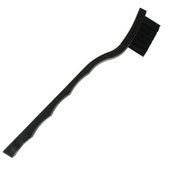
$2.99
4.9
473 reviews

$109.99
4.6
14 reviews
Rebuild your settings.json file
Sometimes, corrupted data in the LCHUB settings.json file can cause issues with your mouse's behavior while charging. In this case, it would be best to try rebuilding this file and clearing out any corrupted data.
- Exit G HUB completely.
- On Windows, navigate to C:\Users\[USERNAME]\AppData\Local\LGHUB, where [USERNAME] will be specific to your account. On MacOS, this will be ~/Library/Application Support/lghub.
- Find the settings.json file, create a copy, and back it up to a safe location on your computer. Ideally, the Desktop is a convenient place to store it.
- Delete the settings.json file in the LGHUB folder.
- Run G HUB.
To restore your settings, simply copy and paste the backup of your settings.json that you saved earlier into the C:\Users\[USERNAME]\AppData\Local\LGHUB folder.
Solution: Replace broken components where needed
If none of the above helps and the mouse behaves the same on another computer, the mouse itself may be faulty.
Important
Replacing damaged components will require some soldering knowledge. Consider taking a look at our Soldering Skills section and our guide for How To Use a Multimeter.
- Disassemble the mouse and look for any burnt or damaged components: Disassemble your mouse and make sure nothing is broken or otherwise damaged. If you observe any visible damage, the mouse's mainboard should be replaced.
- Replace your battery: Batteries are notorious for their high consumption. Although they typically die slowly and with diminishing power on time, a bunk battery might refuse to be recognized or charged. Replace your battery if the above suggestions don't work. Battery degradation is inevitable, especially for smaller devices like mice. Replacement batteries are available along with the necessary replacement guides.
- Faulty Charging Port: If cleaning the charging port does not resolve the issue, you may need to replace it. This will likely require you to get access to the main board of your mouse, as well as some Soldering Skills section.

- 5 minutesEasy
You're seeing solutions for Logitech Mouse. Select your model to find parts for your device.
Related Problems


8 common problems
View allDescribe your problem in your own words
