Click Image To Zoom


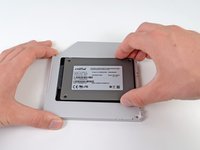
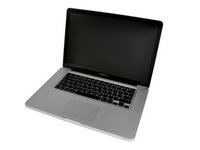
9.5 mm SATA Optical Bay SATA Hard Drive Enclosure

$59.95

Product code: IF107-080-1

Product Overview

Remember CDs? Man, those were cool. Some held music, some free trials of AOL. They made great coasters and unpredictable frisbees. Their shiny surfaces could keep small children entertained for hours… There were so many great uses for them.

It used to be that people would put them in their computers to store and transfer information. But that's silly! With how cheap hard drives are today, why even bother with those funny, shiny circles? There are much better things you can do with them.

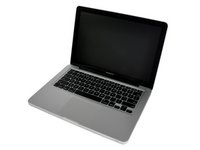
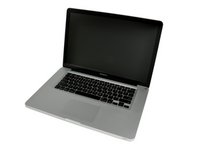
If you really want awesome storage, you should get this hard drive enclosure. It replaces your obsolete optical drive with an enclosure for adding a second hard drive, turning that biannually used optical drive into up to 750 GB of data storage! Any 2.5 inch SATA hard drive less than 9.5 mm thick can connect to this bay, and the new hard drive will behave just like any external drive, except that it will be way faster and considerably cooler. Also, whatever drive you use will be available via Target Disk Mode when connected to another Mac using Firewire.

Note: This enclosure does not work with ATA drives or hard drives thicker than 9.5 mm.

Compatibility

Identify your Mac

  • All Unibody MacBooks and Unibody MacBook Pros

Product Details

  $59.95 New


Condition:

New

Warranty:

6 month warranty

Add to Cart »

3 Available

Quantity:


Install Videos


Installation Guides

MacBook Pro 13" Unibody Early 2011

Difficulty: Moderate

MacBook Pro 13" Unibody Mid 2009

Difficulty: Moderate

MacBook Pro 15" Unibody Early 2011

Difficulty: Moderate

MacBook Pro 15" Unibody Mid 2009

Difficulty: Moderate

MacBook Pro 15" Unibody Mid 2010

Difficulty: Moderate

MacBook Pro 17" Unibody

Difficulty: Moderate

MacBook Unibody Model A1278

Difficulty: Moderate

MacBook Unibody Model A1342

Difficulty: Moderate


Compatibility

MacBook Pro 13" Unibody Early 2011
2.3 GHz (Early 2011)
2.7 GHz (Early 2011)
MacBook Pro 13" Unibody Mid 2009
2.26 GHz (Mid 2009)
2.53 GHz (Mid 2009)
MacBook Pro 13" Unibody Mid 2010
2.4 GHz (Mid 2010)
2.66 GHz (Mid 2010)
MacBook Pro 15" Unibody 2.53 GHz Mid 2009
2.53 GHz (Mid 2009)
MacBook Pro 15" Unibody Early 2011
2 GHz (Early 2011)
2.2 GHz (Early 2011)
2.3 GHz (Early 2011)
MacBook Pro 15" Unibody Late 2008 and Early 2009
2.4 GHz (Late 2008)
2.53 GHz (Late 2008)
2.66 GHz (Early 2009)
2.8 GHz (Late 2008)
2.93 GHz (Early 2009)
MacBook Pro 15" Unibody Mid 2009
2.66 GHz (Mid 2009)
2.8 GHz (Mid 2009)
3.06 GHz (Mid 2009)
MacBook Pro 15" Unibody Mid 2010
2.4 GHz (Mid 2010)
2.53 GHz (Mid 2010)
2.66 GHz (Mid 2010)
2.8 GHz (Mid 2010)
MacBook Pro 17" Unibody
2.53 GHz (Mid 2010)
2.66 GHz (Early 2009)
2.66 GHz (Mid 2010)
2.8 GHz (Mid 2009)
2.8 GHz (Mid 2010)
2.93 GHz (Early 2009)
3.06 GHz (Mid 2009)
MacBook Pro 17" Unibody Early 2011
2.2 GHz (Early 2011)
2.3 GHz (Early 2011)
MacBook Unibody Model A1278
2 GHz (A1278)
2.4 GHz (A1278)
MacBook Unibody Model A1342
2.26 GHz (A1342)
2.4 GHz (A1342)
 

Stories

My Problem

I use my computer for work, so I figure, if there's any way to make it better, it's almost always going to be worth it. I already installed 16GB of RAM, so I figured the next step was an SSD. I wanted the fastest I could get, but to get one big enough AND super fast would be extremely expensive. So I got a 240GB, 500MB/s one, and instead of replacing my hard drive, I used this to have both.

My Fix

In the end it all worked out well, but there were a couple issues. First, I figured since both my hard drive and optical bays were SATA 3, I could just put the SSD in the optical bay, and it would be less work. It's been said before, but I'll say it again: it doesn't work. For whatever reason, your SSD won't be recognized in the optical bay of a MacBook Pro. The other problem I had, was that the T6 screwdriver I got didn't actually fit the screws, it was too big. But I'm fairly certain that was just a bad screwdriver, because I got a T7 and that fit. Now I have 130 screwdrivers (they only sell them in sets at Canadian Tire). Otherwise the operation was pretty straightforward.

There is one issue I still have though: there is a bit of a buzzing sound when I play music loudly, at certain frequencies. I think this may be because to put the drive in the enclosure, I unscrewed the top of the enclosure, so I could push it in straight. After putting it back, it didn't fit together quite the same anymore; I think maybe it just wasn't made for that. I can't think of anything else that could be buzzing.

My Advice

1: Don't put a SATA 3 SSD in your optical bay; it won't work (hard drive will though).

2: Don't unscrew the top of this thing; it works fine to just put the drive in on the slight diagonal.

3: When putting those 3 torx screws back in, put one of the left ones in half way, then start the other one; otherwise you won't be able to start the other one.

My Problem

I destroyed my right fan. Then I noticed I do rarely use my CD. So why not to replace my CD with an SSD and put all the system and software on to the SSD and leave all personal data onto the original HD? The speed of my mac is now incredible. For example: CATIA CAD in Parallels with starts now within 20 seconds instead of 3 minutes! (MacBookPro)

My Fix

Without Problem! Only the screwdriver set i got additionally with an iPhone front cover is really a cheap solution and is worth nothing. But the iPhone front cover, the fan and the SSD installation set work well!

My Advice

Don't use the screwdriver from iFixit. You damage your screws. But repair guide and spare parts are excellent! Specially for the iPhone front cover I got few weeks ago.

My Problem

It wasn't really a problem, more of an upgrade. So I have a Mac Mini Server and a 13" Mac Book Pro. I find that I barely use the optical drive in my Mac Book Pro and decided to take it out and install a 500 GB HD from my Mac Mini Server in place of the optical drive by using the Optical Bay I got from ifixit. I noticed that the boot time for the Mac Book Pro got a little longer when I upgraded to Lion so I purchased a solid state drive and swapped it out with the boot drive. Now the Mac Book Pro boots up in like 3 seconds. The 320 GB boot drive from the Mac Book Pro is now the Boot drive for my Mini Server while using the second 500 GB drive as storage.

My Fix

The swapping process took awhile but with the help of ifixit, it went pretty smoothly. I used the Mac Mini Hard Drive Replacement guide and Macbook Pro Optical Drive Replacement guide to help me out. The 26 Piece Bit Driver Kit that I got from ifixit was very helpful.

My Advice

My advice is, take your time, there are a lot of small screws in both of these machines. If you do things too quickly you may end up losing some of them. And make sure you read over the repair guides once before starting the projects. And since both my laptop and desktop were down I couldn't use the guides online. Another recommendation is print the guides for reference.

My Problem

My 160GB HD was too small for my ever expanding Race Track Video collection. To top it off my MAC began to run slower, so adding a storage HD was a must.

My Fix

The repair went fine except some of the mounting holes had to be modified with a pair of needle nose pliers. The new 500GB HD boot up perfect and I moved over 110GB of music and video with no problems by configuring iMovie and iTunes to save to the new HD. Kudos iFix-it!!!!!!!!!!

My Advice

Do this if you do not use your optical drive!

My Problem

My computer is becoming older and older and I wanted to refresh it so i bought an ssd and a hard drive enclosure to keep my hdd

My Fix

The repair was really easy, following each step of the tutorial, it took me something like 15minutes to install the hard drive enclosure.

My Advice

This is easy! You should definitely do it!

My Problem

Just because your computer has a large hard drive with 7200 RPMs doesn't mean it's automatically going to sweep through everything in a flash. If you only have one hard drive installed on your machine, that means that one hard drive is doing all the work--it's performing the software functions as well as accessing files that you're working on. Depending on what kind of work you're doing and how many apps you're running simultaneously, this can be a lot of work for one set of hands to work on! By adding another hard drive to your machine and configuring it appropriately, you can add another set of hands to help share the workload.

I recently switched out my MacBook Pro's stock HDD for a 750GB 7200RPM drive and maxed my RAM to 8GB. Everything performed beautifully. But I still knew that my machine wasn't performing up to it's full potential. After doing some research, I decided that pairing an SSD with my existing HDD would unlock its full potential. The catch was that I would have to sacrifice my optical drive to make room. No problem. I never use it anyway!

My Fix

This repair is a bit more ambitious than just switching out a hard drive or swapping out RAM. Nevertheless, the guide made it simple to perform. Unfortunately, I got so caught up in getting the task done that I forgot to take pics! Anyway, after all was said and done, the machine performed just as I expected it to--record boot times and unparalleled performance in comparison to it's previous setup! Now I'd say that my MacBook Pro is flying the way it should be.

My Advice

If you want to unleash your Mac's true potential, a dual hard-drive setup is the way to go. I decided to pair a 60GB SSD (for speed) with a 750GB/7200RPM HDD (for storage). The SSD is dedicated solely to the OS and apps while the HDD is dedicated to things like my iTunes library, downloads, and photos. This allows the two drives to work simultaneously to their full potential, because one is handling the load of the software functions while the other one just accesses files. If you don't use your optical drive much, or at all, this is probably the best upgrade you can perform on a MacBook Pro.