Introduction
Follow this guide to replace a dead or worn-out battery in your Surface Pro 8 tablet.
If your Surface Pro 8 doesn't hold a charge, dies unexpectedly, or requires more frequent charging, it might be time to replace the battery.
If your battery is swollen, take appropriate precautions.
You'll need replacement screen adhesive, thermal paste, and possibly a thermal pad to complete this repair.
What you need
-
-
-
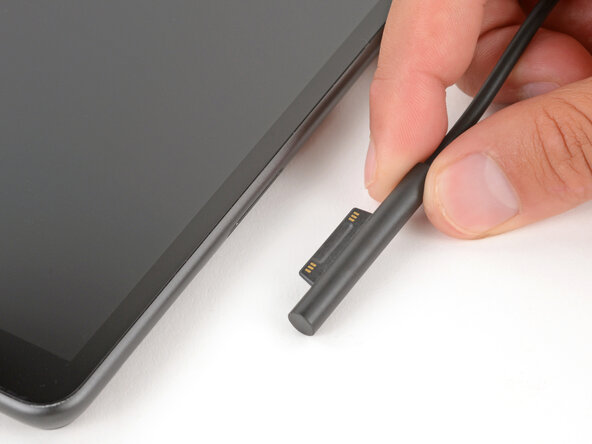
Unplug all cables and fully shut down your tablet.
-
If you have a keyboard attached, remove it.
 Ask FixBot
-
-
-
-
-
-
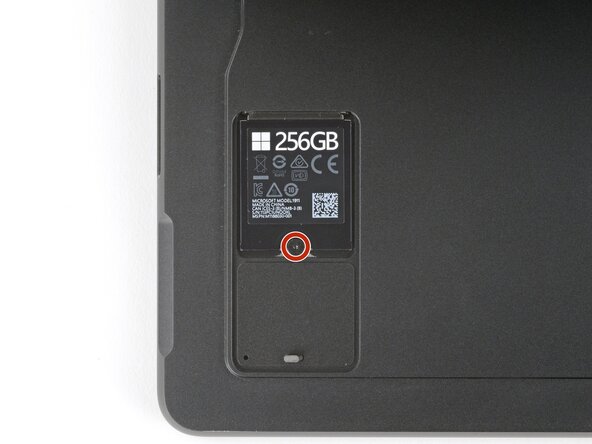
Firmly press a SIM eject tool into the small hole in the corner of the SSD door until it pops up.
-
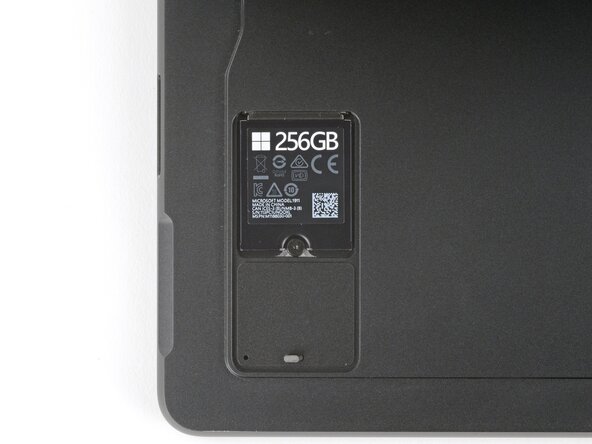
Remove the SSD door.
-
-
-
-
-
Use a Torx Plus 3IP screwdriver to remove the 2.3 mm‑long screw securing the SSD.
-
-
-
Use your fingers to pull the SSD out of its socket at a shallow angle.
-
-
-
-
-
Slide the SSD door back into its recess and press down on the bottom edge until it clicks into place.
-
-
-
Close the kickstand and flip your device over so the screen is facing up.
-
-
-
When separating the top edge adhesive, follow instructions carefully to avoid damaging the front camera.
-
To prevent inserting your pick too far, measure 8 mm from the tip and mark the opening pick with a permanent marker.
-
-
-
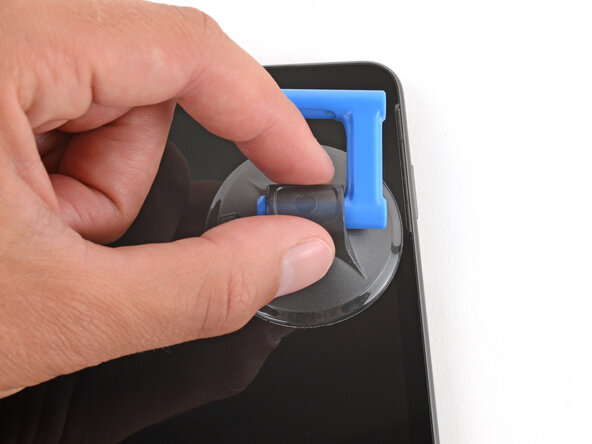
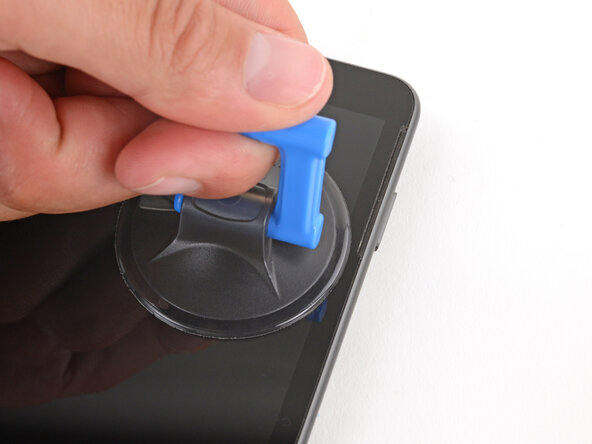
Apply a suction handle to the top right corner of the screen, near the bottom of the speaker cutout.
-
-
-
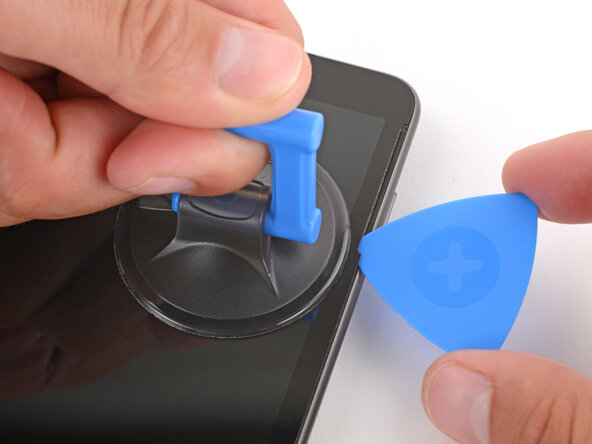
Pull up on the suction handle with strong, steady force until a gap forms between the screen and frame.
-
Insert the tip of an opening pick in the gap you just created.
-
-
-
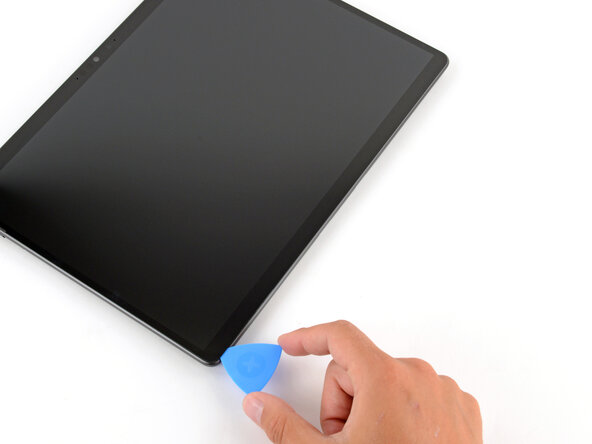
Slide the opening pick down the right edge and around the bottom right corner to separate the adhesive.
-
-
-
Slide the opening pick along the bottom edge and around the bottom left corner to separate the adhesive.
-
-
-
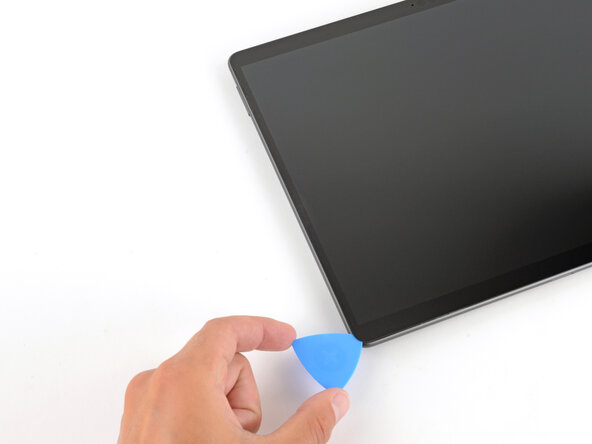
Slide the opening pick up the left edge to separate the adhesive.
-
-
-
-
Slide the opening pick along the top edge to separate the adhesive.
-
-
-
Once the screen is fully separated, slightly lift the top edge and flip the screen so it can lay flat.
-
Remove all the remaining adhesive liners, carefully holding the screen above your device as necessary.
-
Flip the screen over and align the bottom edge, using the frame's lip to properly orient it.
-
Once the bottom edge is properly aligned, lay the screen onto the frame.
-
Use your fingers to press down on the entire perimeter of the screen to secure it in the frame.
-
-
-
Use an arm of your tweezers to pry up and unclip the corners of the screen cable cover (on the screen itself, not in the device).
-
Remove the cover.
-
-
-
Use a spudger to pry up and disconnect the screen cable press connector.
-
-
-
Remove the screen.
-
Use a spudger and tweezers to scrape up and remove all the old screen adhesive from the frame. Clean up any residue with high-concentration (>90%) isopropyl alcohol and a coffee filter or lint-free cloth.
-
Before applying any screen adhesives, find their proper orientation on the frame. Use cutouts and notches in the adhesive to match each strip to its spot on the perimeter.
-
Carefully align and apply the adhesive strips to the frame—don't remove the remaining top liners on the strips.
-
Lay the screen upside down on the frame so you can reconnect its cable. The screen should be oriented so when you flip it over, the top edge of the screen is lined up with the top edge of the frame.
-
-
-
-
-
Use a spudger to lift the small, hinged locking flap on the fan's ZIF connector.
-
Grip the fan cable's plastic pull tab with tweezers and slide the cable fully out of its socket.
-
-
-
Slide the tip of a spudger under the tape on the top edge of the fan and lift to remove it.
-
-
-
Check if the speaker wire got disconnected near the top edge of the fan.
-
If it did, align the connector over its socket and push down with the flat end of a spudger to reconnect it—the connector should click into place.
-
-
-
Use a Torx Plus 3IP screwdriver to remove the 12 screws securing the fan and heat sink assembly:
-
Three 3.2 mm‑long light gray screws
-
One 2.0 mm‑long dark gray screw
-
Four 2.5 mm‑long silver screws
-
Four 2.5 mm‑long silver, CPU tensions screws securing the heatsink
-
-
-
Use a spudger to gently pry up on the heatsink along the top and bottom edges.
-
-
-
Use two hands to grip the fan and heatsink assembly close to the center and lift to remove it.
-
-
-
Use your fingers to gently remove the metal heat sink gasket and set it aside.
-
-
Tool used on this step:Silicone Thermal Pad$12.95
-
Follow this guide to clean the processor and thermal module and apply thermal paste.
-
Check the condition of the two thermal pads—one is just to the left of the CPU and the other is in the bottom right corner of the device.
-
Use a spudger to scrape up and remove the damaged pad(s). Clean up any residue with high-concentration (>90%) isopropyl alcohol and a coffee filter or lint-free cloth.
-
Cut the replacement thermal pads to size and put them in place.
-
-
-
-
-
Before starting your repair, unplug all cables and fully shut down your Surface Pro.
-
-
-
-
-
Use the flat end of a spudger to lift the battery connector cover until it separates.
-
Remove the connector cover.
-
-
-
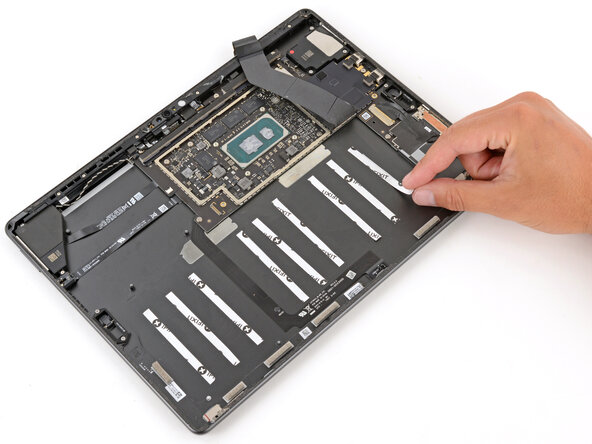
Eight strips of stetch-release adhesive secure the battery cells to the frame.
-
-
-
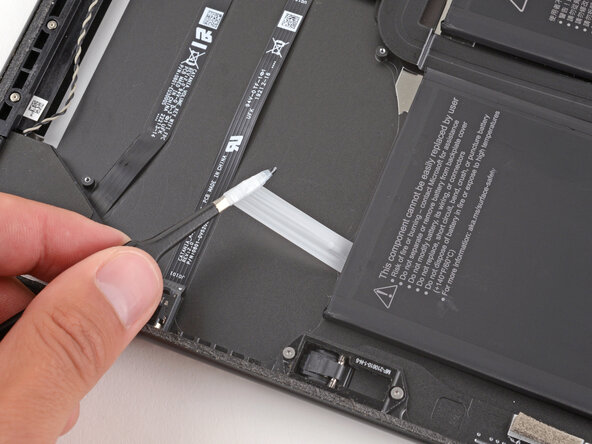
Slide the tip of an opening pick under one of the pull tabs and use your fingers to fully separate it from the battery.
-
-
-
Grip the pull tab with a pair of blunt-nose tweezers and slowly pull the strip out from under the battery at a shallow angle.
-
Twist the adhesive around the tweezers while continuing to pull until the whole strip comes out.
-
If a strip or its pull tab breaks off, use tweezers to try and retrieve it. If you can't reach it, leave it—a different method for separating any leftover adhesive will be shown later in the guide.
-
-
-
Remove the seven remaining adhesive strips from the top edge of the battery.
-
Because the motherboard is so close to the strips on the middle and right battery cells, you'll need to pull the strips out at an angle. Make sure they don't rub against the motherboard, or the strips may break.
-
-
-
Apply a couple drops of high-concentration (>90%) isopropyl alcohol along the top edge of the battery near the broken adhesive strips.
-
Prop up the top edge of the device so the alcohol flows under the battery.
-
Wait one minute to allow the alcohol to soften the adhesive.
-
-
Tool used on this step:Plastic Cards$2.99
-
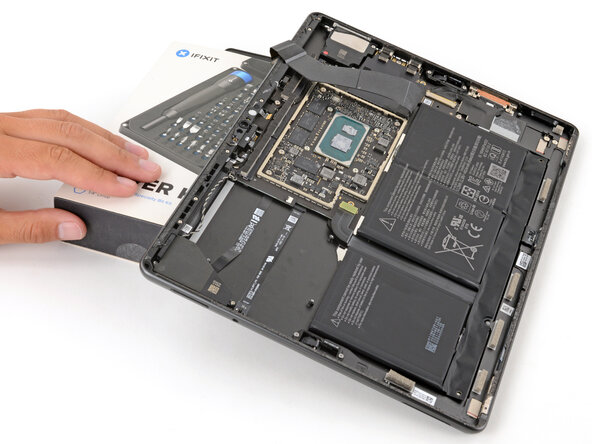
Insert a plastic card under the top edge of the battery where the adhesive strips broke off.
-
Slide the card under the battery and lift to separate the adhesive.
-
Repeat the last two steps to separate any other sections of the battery where the adhesive strips broke off.
-
-
-
Use two hands to grip the outer edges of the battery and remove it.
-
Check your replacement battery for any liners and remove them.
-
Remove all remaining adhesive liners from the battery and frame, so the battery adhesive is exposed.
-
Lay the battery into place, making sure the small cutouts on the bottom corners go over their alignment posts.
-
-
-
Remove any bits of adhesive strips left on the frame with tweezers or your fingers.
-
Use high-concentration (>90%) isopropyl alcohol to clean up any adhesive residue left on the frame.
-
If your battery doesn't come with adhesive pre-installed, you'll need to replace the adhesive. You can apply strips of thin, double-sided tape to the frame where the old adhesive was, or you can apply stretch-release adhesive to the battery.
-
-














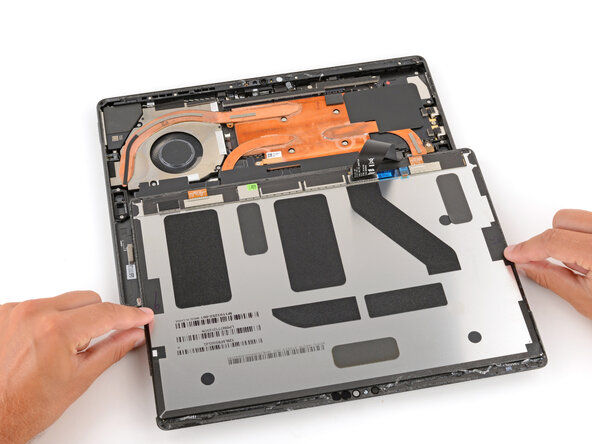


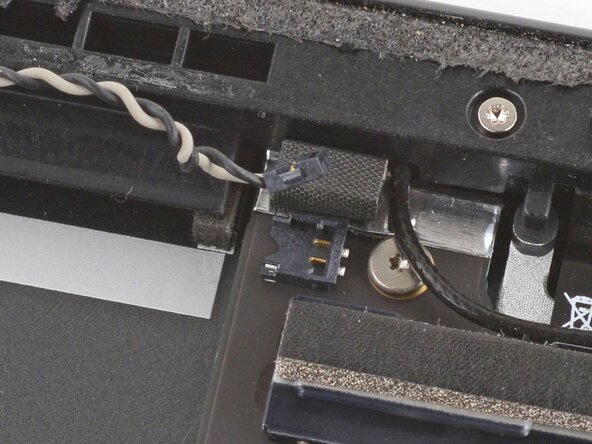


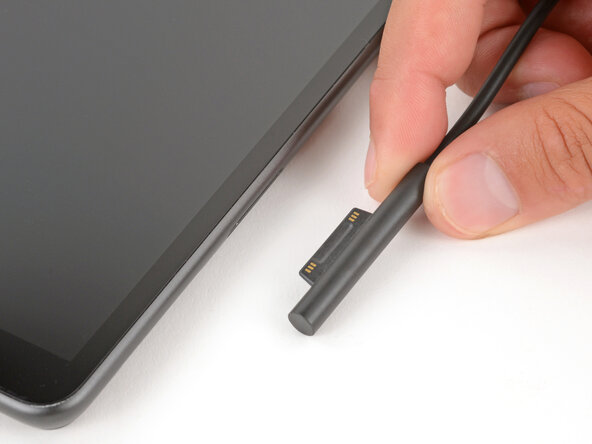


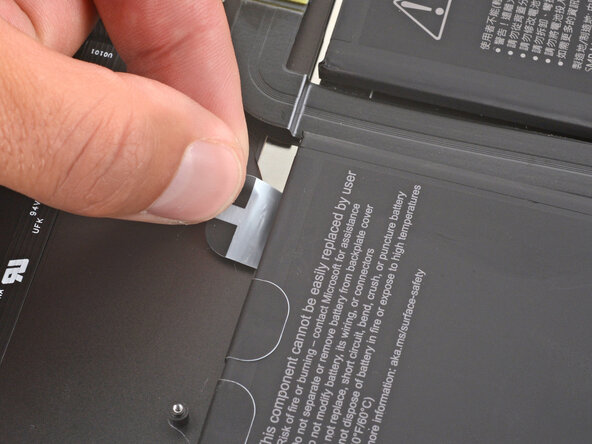








To reassemble your device, follow these instructions in reverse order.
Calibrate your newly installed battery after completing this guide.
Take your e-waste to an R2 or e-Stewards certified recycler.
Repair didn’t go as planned? Try some basic troubleshooting, or ask our Answers community for help.

2 Guide Comments
I don’t know if different manufacturing runs are the culprit (benefit of the doubt) but following this guide was an absolute disaster.
I have disassembled several iPads/iPhones without incident (all the ones I have tried), but doing this without heat was EXTREMELY inadvisable. I proceeded very slowly, with constant light pressure, and did not feel like I hit too much resistance - but it cracked at the very center of the bottom of the screen and it was nothing but snowball disaster from that point on.
My advice is to NOT even attempt to follow this guide without using heat to soften the glue. If you feel any resistance, it’s too much. The pic should ONLY glide through easily! Do not make my mistake and proceed anyway if it doesn’t!
I have a Microsoft window 8pro and the problem is the battery where are you located 8n Doha
