Free Shipping on Domestic Orders $75+
Causes
Batteries in devices are not foolproof; they have a certain number of charging cycles. Once they reach their limit, they decay rapidly. This is a very common problem when laptops do not power on.
- Hold your power button for 30 seconds, then wait to see if that will turn your screen on or any lights on your laptop.
- Batteries, especially Lithium-ion batteries, if they are damaged, can start to swell and create a bulge, making the battery not hold a charge. To check to see if your laptop's battery is bulging, view this guide.
- For Battery replacement refer please this Guide Lenovo 500e Chromebook 81ES Battery Replacement

Lenovo 500e Chromebook 81ES Battery Replacement
- 20 minutesModerate
- Laptops need an operating system to power on. If your SSD/HDD Hard Drive is corrupted or damaged, this could prevent your device from powering on.
- You can check your device's Hard Drive by plugging your computer into another computer and trying to see if you can transfer files from the working computer to the non-working laptop.
- You can also connect a USB stick to a USB port with your laptop's operating system loaded to see if you can upload the correct operating system.
When a computer fails to turn on, it may very well be due to the Motherboard failing or malfunctioning.
- Inspect the motherboard for any loose components and ensure that all components are in good condition and not damaged. If components are damaged, replace the damaged components.
- Follow the Step-by-Step guide [here] to repair or replace damaged components
- Check the Motherboard for proper cooling and ensure all gluing and soldering components are sealed correctly. And everything is connected correctly as well.
When a computer fails to turn on, it may be that the charging port, the USB-C in this case, may not be accepting power to charge the system.
- Inspect the USB-C port and ensure no water or dust has entered the port. If water and dust have entered the port, use a can of compressed air to clean the port out for about 30 seconds to 1 Minute and then test.
- Ensure that the USB-C port is not damaged. Try a different USB-C cable and check if the cable is the problem or if it's the port.
- Ensure that the cable and the computer are compatible and ensure that the USB-C cable is delivering the appropriate amount of power for that computer.
Related Problems

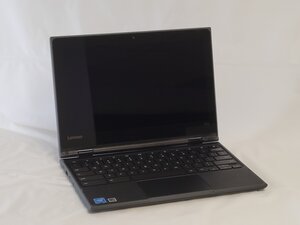
Lenovo 500e Chromebook 81ES
Find free step-by-step repair instructions, manuals, schematics, community support, and other DIY resources. You can do it! We show you how.
2 common problems
View allDescribe your problem in your own words
View statistics:
Past 24 Hours:1
Past 7 Days:10
Past 30 Days:34
All Time:321
