Free Shipping on Domestic Orders $75+
Causes
- Ensure that your device is on the latest software update, restart your Chromebook.
- Test in guest mode: Log into your Chromebook as a guest to determine whether the problem has to do with individual account keyboard settings.
- May require a hard reset, resetting the Chromebook hardware, including the keyboard and touchpad settings.
- If the Chromebook drivers are out of date, open "Device Manager" from the start menu. Navigate to the keyboard section and expand, and select "Uninstall" under each device. Upon restarting, these drivers will automatically be reinstalled at their latest version.
- In the case of a damaged keyboard, it may be required to repair or completely replace the keyboard.
- See Lenovo 14e Chromebook Keyboard Replacement Guide.

Lenovo 14e Chromebook Palm Rest Assembly Replacement
- 25 minutesDifficult
You're seeing solutions for Lenovo 14e Chromebook. Select your model to find parts for your device.
Related Problems

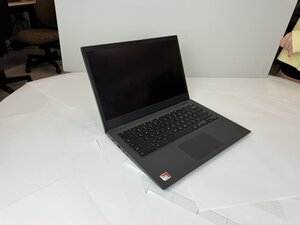
Lenovo 14e Chromebook
Find free step-by-step repair instructions, manuals, schematics, community support, and other DIY resources. You can do it! We show you how.
2 common problems
View allDescribe your problem in your own words
View statistics:
Past 24 Hours:1
Past 7 Days:4
Past 30 Days:31
All Time:254
