
iPhone 11 Pro Max Audio Control Cable Replacement

Jerry Wheeler and one other contributor
Last updated on Jun 12, 2026
Views: 2.3K
View statistics:
- Past 24 Hours:
- 8
- Past 7 Days:
- 54
- Past 30 Days:
- 316
- All Time:
- 2,278
Comments: 50
50 comments on steps.
Completed: 3 4
3 people have marked this guide "completed." Will you be next?
4 people have marked this guide "completed." Including you — great job!
Favorites: 2 3
2 people have favorited (and subscribed to) this guide. Will you be next?
3 people have favorited (and subscribed to) this guide — including you!
Community-Contributed Guide
An awesome member of our community made this guide. It was not created by iFixit staff.
Introduction
Go to step 1 ↓If your volume buttons or silent switch have quit working, replacing the Audio Control Cable may help. This cable also connects the wireless charging coil to the Lightning port assembly, so a damaged cable can also cause problems with wireless charging.
This guide will show you how to replace that cable. Note that it can be purchased with or without the charging coil already attached; if you are comfortable with a small amount of soldering, this is the guide to use. Otherwise you should purchase one already soldered to the charging coil and your homework will be to create the guide to that repair. The main difference is, of course, that you'll also have to remove the charging coil, which necessitates removal of the motherboard.
What you need


-
-
-
Power off your iPhone before beginning disassembly.
-
Remove the two 6.7 mm-long pentalobe screws at the bottom edge of the iPhone.
 Ask FixBot
-
-
-
-
-
Measure 3 mm from the tip and mark the opening pick with a permanent marker.
-
-
-
-
-
Lay overlapping strips of clear packing tape over the iPhone's screen until the whole face is covered.
-
If you can't get the suction cup to stick in the next few steps, fold a strong piece of tape (such as duct tape) into a handle and lift the screen with that instead.
-
-
-
To avoid damaging your screen in the next steps, note the following:
-
There's a plastic bezel on the underside of the screen. Your opening pick will go underneath this bezel.
-
There's a seam between the plastic bezel and the display panel. Don't insert your pick here or you'll damage the screen.
-
-
Tool used on this step:Clampy - Anti-Clamp$24.95
-
Pull the blue handle backwards to unlock the Anti-Clamp's arms.
-
Slide the arms over either the left or right edge of your iPhone.
-
Position the suction cups near the bottom edge of the iPhone—one on the front, and one on the back.
-
Squeeze the cups together to apply suction to the desired area.
-
-
-
Pull the blue handle forward to lock the arms.
-
Turn the handle clockwise 360 degrees or until the cups start to stretch.
-
Make sure the suction cups remain aligned with each other. If they begin to slip out of alignment, loosen the suction cups slightly and realign the arms.
-
-
-
Heat an iOpener and thread it through the arms of the Anti-Clamp.
-
Fold the iOpener so it lays on the bottom edge of the iPhone.
-
Wait one minute to give the adhesive a chance to release and present an opening gap.
-
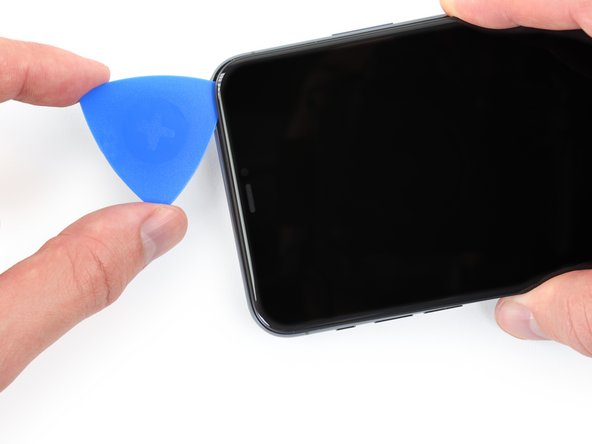
Insert an opening pick into the gap under the screen and the plastic bezel, not the screen itself.
-
Skip the next three steps.
-
-
-
Use a hairdryer or heat gun or prepare an iOpener and apply it to the lower edge of the iPhone for about a minute in order to soften up the adhesive underneath.
-
-
-
If you're using a single suction handle, apply it to the bottom edge of the phone, while avoiding the curved portion of the glass.
-
-
-
Pull up on the suction cup with firm, constant pressure to create a slight gap between the front panel and rear case.
-
Insert an opening pick into the gap.
-
-
-
Slide the opening pick around the lower left corner and up the left edge of the iPhone, slicing through the adhesive holding the display in place.
-
-
-
Re-insert your pick at the bottom edge of the iPhone, and slide it up the right side to continue separating the adhesive.
-
-
-
Gently pull the right edge of the display down slightly (in the direction of the Lightning port).
-
Insert your pick into the top-right corner of the phone.
-
-
-
Continue pulling the display down (toward the Lightning port) as needed in order to make a gap large enough for the pick.
-
Slide the pick to the top left corner and cut any remaining adhesive securing the display.
-
-
-
Pull on the small nub on the suction cup to remove it from the front panel.
-
-
-
Open the iPhone by swinging the display up from the left side, like the back cover of a book.
-
Lean the display against something to keep it propped up while you're working on the phone.
-
-
-
-
Tool used on this step:Magnetic Project Mat$19.95
-
Remove two 1.3 mm long Y000 screws securing the battery cover bracket.
-
-
-
Use a spudger or a clean fingernail to pry the battery connector up from its socket on the logic board.
-
Bend the connector slightly away from the logic board to prevent it from accidentally making contact with the socket and providing power to the phone during your repair.
-
-
-
Use a Y000 driver to remove six 1.3 mm screws securing the logic board cover bracket.
-
-
-
Use a spudger or a fingernail to disconnect the OLED panel cable connector.
-
-
-
Use a spudger or a fingernail to disconnect the front sensor assembly cable connector.
-
Use a spudger or a fingernail to disconnect the digitizer cable connector.
-
-
-
-
-
Use a Y000 driver to remove the four 1.2 mm screws securing the lower battery connector cover.
-
-
-
Use a spudger to disconnect the lower battery flex cable by prying it straight up from its socket.
-
-
-
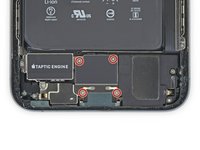
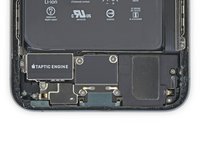
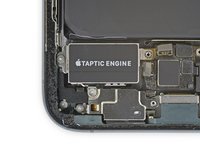
Use a spudger to disconnect the Taptic Engine flex cable by prying it straight up from its socket.
-
-
Tool used on this step:Standoff Screwdriver for iPhones$5.49
-
Remove the three screws securing the Taptic Engine:
-
One 2.0 mm-long Y000 screw
-
One 1.6 mm-long Y000 screw
-
One 4.0 mm-long standoff screw
-
-
-
-
-
Use a Y000 driver to remove the three 1.3 mm screws securing the Lightning flex cable bracket.
-
-
-
Pry up to disconnect both of the Lightning flex cable connectors from the Logic board.
-
-
-
Gently lift the Lightning flex cable and bend it slightly toward the bottom edge of the iPhone for better access to the battery underneath.
-
-
-
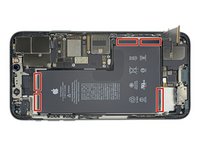
Each piece of adhesive has one or two black pull-tabs at the end, which are lightly adhered to the side edges of the battery.
-
-
-
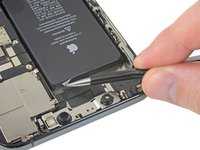
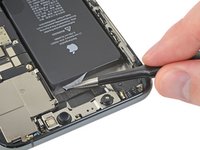
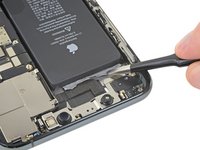
Peel down the first battery adhesive pull-tab to un-stick it from the bottom edge of the battery.
-
-
Tool used on this step:Tweezers$4.99
-
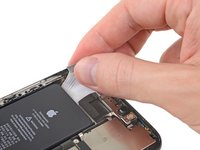
Grab the pull tab with your fingers and slowly pull it away from the battery, toward the bottom of the iPhone.
-
Pull hard enough to maintain tension on the strip, but don't force it. Give it plenty of time to stretch and un-stick from under the battery.
-
Don't press down on the battery. Hold the iPhone firmly by its sides.
-
Keep the strip flat and unwrinkled. Try to pull evenly on the whole strip, rather than pulling mainly in the middle or on one side.
-
Pull at a low angle so the strip doesn't snag on the edge of the battery.
-
If the adhesive strip breaks off, try to retrieve it using your fingers or blunt tweezers, and continue pulling—but do not pry under the battery.
-
-
-
Peel down the battery adhesive pull tabs to un-stick them from the top edge of the battery.
-
-
-
-
Grab both pull tabs at the same time, and slowly pull to stretch the adhesive away from the battery, toward the top of the iPhone.
-
Follow the same procedure as with the previous strip: don't press down on the battery, keep the strip flat and unwrinkled, and pull at a low angle.
-
If the adhesive strip breaks off, try to retrieve it using your fingers or blunt tweezers, and continue pulling—but do not pry under the battery.
-
-
-
Peel up the two remaining battery adhesive pull-tabs to un-stick them from the right edge of the battery.
-
-
-
Using the same procedure as before, pull both tabs at the same time to stretch and remove the remaining adhesive strip holding the battery in place. Try not to snag the adhesive on the edge of the iPhone.
-
If you removed all the adhesive strips successfully, skip the next step.
-
Otherwise, continue with the next step below.
-
-
-
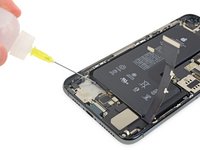
If you're still having trouble removing the battery, apply a few drops of high concentration (over 90%) isopropyl alcohol under the edge of the battery in the area of the broken adhesive strip(s).
-
Wait about one minute for the alcohol solution to weaken the adhesive.
-
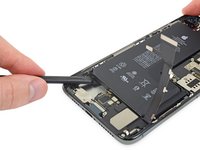
Use the flat end of a spudger to gently lift the battery.
-
-
-
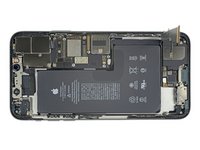
Remove the battery.
-
If there's any alcohol solution remaining in the phone, carefully wipe it off or allow it to air dry before installing your new battery.
-
Adhere the battery, disconnect it, and continue reassembling your device.
-
-
-
-
-
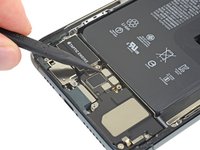
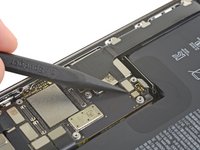
Use a small spudger to unplug the audio control / wireless charging coil cable.
-
-
-
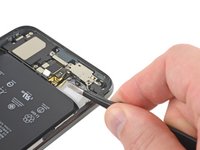
The flex cable is lightly adhered to the case; using heat will make it easier, but is not really necessary.
-
-
-
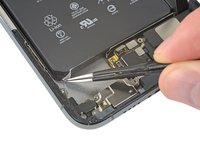
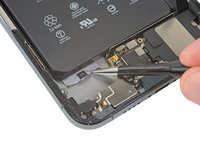
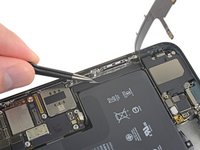
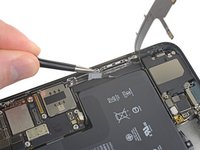
The wide spot in the cable marks the location of the solder joint. Heat it with your soldering iron while carefully lifting it as the solder melts.
-
-
-
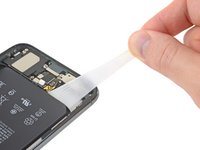
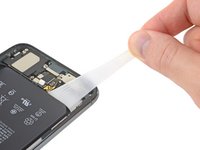
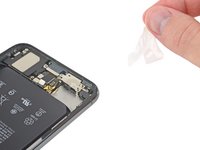
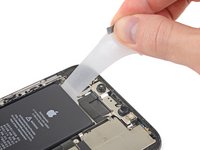
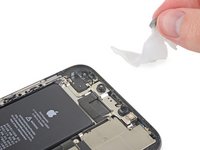
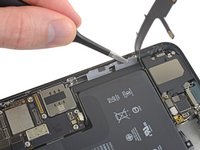
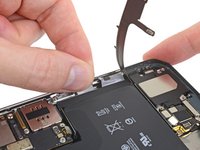
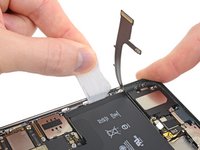
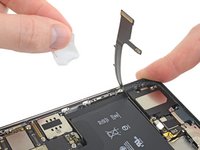
Peel off the plastic strip from the inside edge of the case. It is only lightly adhered.
-
-
-
Use your favorite heating method (a hair dryer is used here) to soften the adhesive holding the delicate cable to the rear of the case.
-
-
-
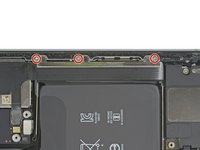
Remove the four 2.4 mm Phillips 000 screws securing the silent switch and volume buttons.
-
-
-
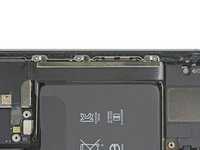
Loosen but do not attempt to remove the silent/ring switch, as its cable is still adhered to the case.
-
-
-
Again, after applying heat as needed, carefully peel the cable connecting the silent switch to the volume buttons from the case.
-
-
-
Apply solder flux to both coil connections on the replacement cable.
-
Tin both points with a coating of solder.
-
-
-
Rotate the slide switch down until the hinge pins are visible.
-
Lift the switch straight up.
-
-
-
Place the slide switch into position on the side of the silent switch nearest the flex cable.
-
Rotate the slide switch into position.
-
-






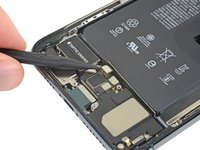


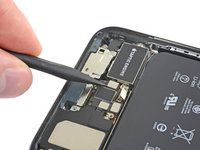
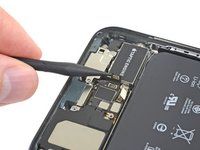


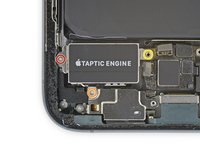




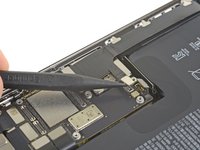
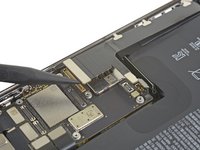


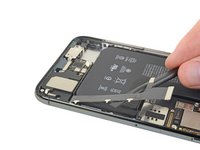
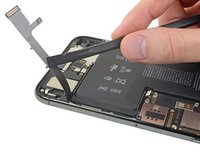


















To reassemble your device, return to Step 53 and follow the remaining instructions in reverse order.
Cancel: I did not complete this guide.
3 other people completed this guide.

