Free Shipping on Domestic Orders $75+

How to Use the Anti-Clamp

What you need

  1. How to Use the Anti-Clamp, Prepare your device: step 1, image 1 of 3 How to Use the Anti-Clamp, Prepare your device: step 1, image 2 of 3 How to Use the Anti-Clamp, Prepare your device: step 1, image 3 of 3
    • The Anti-Clamp needs smooth, even surfaces for its suction cups to adhere to.

    • If your device has cracked glass or a slippery surface, follow this guide to apply the included tape pad.

    • Packing tape also works to cover a cracked display.

    • If your back glass is badly shattered, the tape might damage it further. Refer to your specific guide to use a suction handle instead.

    • If your device can be opened from both its screen and back cover, follow this guide to apply the included tape strips.

    Ask FixBot

    Add Comment

  2. How to Use the Anti-Clamp, Unlock the arms: step 2, image 1 of 2 How to Use the Anti-Clamp, Unlock the arms: step 2, image 2 of 2
    Tool used on this step:
    Clampy - Anti-Clamp

    $24.95
    Buy
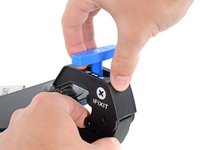
    • Pull the blue handle backward to disengage the arms of the Anti-Clamp.

    • The handle may be stiff the first time you unlock the arms.

    Ask FixBot

    Add Comment

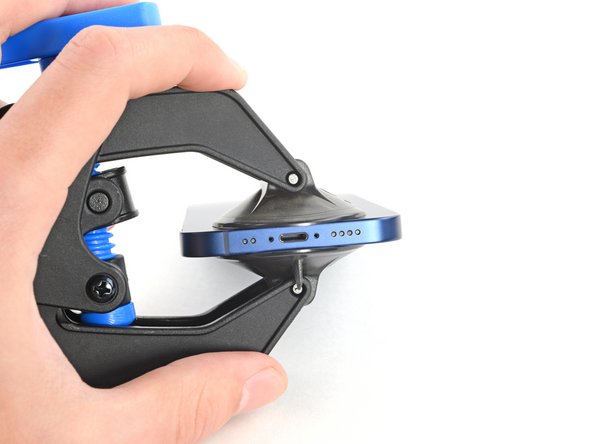
  3. How to Use the Anti-Clamp, Center the suction cups: step 3, image 1 of 3 How to Use the Anti-Clamp, Center the suction cups: step 3, image 2 of 3 How to Use the Anti-Clamp, Center the suction cups: step 3, image 3 of 3
    • Rotate the Anti-Clamp to the side so it doesn't obscure your starting edge. Refer to your original guide for which edge to start with.

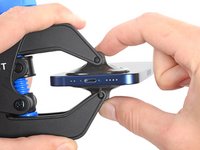
    • Center the suction cups over a smooth area of the device near the starting edge.

    • Avoid buttons, gaps, seams, and speakers, as they will prevent a good hold.

    Ask FixBot

    Add Comment

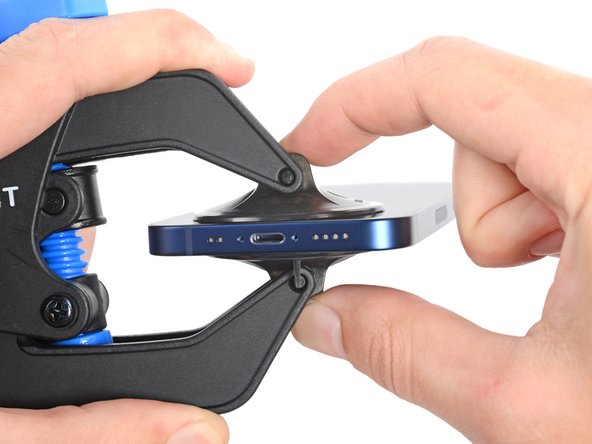
  4. How to Use the Anti-Clamp, Secure the suction cups: step 4, image 1 of 2 How to Use the Anti-Clamp, Secure the suction cups: step 4, image 2 of 2
    • Squeeze the suction cups together to secure them to the device.

    • If the cups are stiff and hard to secure, use your hands to warm them up.

    Ask FixBot

    Add Comment

  5. How to Use the Anti-Clamp, Alignment information: step 5, image 1 of 2 How to Use the Anti-Clamp, Alignment information: step 5, image 2 of 2
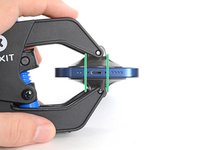
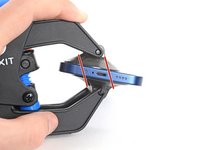
    • The suction cups need to be aligned with each other for the Anti-Clamp to work properly.

    • Improper alignment may cause the cups to separate prematurely. Pull the cups off the device using their pull tabs and re-center them.

    Ask FixBot

    Add Comment

  6. How to Use the Anti-Clamp, Lock the arms: step 6, image 1 of 2 How to Use the Anti-Clamp, Lock the arms: step 6, image 2 of 2
    • Push the blue handle forward to lock the arms.

    Ask FixBot

    Add Comment

  7. How to Use the Anti-Clamp, Support your device: step 7, image 1 of 1
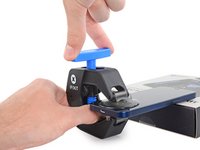
    • Place a support under your device so the Anti-Clamp stands upright without being held in place.

    Ask FixBot

    Add Comment

  8. How to Use the Anti-Clamp, Apply tension: step 8, image 1 of 2 How to Use the Anti-Clamp, Apply tension: step 8, image 2 of 2
    • Most adhesives separate under constant tension rather than more force. Take your time during this process to avoid breaking the suction cups free or violently opening your device.

    • Twist the handle clockwise one full rotation (360 degrees) or until the cups begin to stretch.

    Ask FixBot

    Add Comment

  9. How to Use the Anti-Clamp, Heat your device: step 9, image 1 of 2 How to Use the Anti-Clamp, Heat your device: step 9, image 2 of 2
    • For smaller devices, thread a heated iOpener through the arms of the Anti-Clamp to heat your device.

    • For larger devices, or iPhone models 12 and newer, use a hair dryer or a heat gun to soften the adhesive along your starting edge.

    • iPhone models 12 and newer have a tougher adhesive that the iOpener is less effective at opening than a hair dryer or heat gun.

    • Be careful not to overheat your device. The edge should feel slightly too hot to touch.

    Ask FixBot

    Add Comment

  10. How to Use the Anti-Clamp, Open your device: step 10, image 1 of 3 How to Use the Anti-Clamp, Open your device: step 10, image 2 of 3 How to Use the Anti-Clamp, Open your device: step 10, image 3 of 3
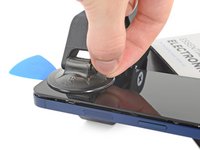
    • Wait one minute to give the adhesive a chance to release and present a gap.

    • If the Anti-Clamp doesn't separate the adhesive after one minute, apply more heat and wait another minute. Be patient and let the Anti-Clamp do the work for you.

    • If, after several rounds of heating, the device doesn't show any signs of opening, twist the knob one quarter-turn.

    • Don't twist the knob more than three additional quarter-turns. Only use additional heat at this point. The more you twist the knob, the more likely the device is to suddenly pop open.

    Ask FixBot

    Add Comment

  11. How to Use the Anti-Clamp, Insert an opening pick: step 11, image 1 of 1
    • Insert an opening pick into the gap created by the Anti-Clamp.

    Ask FixBot

    Add Comment

  12. How to Use the Anti-Clamp, Remove the Anti-Clamp: step 12, image 1 of 3 How to Use the Anti-Clamp, Remove the Anti-Clamp: step 12, image 2 of 3 How to Use the Anti-Clamp, Remove the Anti-Clamp: step 12, image 3 of 3
    • Pull the blue handle backward to the unlock icon to disengage the arms.

    • Pull the suction cups off of the device using their pull-tabs.

    • Remove the Anti-Clamp and set your device on a flat surface.

    Ask FixBot

    Add Comment

  13. How to Use the Anti-Clamp, Finish opening your device: step 13, image 1 of 1
    • Return to your original guide and continue disassembly, skipping any steps that open the device with a suction handle.

    Ask FixBot

    Add Comment

Conclusion

For other general electronics skills guides, click here.

For a fun way to decorate your Anti-Clamp, click here.

Cancel: I did not complete this guide.

126 other people completed this guide.

Alex Diaz-Kokaisl

Member since: 01/16/22

240,601 Reputation

1,180 Guides authored

Team

iFixit Member of iFixit

Staff

122 Members

26,514 Guides authored

11 Guide Comments

Very clear step-by-step guide. The next time I do a battery replacement I intend to use one of these.

4surferboy - Reply Share

Engaging the Opening Mode the first time takes a bit of a push, don't be afraid, keep pushing until you hear a click. Seems to be easier to engage after the first time.

Ed Reeder - Reply Share

Hi Ed,

Thanks for the helpful feedback! I've implemented your note into the guide step.

Arthur Shi - Reply Share

Looks like an answer to a problem that I don't have right now but I plan to purchase one of these before I do any more battery replacements.

glynn - Reply Share

I used mine to open a Samsung Galaxy Tab A7 tablet. Very frustrating, seemed like you needed three hands to put it in place (though later I found a better procedure). The OEM case glue was quite powerful (used a heating pad to get the tablet Very hot). The Anti-Clamp had difficulty holding to the back of the case and kept losing its grip. I didn't try the packing tape trick, just now noticed it. I mainly used the top suction cup just by itself.

The replacement battery had a very long battery cable and didn't lay flat, which caused a bright spot on the display where the cable "kink" was. So time to remove the case again. This time I stuck each suction cup individually, screen side first, the case - firmly pressing each cup flat after placement. No need to "fight" the Anti-Clamp to get it in place, plus I think I got a better hold with the cups. The B-7000 glue I used was much easier to break loose than the OEM case glue.

To loosen the suction cups I slid an opening pick under the edge of the cup.

Ed Reeder - Reply Share

Add Comment

View Statistics:

Past 24 Hours: 52

Past 7 Days: 246

Past 30 Days: 1,087

All Time: 64,140