Introduction
The reason of pink vertical line to appear is short circuit caused by grounding pin. Over the time the pin pierce display flex cable.
The pink line problem develops not fast. At the beginning you can fix the pink line by tweezing the phone. At this stage there is a possibility to save the screen and some money. The main idea is to remove the pin or cut it's sharp head.
In case tweezing does not help anymore, probably the flex cable is damaged permanently and the screen assembly should be replaced.
Please follow to Step 23
-
-
-
Unplug all cables from your phone.
-
Completely power off your phone.
 Ask FixBot
-
-
-
-
-
Measure 3 mm from the tip and mark the opening pick with a permanent marker.
-
-
-
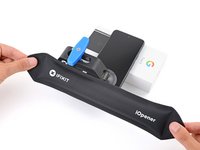
Heat an iOpener and lay it on the bottom edge of the screen for two minutes to soften the adhesive.
-
-
Tool used on this step:Clampy - Anti-Clamp$24.95
-
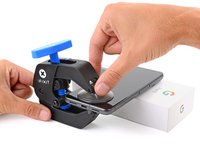
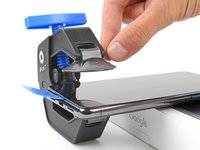
Pull the blue handle backwards to unlock the Anti-Clamp's arms.
-
Place your phone screen side up on an object so it will rest level between the Anti-Clamp's arms—the bottom edge should be hanging off.
-
Slide the arms over the left edge of your phone, so you have access to the bottom edge.
-
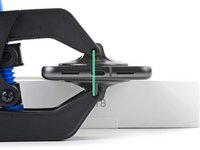
Position the suction cups as close to the center of the bottom edge as possible.
-
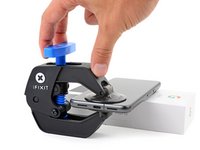
Squeeze the cups together to create suction.
-
-
-
Pull the handle forward to lock the arms.
-
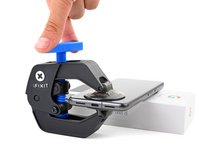
Turn the handle clockwise one full turn (360 degrees), or until the suction cups begin to stretch.
-
As the cups stretch, make sure they stay aligned with each other. If they keep slipping, remove the Anti-Clamp and apply tape for the cups to stick to.
-
-
-
Wait one minute for a gap to form between the screen and frame.
-
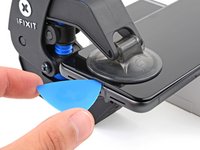
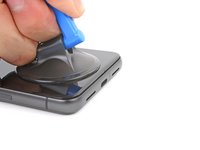
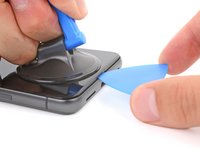
Insert an opening pick into the gap.
-
Pull the blue handle backwards to unlock the arms and remove the Anti-Clamp using the pull tabs on the suction cups.
-
Skip the next two steps.
-
-
-
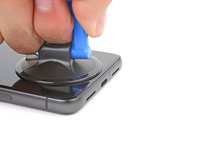
Apply a suction handle to the center of the screen's bottom edge.
-
-
-
Pull up on the suction handle with strong, steady force until a gap forms between the screen and frame.
-
Insert an opening pick into the gap.
-
-
-
The screen cable is a little less than halfway up the left edge of the phone. Be very careful here to avoid tearing the cable.
-
There are many spring contacts around the perimeter of the phone. Be very careful in these areas to avoid bending the contacts.
-
-
-
-
Slide the opening pick along the bottom edge to separate the adhesive securing it.
-
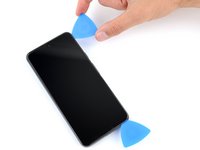
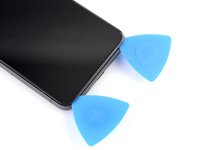
Leave the pick in the bottom right corner to prevent the adhesive from resealing.
-
-
-
Apply a heated iOpener to the right edge of the screen for two minutes.
-
-
-
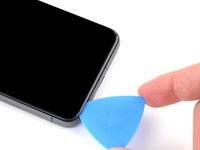
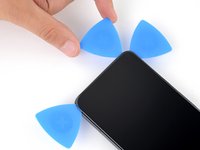
Insert a second opening pick under the bottom right corner of the screen.
-
Slide the new pick to the top right corner to separate the adhesive securing the screen's right edge.
-
Leave the pick in the top right corner to prevent the adhesive from resealing.
-
-
-
Insert a third opening pick under the bottom edge of the screen.
-
Slide the new pick to the bottom left corner.
-
Leave the pick in the bottom left corner to prevent the adhesive from resealing.
-
-
-
Apply a heated iOpener to the left edge of the screen for two minutes.
-
-
-
Insert a fourth opening pick under the bottom left corner of the screen.
-
Slide the new pick to the top left corner to separate the adhesive securing the screen's left edge.
-
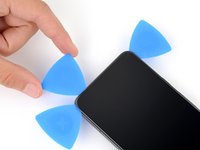
Leave the pick in the top left corner to prevent the adhesive from resealing.
-
-
-
Apply a heated iOpener to the top edge of the screen for two minutes.
-
-
-
Insert a fifth opening pick under the top edge of the screen, near the left corner.
-
Slide the opening pick to the top right corner to separate the adhesive securing the screen's top edge.
-
-
-
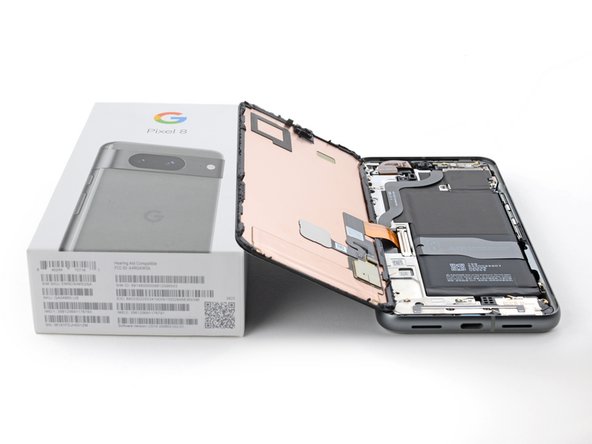
Place a small box or stack of books to the left of your phone so you can prop up the screen while disconnecting its cable.
-
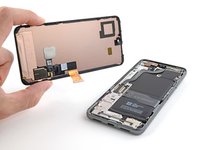
Swing up the right edge of the screen like the front cover of a book.
-
Prop up the screen so you can access the screen cable.
-
-
-
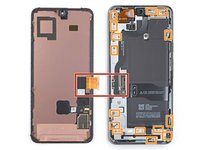
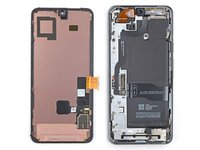
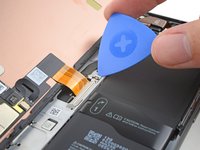
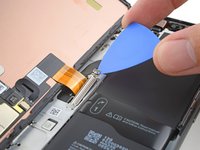
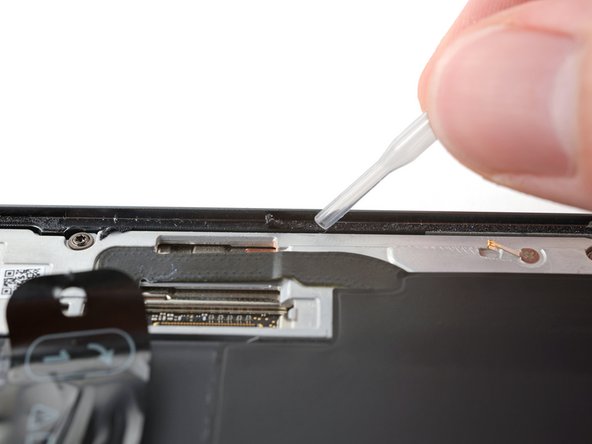
Use an opening pick to pry up the upper edge of the screen cable cover.
-
Remove the cover.
-
-
-
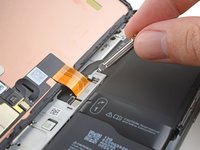
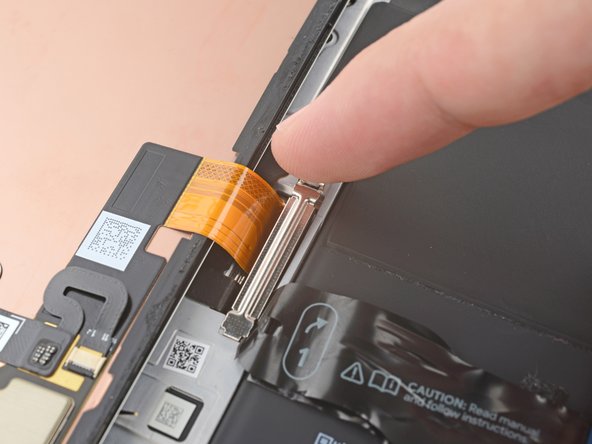
Insert the point of a spudger under the top left corner of the screen's press connector.
-
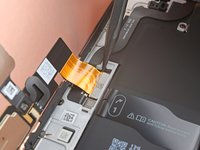
Gently pry up and disconnect the cable.
-
Remove the screen.
-
-
-
When handling your screen, grip it by its edges.
-
When placing the screen on your work area, make sure nothing is touching the bottom of the screen. Consider placing it on a soft, lint-free cloth.
-
-
-
Use the flat end of a spudger to scrape up and remove all the old adhesive from the frame.
-
-
Tool used on this step:Microfiber Cleaning Cloths$3.99
-
Once you've removed all the old adhesive, apply a few drops of highly-concentrated (greater than 90%) isopropyl alcohol to any residue left on the frame and wipe it away with a microfiber or lint-free cloth.
-
-
-
Use the pull tabs to remove the liners covering the front camera cutout, the rear camera pad, the back of the screen, and the perimeter adhesive.
-
Reconnect the screen cable and reinstall its cover.
-
This is a good point to test your phone before sealing it up. Temporarily power on your phone and make sure it works as expected. Power it down before continuing.
-
Firmly press the screen into place on the frame. You should feel the clips "pop" into place.
-
Press firmly around the perimeter of the screen to secure it with the new adhesive.
-
Follow this guide to calibrate the fingerprint sensor.
-
-
-
-
-
The reason of pink vertical line to appear is short circuit caused by grounding pin. Over the time the pin pierce display flex cable.
-
The pink line problem develops not fast. At the beginning you can fix the pink line by tweezing the phone.
-
At this stage there is a possibility to save the screen and some money. The main idea is to remove the pin or cut it's sharp head.
-
In case tweezing does not help anymore, probably the flex cable is damaged permanently and the screen assembly should be replaced.
-
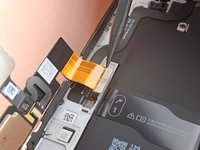
Open the phone follow the instruction from iFixit. Remove the pin or cut it's sharp head. Assemble the phone back follow the iFixit instructions
-
-















































To reassemble your device, follow these instructions in reverse order.
Cancel: I did not complete this guide.
One other person completed this guide.

