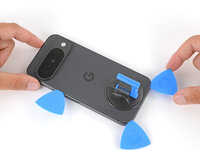
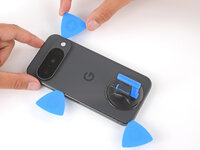
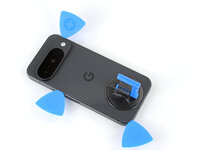
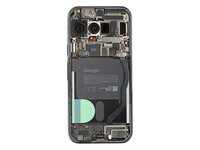
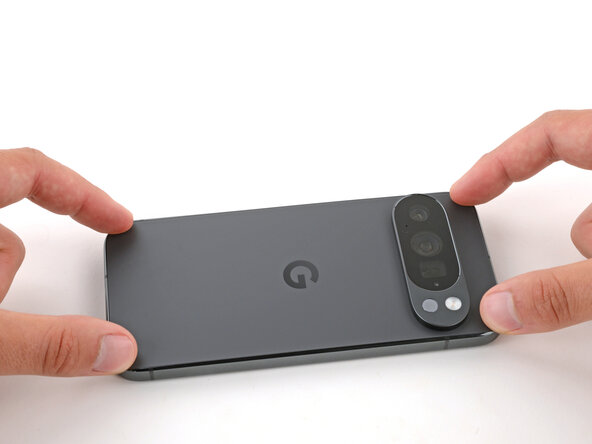
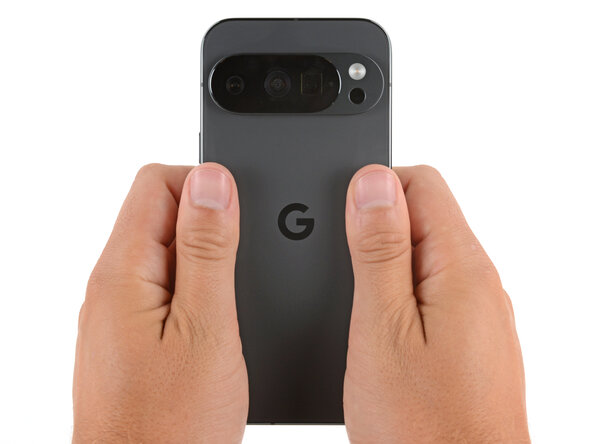
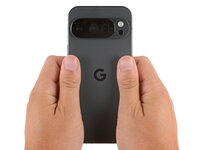
Google Pixel 10 Pro Bottom Speaker Replacement

What you need

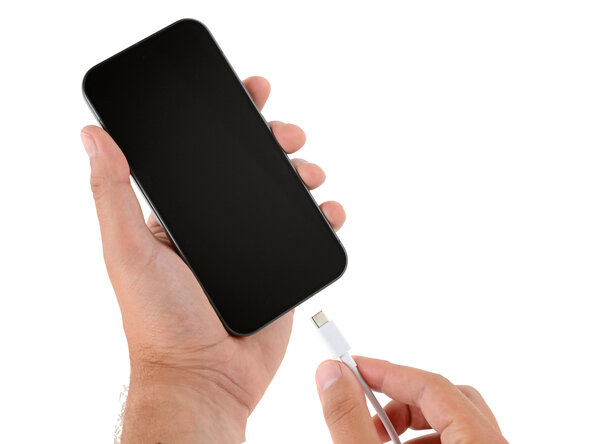
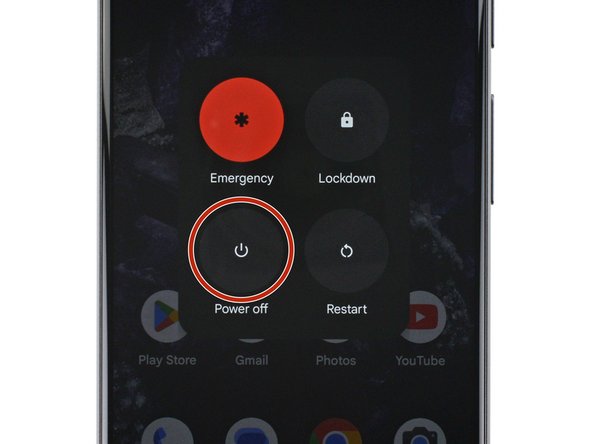
  1. Google Pixel 10 Pro Bottom Speaker Replacement, Prepare your Pixel for disassembly: step 1, image 1 of 2 Google Pixel 10 Pro Bottom Speaker Replacement, Prepare your Pixel for disassembly: step 1, image 2 of 2
    • Let your Pixel's battery drain below 25% before starting this repair. A charged lithium‑ion battery may catch fire if damaged.

    • Unplug all cables and completely power down your phone.

  2. Google Pixel 10 Pro Bottom Speaker Replacement, Cracked glass preparation: step 2, image 1 of 3 Google Pixel 10 Pro Bottom Speaker Replacement, Cracked glass preparation: step 2, image 2 of 3 Google Pixel 10 Pro Bottom Speaker Replacement, Cracked glass preparation: step 2, image 3 of 3
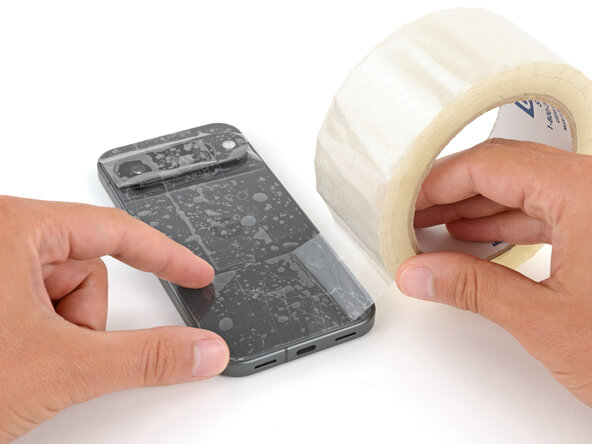
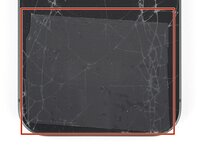
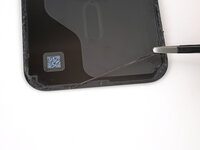
    • Glass shards can complicate disassembly—or worse, cause injury. If your phone's back glass is cracked, follow this step.

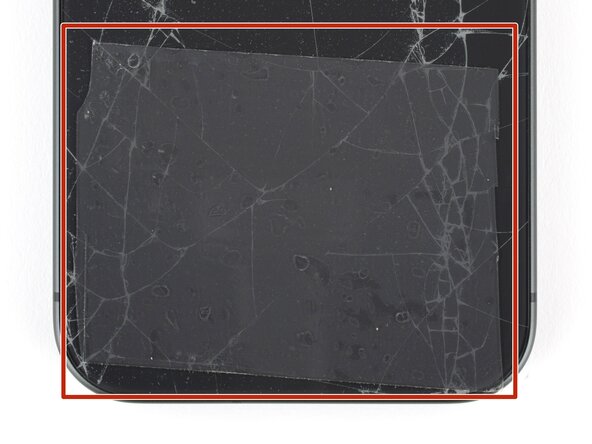
    • Apply strips of packing tape to the cracked glass until it's completely covered—this will help keep the glass contained and allow the suction cup to stick.

    • Make sure there's a single strip (not overlapping) of tape across the bottom edge, big enough for a suction cup to fit on.

    • Only cover the glass itself—don't stick any tape to the frame.

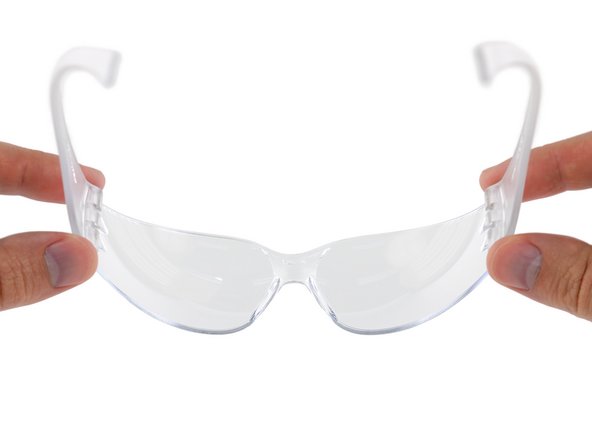
    • Consider wearing safety glasses to protect your eyes from any glass shaken free during the repair.

  3. Google Pixel 10 Pro Bottom Speaker Replacement, Heat the bottom edge: step 3, image 1 of 1
    • Adhesive secures the back glass to the frame. Heating the glass softens the adhesive, making it easier to separate.

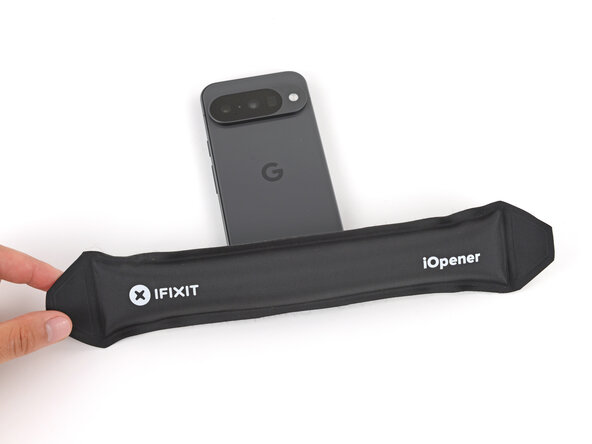
    • Heat an iOpener and lay it on the bottom edge of the back glass for two minutes.

    • Alternatively, you can use a hair dryer or heat gun to heat the back glass.

    • Improper use of a heat gun can destroy the display and/or battery—follow the linked instructions carefully.

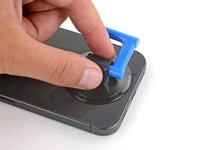
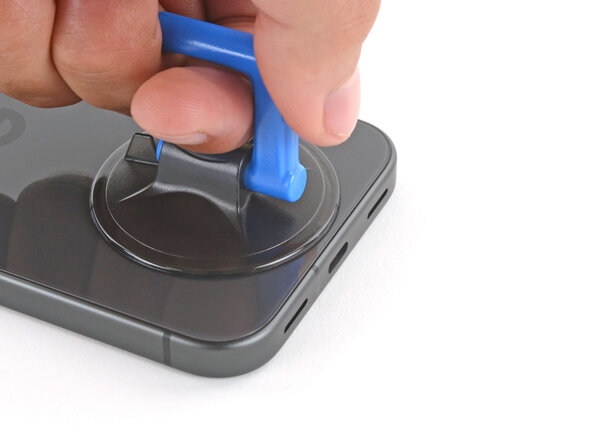
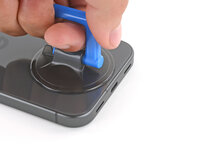
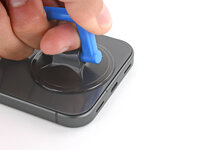
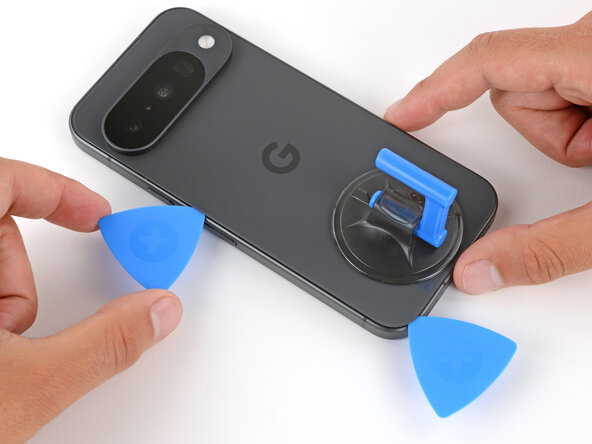
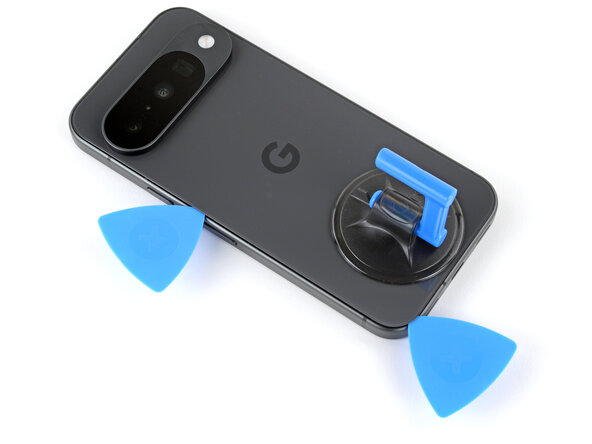
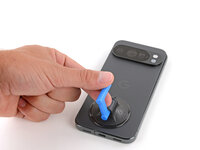
  4. Google Pixel 10 Pro Bottom Speaker Replacement, Apply a suction handle: step 4, image 1 of 2 Google Pixel 10 Pro Bottom Speaker Replacement, Apply a suction handle: step 4, image 2 of 2
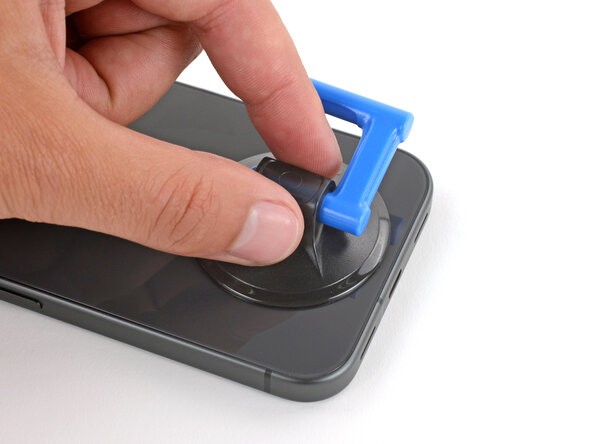
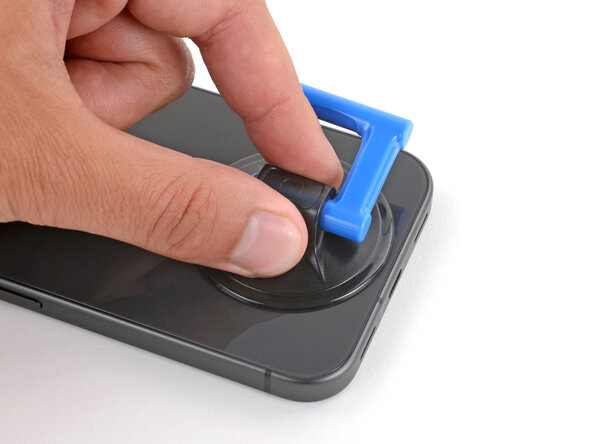
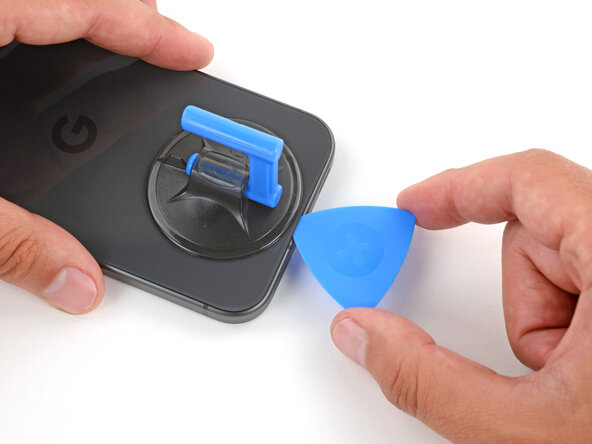
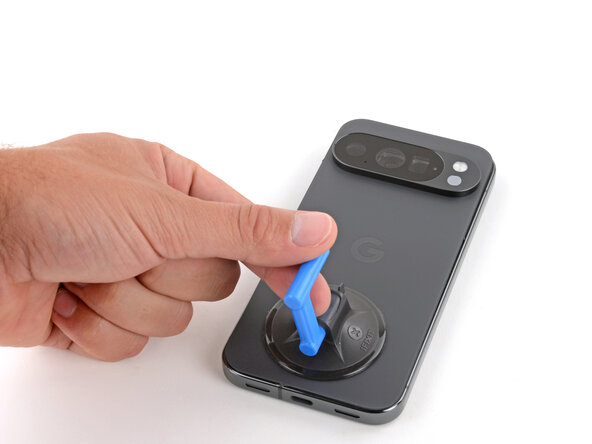
    • Apply a suction handle to the center of the back glass's bottom edge, as close to the edge as possible.

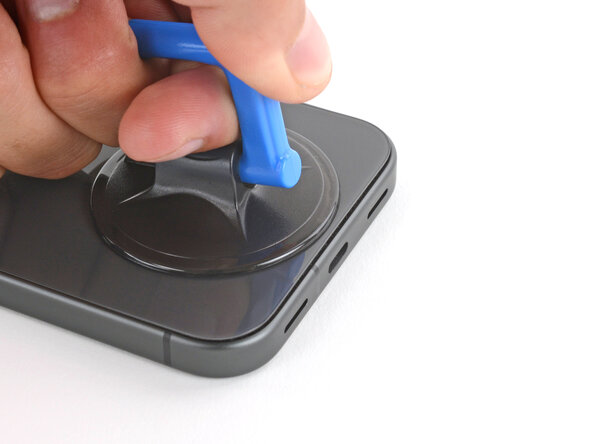
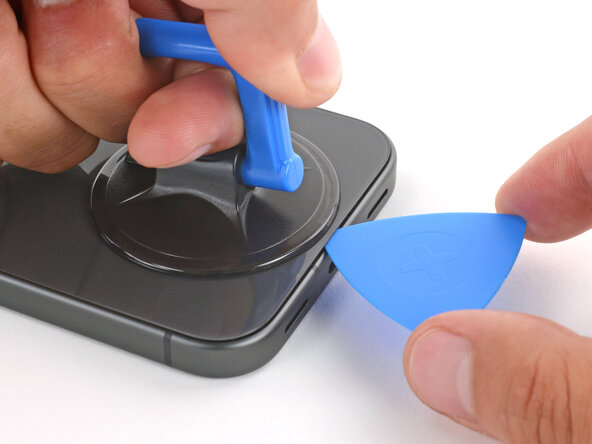
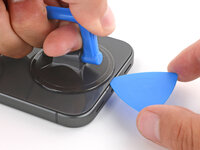
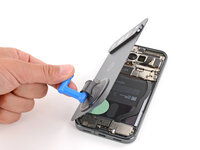
  5. Google Pixel 10 Pro Bottom Speaker Replacement, Insert an opening pick: step 5, image 1 of 3 Google Pixel 10 Pro Bottom Speaker Replacement, Insert an opening pick: step 5, image 2 of 3 Google Pixel 10 Pro Bottom Speaker Replacement, Insert an opening pick: step 5, image 3 of 3
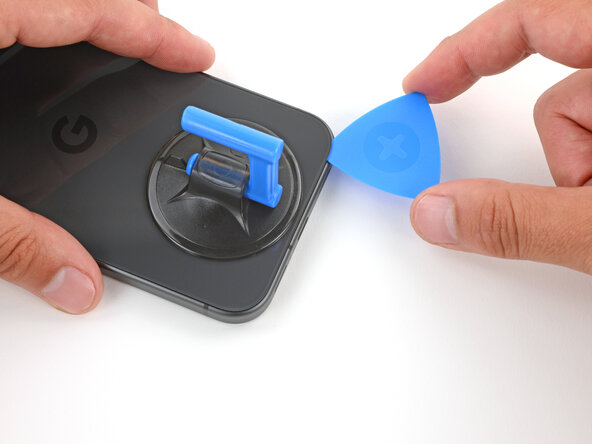
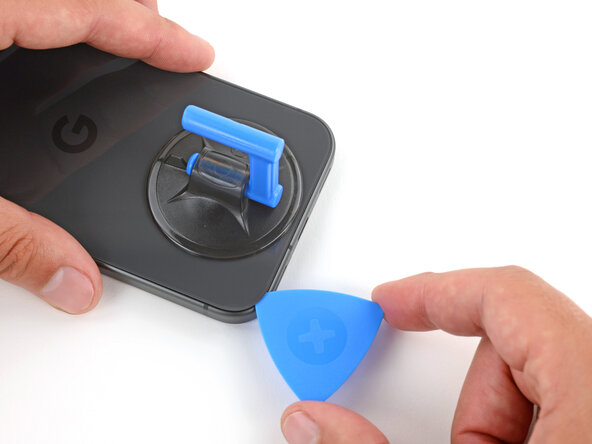
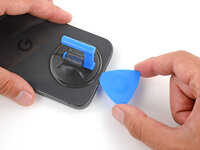
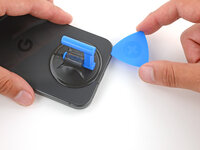
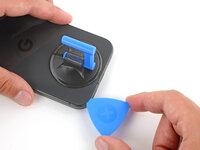
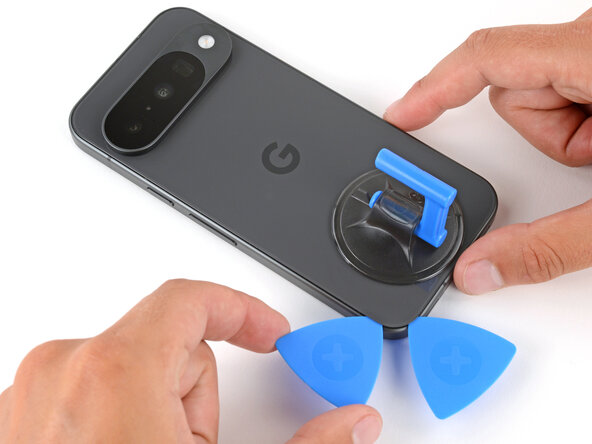
    • Pull up on the suction handle with strong, steady force until a gap forms between the back glass and frame.

    • Insert the tip of an opening pick into the gap.

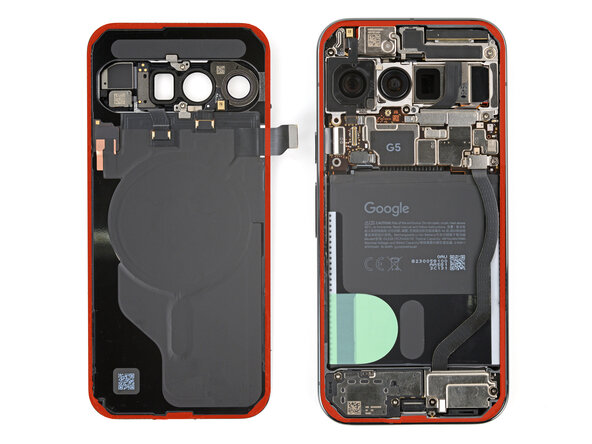
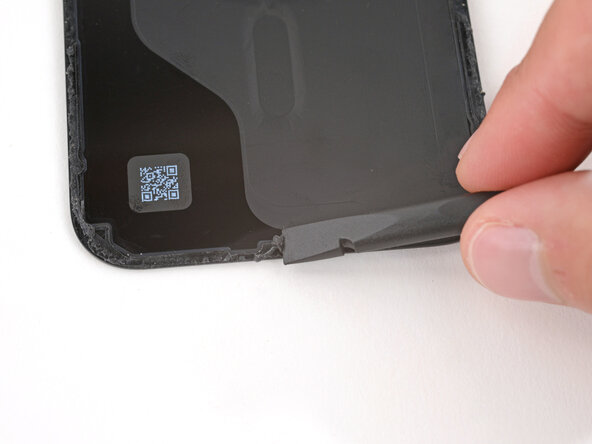
  6. Google Pixel 10 Pro Bottom Speaker Replacement, Back glass adhesive information: step 6, image 1 of 3 Google Pixel 10 Pro Bottom Speaker Replacement, Back glass adhesive information: step 6, image 2 of 3 Google Pixel 10 Pro Bottom Speaker Replacement, Back glass adhesive information: step 6, image 3 of 3
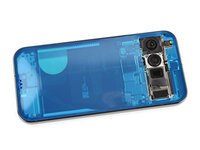
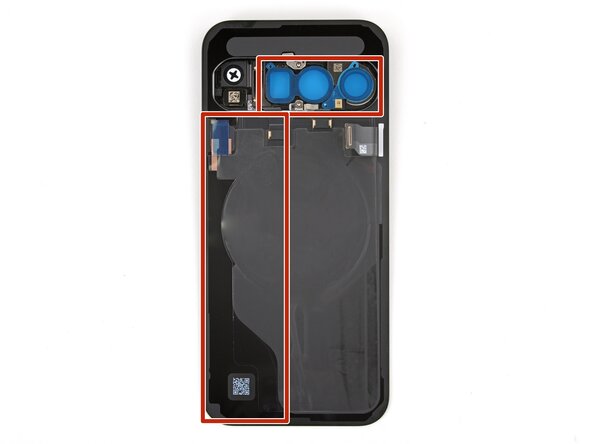
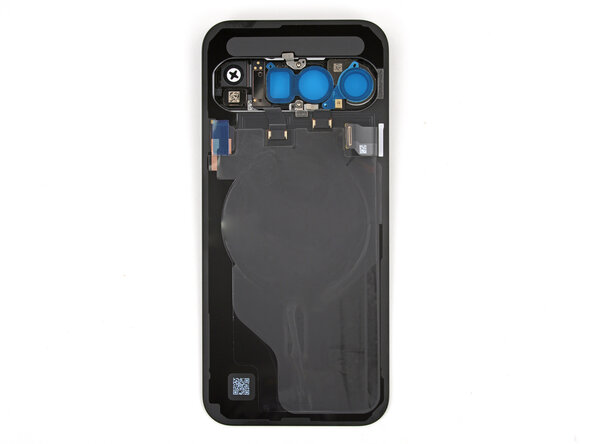
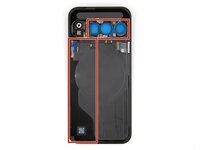
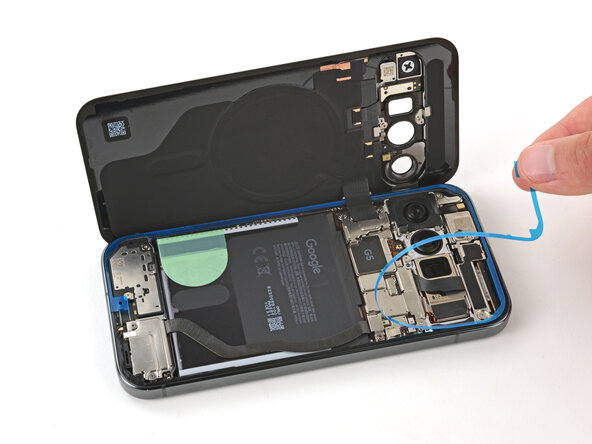
    • The back glass is secured with adhesive around the perimeter of the frame. Use this picture as a reference while you separate the adhesive.

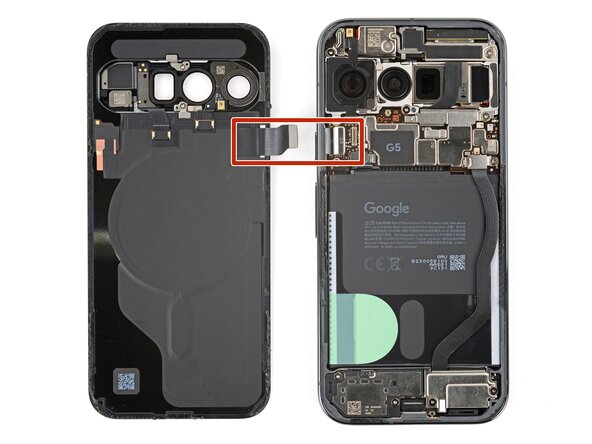
    • A cable connects the back glass near the power button. Don't insert your pick here to avoid damaging the cable.

  7. Google Pixel 10 Pro Bottom Speaker Replacement, Separate the bottom edge adhesive: step 7, image 1 of 3 Google Pixel 10 Pro Bottom Speaker Replacement, Separate the bottom edge adhesive: step 7, image 2 of 3 Google Pixel 10 Pro Bottom Speaker Replacement, Separate the bottom edge adhesive: step 7, image 3 of 3
    • If the back glass feels stuck at any point during the next few steps, apply heat to the area and try again.

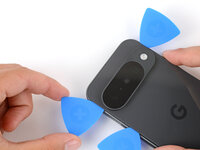
    • Slide the opening pick along the bottom edge to separate the adhesive.

    • Leave the pick inserted under the bottom left corner to prevent the adhesive from re‑sealing.

  8. Google Pixel 10 Pro Bottom Speaker Replacement, Separate the bottom left adhesive: step 8, image 1 of 3 Google Pixel 10 Pro Bottom Speaker Replacement, Separate the bottom left adhesive: step 8, image 2 of 3 Google Pixel 10 Pro Bottom Speaker Replacement, Separate the bottom left adhesive: step 8, image 3 of 3
    • Insert a second pick under the bottom left corner and slide it up the left edge, stopping at the power button.

    • Leave the pick inserted to prevent the adhesive from re‑sealing.

  9. Google Pixel 10 Pro Bottom Speaker Replacement, Separate the right edge adhesive: step 9, image 1 of 3 Google Pixel 10 Pro Bottom Speaker Replacement, Separate the right edge adhesive: step 9, image 2 of 3 Google Pixel 10 Pro Bottom Speaker Replacement, Separate the right edge adhesive: step 9, image 3 of 3
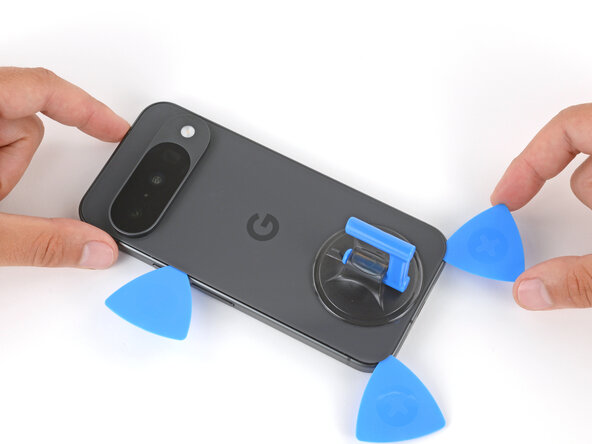
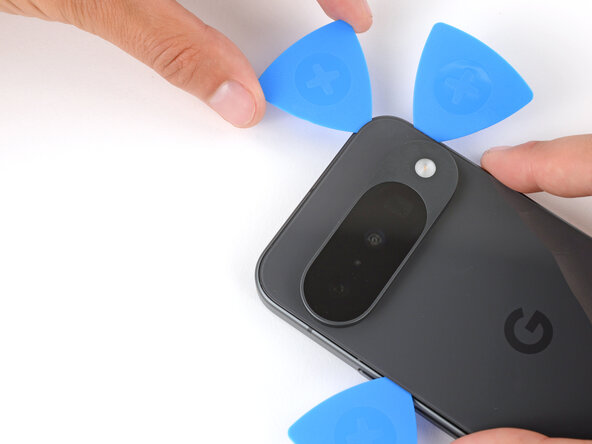
    • Insert a third pick under the bottom right corner of the back glass and slide it up the right edge.

    • Leave the pick inserted under the top right corner.

  10. Google Pixel 10 Pro Bottom Speaker Replacement, Separate the top edge adhesive: step 10, image 1 of 3 Google Pixel 10 Pro Bottom Speaker Replacement, Separate the top edge adhesive: step 10, image 2 of 3 Google Pixel 10 Pro Bottom Speaker Replacement, Separate the top edge adhesive: step 10, image 3 of 3
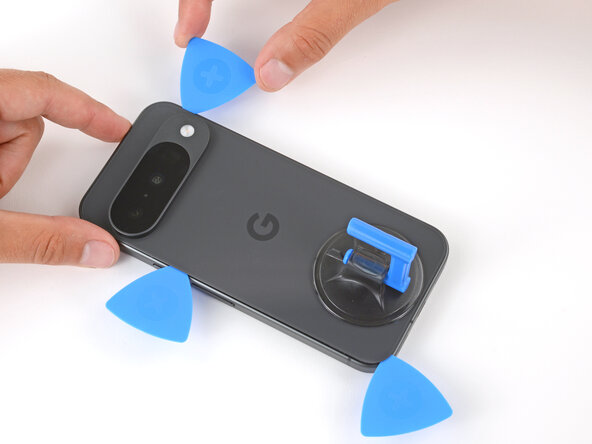
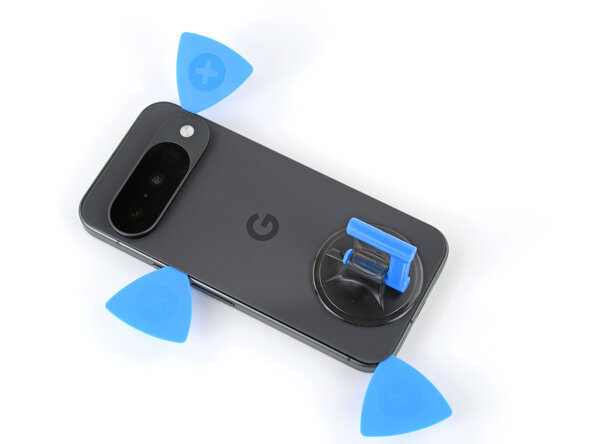
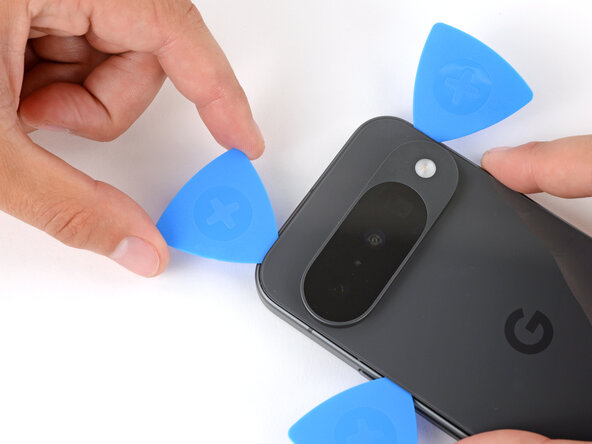
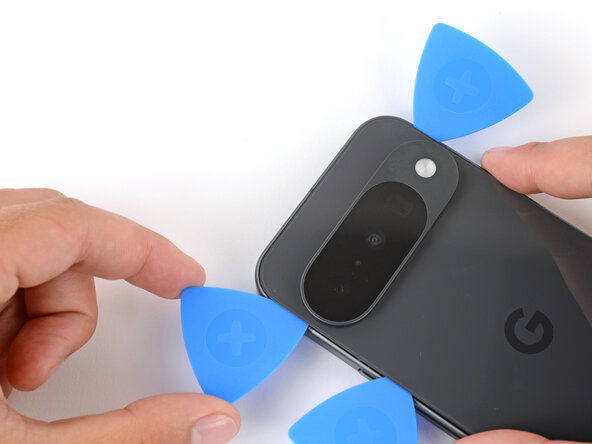
    • Insert a fourth pick under the top right corner.

    • Slide the pick along the top edge and slightly around the top left corner, stopping at the bottom of the camera bump.

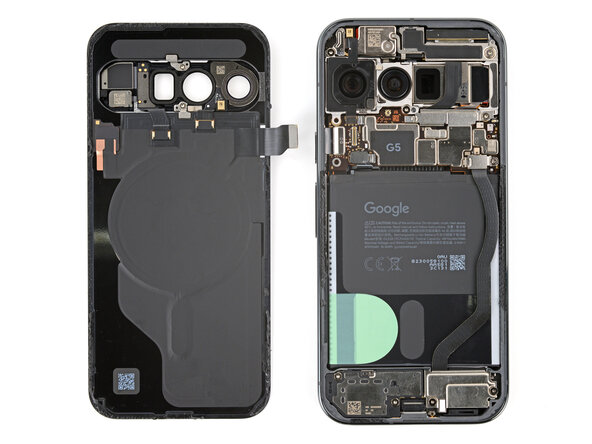
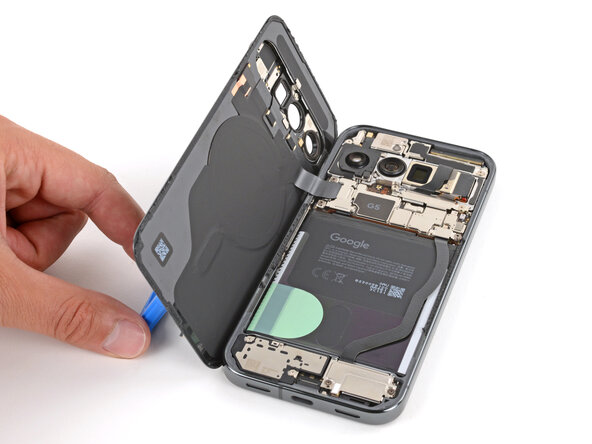
    • Don't try to fully remove the back glass yet, as it's still connected by a ribbon cable.

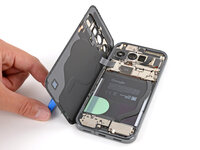
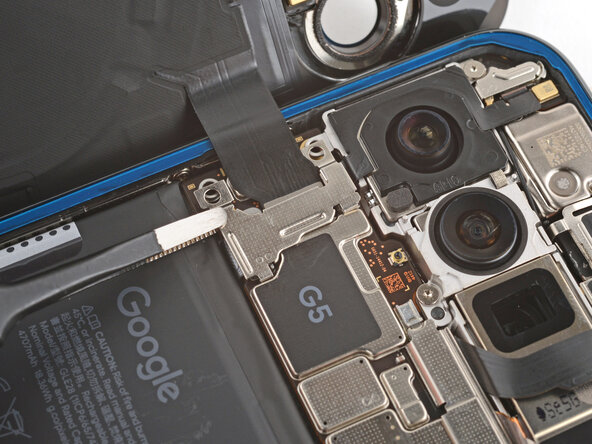
  11. Google Pixel 10 Pro Bottom Speaker Replacement, Prop up the back glass: step 11, image 1 of 3 Google Pixel 10 Pro Bottom Speaker Replacement, Prop up the back glass: step 11, image 2 of 3 Google Pixel 10 Pro Bottom Speaker Replacement, Prop up the back glass: step 11, image 3 of 3
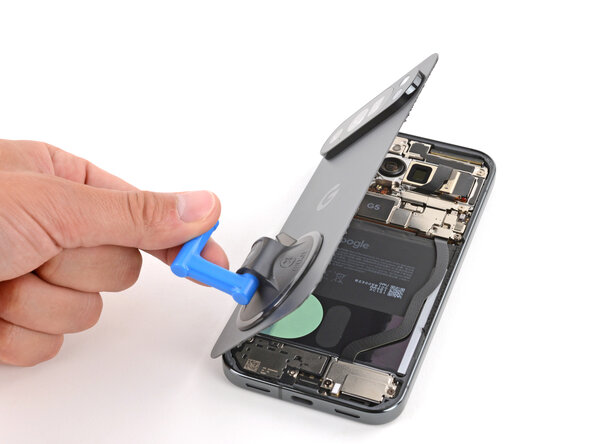
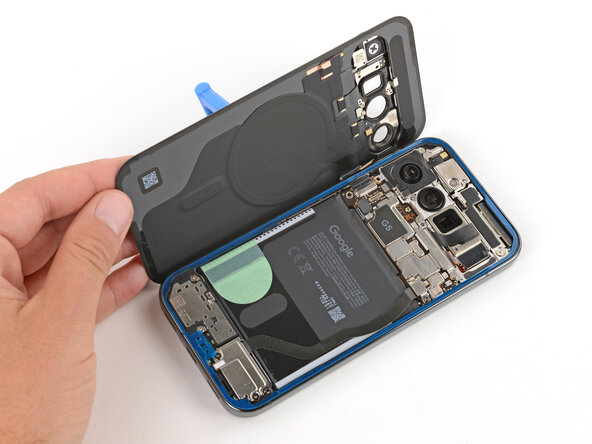
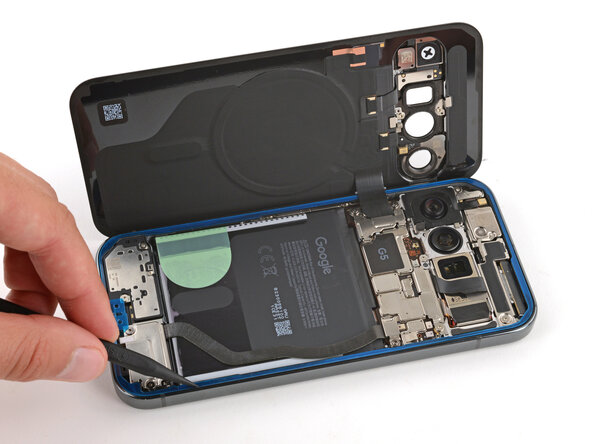
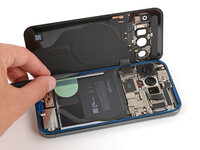
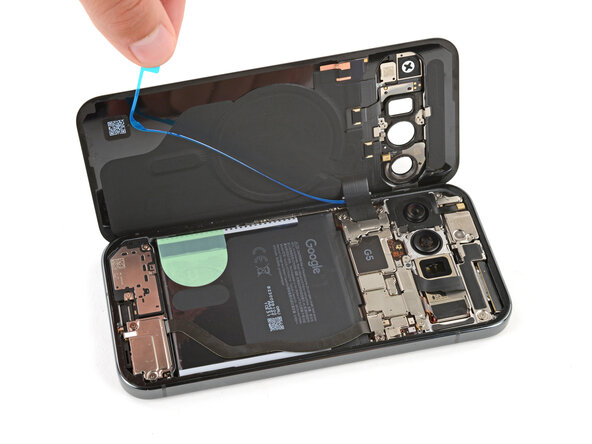
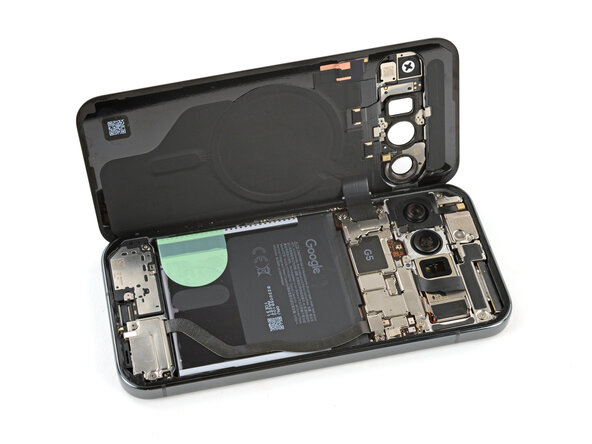
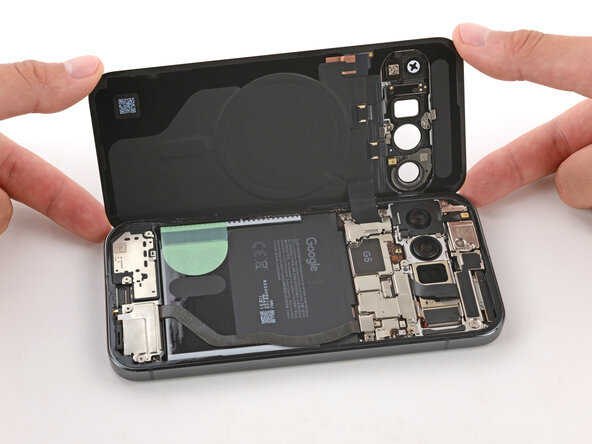
    • Flip the back glass over the left side of the phone and use the suction handle (or a sturdy object) to prop it up.

    • If the back glass still feels stuck, go back around the perimeter with an opening pick and separate any remaining adhesive.

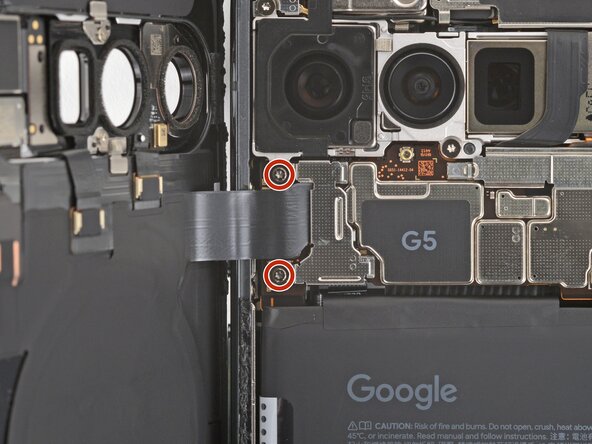
  12. Google Pixel 10 Pro Bottom Speaker Replacement, Remove the bracket screws: step 12, image 1 of 2 Google Pixel 10 Pro Bottom Speaker Replacement, Remove the bracket screws: step 12, image 2 of 2
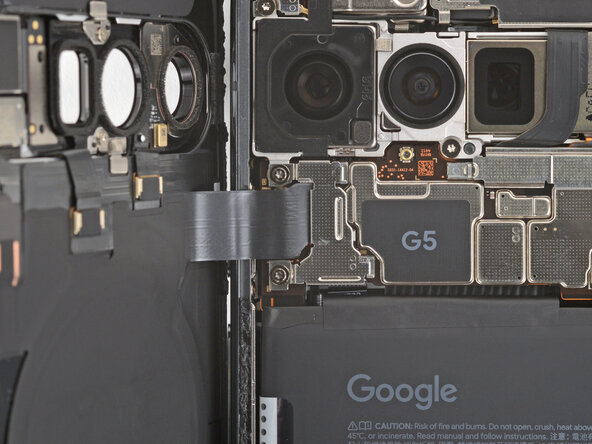
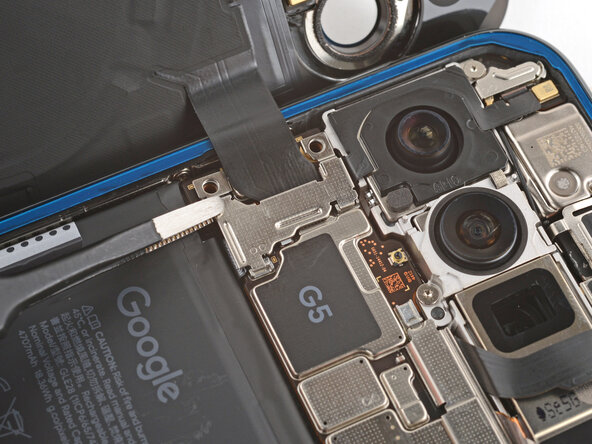
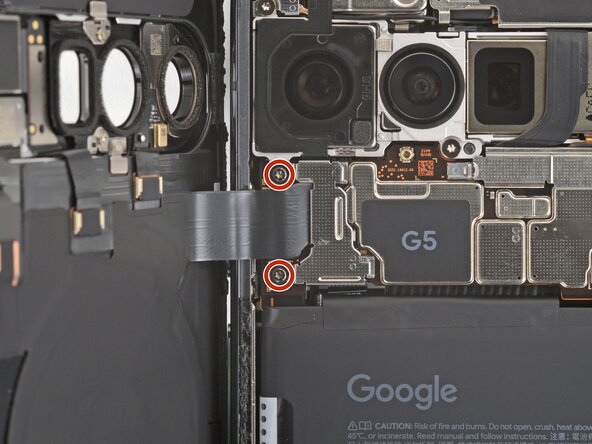
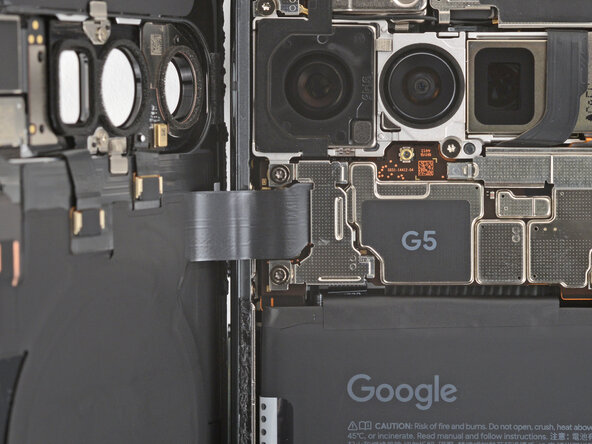
    • Use a Torx Plus 3IP screwdriver to remove the two 5.8 mm‑long screws securing the back glass connector bracket.

  13. Google Pixel 10 Pro Bottom Speaker Replacement: step 13, image 1 of 3 Google Pixel 10 Pro Bottom Speaker Replacement: step 13, image 2 of 3 Google Pixel 10 Pro Bottom Speaker Replacement: step 13, image 3 of 3
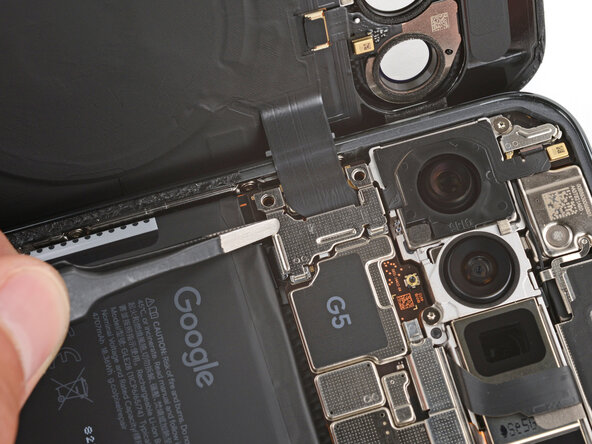
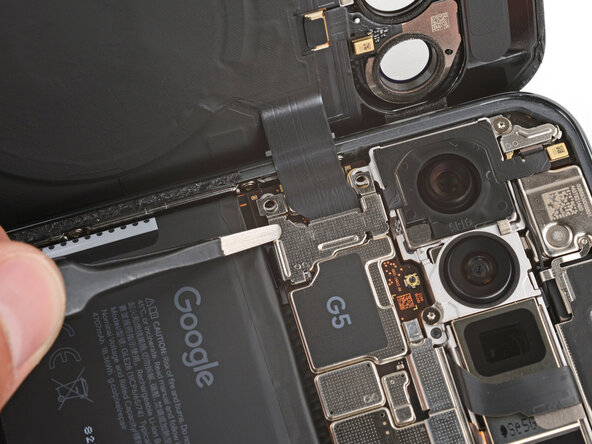
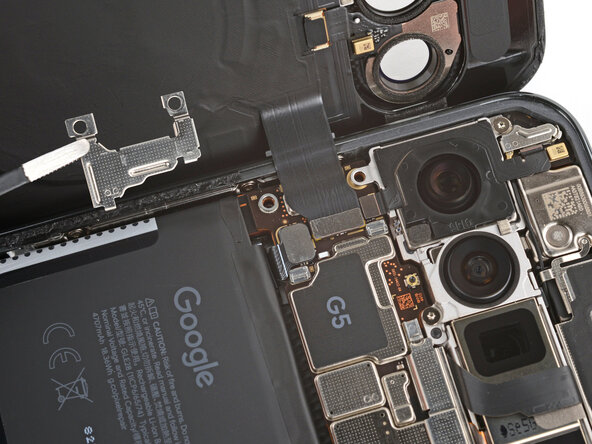
    • Use tweezers to slide the cover towards the center of the phone to unhook the tabs and remove it.

    • Be careful not to damage the battery or rear cameras.

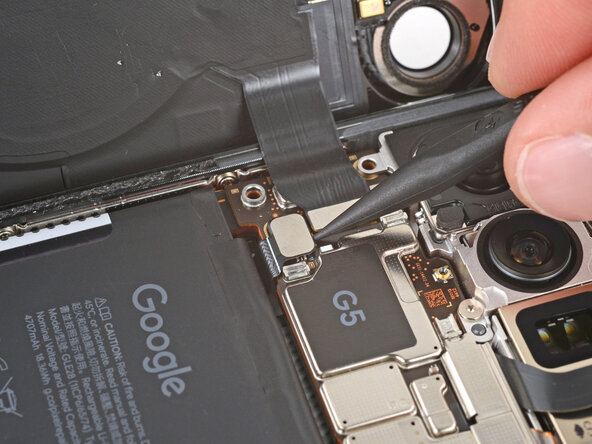
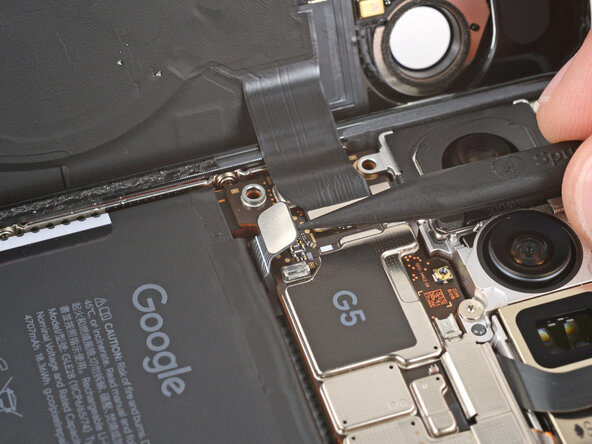
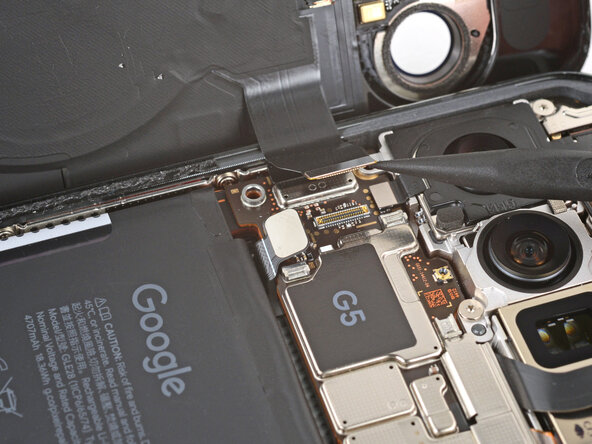
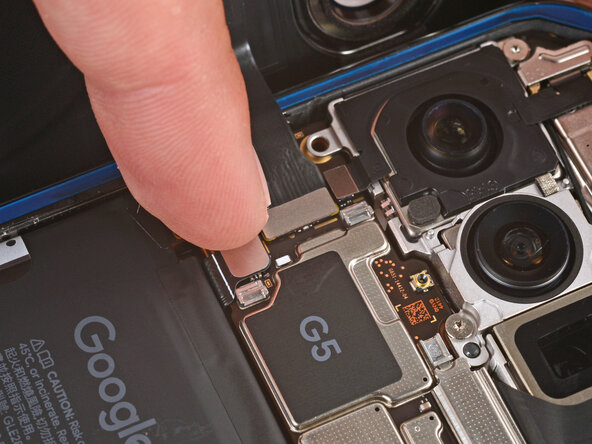
  14. Google Pixel 10 Pro Bottom Speaker Replacement, Disconnect the back glass: step 14, image 1 of 3 Google Pixel 10 Pro Bottom Speaker Replacement, Disconnect the back glass: step 14, image 2 of 3 Google Pixel 10 Pro Bottom Speaker Replacement, Disconnect the back glass: step 14, image 3 of 3
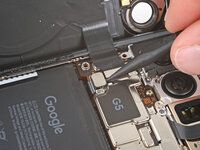
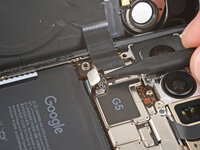
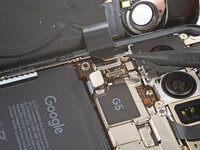
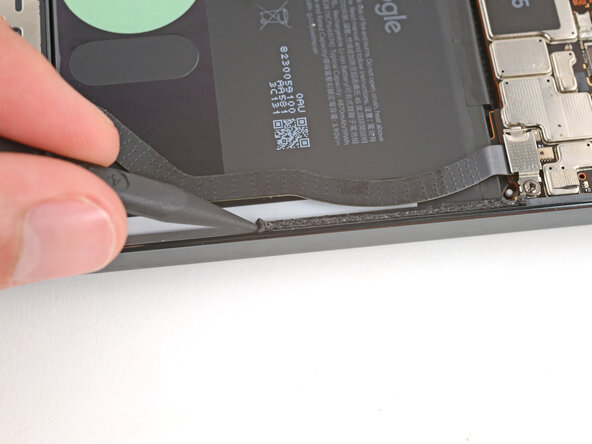
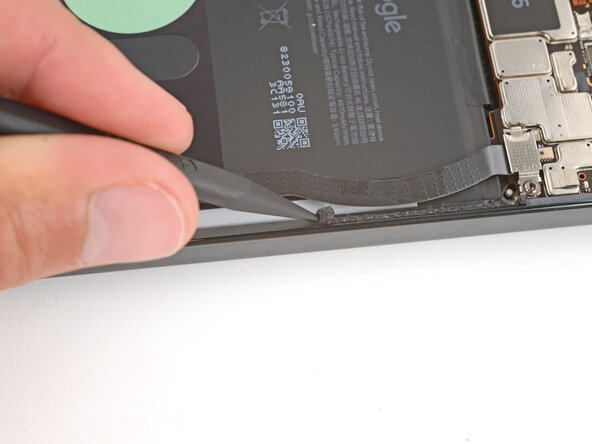
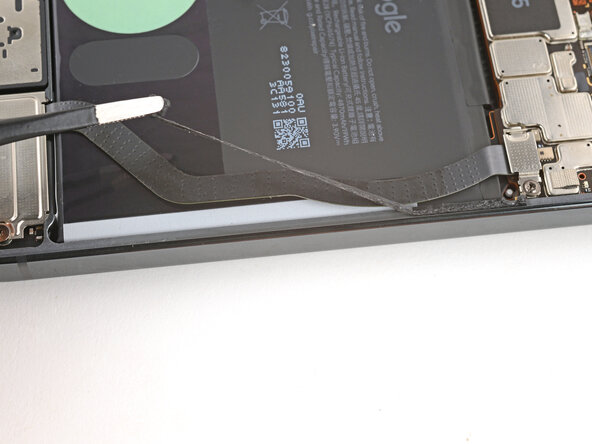
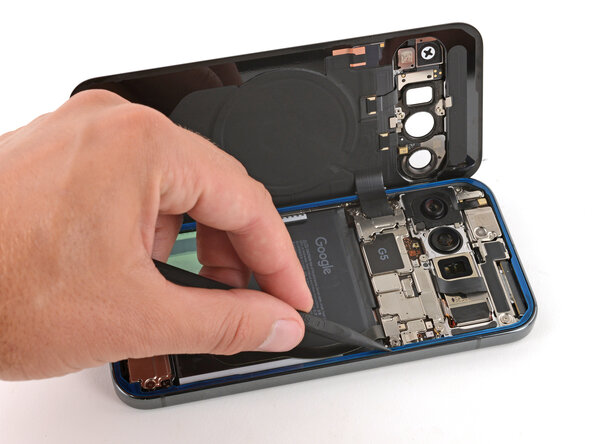
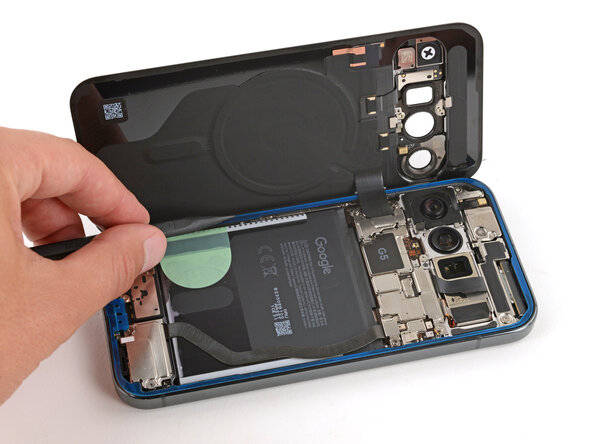
    • Use the point of a spudger to pry up and disconnect the battery and back glass press connectors.

  15. Google Pixel 10 Pro Bottom Speaker Replacement, Remove the back glass: step 15, image 1 of 1
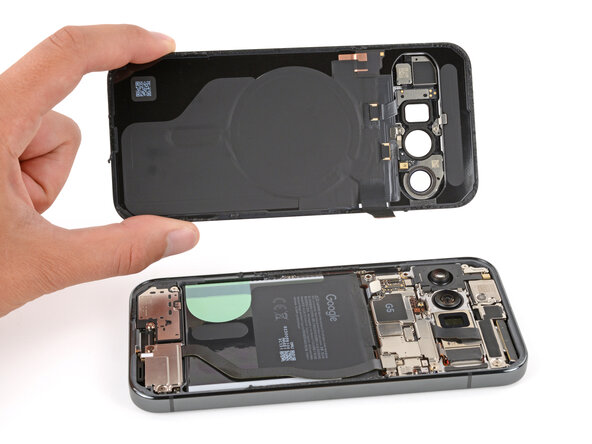
    • Remove the back glass.

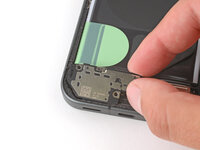
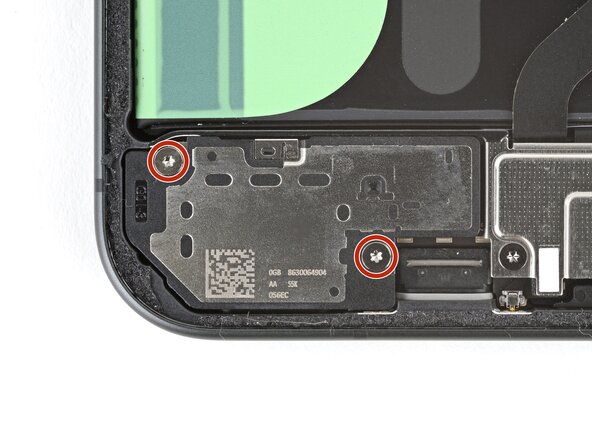
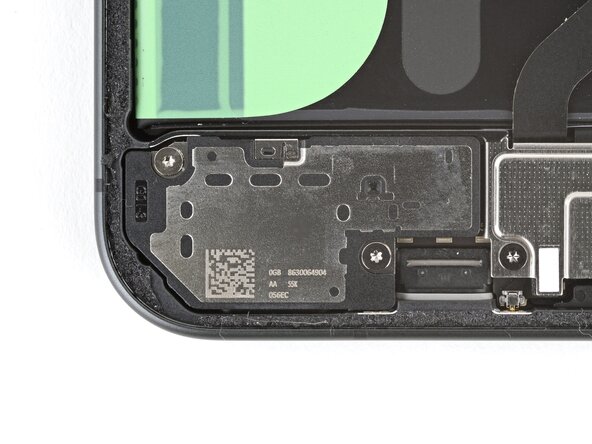
  16. Google Pixel 10 Pro Bottom Speaker Replacement, Remove the bottom speaker screws: step 16, image 1 of 2 Google Pixel 10 Pro Bottom Speaker Replacement, Remove the bottom speaker screws: step 16, image 2 of 2
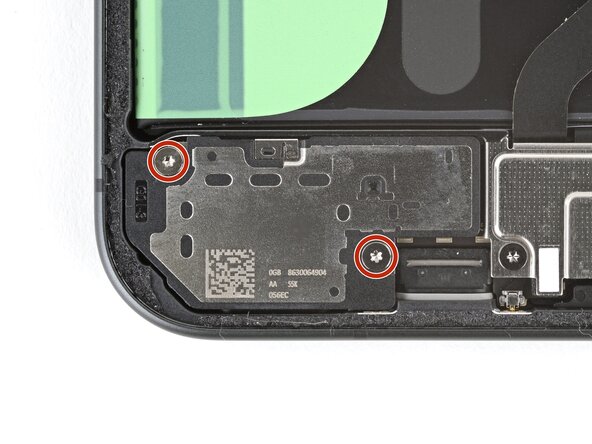
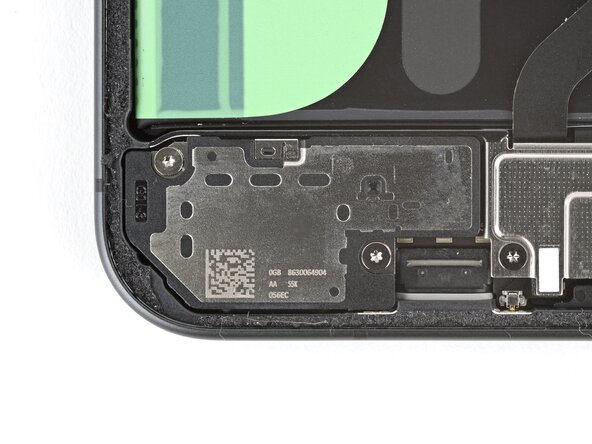
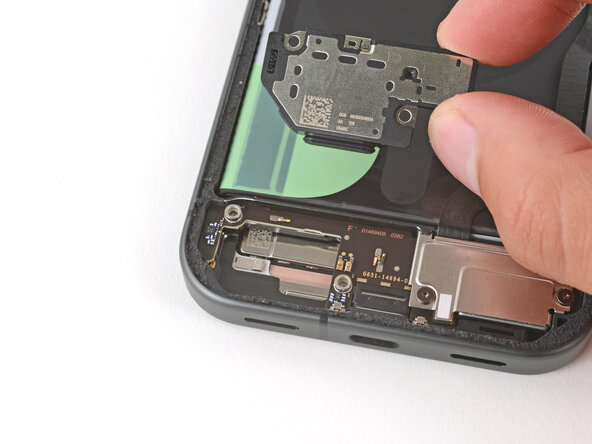
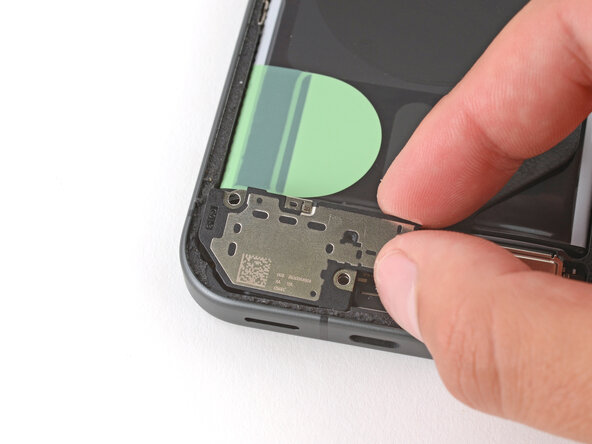
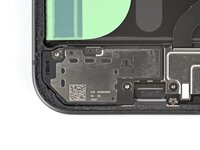
    • Use a Torx Plus 3IP screwdriver to remove the two 5.0 mm‑long screws securing the bottom speaker.

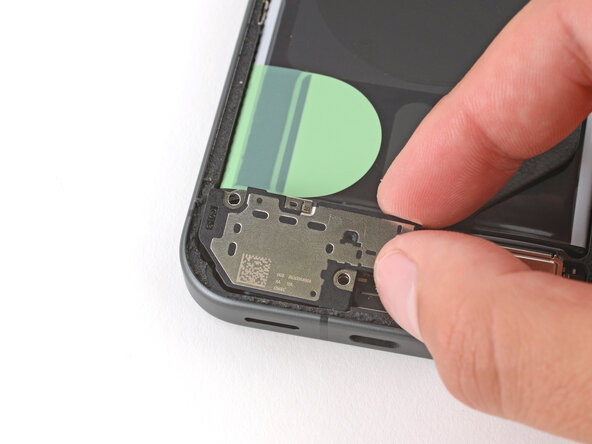
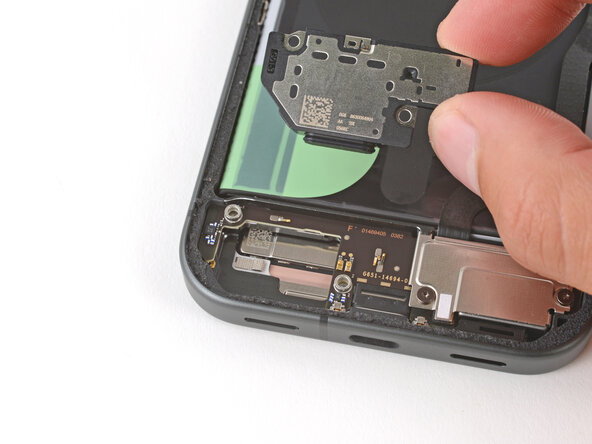
  17. Google Pixel 10 Pro Bottom Speaker Replacement, Remove the bottom speaker: step 17, image 1 of 2 Google Pixel 10 Pro Bottom Speaker Replacement, Remove the bottom speaker: step 17, image 2 of 2
    • Pull the speaker towards the top of the phone and remove it.

  18. Google Pixel 10 Pro Bottom Speaker Replacement, Disassembly complete: step 18, image 1 of 1
    • Congratulations on completing disassembly! The remaining steps will show how to reassemble your phone.

  19. Google Pixel 10 Pro Bottom Speaker Replacement, Install the bottom speaker: step 19, image 1 of 2 Google Pixel 10 Pro Bottom Speaker Replacement, Install the bottom speaker: step 19, image 2 of 2
    • Slide the bottom speaker into place at a slight downward angle so the speaker gasket goes into its cutout.

    • Press the bottom speaker down firmly into its recess.

  20. Google Pixel 10 Pro Bottom Speaker Replacement: step 20, image 1 of 2 Google Pixel 10 Pro Bottom Speaker Replacement: step 20, image 2 of 2
    • Use a Torx Plus 3IP screwdriver to install the two 5.0 mm‑long screws securing the bottom speaker.

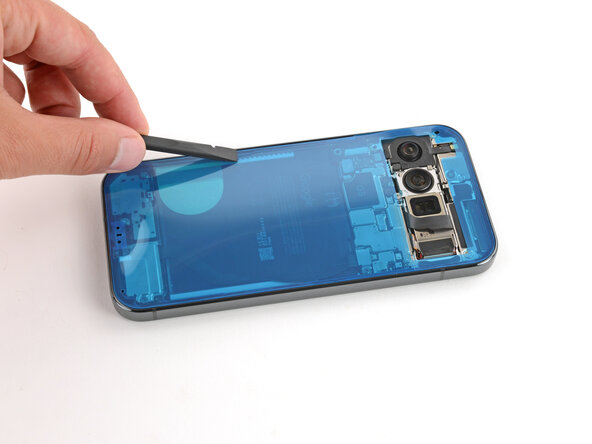
  21. Google Pixel 10 Pro Bottom Speaker Replacement, Remove the old back glass adhesive: step 21, image 1 of 2 Google Pixel 10 Pro Bottom Speaker Replacement, Remove the old back glass adhesive: step 21, image 2 of 2
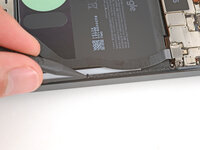
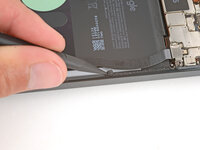
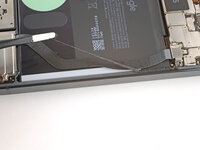
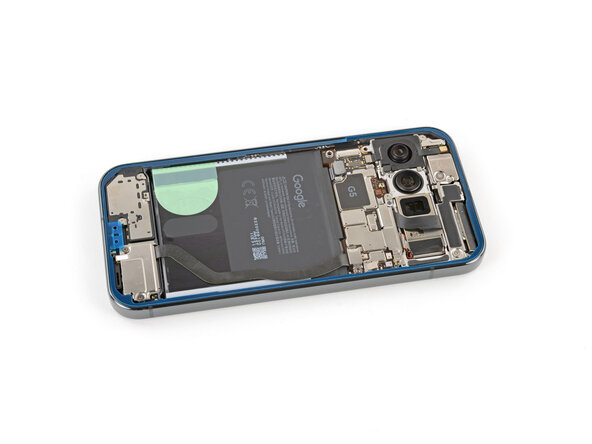
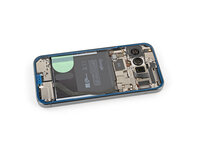
    • Before installing new adhesive, all the old adhesive and its residue must be completely removed from the frame.

    • Take your time during the next two steps. A clean frame allows replacement adhesive to lay totally flat, ensuring a better seal for your back glass.

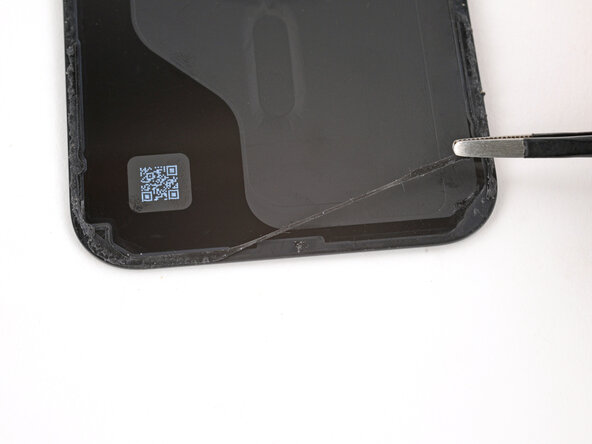
  22. Google Pixel 10 Pro Bottom Speaker Replacement: step 22, image 1 of 3 Google Pixel 10 Pro Bottom Speaker Replacement: step 22, image 2 of 3 Google Pixel 10 Pro Bottom Speaker Replacement: step 22, image 3 of 3
    • Removing all the old adhesive can be very tricky and time‑consuming.

    • Use the point of a spudger to remove all the old screen adhesive from the frame. Try to "roll" the adhesive onto itself so it balls up, making it easier to remove.

    • If you can ball up a big enough chunk, use tweezers to slowly pull the adhesive the opposite way you were scraping with your spudger.

    • If you're having trouble removing smaller chunks, apply a single drop of high‑concentration (>90%) isopropyl alcohol and scrape them up with your spudger.

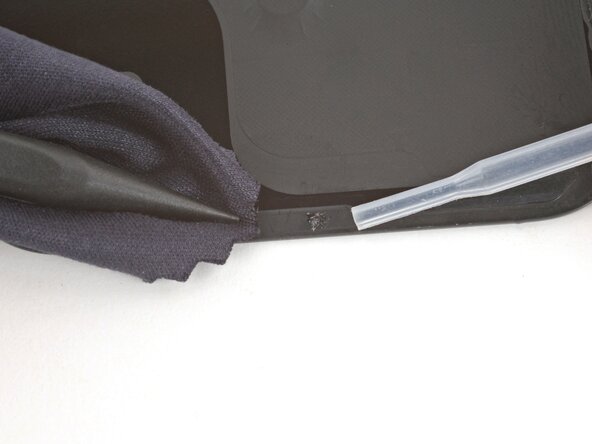
  23. Google Pixel 10 Pro Bottom Speaker Replacement: step 23, image 1 of 1
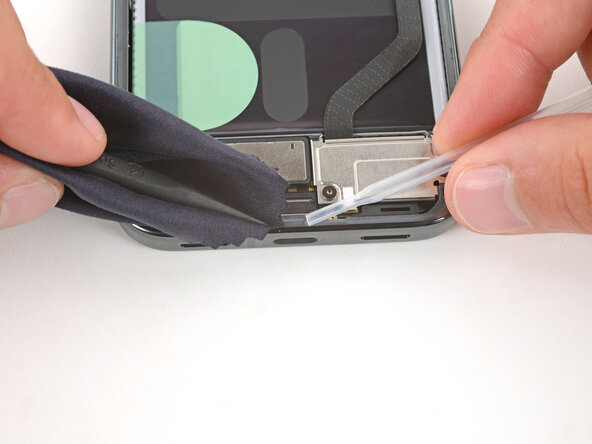
    • Wrap a microfiber or lint‑free cloth around a spudger.

    • Use the spudger and high‑concentration (>90%) isopropyl alcohol to clean up all the remaining adhesive residue from the frame, applying more drops of alcohol as necessary.

    • Let the alcohol dry completely before continuing.

  24. Google Pixel 10 Pro Bottom Speaker Replacement: step 24, image 1 of 3 Google Pixel 10 Pro Bottom Speaker Replacement: step 24, image 2 of 3 Google Pixel 10 Pro Bottom Speaker Replacement: step 24, image 3 of 3
    • If you're reinstalling your original back glass, repeat the procedures in the previous two steps on the back glass to clean it.

  25. Google Pixel 10 Pro Bottom Speaker Replacement, Orient the adhesive: step 25, image 1 of 2 Google Pixel 10 Pro Bottom Speaker Replacement, Orient the adhesive: step 25, image 2 of 2
    • Before applying the back glass adhesive, make sure you know how it will sit on the frame. If you apply the adhesive incorrectly, you'll need to restart with new adhesive.

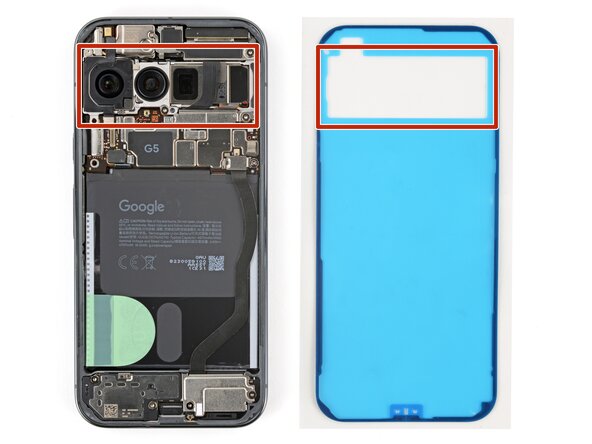
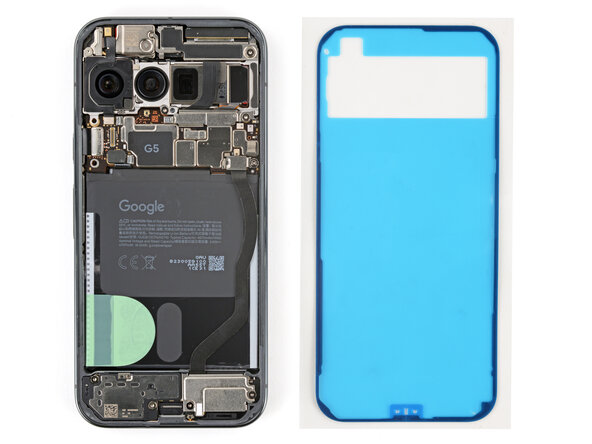
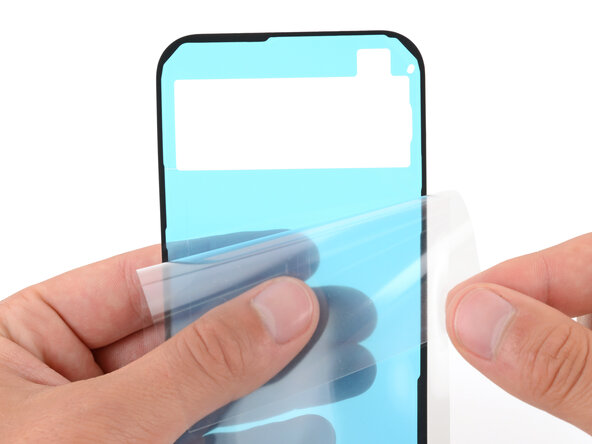
    • Hold the adhesive above the frame to find its orientation. Use the rear camera cutout in the liner to help visualize how it will lay in the frame.

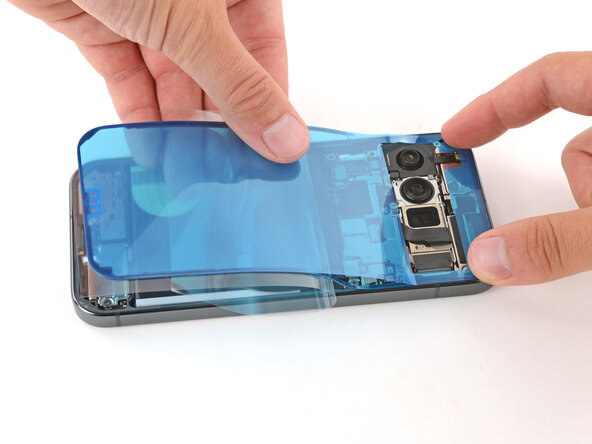
  26. Google Pixel 10 Pro Bottom Speaker Replacement: step 26, image 1 of 1
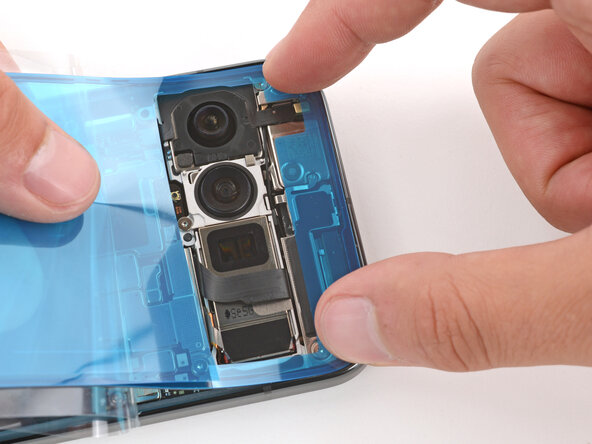
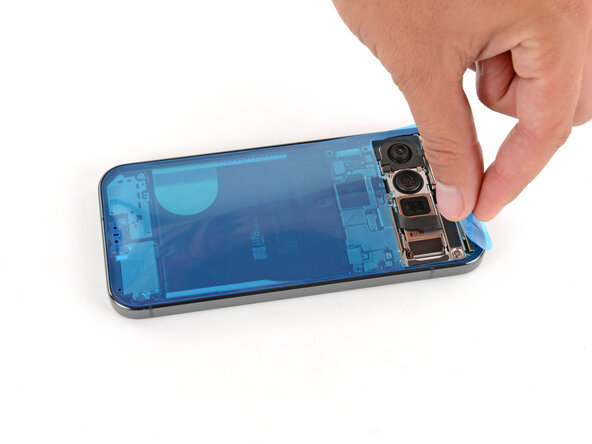
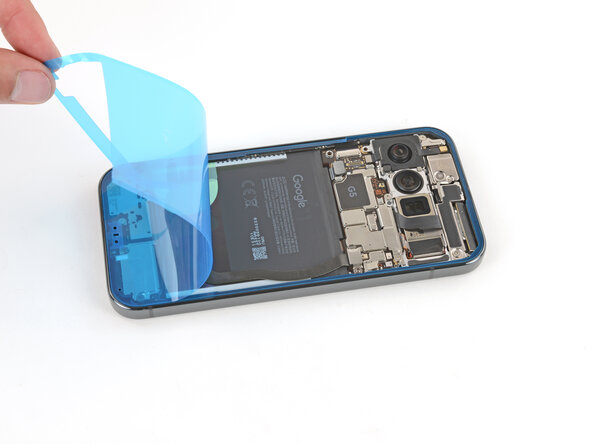
    • Peel down the top half of the large, clear liner to expose the adhesive—don't fully remove the liner yet.

  27. Google Pixel 10 Pro Bottom Speaker Replacement, Install the back glass adhesive: step 27, image 1 of 3 Google Pixel 10 Pro Bottom Speaker Replacement, Install the back glass adhesive: step 27, image 2 of 3 Google Pixel 10 Pro Bottom Speaker Replacement, Install the back glass adhesive: step 27, image 3 of 3
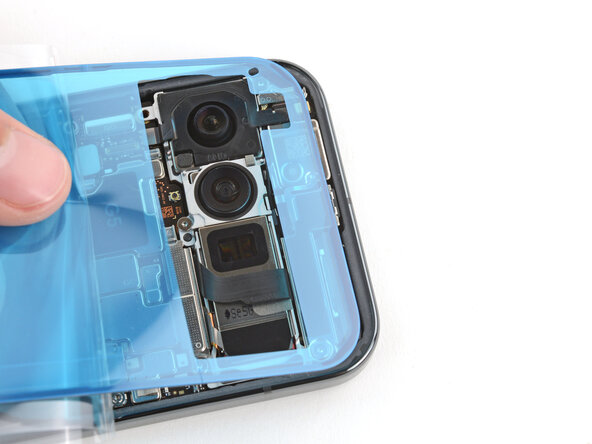
    • Take your time aligning the adhesive with the frame—it's very sticky and can't be moved after you apply it.

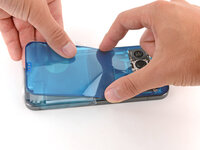
    • With the larger, clear liner folded towards the bottom of the phone, lay the exposed top edge of the adhesive onto the frame.

    • Use the lip of the frame to help align the adhesive.

    • Once the top edge is properly aligned, gently press down on the top corners to secure the adhesive.

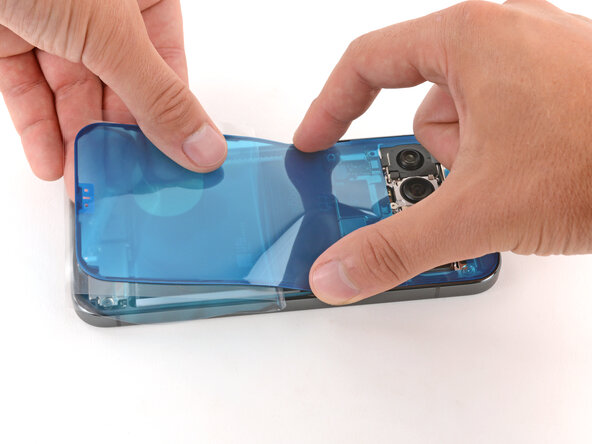
  28. Google Pixel 10 Pro Bottom Speaker Replacement: step 28, image 1 of 3 Google Pixel 10 Pro Bottom Speaker Replacement: step 28, image 2 of 3 Google Pixel 10 Pro Bottom Speaker Replacement: step 28, image 3 of 3
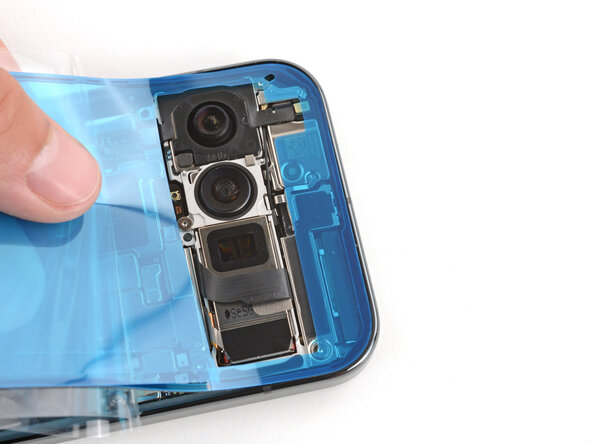
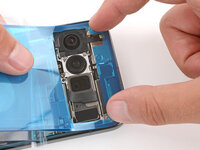
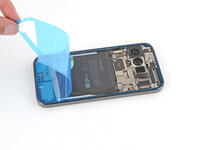
    • Slowly lay the rest of the adhesive onto the frame, pressing it into place and peeling away the larger liner as you go.

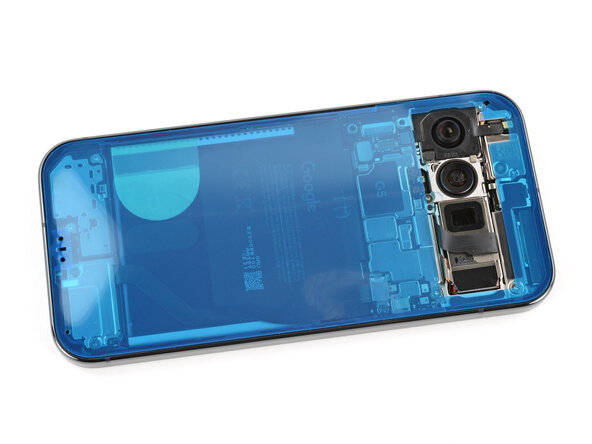
  29. Google Pixel 10 Pro Bottom Speaker Replacement: step 29, image 1 of 3 Google Pixel 10 Pro Bottom Speaker Replacement: step 29, image 2 of 3 Google Pixel 10 Pro Bottom Speaker Replacement: step 29, image 3 of 3
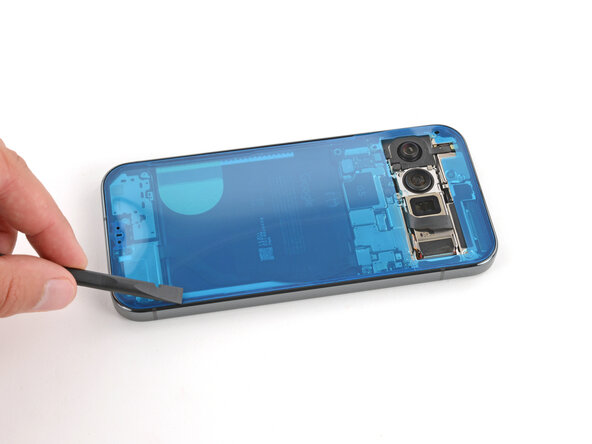
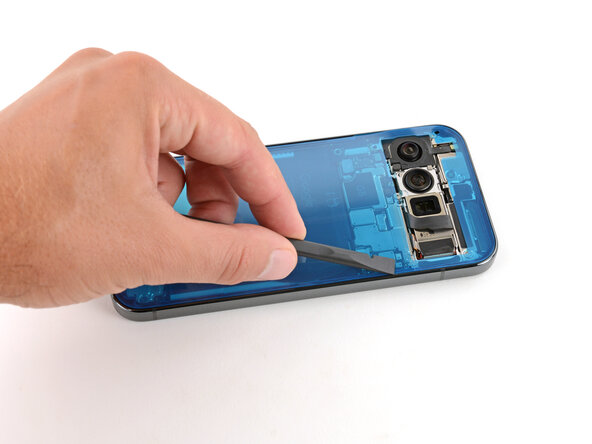
    • Use a spudger to press down firmly on the adhesive to secure it to the frame.

  30. Google Pixel 10 Pro Bottom Speaker Replacement, Remove the larger liner: step 30, image 1 of 3 Google Pixel 10 Pro Bottom Speaker Replacement, Remove the larger liner: step 30, image 2 of 3 Google Pixel 10 Pro Bottom Speaker Replacement, Remove the larger liner: step 30, image 3 of 3
    • Slowly peel up and remove the large colored liner, gripping it from the cutout near the top edge.

    • If the adhesive starts to peel up with the liner, check that you’ve pushed all of it into place with your spudger. If it continues to peel up, hold it down with the point of your spudger as you go.

  31. Google Pixel 10 Pro Bottom Speaker Replacement, Remove any liners from the back glass: step 31, image 1 of 2 Google Pixel 10 Pro Bottom Speaker Replacement, Remove any liners from the back glass: step 31, image 2 of 2
    • If you're installing a new back glass, your replacement will have various protective liners and pieces of tape on the underside that must be removed. Your part may have different pieces in different locations, so make sure to check carefully!

    • Remove all liners from the underside of the back glass, paying special attention to the front camera cutouts and bottom edge.

    • Usually, you can identify the liners by their pull tabs.

  32. Google Pixel 10 Pro Bottom Speaker Replacement, Prop up the back glass: step 32, image 1 of 1
    • Apply a suction handle to the back glass and prop it up on the left side of your phone, so the cable is near its connector.

    • Alternatively, you can use a sturdy object (such as a stack of books) to prop up the back glass.

  33. Google Pixel 10 Pro Bottom Speaker Replacement, Reconnect the back glass and battery: step 33, image 1 of 2 Google Pixel 10 Pro Bottom Speaker Replacement, Reconnect the back glass and battery: step 33, image 2 of 2
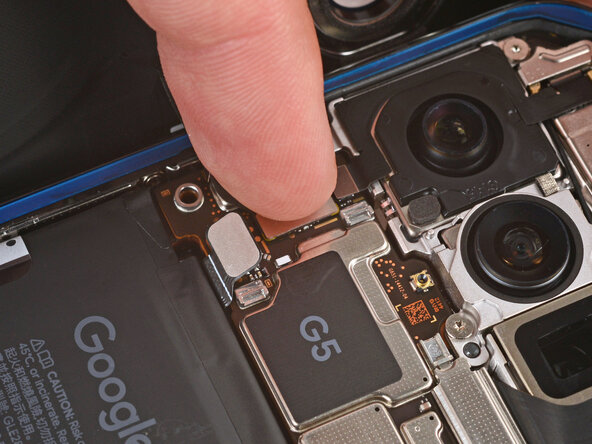
    • Use your finger to press down and connect the back glass and battery press connectors.

    • For wider connectors like the back glass one, first press down on one of the short sides until it clicks into place, then repeat on the other side. Don't press down in the middle. If the connector is misaligned, the pins can bend and cause permanent damage.

  34. Google Pixel 10 Pro Bottom Speaker Replacement: step 34, image 1 of 2 Google Pixel 10 Pro Bottom Speaker Replacement: step 34, image 2 of 2
    • Put the back glass connector cover back into place so the tabs hook into the slots.

  35. Google Pixel 10 Pro Bottom Speaker Replacement: step 35, image 1 of 2 Google Pixel 10 Pro Bottom Speaker Replacement: step 35, image 2 of 2
    • Use a Torx Plus 3IP screwdriver to install the two 5.8 mm‑long screws securing the cover.

  36. Google Pixel 10 Pro Bottom Speaker Replacement, Secure the adhesive: step 36, image 1 of 3 Google Pixel 10 Pro Bottom Speaker Replacement, Secure the adhesive: step 36, image 2 of 3 Google Pixel 10 Pro Bottom Speaker Replacement, Secure the adhesive: step 36, image 3 of 3
    • Use a spudger to press down firmly on the adhesive to secure it to the frame.

    • This is a good point to power on your device and test all functions before sealing it up. If you have trouble, try some basic troubleshooting. Be sure to power back down completely before you continue working.

  37. Google Pixel 10 Pro Bottom Speaker Replacement, Remove the remaining liners: step 37, image 1 of 3 Google Pixel 10 Pro Bottom Speaker Replacement, Remove the remaining liners: step 37, image 2 of 3 Google Pixel 10 Pro Bottom Speaker Replacement, Remove the remaining liners: step 37, image 3 of 3
    • Remove the remaining liners from the back glass adhesive.

    • If the adhesive starts to peel up with the liner, check that you’ve pushed all of it into place with your spudger. If it continues to peel up, hold it down with the point of your spudger as you go.

  38. Google Pixel 10 Pro Bottom Speaker Replacement, Install the back glass: step 38, image 1 of 3 Google Pixel 10 Pro Bottom Speaker Replacement, Install the back glass: step 38, image 2 of 3 Google Pixel 10 Pro Bottom Speaker Replacement, Install the back glass: step 38, image 3 of 3
    • Flip the back glass onto the frame and press it firmly into place.

    • Hold your phone up and squeeze firmly around the perimeter to strengthen the bond.

    • For an even stronger bond, you can stack books on the back glass or use screen vise clamps.

Conclusion

Congratulations on completing your repair!

To run a diagnostics test with the built-in Pixel Diagnostic tool, click here.

Take your e-waste to an R2 or e-Stewards certified recycler.

Repair didn’t go as planned? Try some basic troubleshooting, or ask our Answers community for help.

Spencer Day

Member since: 09/14/22

149,102 Reputation

995 Guides authored

0 Guide Comments

Add Comment

View Statistics:

Past 24 Hours: 2

Past 7 Days: 12

Past 30 Days: 55

All Time: 57