Shop the Holiday Gift Guide
Free Shipping on Domestic Orders $75+

How To Use Screen Vise Clamps

Views: 29K

View statistics:

Past 24 Hours:
11
Past 7 Days:
143
Past 30 Days:
621
All Time:
28,596
Comments: 1

1 comment on steps.

Completed: 31

31 people have marked this guide "completed." Will you be next?

Favorites: 7

7 people have favorited (and subscribed to) this guide. Will you be next?

Time Required: 35 - 45 minutes
Difficulty: Easy
Featured Guide

This guide has been found to be exceptionally cool by the iFixit staff.

How To Use Screen Vise Clamps

Introduction

Go to step 1 ↓

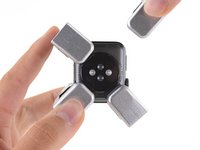
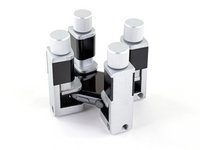
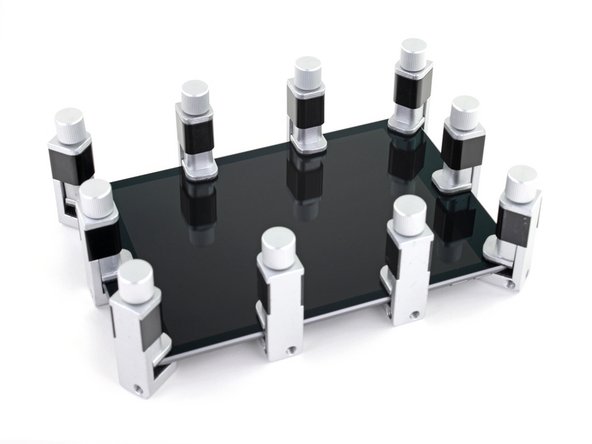
Screen Vise Clamps are adjustable clamps used around the perimeter of phone, tablet, and smartwatch screens or back panels to set replacement adhesive after a repair.

Follow these basic instructions to properly use your clamps without damaging your device.

Caution: Don't use vise clamps to forcibly close a bulging device! Your battery might be swollen—if it is, take appropriate precautions.

For detailed instructions specific to your device and repair, see our repair guides.

What you need

Tools

    1. How To Use Screen Vise Clamps, Fit your device into a clamp: step 1, image 1 of 1
      Tool used on this step:
      Screen Vise Clamps 6-Pack
      $25.95
      Buy
      • In order for the adhesive to bond correctly, you'll need to apply even pressure around the perimeter of your device.

      • Do not use vise clamps to forcibly close a bulging device.

      • Before beginning this repair, we recommend cleaning your device to avoid catching debris between the vise jaws and the device.

      • Open a screen vise clamp and slide it over the edge of your device, as far as it will go.

      Ask FixBot

      Add Comment

    2. How To Use Screen Vise Clamps: step 2, image 1 of 2 How To Use Screen Vise Clamps: step 2, image 2 of 2
      • If your device has a camera bump and the clamp is able to sit squarely over the center of a lens, you only need to use one clamp for the camera bump.

      • If the clamp is not able to sit squarely over the center of a lens, use two clamps spaced evenly over the camera bump.

      Ask FixBot

      Add Comment

    3. How To Use Screen Vise Clamps: step 3, image 1 of 2 How To Use Screen Vise Clamps: step 3, image 2 of 2
      • For watches, place clamps near the edges, and make sure the jaws press down flat on the display and not at an angle.

      Ask FixBot

      Add Comment

    4. How To Use Screen Vise Clamps, Lightly secure the clamp: step 4, image 1 of 2 How To Use Screen Vise Clamps, Lightly secure the clamp: step 4, image 2 of 2
      • Over-tightening may damage your device's screen or back cover.

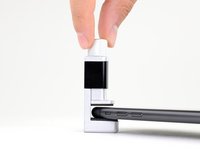
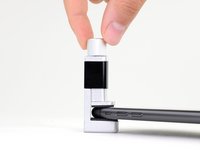
      • Spin the vise clamp knob clockwise to lower the upper jaw onto the screen.

      • Spin the knob until the jaw makes light contact with the screen, and then tighten down one half turn.

      • The clamp isn't meant to be very tight just yet.

      Ask FixBot

      Add Comment

    5. How To Use Screen Vise Clamps: step 5, image 1 of 3 How To Use Screen Vise Clamps: step 5, image 2 of 3 How To Use Screen Vise Clamps: step 5, image 3 of 3
      • Repeat the previous steps for the five remaining vise clamps: one at each of the four corners, and one in the middle of each long edge.

      • For larger tablets, more than six vise clamps may be needed to ensure the adhesive bonds evenly around the entire perimeter.

      • Using a hair dryer or heat gun, evenly heat the edges all the way around the device until they are slightly too hot to touch. The heat will help the adhesive form a more complete bond.

      • Don't overheat the device, or you may cause the battery to ignite or damage other heat-sensitive components, like the display.

      • While the device is still hot, tighten all six vise clamps down one full turn.

      • Don't tighten any further to avoid damaging your device.

      • Leave the vise clamps in place for about thirty minutes.

      Ask FixBot

      Add Comment

Finish Line

Cancel: I did not complete this guide.

31 other people completed this guide.

Carsten Frauenheim

Member since: 03/10/20

174,318 Reputation

442 Guides authored

Team

iFixit Member of iFixit

Staff

119 Members

72,955 Guides authored

0 Guide Comments

Add Comment

View Statistics:

Past 24 Hours: 11

Past 7 Days: 143

Past 30 Days: 621

All Time: 28,596