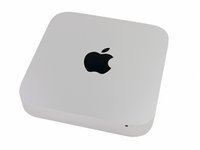
Click Image To Zoom


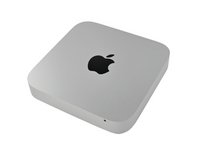
Mac Mini Dual Drive Kit

$49.95 Was $69.95
You save $20.00!

Product code: IF171-005-1
Apple Part #: 922-9560, 076-1391

Product Overview

Server-size your Mac Mini for less.

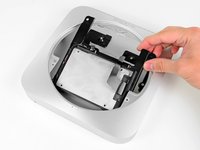
  • All Mac Minis support two hard drives—don't pay the Apple premium for an expensive Mac Mini server when you can use our kit to make one yourself and save money.
  • This kit includes all the tools and hardware you need to install a second drive. Just add a Mac Mini and new hard drive or SSD of your choice.
  • Included 26 Bit Driver Kit and Spudger are high quality tools, great for this upgrade and all future repairs.

Kit Contents:

  • SATA Hard Drive Cable - connect your new drive to the logic board
  • Mounting Grommets - soft rubber grommets protect and dampen vibrations from your new hard drive
  • Mounting Screws - four set screws to safely secure your new drive
  • Logic Board Removal Tool - specialized for the Mini's unique logic board
  • 26 Bit Driver Kit - includes all of the screwdriver sizes you need for this upgrade, and equips you for tons of other repair jobs
  • Spudger - ESD safe tool for disconnecting cables, poking, and prying

Compatibility

Identify your Mac

  • 2.3, 2.5, or 2.7 GHz 2011 Mac Minis (Model A1347)
  • 2.3, 2.5, or 2.6 GHz 2012 Mac Minis (Model A1347)

Product Details

  $49.95


Condition:

New

Warranty:

6 month warranty

Add to Cart »

50+ Available

Quantity:


Installation Guides

Mac Mini Late 2012

Difficulty: Moderate

Mac Mini Mid 2011

Difficulty: Moderate


Product Details Edit

Block Image

When we took apart the 2011 Mac Mini, we found the optical drive conspicuously absent. While few are bemoaning Apple's efforts to hasten the death of physical media, we were saddened that Apple didn't make better use of the extra space. Fear not, we've got a solution to bring your Mini back to the space-efficiency you'd expect in an Apple product.

You're free to install whatever combination of SSDs and/or spinning drives suits your fancy. Both drives are recognized as a regular internal drive and performance is identical in either position.

The Chef Recommends:

Don't have the newest Mac Mini? We have a solution to add a second drive to any Mac Mini:


Compatibility

Mac Mini Late 2012
2.3 GHz (Quad i7, Late 2012)
2.5 GHz (Dual i5, Late 2012)
2.6 GHz (Quad i7, Late 2012)
Mac Mini Mid 2011
2.3 GHz (Dual i5, Mid 2011)
2.5 GHz (Dual i5, Mid 2011)
2.7 GHz (Dual i7, Mid 2011)
 

Stories

My Problem

I wanted to use an SSD as the primary drive and maintain the original 1TB drive as a secondary.

My Fix

It went okay for the most part. I noticed all the tear-down docs (among models) were the same with the same images. Mine looked slightly different like my original was bolted in (docs suggest it rests and should be pulled out). Also, the cable for the secondary was the exact same size as the original; so I had to fold it in a way to make it "reach" the secondary port, which was the most difficult part. I was concerned I would stress the cable too much. But it worked in the end. The top drive also just rests on top of the original. The docs didn't explain that well with imagery.

Otherwise; once the hardware was re-assembled, I was able to boot up and use a cloning tool and rsync to move files around. I used the Mac Startup Disk tool to switch default boot up, then I erased my original 1TB drive and moved big stuff back over to it. I used symbolic links for things like Movies, Downloads, Pictures, Music etc in my home directory to push them off the SSD and onto the HD.

My Advice

Just that those cables are the same length. I mounted the original disk drive (HDD) in its original location and plugged its cable into its original spot. Then maneuvered the second hard drive cable (SSD; my new boot drive) to work with the secondary port.

My Problem

I wanted to turn my Mac Mini late 2011 into a true Mac Mini Server. So following the installation of Mountain Lion Server, I also wanted to have a second 1TB hard disk on board.

My Fix

Had iFixit's website open on my iPad next to the Mac Mini, and made sure to follow their instructions precisely. Disassembling the Mac Mini was straightforward. Also lifting the various connectors (UP !) with the spudger did not create any problems. No fear for damage this way.

iFixit's screwdrivers fit tightly into the screws, so with them you can lift the screws out of the box and avoid dropping the screws into the box.

Re-Assembling the Mac Mini did not create any problems as well, except for the reinstallation of the original (first) hard drive. It's not easy to install it into the two little holes on the frontside of the box, that you can't see. You need to feel it that the hard disk is properly positioned. With the front of the house resting on the table, and dropping the first hard disk into the house, you can feel if it "locks" into the two holes in the front of the house. Make sure the distance from the hard disk to the neighbouring parts left and right is the same. Also the two harddrive cables should point to their connectors with a heart-to-heart distance of about 1 centimeter.

Upon booting the Mac mini, Mac OS X found the new hard disk and advised to format it.

Unnecessary to say, the first hard disk must be in it's original position, else their is a fair chance your Mac Mini won't boot.

My Advice

Make sure to study the problems others had, and compare it with iFixit's instructions. Take ample time (2 hours) for the job. Don't do it in a hurry. In particular the cowling fits very tight in the housing. At first it seemed impossible to get it out, but moving it as described in iFixit's instructions and after a few trials it worked. No need to use force.

As you will see during disassembling, the Mac Mini is very well designed by Apple. Everything fits tightly and precisely. So when during assembling you note that some part does not align exactly with it's screw holes on the housing, you can be sure it is not properly positioned. And the next part won't fit (antenna !).

My Problem

I wanted to add 2 x 1TB hard drives i had picked up for £45 each on a special on ebuyer. they are hitachi travelstar 1TB 5400rpm drives. setup them up as striped to give 2TB and have an external 3TB seagate FW800 drive to contantly backup.

My Fix

Very easy and followed the guide

My Advice

Don't rush with the power supply extraction section - the shielded clip that connects and secures the PSU into the chassis can be unfamiliar to an average guy - so pay attention

My Problem

I installed an extra SSD drive into my Mac Mini last week using the Mac Mini Dual Drive Kit. My Mac OS is now operating in a SSD and the original 5400rpm hard disk is act as storage drive.

My Fix

The installation process was smooth with the help of the guide for installing Mac Mini Mid 2011 Dual Drive Kit.

My Advice

If you follow the installation guide carefully, there will be no problem at all.

My Problem

Bought a new Mac Mini with a 1TB 5400rpm HDD. Had a 120GB Intel 520 SSD from my previous computer and wanted to use it as the primary drive for the Mini, with the HDD as a file dump for music, photos, etc.

My Fix

The repair guide talks about folding the ribbon cable, but mine was already folded correctly. Other than that, the instructions were great. The only issue I had was removing the logic board. Using the included removal tool didn't work very well, I ended up pulling on the heatsink to get enough leverage to make the board release.

My Advice

Pay attention to the orientation of the power plug when you insert the power supply back into the unit or you won't be able to lock it in. Also watch out for the rubber bit around the power connector, as it has a tendency to move around and get in the way of the logic board clips.

Getting the top drive properly seated is very tricky because there isn't much room to maneuver. It helps if you put the drive into place before seating the logic board.

My Problem

Not enough space

My Fix

It was very interesting but at the same time easy with so detail inctruction from site iFixit. Thanks!

My Advice

Thanks iFixit. YOu make our life easier ;)

kkowallis's Story Photo #236592

My Problem

I'm getting ready to use my mac-mini as a Lion Server.

My Fix

The hardest part was getting the antenna cable reconnected when reassembling, and then getting the antenna plate remounted was a bear. The key was realizing there's about and inch on each side of the screen that kind of lifts up instead of going under the outer plate.

My Advice

Maybe a bit more instructions on replacing the antenna plate.

My Problem

I purchased the stock $799 2.3GHz i7 and wanted to give it a little boost, granted even in stock form it's much faster than my 2008 17" MBP. So I added a 250GB SSD using the dual hard drive kit, 16GB RAM and shazam.... killer Mac Mini on the loose!

My Fix

The repair was a breeze... using the install instructions provided by iFIXit! Step by step notes and photos made the install very doable even with having to "gut" the mini to install the 2nd drive.

I was a little nervous at first having to pull the logic board and other parts, but if you "read before doing" and follow the steps it was really very easy.

My Advice

One BIG TIP!!!!!!! Make sure and get the fan connected well when putting your Mac back together. I was lucky because a 3rd party software on my unit notified me that the fan wasn't running before any damage could be done!

Now I own a killer Mac Mini (maxi)

My Problem

Wanted to put my existing 256GB SSD in my new Mini and use the included 1TB for iTunes.

My Fix

Everything went according to the guide. The only I issue was trying to lock the power supply connector back in place. But realized I wasn't placing it in the right notches.

My Advice

Take your time and follow the guide. You'll be fine.

My Problem

Wanted more room at SATA speed. Previous owner put in a 80GB SSD and moved the original to USB. Not ideal when working with virtual machines. Decided to slap in a Momentus XT, plenty of room and speed.

My Fix

Guide was very helpful as the mini is very cramped. Without, it's undoable to identify what goes where and in what order.

Taking apart was the easy bit though. Had to take extra care putting everything back together. Connections are tricky and hard to manipulate. But once everything was stitched back it worked perfectly.

Note: The SATA cable came pre-bent. Saved some steps in the guide. :)

My Advice

- Not for people with thick fingers!

- Take extra care with connections. Putting them back can be a hassle. While opening found out the previous owner did not properly seat some as they where already loose. You don't want to reopen the Mini again and again.

- Not mentioned in the guide, but when putting back the lower bay hdd you have to mind that it sits in the positioning holes correctly. You cannot see them, only blindly feel your way around. And while handling the mini it is very easy to come out again, undoing your hard work. I have a bent screw and sprocket to prove it.