Free Shipping on Domestic Orders $75+

Causes
A minor software bug, a misbehaving third-party app, or a system update issue can cause the screen to freeze or act erratically. A common solution to this problem is to press and hold the power button for 10-20 seconds until the phone powers off. Press and hold the power button again to turn the phone back on.
Water, dirt, and oil on the screen can cause the touch function to trigger ghost touches. You will power off the device and let it air dry in a well-ventilated area. Then, with the phone still off, use a soft-bristled brush (like a toothbrush) or a cotton swab to gently dislodge any visible debris from the USB-C port.
If too many apps are running at once, the phone's CPU (processing power) can become overwhelmed, leading to a frozen or unresponsive screen.
Follow the steps below to easily fix this issue:
- Connect your Edge Plus to another device like a laptop, with a USB cable
- Check the USB settings on the device connected to your phone to ensure files can be transferred
- If you encounter software issues, use the Software Fix tool to reflash your software
- If you choose not to use a USB cable, connect your phone via Wi-Fi using third-party software like MyPhoneExplorer
- If the steps above fail to fix the issue, try restoring the data on your phone using MyPhoneExplorer
Dropping the phone can damage the internal components of the display, even if the glass is not visibly cracked. Review these instructions on how to replace the screen.
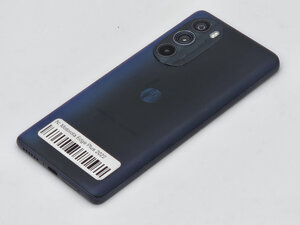
Motorola Edge Plus 2022
1 problem · View all
Describe your problem in your own words
