Free Shipping on Domestic Orders $75+
Causes
Warning
Do not blow into the port! Moisture can easily damage the functionality. Additionally, do not use any metal tool to clean the port.
- Turn the device off fully.
- Carefully blow compressed air into the port. Avoid placing the straw piece of the compressed air directly into the port.
- Insert a small, non-metal tool inside the charging port (such as a toothpick) and gently move it around inside the port. Pull it out often to clean out any debris that may have been loosened.
- Once clean, power on the device and continue using/charging it as normal.
If a charger/power cord is old, damaged, or corroded, it may affect the charging speed or power. Also, if the power source, such as a wall outlet, is damaged or not working properly, this could instead be the cause. Change out the charging cable, power adapter, and which outlet you're using.
Method 1: Close recent apps
- Tap the square button on the bottom right of the screen.
- To close one app, swipe up on its thumbnail.
- To close all apps, find an option such as "Clear all" or "Close all," and then tap it.
Method 2: Force stop an app
- Go to Settings.
- Tap on Apps & notifications.
- Tap See all apps.
- Scroll down and select the app you want to close.
- On the App info page, tap "Force stop" and confirm by tapping "OK".
- Open the Settings menu. You can do this from the home screen by swiping up to view all apps, then finding and tapping the "Settings" icon.
- Scroll down and select "System".
- Tap on "Advanced" in the System menu.
- Select "System update".
- Tap "Check for update" or wait for the phone to automatically begin searching for available updates.
- Follow the on-screen instructions if an update is found.
Related Problems

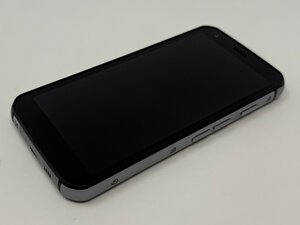
CAT S62
Find free step-by-step repair instructions, manuals, schematics, community support, and other DIY resources. You can do it! We show you how.
4 common problems
View allDescribe your problem in your own words
View statistics:
Past 24 Hours:1
Past 7 Days:7
Past 30 Days:24
All Time:417
