Free Shipping on Domestic Orders $75+
Causes
Apps running in the background may use a significant amount of battery, which can cause the device's battery to drain quickly.
Method 1: Close recent apps
- Tap the square button on the bottom right of the screen.
- To close one app, swipe up on its thumbnail.
- To close all apps, find an option such as "Clear all" or "Close all," and then tap it.
Method 2: Force stop an app
- Go to Settings.
- Tap on Apps & notifications.
- Tap See all apps.
- Scroll down and select the app you want to close.
- On the App info page, tap "Force stop" and confirm by tapping "OK".
- Open the Settings menu. You can do this from the home screen by swiping up to view all apps, then finding and tapping the "Settings" icon.
- Scroll down and select "System".
- Tap on "Advanced" in the System menu.
- Select "System update".
- Tap "Check for update" or wait for the phone to automatically begin searching for available updates.
- Follow the on-screen instructions if an update is found.
Related Problems

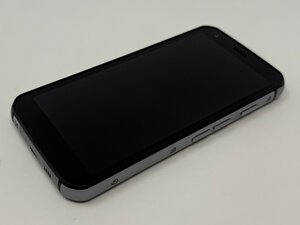
CAT S62
Find free step-by-step repair instructions, manuals, schematics, community support, and other DIY resources. You can do it! We show you how.
4 common problems
View allDescribe your problem in your own words
View statistics:
Past 24 Hours:0
Past 7 Days:7
Past 30 Days:36
All Time:381
