Free Shipping on Domestic Orders $75+
Causes
An unresponsive HP keyboard is commonly caused by outdated, corrupted, or missing drivers, software conflicts following updates, or hardware issues like loose internal ribbon cables or debris. Shut down the computer.
The official HP Website offers a solution: HP Notebook PCs - Keyboard troubleshooting (Windows)
Debris under the keyboard can cause a keyboard to jam or stick. To clean any debris from the keyboard, follow these steps:
- Turn your Chromebook off.
- Over a trash can, turn your Chromebook upside down.
- Carefully shake it to get rid of any loose debris.
- With a small vacuum, carefully suck any dirt or crumbs that may be there.
- With a slightly damp microfiber cloth, wipe the keys and the spaces between them.
- Wipe with a dry cloth.
- Turn the Chromebook on and type.
With constant use of Chromebook's keyboard, the rubber membranes can lose their spring-back ability.
Steps
- You’ll need a replacement rubber cup
- Remove the old rubber cup and have the surface of where the old key was as flat as possible
- Place the new rubber cup
- Attach the white plastic mechanism and make sure it is screw in place
- Attach the key
- Try typing, and if it doesn't feel right, repeat to scratch off the leftovers of the old rubber cup
Related Problems

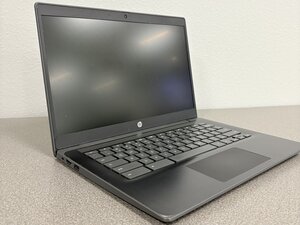
HP Chromebook 14 G6
Find free step-by-step repair instructions, manuals, schematics, community support, and other DIY resources. You can do it! We show you how.
2 common problems
View allDescribe your problem in your own words
View statistics:
Past 24 Hours:0
Past 7 Days:2
Past 30 Days:21
All Time:99
