Introduction

Use this guide to replace the cracked or broken screen on your iPhone 6 Plus by swapping out the display assembly.

This guide will help you remove the screen and the home button for transfer to the new part. This guide does not include the removal of the front-facing camera and sensor cable, or the earpiece speaker. If your part does not have these components, follow the more in-depth front panel guide.

Video Overview

Image 1/1: Remove the two 3.6 mm Pentalobe screws next to the Lightning connector.
  • Power off your iPhone before beginning disassembly.

  • Remove the two 3.6 mm Pentalobe screws next to the Lightning connector.

Add Comment

Image 1/3: If the plastic depth gauge is attached at the center of the iSclack, remove it now—it's not needed for larger phones like the iPhone 6 Plus.
  • The next two steps demonstrate using the iSclack, a great tool for safely opening the iPhone 6 Plus that we recommend for anyone doing more than one repair. If you aren't using the iSclack, skip to Step 4.

  • If the plastic depth gauge is attached at the center of the iSclack, remove it now—it's not needed for larger phones like the iPhone 6 Plus.

  • Close the handle on the iSclack, opening the suction cup jaws.

  • Place the bottom of your iPhone in between the suction cups.

    • Position the iSclack's upper suction cup against the display, near the home button.

  • Open the handles to close the jaws of the iSclack. Center the suction cups and press them firmly onto the top and bottom of the iPhone.

Add Comment

Image 1/2: The iSclack is designed to safely open your iPhone enough to separate the pieces, but not enough to damage any of the display cables.
  • Hold onto your iPhone securely and close the handle of the iSclack to separate the suction cups, pulling the front panel up from the rear case.

  • The iSclack is designed to safely open your iPhone enough to separate the pieces, but not enough to damage any of the display cables.

  • Peel the two suction cups off your iPhone.

  • Skip the next three steps and continue on to Step 7.

It's very difficult if you want to remove a cracked screen. The suction cup and Islack won't work. Does anybody know a better way?

Herbert - Reply

I don't recommend replacing the home button. HOWEVER, I would purchase an iSesamo tool (I paid $8 for a 3 pack on FleaBay) and jam that in between the frame and bezel. Most effective way to open a iPhone. Once you get used to it an iSesamo becomes an extension of your arm.

iRevive Mobile -

I use Scotch Tape, shipping tape. Put a couple of layers over the crack screen. That seals it so you can use the suction cup to remove the front of phone.

Michael Wallace -

I used the plastic pry took and the spudger to open it up. I place the pry tool dead center below the home button and was able to put some pressure around the seam and the top popped up enough for me to get the spudger in there to hold it open and then work my way around with the plastic pry tool.

johnoconna -

Apply clear packaging tape to screen. Then suction cup to that.

Tracey -

Use clear nontextured tape place that over the phone screen. Refer to any guide that addresses replacing a shattered screen

Abigail Cherry - Reply

I know it's tough with cracked glass. You just need enough to get in a plstic pry tool or guitar pick. Then you can pry it apart. Just be patient, I cannot stress that enough; the electronics are very, very small and fragile.

Mike - Reply

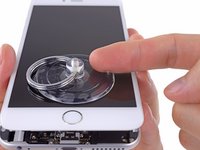
Image 1/1: Press a suction cup onto the screen, just above the home button.
  • If you don't have an iSclack, use a single suction cup to lift the front panel:

    • Press a suction cup onto the screen, just above the home button.

    • Be sure the cup is pressed securely onto the screen to get a tight seal.

Add Comment

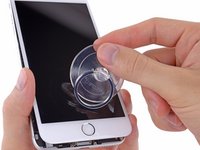
Image 1/1: Take your time and apply firm, constant force. The display assembly is a much tighter fit than most devices.
  • While holding the iPhone down with one hand, pull up on the suction cup to slightly separate the front panel assembly from the rear case.

    • Take your time and apply firm, constant force. The display assembly is a much tighter fit than most devices.

  • Using a plastic opening tool, begin to gently pry the rear case down, away from the display assembly, while continuing to pull up with the suction cup.

  • There are several clips attaching the front panel assembly to the rear case, so you may need to use a combination of the suction cup and plastic opening tool to free the front panel assembly.

Add Comment

Image 1/2: Remove the suction cup from the display assembly.
  • Pull the plastic nub to release the vacuum seal on the suction cup.

  • Remove the suction cup from the display assembly.

Add Comment

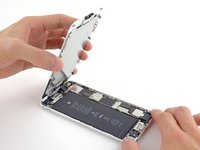
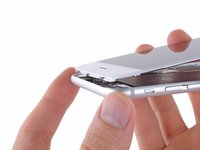
Image 1/3: Open the display to about a 90º angle, and lean it against something to keep it propped up while you're working on the phone.
  • Pull the home button end of the front panel assembly away from the rear case, using the top of the phone as a hinge.

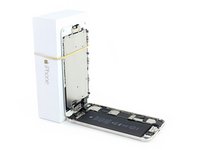
  • Open the display to about a 90º angle, and lean it against something to keep it propped up while you're working on the phone.

    • Add a rubber band to keep the display securely in place while you work. This prevents undue strain on the display cables.

    • In a pinch, you can use an unopened canned beverage to hold the display.

Add Comment

Image 1/2: During reassembly, align the clips just below the top edge of the rear case. Then, slide the front panel upward until its top edge is flush with that of the rear case.
  • Several clips along the top edge of the front panel form a partial hinge, allowing the front panel assembly to swing open like a book.

  • During reassembly, align the clips just below the top edge of the rear case. Then, slide the front panel upward until its top edge is flush with that of the rear case.

Add Comment

Image 1/1: One 2.3 mm Phillips #00 screw
  • Remove the following Phillips #00 screws from the battery connector bracket:

    • One 2.3 mm Phillips #00 screw

    • One 3.1 mm Phillips #00 screw

Add Comment

Image 1/1:
  • Remove the metal battery connector bracket from the iPhone.

Add Comment

Image 1/1: Take care to '''only''' pry up on the battery connector, and not the socket on the logic board. If you pry up on the logic board socket, you may break the connector entirely.
  • Use a plastic opening tool to gently pry the battery connector up from its socket on the logic board.

  • Take care to only pry up on the battery connector, and not the socket on the logic board. If you pry up on the logic board socket, you may break the connector entirely.

Add Comment

Image 1/1: Three 1.2 mm Phillips #00 screws
  • While holding the front panel open at about a 90º angle, remove the following screws securing the front panel assembly cable bracket:

    • Three 1.2 mm Phillips #00 screws

    • One 1.5 mm Phillips #00 screw

    • One 2.9 mm Phillips #00 screw

There's an other panel with one screw in the middle.........

Herbert - Reply

I _love_ the color coding of screws. I know this is a little OCD, but it would be incredibly useful if there were an 8.5 X 11 you could print with indicated homes for where to drop items from each step of disassembly. That is, in the box for step 9, little colored circles for where to place each screw type. As long as you don't jostle the paper, it would make it a lot easier to know exactly where you are in reassembly.

cscarlson47shop - Reply

On my iPhone 6 plus, none of the screws listed in this step are removable with the Phillips 00 screwdriver! I got this far and now am stymied because I can't get these four screws out! Any other screwdrivers I should use?

garth libhart - Reply

You are absolutely right, and you will strip the heads if you try very hard with the PH00. These screws are all PH000.

oscar -

Image 1/1:
  • Remove the front panel assembly cable bracket from the logic board.

Add Comment

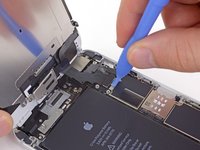
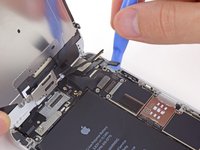
Image 1/2: While still supporting the front panel, use a plastic opening tool to disconnect the front-facing camera and earpiece speaker cable connector.
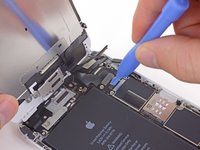
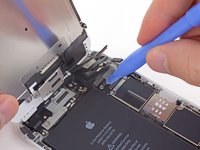
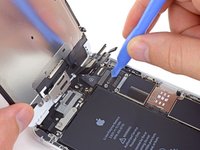
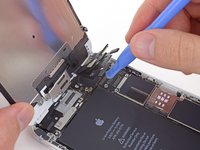
  • In the next four steps, take care to pry up only on the cable connectors, and not on their sockets on the logic board.

  • While still supporting the front panel, use a plastic opening tool to disconnect the front-facing camera and earpiece speaker cable connector.

Add Comment

Image 1/2:
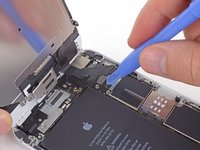
  • Use a plastic opening tool to disconnect the home button cable connector.

Add Comment

Image 1/2: When reassembling your phone, the display data cable may pop off the connector. This can result in white lines or a blank screen when powering your phone back on. If that happens, simply reconnect the cable and power cycle your phone. The best way to power cycle your phone is to [guide|29424|disconnect and reconnect the battery connector.|stepid=69596]
  • Use a plastic opening tool to disconnect the display data cable connector.

  • When reassembling your phone, the display data cable may pop off the connector. This can result in white lines or a blank screen when powering your phone back on. If that happens, simply reconnect the cable and power cycle your phone. The best way to power cycle your phone is to disconnect and reconnect the battery connector.

The piece of advice about power cycling the phone by disconnecting and reconnecting the battery proved crucial to the success of my repair (camera and lens replacement). At first when charging the phone after closing it, I got a dark, blank screen with an intermittent buzzing noise. After re-opening the phone and making sure all cables had been properly reconnected, I ignored the advice to power cycle the phone. Still all I got was a dark, blank screen (and intermittent buzzing if charging t). Then I opened it a third time (leaving the screen connected and attached at a 90 degree angle) and I only disconnected and reconnected the battery. Voila! When I closed the phone and powered it up, I got the screen to light up!

Gianni - Reply

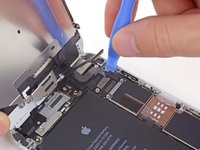
Image 1/2: When reconnecting the digitizer cable, '''do not press the center of the connector'''. Press one end of the connector, then press the opposite end. Pressing in the center of the connector can bend the component and cause digitizer damage.
  • Finally, use a plastic opening tool to disconnect the digitizer cable connector.

  • When reconnecting the digitizer cable, do not press the center of the connector. Press one end of the connector, then press the opposite end. Pressing in the center of the connector can bend the component and cause digitizer damage.

some images and guidance regarding reassembly would be helpful. You don't need to use the spudger to get them back on: fingers are better because there's a really subtle click you feel when you get them seated properly.

cscarlson47shop - Reply

When you're reassembling, a note that this is the step where you should test for proper screen function would be really useful. First time I reassembled, I didn't seat something properly, got all the screws back together and then realized the screen wasn't functioning properly. Had to disassemble back down to step 14 and then re-reassemble.

cscarlson47shop - Reply

I am having this issues right now! I have unplugged and plugged in these cables at least 20 times and each time I get white lines. I finally have it to where there are only 4 white lines and I am almost willing to live with it. Any suggestions?

mattmay002 -

Clean the screen connectors incase they are not making a clean connection

Karen Jones - Reply

Image 1/1:
  • Remove the front panel assembly from the rear case.

Never remove the screen without disconnecting the battery. It's possible the back light can be blown and that's a even more difficult repair. Always, ALWAYS, disconnect battery before repairing items. (Unless it's not possible.)

Marvin Ballard - Reply

How do you disconnect the battery from the screen?

Shamil Bhatti -

Image 1/1:
  • Remove the two 1.8 mm Phillips #00 screws securing the home button bracket to the front panel.

This guide is pointless, iPhone 6/6 plus home button is not replaceable, period.

Tom Chai - Reply

Yes it is absolutely replaceable. You need to remember it is a encrypted security feature, so you'll need the apple ID or password to regain control again if replaced. That's the whole point to secure your data.

Mike -

Yes, the iPhone 6 and 6 Plus home buttons are replaceable. I do several replacements for customers and they work just fine with one exception. The fingerprint reader around the home button does not work after replacing the home button

BrentTaylorBA - Reply

Hi Brent, I have a iPhone 6 plus with a shattered screen to repair and the home button is gone. You have said that you've been able to replace the home buttons successfully. I was wondering how you got past the error 53 problem when restoring it? Any suggestions or help would be greatly appreciated.

arcadian212 -

Sorry Arcadian212, There is no way to bypass Error 53 unless you install the original button, update to iOS 9, then put in the new button.

iRevive Mobile -

Why does that make it pointless? The guide is geared towards screen replacement, with the intent of using the original home button and a new screen. It clearly states this. What about this guide is pointless? It's actually very helpful.

abyss478 - Reply

Warning: The iphone 6 will brick after a restore if the home button is replaced. I agree with the other commenters that it is not a replaceable part because of this issue. If you try to restore the iPhone 6 after replacing the home button it will get stuck in recovery mode and give error 53 when a restore is attempted. I learned this the hard way! Please be careful and don't restore your phone if you do this repair.

max - Reply

What did you do after your phone got stuck in recovery mode ?

Lynn -

this help me a lot, i got Replacement Home Button Rubber Gasket for iPhone 6 from http://www.laimarket.com/home-button-rub..., and don't know how to raplace

Kevin - Reply

I had an error 53 when trying to restore a iphone 6 plus.

I bought a new heat shield with flex ribbon attached and installing that allowed me to get a restore complete.

steve - Reply

Image 1/1:
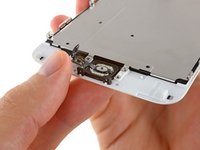
  • Remove the home button bracket from the front panel assembly.

Add Comment

Image 1/2:
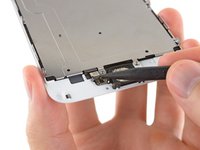
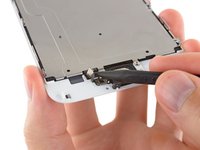
  • Use the tip of a spudger to disconnect the home button connector from its socket on the home button cable.

Add Comment

Image 1/1: Gently move the spudger across to separate the home button connector cable from the adhesive securing it to the front panel assembly.
  • Carefully wedge the tip of a spudger underneath the home button connector cable.

  • Gently move the spudger across to separate the home button connector cable from the adhesive securing it to the front panel assembly.

Add Comment

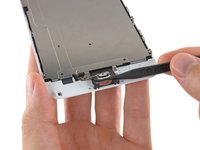
Image 1/2: Do '''not''' push the home button all the way through—you only need to get a corner free, so that you can pry it free with a spudger.
  • Using your fingertip, gently push, but do not remove, the home button up from the opposite side to free one edge of the home button gasket from the front panel.

  • Do not push the home button all the way through—you only need to get a corner free, so that you can pry it free with a spudger.

  • The rubber gasket surrounding the home button is very thin. To prevent the gasket from tearing, we recommend applying a minimal amount of heat.

Add Comment

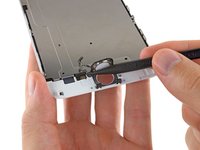
Image 1/2:
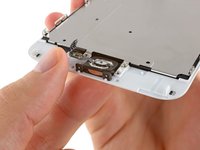
  • Carefully run the tip of a spudger underneath the perimeter of the home button to separate it from the front panel assembly.

Add Comment

Image 1/1:
  • Lift and remove the home button assembly off the front panel assembly.

Add Comment

Image 1/1: The Touch ID function will '''ONLY''' work with your phone's original home button assembly, so you'll need to transfer the home button assembly from your old display assembly to your new display assembly to retain Touch ID.
  • Display assembly remains.

  • The Touch ID function will ONLY work with your phone's original home button assembly, so you'll need to transfer the home button assembly from your old display assembly to your new display assembly to retain Touch ID.

  • After reassembly, clean the touchscreen surface with an alcohol wipe prior to turning the iPhone back on. The alcohol helps dissipate any lingering static electricity, which can cause problems with the display.

  • After reassembly, connect the iPhone to an AC power source before turning it on for the first time. Once the iPhone has booted up successfully, you can disconnect the AC power.

Add Comment

Conclusion

To reassemble your device, follow these instructions in reverse order.

183 other people completed this guide.

16 Comments

I have original home screen button, but the panel and home button cable was part of what was damaged on the phone. With that in mind will it still work with original home screen button, but replacement panel?

Pot Kerwin - Reply

This is a tough one. I do not know that you'll be able to salvage the Touch ID functionality of the home button with the connector being damaged. You may need to purchase iPhone 6 and 6 Plus Home Button Assembly and iPhone 6 and 6 Plus Home Button Gasket. This will no longer retain the Touch ID functionality though.

Jeffrey Carpenter -

I will be testing this out myself as soon a I get a new touchID cable/along with the LCD Panel. I did a screen replacement, all went well and works great, however I punctured the TouchID cable when prying it off of the old display.

I ordered a new cable with the panel, as I understand it as long as you have the ORIGINAL TouchID assembly which I do, after replacing the cable it should work!

Cody Crosby - Reply

Instructions are incomplete ! You also have to remove the aluminum plate and the rear camera/speaker assembly.

Also, my touch ID does not work anymore :/ nothing was damaged and plug is connected. Resetting the phone made no difference.

Why would it not work if I used the same Home Button and logic board?

michael8nuts - Reply

help please

I just replaced my lcd screen. it has been off for about a year now. when I plug it into the charger it just vibrates every 5 seconds. I've tried hard reset and it just stops vibrating but doesn't power up. I've unplugged and plugged the lcd ribbon cables a couple times and still get nothing.

jordan b - Reply

hello jordan b ,

I wanted to know if you managed to solve the problem .

I just replaced my lcd screen. when I plug it into the charger it just vibrates every 5 seconds. I've tried hard reset and it just stops vibrating but doesn't power up. I've unplugged and plugged the lcd ribbon cables a couple times and still get nothing.

How can I fix the problem?

lucatrotto -

Hello,

My iPhone 6+ LCD is broken, and I want to replace it. I did some replacements on iPhones 3&4. But I just read that after changing the display assembly on the iPhone 6 (+), many peaple got an error after update/restore the phone. Is that for all replacements?

Best regards

facebook - Reply

I know this is a old guide but i have a question. My iphone was screen broken and i change it with a original complete iphone screen, the home button works fine but the touch id dont work. I change the home button to the one that i have in the broken screen and still the touch id dont work. What can i do to fix the touch id?

Juanjo Checo - Reply

I replaced my screen and things were good but a few hours later screen became unresponsive at times. It's now been a week and screen is still the same. Wondering if it's the screen I received, which is defective, or I need to reconnect the cables. Has anyone experienced this problem?

Kesha Smith - Reply

Hi Kesha.

Have you find a solution for unresponsive touch screen? Mine has this problem since replacement.

James Kazutoshi Wada -

Hey! can someone help me please! i have already change the display assembly and works fine, touch screen, touch id, but i have troubles with the horn when im on a call, the sound is like a busted horn, i have to put the call on speaker... Will there be any cable that is not connected ? Anyone else has happened to this?

Alejandro de Luna - Reply

Very simple. Did it in 10 mins.

asthomas - Reply

Replaced everything like instructed, touch portion doesn't work. Anybody else have this issue?

Joseph Bundy - Reply

I just replaced the screen and all I have are lines when I power it up. could I have a bad screen??

Karl - Reply

I just purchased a iphone 6 plus off of someone. It has a cracked screen and it looks like the screen has been replacement already. I think the home button is a replacement as well. If I purchase a new screen with the home button and sensor will it give me the error 53 when I go to update it. It is on IOS 9.3.2. Thanks

JOhn Scott - Reply

No it won't. Error 53 has been fixed, so as long as you're running the latest version of iOS you shouldn't have any trouble. Note that if you are using a non-original home button you will not be able to use Touch ID (but that's the worst you could expect).

Evan Noronha -

Add Comment