Tools
Parts
Introduction
Use this guide to replace a broken or non-functioning rear-facing camera in your iPhone 5s.
Video Overview
-
If your display glass is cracked, keep further breakage contained and prevent bodily harm during your repair by taping the glass.
-
Lay overlapping strips of clear packing tape over the iPhone's display until the whole face is covered.
-
Remove the two 3.9 mm Pentalobe screws from either side of Lightning connector.
I used a white terrycloth hand towel as my work surface and to position and retain all the screws and part in their relative positions, so I didn't mix things up. I also magnetized the screwdriver tips and that made it very easy to deal with these tiny, tiny screws.
-
Regardless of the tool you use, you need to be sure you pull up the entire display.
-
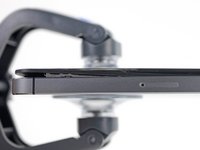
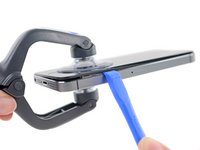
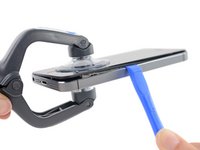
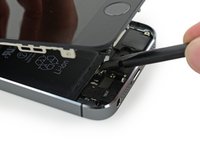
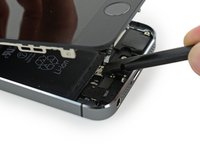
If the glass begins to separate from the plastic, as shown in the first image, slide a plastic opening tool between the plastic frame and the metal phone body to pry the metal clips out of the case.
-
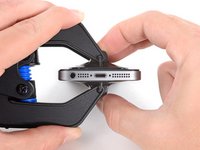
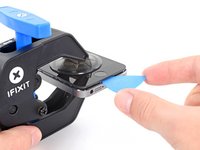
Close the handle on the iSclack, opening the suction-cup jaws.
-
Place the bottom of your iPhone in between the suction cups, against the plastic depth gauge.
-
The top suction cup should rest just above the home button.
-
-
Open the handles to close the jaws of the iSclack. Center the suction cups and press them firmly onto the top and bottom of the iPhone.
DO NOT USE THIS METHOD. If the glue holding the glass to the screen assembly is weak, the force from the suction cup will pull the glass straight off. Instead, use a very thin flat metal tool to slide under the front face (carefully between the plastic edge strip and the metal case) and pry up. This is not only easier, but it is also a far safer method.
Thank you very much, however already used the suction cup and it came much easier than expected... Then snapped the home cable on my wife's phone... Now I have to replace that...
This tool is worth its weight in gold to make opening the case without breaking things very easy. Highly recommend using it. I needed to use the little blue plastic pry bar tool on one side of the case to get the glass and frame to release from the back.
-
Hold onto your iPhone securely and close the handle of the iSclack to separate the suction cups, pulling the front panel up from the rear case.
-
The iSclack is designed to safely open your iPhone just enough to separate the pieces, but not enough to damage the home button cable.
-
Skip the next three steps and continue on Step 9.
-
If you don't have an iSclack, use a single suction cup to lift the front panel:
-
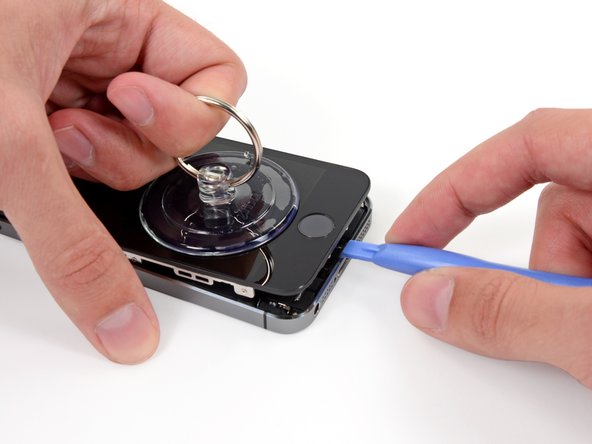
Press a suction cup onto the screen, just above the home button.
My phone was too shattered to grip with my "Pump'itup" iFixit suction cup, and the method of adding packing tape over the display did not work either (still too lumpy). I ended up epoxying two 5" x 3/4" pieces of wood trim strips directly to the face of the phone, avoiding the Home switch and any seams, and positioning the wood to overhang the phone by ~2 inches. After 30 minutes of setting, I was able to lift up on the overhanging wood strips and pop the face of the phone out of the housing.
Use a Stanley knife to push in between the back housing and the frame in the bottom left and corner and gently leaver up.
Much easier Than using suction cup but may slight scratch the frame or housing.
Removed board. I ended up with a small shiny metal plate. Shown clearly in the above last posted photos just under the power button switch. Where does this goes?
I was wondering the same thing. Did you ever figure out where this goes?
paul -
This has probably been replied to, but see step 31 :) Should be re installed with the pokey out bits pointing down.
Can someone please help me. I went through all of the steps and now my phone screen is all white and I can't see anything.
First try a hard reset by holding down both the power button and the home button at the same time for at least 10 seconds. If that doesn't work, get back inside the phone and reseat the connectors. If the problem persists, either you received a bad part, or the part was damaged during installation.
iGuys -
In my case, i found it easier to remove the sim - not sure if this was a placebo effect, but there you go!
also, there is a rubber seal around the screen - my experience is it should stay of the display, not on the main body.
The amount of force I applied to open the case using the suction cup manually ended up tearing out the home button cable...ripping it in the process. Goodbye TouchID...see you next generation T_T
I would definitely recommend buying a stupid iSclack. I don't know why they'd even present the suction cup as an option. Maybe the 5S opens more easily when it's new. Now I need to decide between dropping more money on a new home button (and iSclack this time) or just hold out with the software home button.
Just lift slightly using the suction cup and on the bottom edge of the screen over to the left you'll see a slight gap open up just enough to get the spudger in. Don't use the suction cup to release the entire display assembly, just work around the edge with a spudger. This also helps clear some of the dirt build up.
I too tried the suction cup - worthless on cracked an only pulled off the many layers of packing tape applied as suggested. Used edge of utility knife to pry it up, then helper placed another blade underneath until I could pry it open. Great suggestion I read elsewhere, and only way I could get cover off.
I too skipped step 25. Definitely requires patience! Screen replacement was successful, but noticeable degradation in screen clarity/color from the original is somewhat disappointing. At half the price of OEM repair, would probably do it again though.
-
While holding the iPhone down with one hand, pull up on the suction cup to slightly separate the home button end of the front panel from the rear case.
-
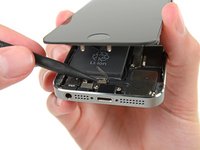
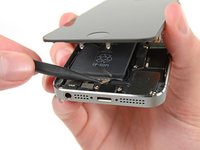
With a plastic opening tool, gently pry the edges of the rear case down, away from the front panel assembly, while you pull up with the suction cup.
Seriously consider the isclack. I have a lot of experience working with much more valuable equipment than a phone, and I had read all the precautions... but I broke the cable anyways. The isclack is specifically designed to open the phone but only wide enough to get the clips out, while saving your home button cable.
Agreed. The suction cup method shouldn't be mentioned. I'm also extremely delicate with electronics and gently opening the display with a single suction cup is essentially impossible. The spudger needs to do all the work.
idmadj -
It may help to position the suction cup off-center and pull up one corner first.
Avoid spudgers, guitar picks, and other weird inventions, just use your fingernails. That way you can feel what's happening, and you won't accidentally slide them in and break something. They won't break the plastic rim thingy either, in contrast with spudgers. That's what fingernails evolved to do, so just use them.
-
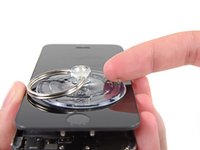
Pull the plastic nub to release the vacuum seal on the suction cup.
-
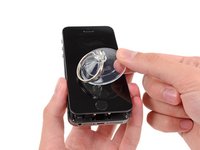
Remove the suction cup from the display assembly.
-
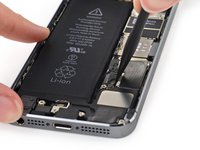
Open the phone just enough to reveal the metal bracket covering the home button cable.
-
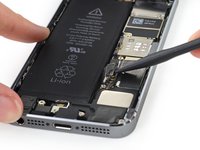
Use the tip of a spudger to push the bracket free and remove it with tweezers.
-
Use the flat end of a spudger to snap the front portion of the Touch ID cable bracket down over the cable connector.
-
Use the tip of a spudger to pry the home button cable connector up out of its socket.
Upon reassembly, I found this easier once I was looking at the connection from the bottom of the phone, as pictured. I had been trying to line up the connector from the side. Once I put on magnifying glasses and had really good light, I lined it up and slipped my finger in for the click.
Oh, in a moment of relief after getting the cable connected, I quickly closed up the phone, forgetting to put the metal bracket covering the home button cable back on. I had to re-open the case. Don't be like me!
-
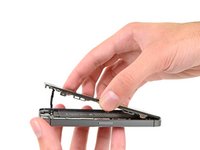
Once the connector has been released, pull the home button end of the assembly away from the rear case, using the top of the phone as a hinge.
-
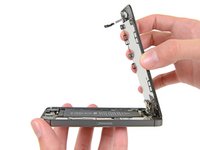
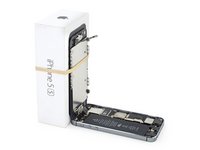
Open the display to about a 90º angle, and lean it against something to keep it propped up while you're working on the phone.
-
Add a rubber band to keep the display securely in place while you work. This prevents undue strain on the display cables.
-
-
Remove the two 1.6 mm Phillips #000 screws securing the metal battery connector bracket to the logic board.
-
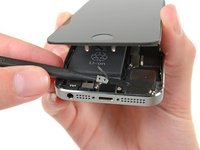
Remove the metal battery connector bracket from the iPhone.
-
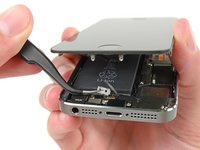
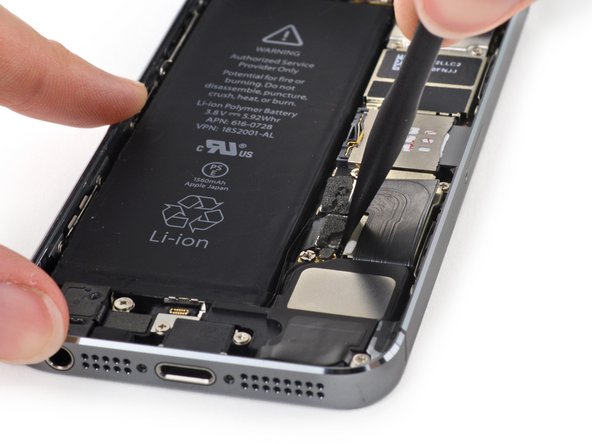
Use the flat end of a spudger to gently pry the battery connector up from its socket on the logic board.
-
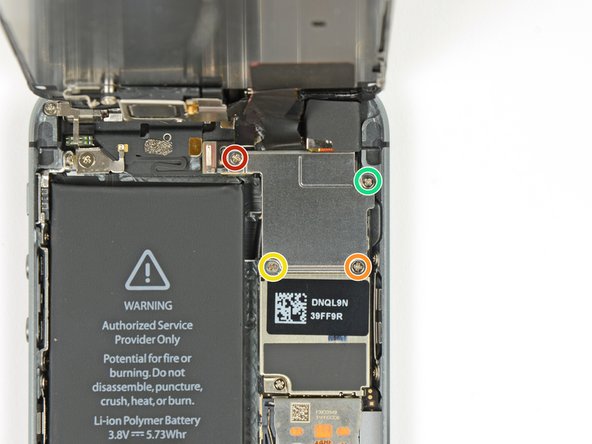
Remove the following screws securing the front panel assembly cable bracket to the logic board:
-
One 1.7 mm Phillips #000 screw
-
One 1.2 mm Phillips #000 screw
-
One 1.3 mm Phillips #000 screw
-
One more 1.7 mm Phillips #000 screw
-
Two screws at the bottom should be the most short, two screws on top are the longest, you got it wrong.Please official verification again, and reply to me. Thank you!
Hi Claude,
Unfortunately I forgot to check at dis-assembly which screw goes back where at step 11 so I ended up following the instructions although, I would find it logical that the longer screws are for the top and the shorter ones for the bottom holes, which is what you mentioned also . I anyway ended up following the instructions and all went well except that I am now unable to hear anything while in a phone call connected to the Bluetooth in my car. The phone connects, I have the battery and network status on the screen of my car, I can receive SMS on the car's screen, I can stream music to the speakers but I cannot hear anything while in a call. I can hear the call ringing in the car speakers, I can answer it but after that it's silent.
So, I was wondering:
1. Did you hear back on your comment from iFixit?
2. Did you install the screws back the way you mentioned in your comment? Did it work?
3. Did you check / note down the position of the screws at dis-assembly?
Thanks in advance.
Regards,
Cornel.
so these are wrong?:
http://www.iphonebits.co.uk/wp-content/u...
https://blogetechparts.files.wordpress.c...
As they suggest the long screws go on the left...
Can anyone answer if the blue strips on the crews indicate which screws they are? They are all so small it's hard to find the right lengths for each hole
Does anyone know if the blue strips on the screws indicate their length? I'm finding it very hard to distinguish the lengths
@Ariel - The blue that you are seeing on the screws is simply leftover loctite compound that is used to prevent the screws from working their way loose during every day use and does not give any indication as to the length of the screw. You should notice that, generally, you have two lengths of screws out of the 4 that came out...2 with longer threads and two with shorter threads. The two with shorter threads need to go in the bottom two holes...these two screws are not exactly the same length (difference of 0.1 mm), but mixing them up should not cause any harm to the phone due to such a small difference. With the two longer ones that are leftover, only one of them will be magnetically attracted to your screwdriver...this is the one that goes in the top left hole. The one that does not easily attract to your screwdriver goes in the top right.
iGuys -
Hi Everyone,
Claude is right, after re-arranging the screws so that the top two are the longest, bottom-right shortest and bottom left is the second-shortest the in-call audio came back with Bluetooth calls.
The same was found and posted by Pete on the Apple Support Communities forums and, as mentioned, I can also confirm that this fix works.
Hope this helps.
Regards,
Cornel.
i did the battery replacement and now my gyro isnt working. I did not know the screws had different lengths. Think it will be ok if i take apart and put correctly or do i need a new logic board??
The two 1.7 mm Phillips #000 screws should be placed on top and the 1.2 & 1.3 mm Phillips #000 screw at the bottom.
If you do not respect that order, the Bluetooth calls feature will not work anymore.
Please change all the versions including this step.
I skipped steps 11-16 and that worked pretty well from me. On another commenter's advice, I simply used some packaging tape to tape onto the top of the screen, over the top of the phone, and onto the back of the phone to hold the display at a right angle to the rest of the device. Saved me all the trouble/risk of disconnecting the display, but if you use this method you should be VERY careful not to hit the display while removing the battery.
I completely agree with lambdahindiii, skip steps 11 - 16 completely. You do have to be careful not to flip open the display, but it's manageable with some care.
I will give disclaimer that I used 3.0x magnification with surgical loupes. Any kind of magnification will help. Also recommend using an LED head lamp for optimal illumination.
wmlee1 -
I'm going to upvote the suggestion to skip steps 11- 16 too.
Some things to look out for:
- Both the battery adhesive strips broke off for me so I had to pry the battery out. You do have to be careful as a good amount of pressure is needed to remove the battery that you don't twist the top display and break the connectors. It's just a trade-off of risks though - you won't have to worry about losing or inserting the wrong screws for the front panel connectors either.
- The metal connector over the touch ID button is hard to put back in. It looks like one piece on the video but it's a separate metal piece that goes over the connector.
- To open the case with the suction cup, I found it useful to place the cup more to one side, and lift that side up first and then work on the other side.
Take your time and good luck all
wilten -
On my phone it actually seems like one of the 1.7mm screws is non-magnetic (the other 3 screws are magnetic). Although this could be a botched repair job from a previous owner...
I guess if it's intentional, it should be the top-right one, as that is closest to the compass IC.
You're right. The top right screw must be non-ferrous stainless. I've repaired tons of the5-5s and that screw is never magnetic.
BJS -
You are absolutely correct — the upper right one is the non-ferrous / non-magnetic one. I’ve made corrections to this guide and the guide for the iPhone 5 but each time the edits have been denied, once by @Reed Danis and the previous by @Walter Galan. Not sure why they’re denied — it’s obvious which one doesn’t stick to a magnetic screwdriver. This mistake makes these guides quite unreliable and will screw (ha) with the compass.
Drtofu -
Apparently it is non magnetic so as not to interfere with the compass. The iPhone 6 has moved tis down to the bottom near the battery connector.
Jack -
I was fixing a broken screen, when I noticed that the guy that had started the job before leaving it to me, had mixed up the screws for the battery that he changed by himself and step 11. So i started searching around for an answer when the startup just looped with the Apple logo. and I of course started here, and found out that he had mixed up the screws, but step 11 here, and the same step at this link: http://www.irepairnational.com/iphone-5s...
shows two different ways to where the 1,2mm and the 1,7mm screws are being placed.
what is the correct way?
i had the 'blue screen of death' and here was my workaround:
kgale4 -
I was wondering exactly the same thing why we need to un-screw the screen? Anyway place the screws in the order they come and you should find no problems putting them back in right order.
Also I found the screw driver comes with ifixit battery kit does not fit in the screws perfectly. Feeling a little large for these screws. Anyone else had the same experience?
I cannot unscrew the Philips #000 screws in this step using iFixit's Philips #000 screwdriver. The screw does not even turn at all. I wonder about the screwdriver iFixit is using in the video - https://youtu.be/k_OpjhKAUCM?t=180 . Can we buy it ?
-
Remove the front panel assembly cable bracket from the logic board.
-
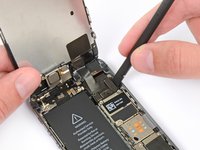
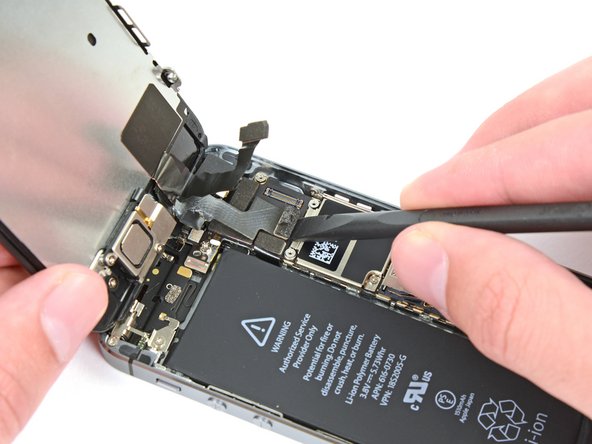
Use the flat end of a spudger to disconnect the front-facing camera and sensor cable.
The flat end of the spudger works great to position and press down on the connectors during reassembly.
-
While still supporting the front panel, disconnect the LCD cable connector.
-
Finally, disconnect the digitizer cable connector.
When re-assembling, this is the most difficult cable to re-align and re-connect. A second set of hands is helpful. If not available, be patient and line up the connector carefully. Once reconnected, use care not to 'open' the front cover beyond about 85° to prevent pulling this one back off... If you do, you will have to power-cycle the phone (disconnect the battery) to get things working properly again.
I agree that this was the most difficult step during reassembly. I was trying to use the various tools, but shredded up some of the foam padding on the back of the connectors. After struggling with this for ~20 minutes, I realized just pressing each connector down gently with the tip of my finger snapped each one into place rather easily, no tools necessary.
Had to try 4 times until I finally got it right, I would say that less than 80° works well for this step, just take your time and be patient with the screws
-
Remove the front panel assembly from the rear case.
I replaced my old battery with the one I bought here in iFixit. I replaced the battery according to the instructions of this guide (Using a guitar string did the trick when removing the battery) and finally assembled the sensor ribbon. Turned on the phone and SURPRISE! Error, Touch ID Does Not Work. I was disappointed, in the most part because I was extremely careful, it's not my first repair, and I did not break the ribbon, the Home Button was working properly.
I spent 4 hours re-seating the ribbon and putting in place the metal bracket.
For you guys, who have lost Touch ID but didn't break the sensor flex cable AND the Home button works, I thing I have found a SOLUTION:
As you can see in the picture (link below), a grounding Tip under the screw MUST be in THIS POSITION. If misaligned it will not work. Mine was misaligned during the display disassembly (STEP 16) and this was the solution. A smile returned to my face.
IMG LINK:
why cant u disconnect the lcd and just put the new one in reverse from step 16? wgy to step 32
-
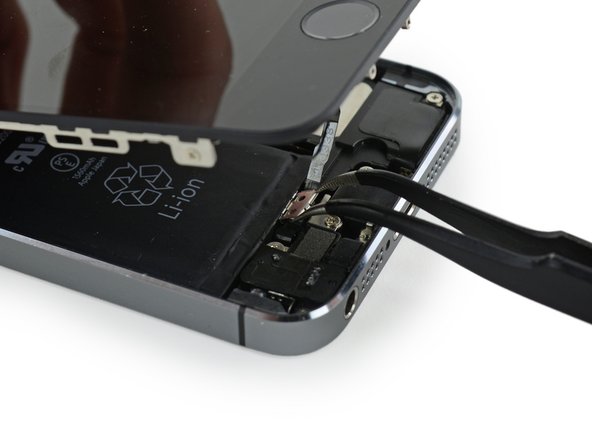
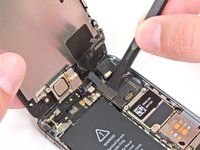
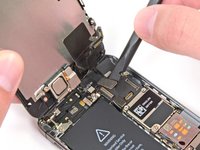
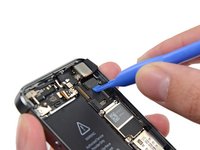
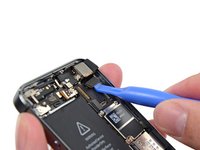
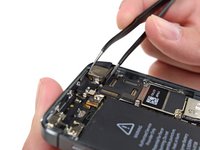
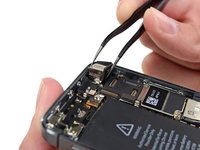
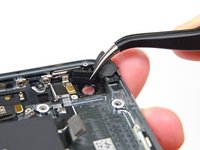
Using a pair of tweezers, flip the rubber camera cover out of its clip, and toward the outside of the rear case.
-
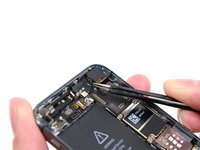
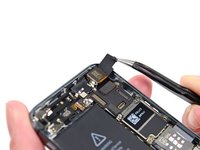
Using a plastic opening tool, disconnect the rear-facing camera cable connector from the logic board.
-
Remove the rear-facing camera from the rear case.
To reassemble your device, follow these instructions in reverse order.
Cancel: I did not complete this guide.
73 other people completed this guide.
2 Comments
i replaced the camera but its just showing black in the camera app, front facing camera works fine but the flash is saying its overheating, works fine when i put the old one back in (apart from the focus, which is the reason for replacement), can anyone help? is it a faulty new camera part?
Paul, I took mine to the local repair shop because of camera not focussing up close. They replaced it and it was all black like you report, they tried another camera and had the same problem, also they mentioned that it was overheating. They then put back in my old camera and it's got picture again but still not focussing. They said the main board must be faulty and wanted to post it away for repair. I suspect they're using a dodgy aftermarket camera replacement.
This was the most stressful thing I have ever done. I can't get the chips to pop in the top right corner, still coming up with white lines at top of screen even after re-powering the battery. Very poor experience, will let apple or a professional handle this rather than a how to. &&^& this.
steven krieger - Reply
This is a Step 4 comment. I ordered the iSclack tool to help with my 5s battery replacement. After 30 minutes of trying to open the iPhone, I gave up and will try this later when I have a lot more time to spend on this. Before you ask, yes I did remove the two screws in Step 2. I must have a very tight fitting phone! Maybe next time I'll try a drop of oil on both suction cups to help with the adhesion. LOL, did not think I'd have trouble opening the case!
TerryChang - Reply
An update. After months of living with my dead battery (iSclack would not work for me), I decided to use the provided suction cup, and surprise - it worked! LOL, so much for the iSclack tool! In any case, I followed the instructions and though it was a bit difficult (too small parts, too fat fingers, aging eyes), I was able to replace the battery. The battery removal was a bear, but with patience (and the use of an expired credit card as my lever), it did come out. Replacement of the adhesive strips was a puzzle - I eventually installed it "backwards" (removal hole in the tab on the left vs right) but this should not affect anything. Phone is charging now and preliminary testing of the home button/digitizer seem to be working. Once fully charged I'll do a full test on the phone to ensure I put things together correctly, but THANK YOU iFixIt for these instructions!
TerryChang -
I faced the same issue. My 5S wouldn't open with the iSclack. Had to use the suction cup instead. Even then, I wrestled with it for a whole 30 minutes.. Apparently my 5S is one sticky beast.
Daylen -