Tools
Introduction
Use this guide to replace the front panel.
The front panel does not include the home button, front camera assembly, earpiece speaker, or the LCD shield plate—you'll need to transfer all of these components into your replacement part.
You can also use this guide to replace the front panel assembly cable bracket.
If you'd rather replace the entire display assembly as one component, we have that guide and replacement part available here.
Video Overview
-
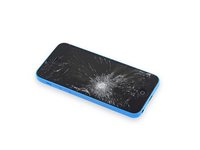
If your display glass is cracked, keep further breakage contained and prevent bodily harm during your repair by taping the glass.
-
Lay overlapping strips of clear packing tape over the iPhone's display until the whole face is covered.
-
Remove the two 3.8 mm Pentalobe screws next to the Lightning connector.
-
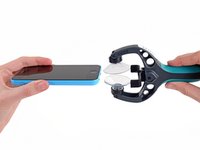
Close the handle on the iSclack, opening the suction-cup jaws.
-
Place the bottom of your iPhone in between the suction cups, against the plastic depth gauge.
-
The top suction cup should rest just above the home button.
-
-
Open the handles to close the jaws of the iSclack. Center the suction cups and press them firmly onto the top and bottom of the iPhone.
-
Hold onto your iPhone securely and close the handle of the iSclack to separate the suction cups, pulling the front panel up from the rear case.
-
The iSclack is designed to safely open your iPhone just enough to separate the pieces, but not enough to damage any cables.
-
Skip the next three steps and continue on to Step 8.
-
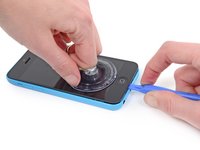
Press a suction cup onto the screen, just above the home button.
-
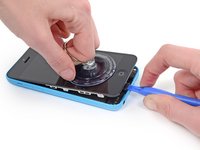
While holding the iPhone down with one hand, pull up on the suction cup to slightly separate the front panel assembly from the rear case.
-
With a plastic opening tool, begin to gently pry the rear case down, away from the display assembly, while you pull up with the suction cup.
-
Pull the plastic nub to release the vacuum seal on the suction cup.
-
Remove the suction cup from the display assembly.
-
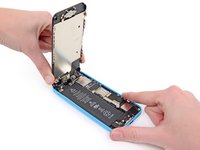
Lift the home button end of the front panel up to gain access to the connectors near the top of the phone.
-
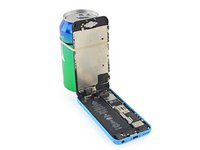
Open the display to about a 90º angle, and lean it against something to keep it propped up while you're working on the phone.
-
In a pinch, you can use an unopened canned beverage to hold the display.
-
-
Add a rubber band to keep the display securely in place while you work. This prevents undue strain on the display cables.
-
Remove the two 1.6 mm Phillips #000 screws securing the metal battery connector bracket to the logic board.
These screws are very tiny and hard to manipulate. The screwdriver is magnetic; which is great to take them out, but makes it hard to put the screws back in, as the screwdriver pulls them from the hole. I solved this problem by using the pointed end of the spudger to put a tiny drop of Elmer's glue in the hole and then insert the screw. You can do this before putting the bracket in place if you want. Then the screw wont pull out by the magnetic driver and make lining up and fastening the screws much easier; at least for me!
-
Remove the metal battery connector bracket from the iPhone.
-
Use the flat edge of a spudger to pry the battery connector up off the logic board.
-
Remove the following Phillips #000 screws securing the front panel assembly cable bracket to the logic board:
-
Two 1.3 mm screws
-
One 1.7 mm screw
-
One 3.25 mm screw
-
In step 9: I think you are talking about the 3,25 and 1,7mm one not the 1,3 and the 1,7mm?
DO NOT Remove the battery, there is no need to and can cause unnecessary damage! There's a tutorial on YouTube that does it without!
I didn't need to remove the front panel to replace the lightning connector. Just prop it up like in Step 8, then skip steps 12-16.
-
Remove the front panel assembly cable bracket from the logic board.
-
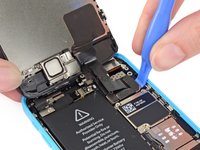
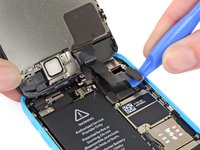
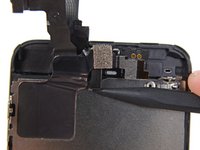
Use a plastic opening tool to disconnect the front-facing camera and sensor cable connector.
-
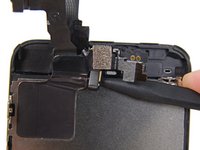
Use a plastic opening tool to disconnect the LCD cable connector.
I replaced the broken front panel of the iPhone 5c and got the "famous white stripes" on the new screen. Reading about all kind of problems that the lcd/digitizer cable contacts may cause, I compared the cable connectors of the original Apple and the replacement part I bought online with a 35x magnifying glass. The quality difference was visible: The white description on the original part on the cable next to the connector is: 821-1784-A, while the inferior replacement part is: 821-1784-02. Check out the two numbers online and insist getting the "A" to avoid future troubles !!!
This person above is not knowledgeable. That number is a camera proxy part number, not the lcd or digitizer number. It changes with production date, both for original and aftermarket ones. A, B, D, 02, 04, 08 etc. Can all be either or.
vince -
There are, in fact, three connectors in this step, not two. The front-facing camera and digitizer connector (Step 11) is really difficult to align when you put it back. Took me about 15 minutes before I succeeded.
Now I have a different problem. Everything works just dandy, EXCEPT:
Towards the bottom of the screen (in portrait) there is a horizontal line that is dead to the touch. For example, on the keyboard, I can use the spacebar, but not C V B N M, etcetera.
Three possibilities in my mind: One, when I dropped it, something else besides the glass and digitizer, etc, was damaged.
Two: I did not replace the cables correctly. This seems unlikely. They all "clicked" into place and stayed there.
Three: The digitizer supplied is faulty.
Comments? Which cable/connector could be causing this -- if it is that?
Take apart, Clean Connections, Put back together.... If same problem sounds like a fault part...
duston -
When reassembling the iPhone 5c, I used the flat end of the spudger to press on the connectors and maintain them while replacing the front panel on the body of the iPhone.
The third and "deepest" connector no longer slips out of its socket, which it did before holding the whole lot with the spudger.
If the ESD plate covering the connectors is properly re-attached to the phone, you should not have to do this. The cover holds all the connectors in place just fine.
iBroke -
-
Remove the front panel assembly from the rear case.
-
Remove the two 1.3 mm Phillips #000 screws securing the home button bracket to the display assembly.
-
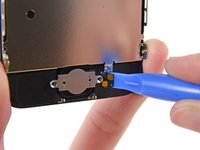
Use a plastic opening tool to pry the edge of the home button ribbon cable up from the display assembly.
-
Start under the contact points on the right and work to the left.
-
Remove the home button ribbon cable from the display assembly.
-
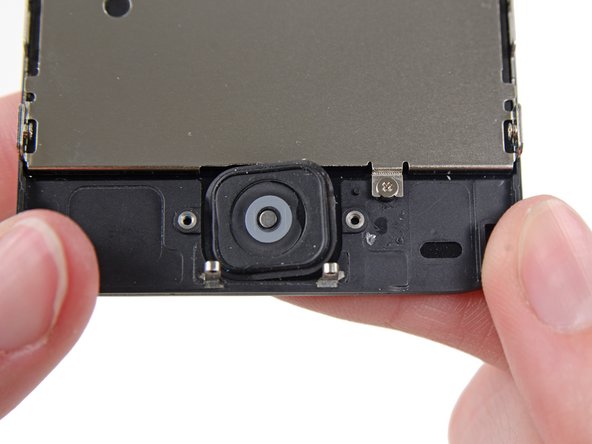
Gently push the top right corner of the home button up away from the front panel.
-
Peel the home button the rest of the way off of the display by prying gently with a spudger.
-
Remove the home button assembly from the front panel.
-
Remove two Phillips #000 screws securing the upper component bracket to the display assembly.
-
One 4.2 mm screw
-
One 2.3 mm screw
-
-
Use the flat edge of a spudger to push the earpiece speaker bracket off the display assembly.
-
Remove the earpiece speaker from the iPhone.
-
The front-facing camera and sensor cable is adhered to the display assembly with mild adhesive.
-
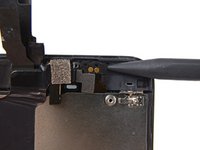
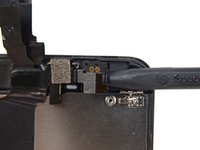
Using the pointed end of a spudger, gently pry the earpiece speaker contact cable up, to separate this portion of the camera and sensor cable from the adhesive below.
-
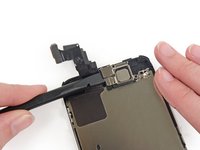
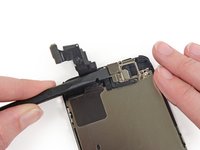
Slide the point of a spudger under the microphone to lift it out of its recess in the display assembly.
-
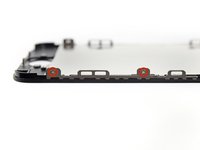
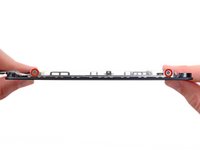
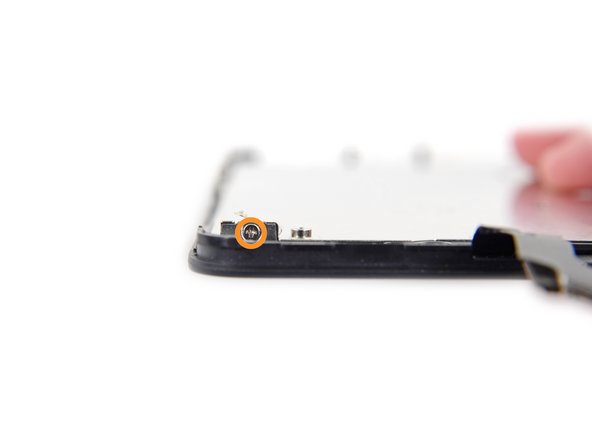
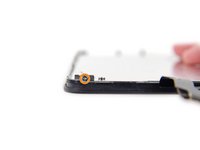
Remove two 1.2 mm Phillips #000 screws from each side of the LCD frame (four total).
-
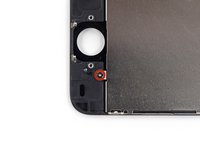
Remove the 1.6 mm Phillips #000 screws from the LCD shield plate.
-
One at bottom of the display assembly near the home button opening
-
One at the top of the display near the cables
-
-
Remove the LCD shield plate from the display assembly.
Note: Transfer clear plastic camera locator ring to the new screen assembly
Thanks, Matt, would have missed it otherwise.
Ahmad -
What is the best way to do this?
The guide could definitely use more details about the proximity housing as well as the camera ring. I used a magnifying glass to pick at the corners and they each popped off. To keep them in place I used a very small piece of double sided tape. I figure they would stay in place once it's all reassembled.
As for completely pulling the camera off the LCD shield like in the picture, if you're going to transfer the shield to a new LCD screen I don't think it is necessary to remove.
A fairly good account of how to carry out this procedure HOWEVER you seem to have forgotten one VERY IMPORTANT step!
You mention it is important to work in a static safe environement which is good but you have not mentioned the importance of disconnecting the battery so that work is not carried out with the device being live!
Not carrying out this seemingly minor task (two screws to remove a panel and disconnect the battery connector) could easily brick the phone or, worse, cause a fire or even an explosion that may result in serious injury as well as a costly visit to the phone shop.
So, I should ask that you please edit your video to incorporate this procedure.
I should add that I am a retired, extremely well qualified and experienced electro-optical design engineer with over 50 years of experience in engineering and college teaching.
AND, my daughter followed your instructions to the letter on my Static-safe workstation and destroyed her replacement screen.
Sincerely,
john_bartonwood@ntlworld.com
-
Display Assembly remains.
To reassemble your device, follow these instructions in reverse order.
Cancel: I did not complete this guide.
480 other people completed this guide.
29 Comments
I found that I also needed some very fine pointed tweezers for handling those tiny screws.
Yes,but be careful,if you squeeze too hard that tiny screw will launch itself god knows where and you may not find it.
John P -
Help! I followed this guide to replace a screen. When the lcd/digitizer cables are folded to close the phone again, the screen stops working. When I unfold it, it works again. How can I fix this?
buy a new phone
Success! Definitely recommend another person to help holding the screen up. Also, tweezers are very handy to have as well.
Surprised not to be advised to disconnect the battery, that's normally a given with these guides.
Step 11 Use the flat edge of a spudger to pry the battery connector up off the logic board.
Max -
Instructions easy to follow but on putting back together the home button and top button work fine but the screen isn't responding to touch. Any ideas?
Instructions followed okay I think, all clicked in etc but whilst the home button and top button work I get no response from the touch screen. Any ideas?
Use tape, doubled up on itself and put into the box, to keep track of the small screws.The green screwdriver seems to be the one to use.
The guide is very clear and I was able to complete the fix in less than 15 minutes, including reading the instruction guide first. I replaced the iPhone 5c Display Assembly with Home Button and Front Camera using the ProTech Toolkit. Thank you iFixit for making it so easy and affordable!
I just performed the replacement of the digitizer and LCD display with a swap of the camera and home button. This went well following the directions. About 30 minutes of my time including a short break in the middle to rest my eyes and take a few deep breathes. :)
BTW, I did not disconnect the battery but made the sure the device was off. "Power button and slide to off across the top of the display" I then put the hold switch on so nothing was accidentally powered back on.
Those of you having digitizer issues after completing the replacement are more than likely not getting the digitizer connector properly seated. It's very important you feel them snap into place. If you don't get that little click, it's probably not connected correctly. It's also possible you pinched a cable when closing it back up. This has happened to me before and it never did completely recover until I bought another replacement and installed it correctly.
Hi
I Follow all the steps but now my phone isn´t work.
Dont turn on any more.
Please help!!
Awesome Instructions. Worked perfectly on all the instructions I used for replacing both the screen and battery. One suggestion for DIYers , Use something to hold the screen tilted properly while you take out and put in the screws. I just adjusted my Isclack so that it held the screen close enough to maintain the ribbon connection, but out of the way enough to be able to install the screws. Thanks for putting up this site. I'll be getting all my iPhone fixit stuff from you guys..
i have just finished this repair (first one) but when i close it up it just comes up with little squares and the lock screen doesnt move
I bought the iPhone 5C front panel connector cover for $6.95. It was exactly what I needed as I bought my phone used and the previous owner lost this part. My only suggestion for iFixit would be to include the 4 screws you need for the cover. I had to buy a separate screw set, adding on cost. Then, it took me forever to figure out which screws I needed from the set. Telling a 1.6 mm screw from a 1.7 mm screw is nearly impossible. I would've paid an extra couple bucks just to have the necessary screws included with the cable cover.
Thanks iFixit.
I have found this site to be very helpful! I was able to change the battery in my iphone 5c. I was so shocked that it actually turned on, that i rushed to enter the screws for the screen and i found that the image was distorted. I was wondering why and thought may i damaged something. So i took the
phone back apart, and found that one of the 3 connectors for the screen, wasnt properly plugged in to its slot. Hold and be hold, once i put the phone back together, everything is responsive (touch, home screen etc) and the image become crystal clear as it first was when i got the phone back in december 2014.
Very helpful video. i followed it thourouly and found it worked for me!
(I had purchased a new battery and the kit with the screw drivers etc.)
Yay!
awsome step by step that really helped me with replacing the battery in my Iphone 5c. I had to re open the phone once i reassembled it, as i didnt
plug in one of the screen connectors correctly. ( there are 3 before you put the metal plate over the screen connector.)
very happy
Excellent guide, as usual. The only difficulty I had was that my replacement LCD/Glass was missing the fronmt camera bezel, and the proximity sensor bezel. I had to remove these from the old screen and glue them to the new one. I used a contact adhesive for this.
A while ago i dropped my phone and shattered the screen, the LCD was destroyed and the screen was unresponsive. I had known about i fixit, iIordered a screen and it came in fast. One huge tip Is keep all screws seperate, I ended up using a 10 glasses and put sticky notes on them labeling the size and step the screw is.
There is one step missing from this diagram. There is one screw at the very top right of the metal plate that is screwed in vertically from the top that has to be removed along with both side screws.
Its there, just in one of the pictures you have to click on...