Introduction
Follow this guide to replace the USB-C charging port in your iPhone 16 Pro.
You may need to replace the charging port if it feels loose, or you experience connectivity or charging issues when you plug in your iPhone.
Before you perform this repair, try cleaning the port first. You may not have a broken port—just a dirty one.
You'll need replacement back glass and charging port adhesive to complete this repair. If your new port doesn't include adhesive, use thin, double-sided tape instead.
What you need
-
-
Unplug any cables from the phone.
-
Hold the power and either volume buttons and slide to power off the phone.
-
-
-
If the screen or back glass is badly cracked, lay overlapping strips of packing tape over the glass to protect yourself and make disassembly easier.
-
-
-
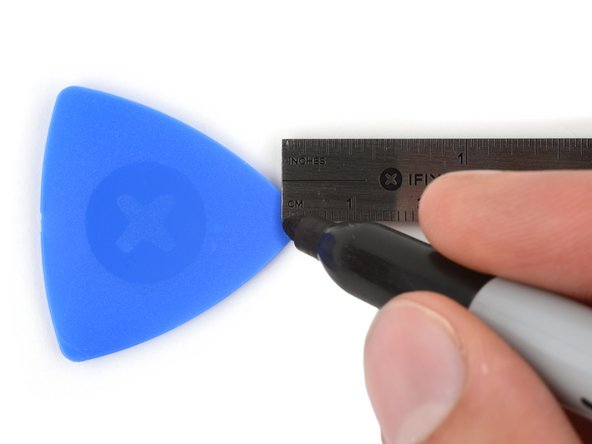
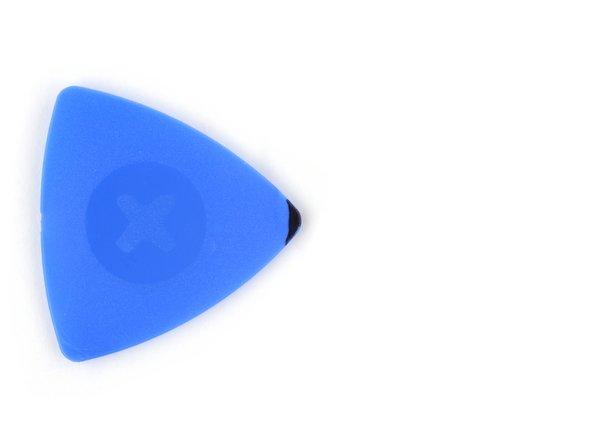
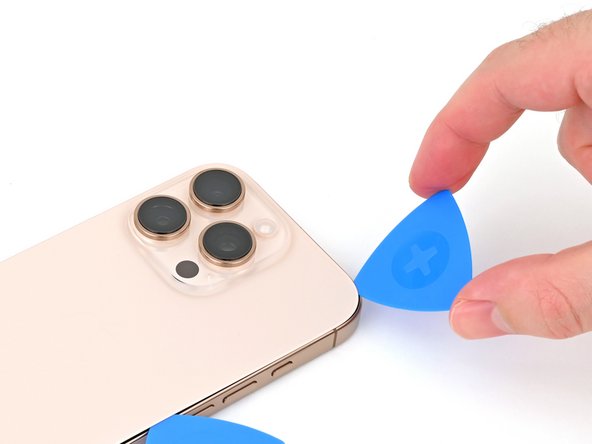
Measure 3 mm from the tip and mark the opening pick with a permanent marker.
-
-
-
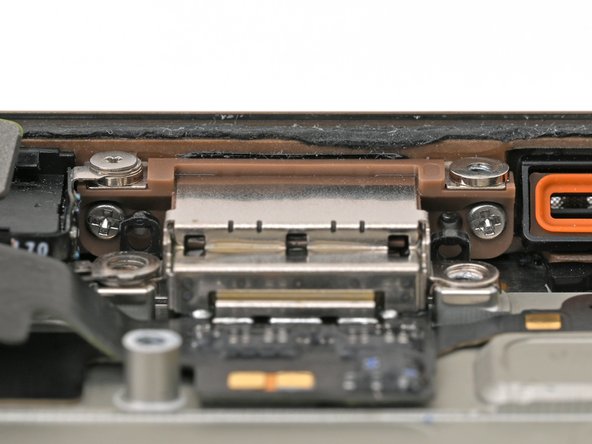
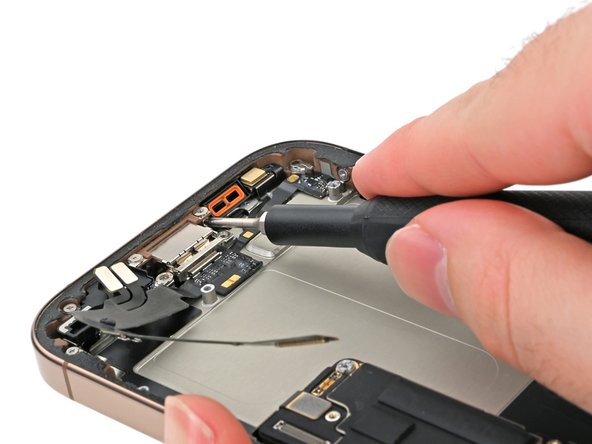
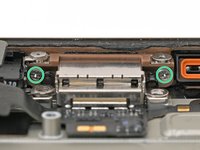
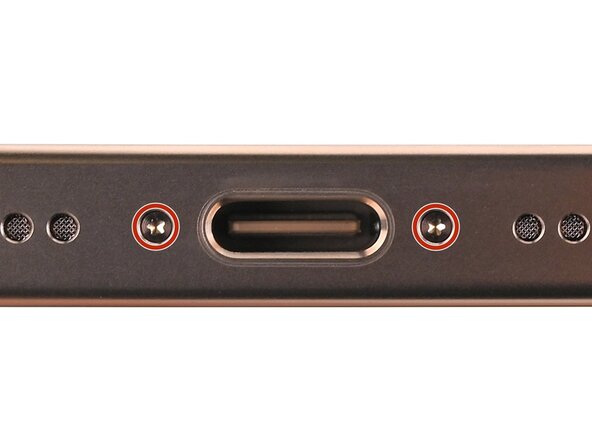
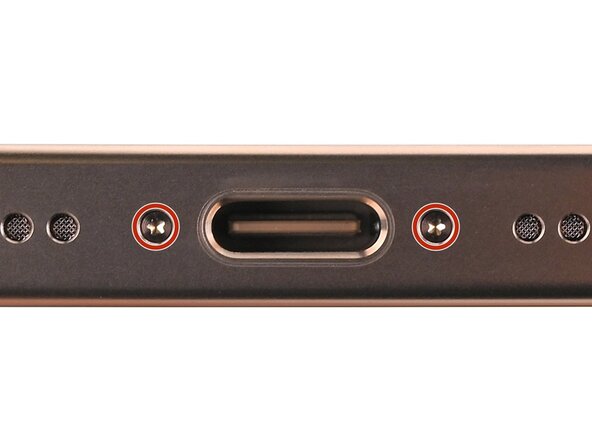
Use a P2 pentalobe screwdriver to remove the two 7.4 mm‑long screws on either side of the USB-C port.
-
-
-
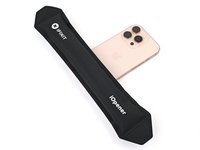
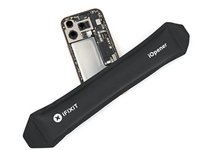
Apply a heated iOpener to the bottom edge of the back glass for two minutes.
-
-
-
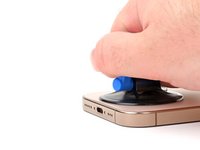
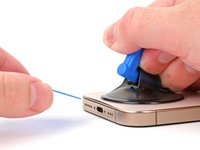
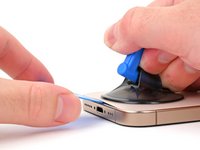
Apply a suction handle to the bottom edge of the back glass, above the USB-C port.
-
Pull up on the handle with a strong, steady force to create a gap between the back glass and the frame.
-
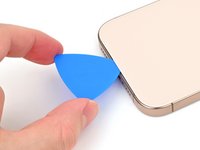
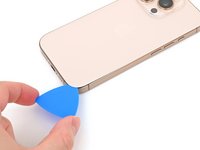
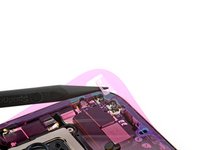
Insert the tip of an opening pick into the gap.
-
-
-
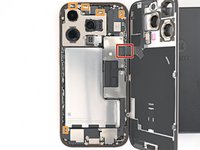
There's a delicate cable connecting the back glass to the phone, right next to the volume up button. Don't insert your pick here to avoid slicing the cable.
-
There are multiple spring contacts around the perimeter of the phone. Be extra careful not to insert your pick deeper than suggested in each step to avoid bending these contacts.
-
-
-
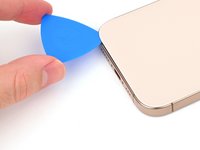
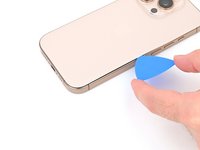
Slide your pick back and forth along the bottom edge to separate the adhesive.
-
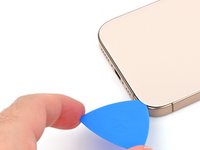
Leave your pick inserted in the bottom right corner to prevent the adhesive from resealing.
-
-
-
Slide your pick around the bottom right corner and halfway up the right edge, or until you feel a hard stop at a clip securing the back glass.
-
Leave this pick inserted to prevent the adhesive from resealing.
-
-
-
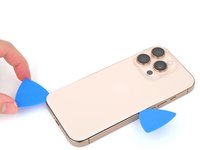
Insert a second opening pick at the bottom edge.
-
Slide the second pick around the bottom left corner and along the left edge of the screen to separate the adhesive and release the metal clips.
-
Leave this pick inserted at the top left corner to prevent the adhesive from resealing.
-
-
-
Heat the top edge of the back glass, including the area around the volume buttons, until it's hot to the touch.
-
-
-
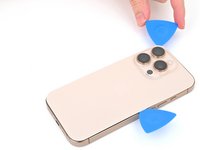
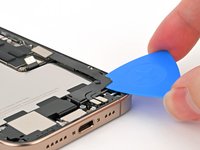
Slide your opening pick across the top edge and around the top right corner to the volume up button to separate the adhesive.
-
-
-
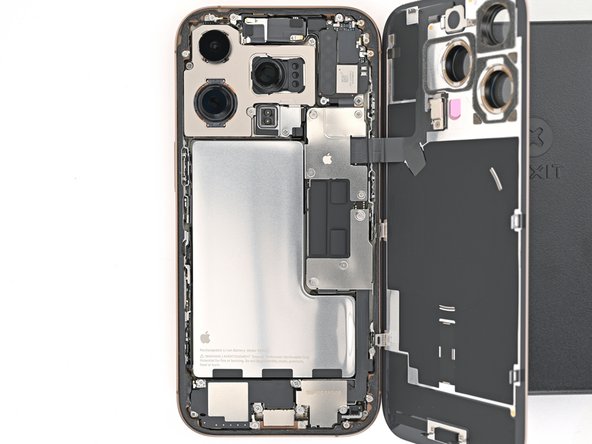
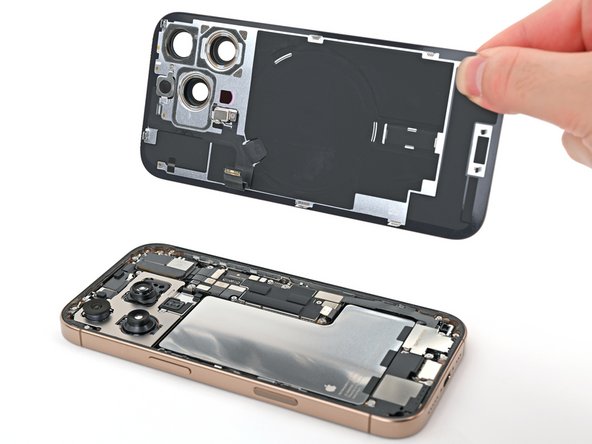
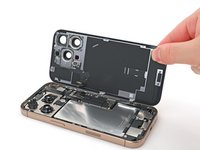
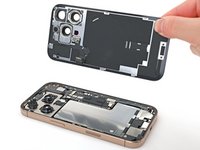
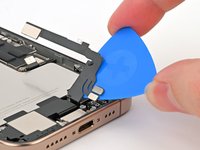
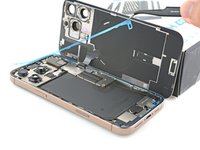
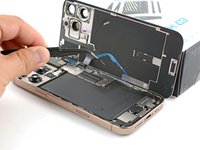
Gently swing open the back glass towards the volume buttons.
-
Support the back glass with a clean, sturdy object like a small box to avoid straining the cable.
-
Remove the opening picks.
-
-
-
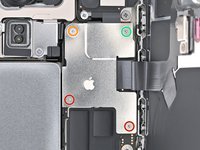
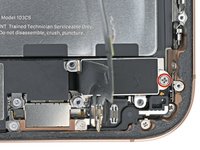
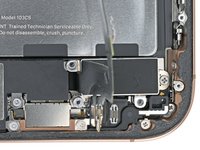
Use a tri-point Y000 screwdriver to remove the three screws securing the lower connector cover:
-
Two 1.2 mm‑long screws
-
One 1.0 mm‑long screw
-
-
-
Use a tri-point Y000 screwdriver to remove the four screws securing the upper connector cover:
-
Two 1.0 mm‑long screws
-
One 1.2 mm‑long screw
-
One 1.6 mm‑long screw
-
-
-
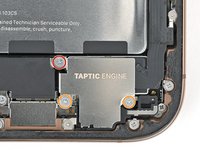
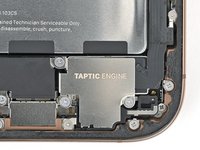
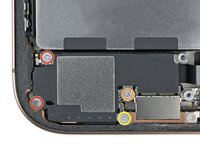
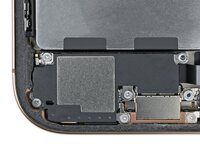
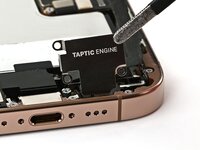
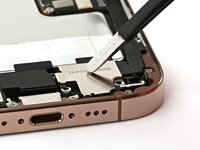
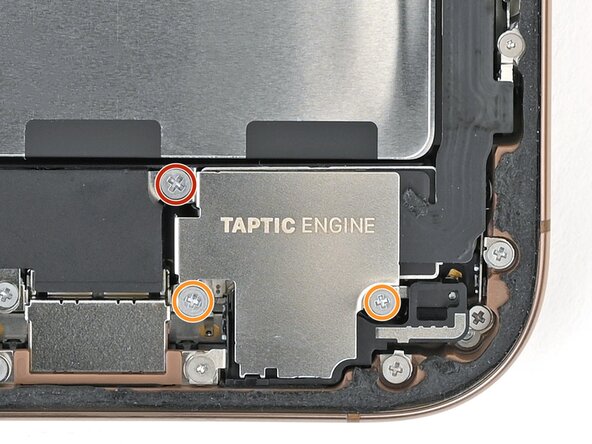
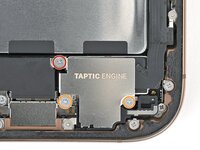
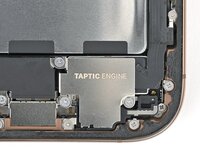
Use a Phillips screwdriver to remove the three screws securing the Taptic Engine cover:
-
One 3.0 mm‑long screw
-
Two 1.7 mm‑long screws
-
-
-
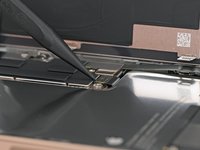
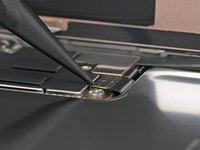
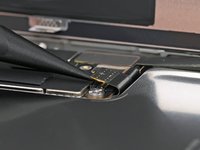
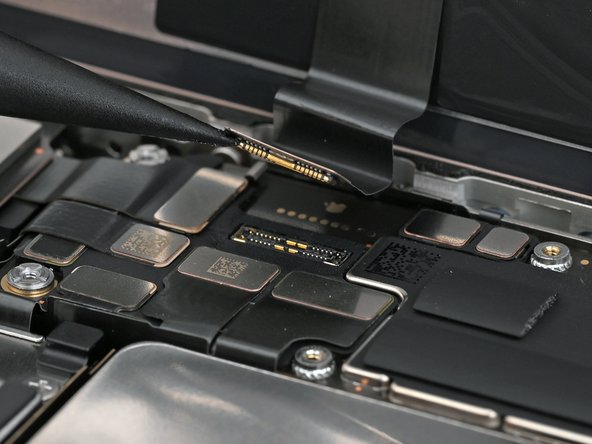
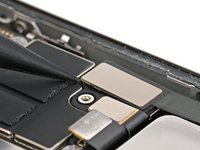
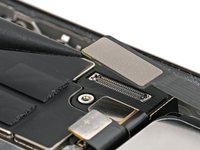
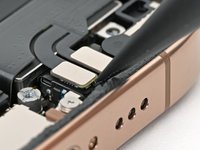
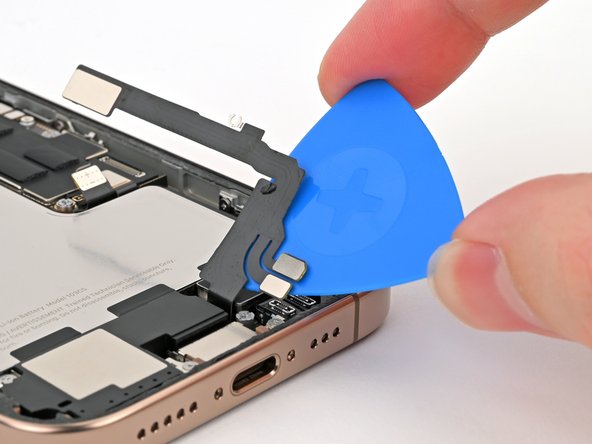
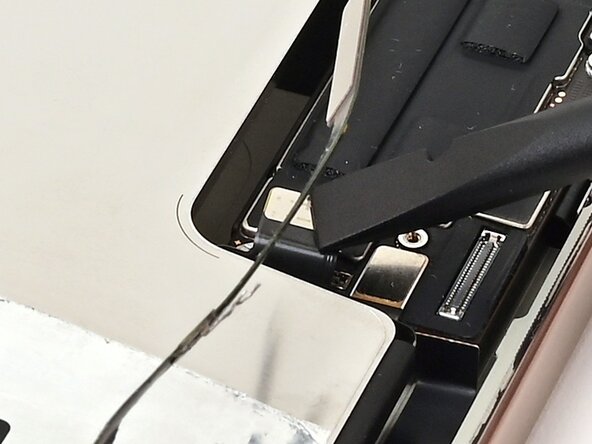
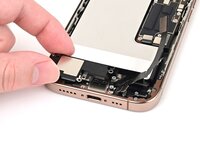
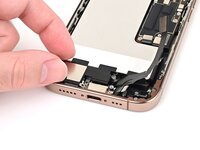
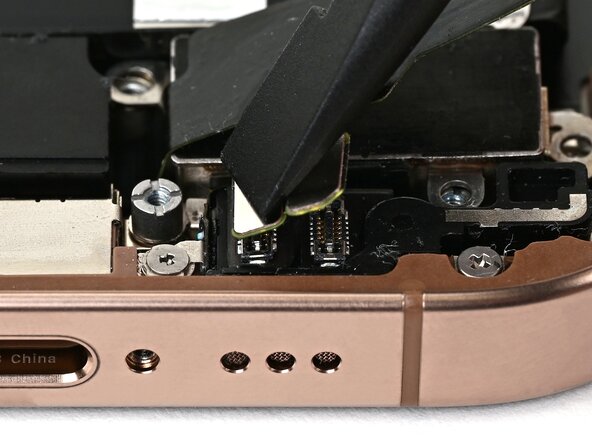
Use the point of a spudger to pry up and disconnect the lower assembly cable press connector from the logic board.
-
-
-
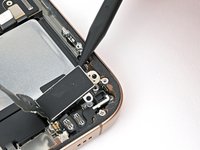
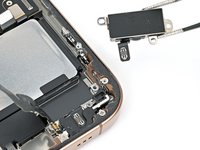
Use a Phillips screwdriver to remove the 1.9 mm‑long screw securing the Taptic Engine.
-
-
-
-
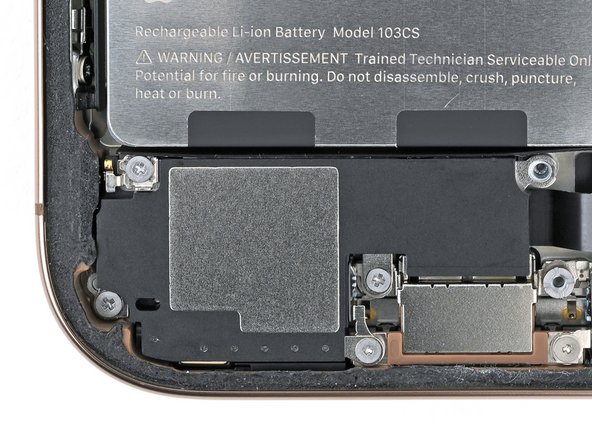
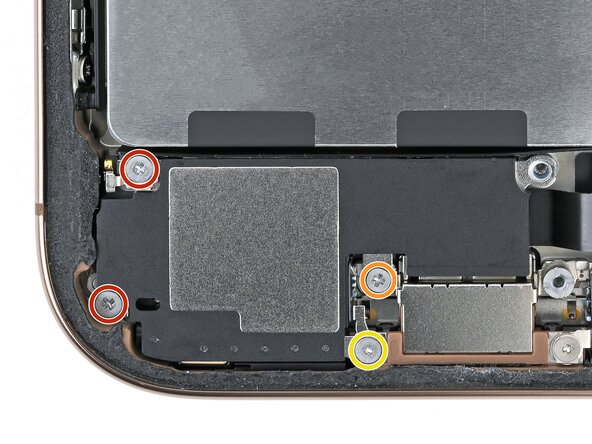
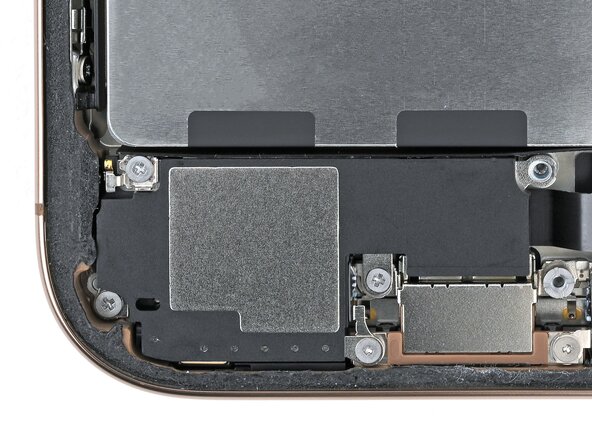
Remove the four screws securing the loudspeaker:
-
Two 1.6 mm‑long Phillips screws
-
One 2.0 mm‑long Phillips screw
-
One 1.3 mm‑long tri-point Y000 screw
-
-
-
Lift the bottom edge of the frame to tilt the phone.
-
Use a pipette or a syringe to apply 2–3 drops of high concentration (>90%) isopropyl alcohol along the bottom edge of the battery, close to where each broken adhesive strip came out.
-
Wait one minute for the isopropyl alcohol to flow under the battery and soften the adhesive.
-
-
-
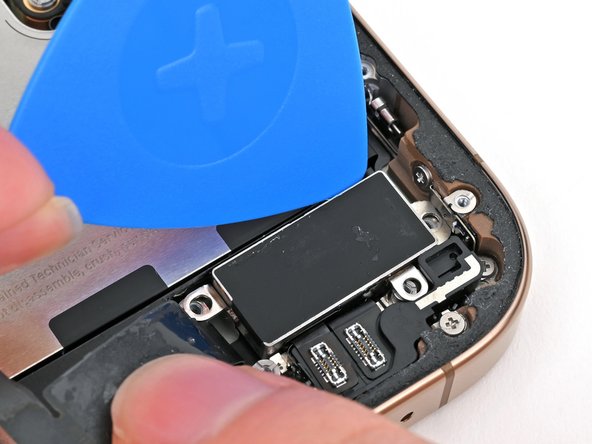
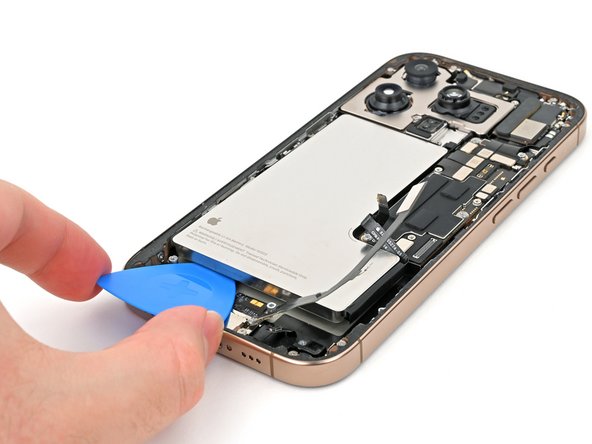
Insert the tip of an opening pick between the bottom of the battery and the frame.
-
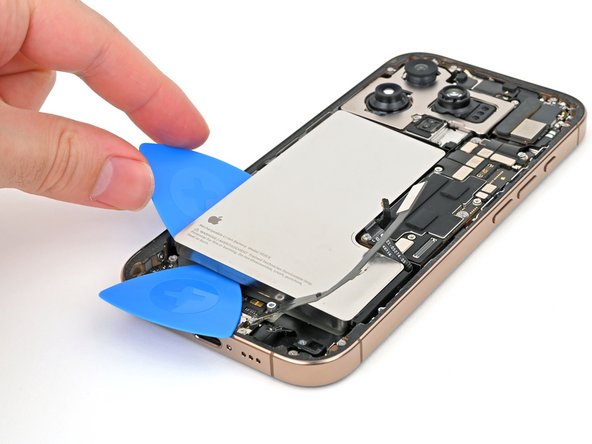
Insert a second opening pick between the left edge of the battery and the frame. Use this pick to pry the battery upwards slowly with steady force. Work your way up the edge of the battery, giving the adhesive time to release.
-
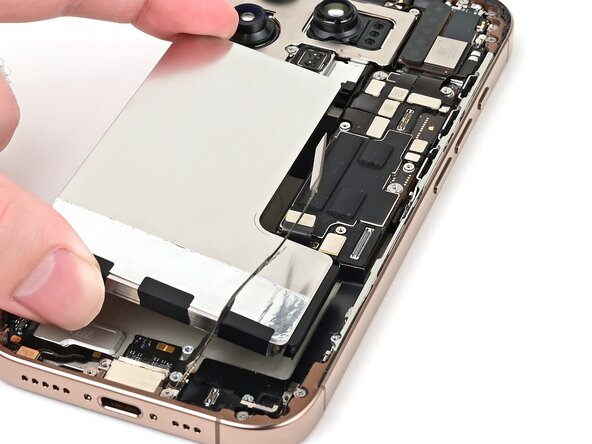
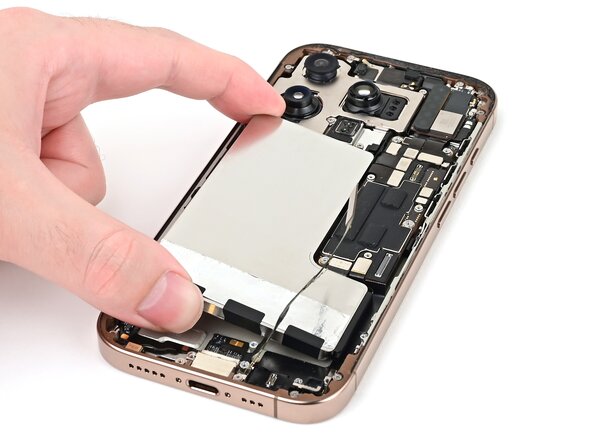
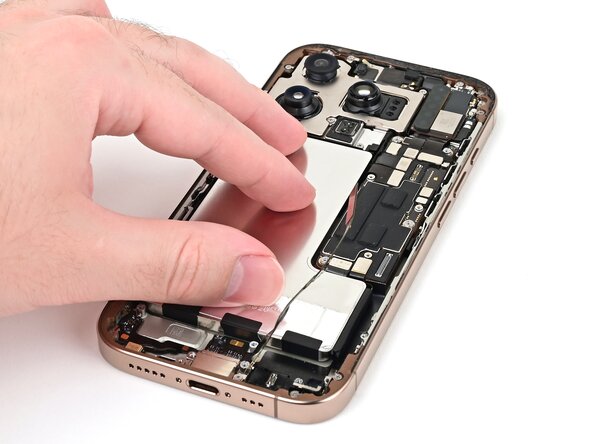
Once the adhesive loosens, grab and remove the battery.
-
-
-
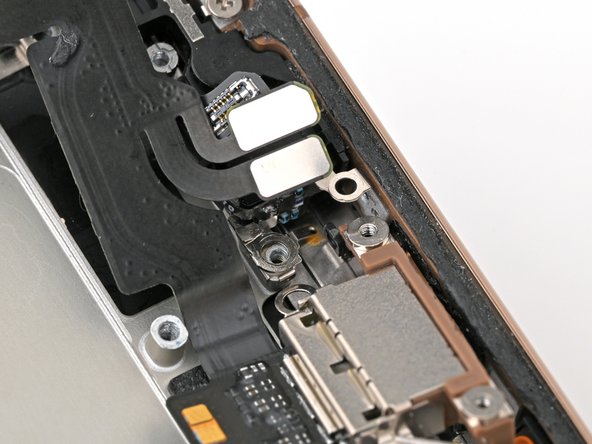
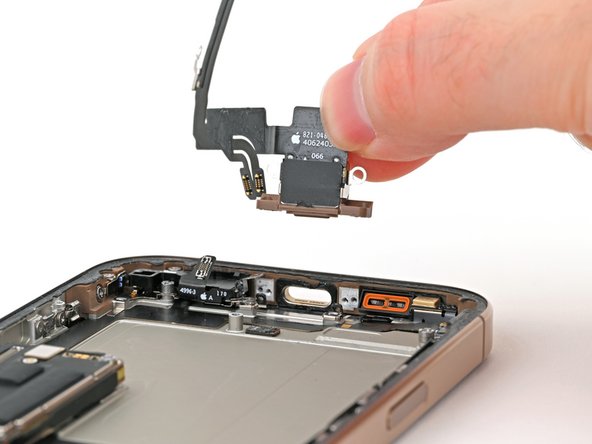
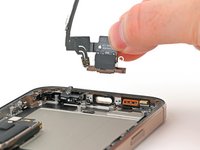
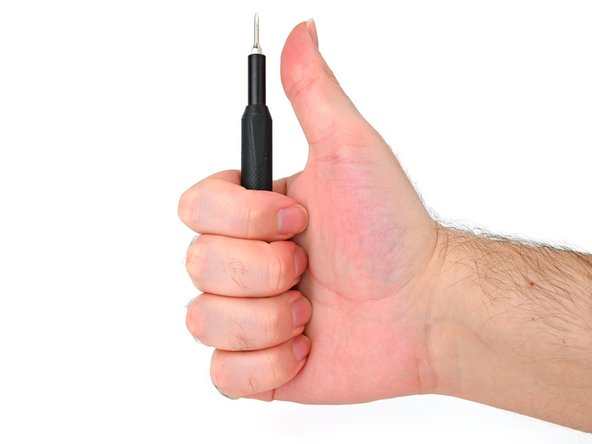
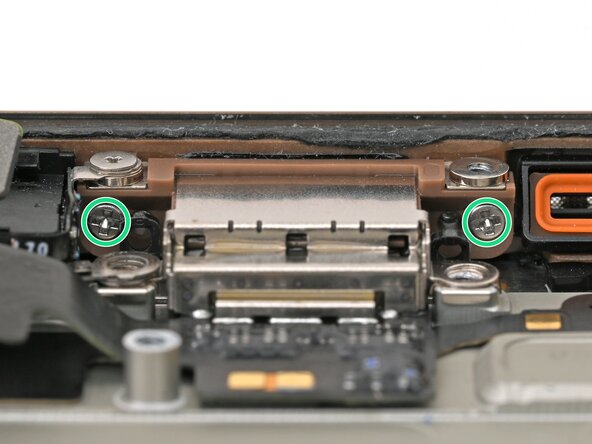
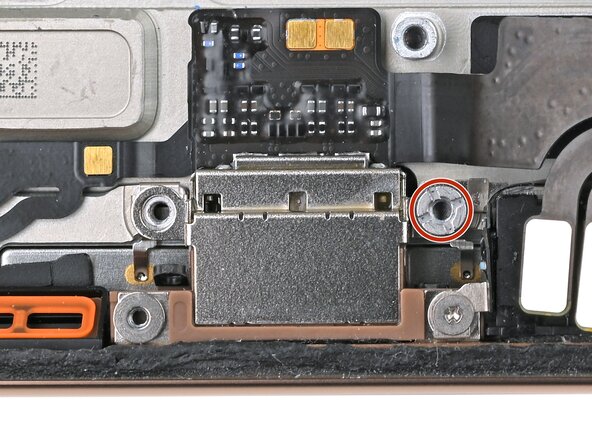
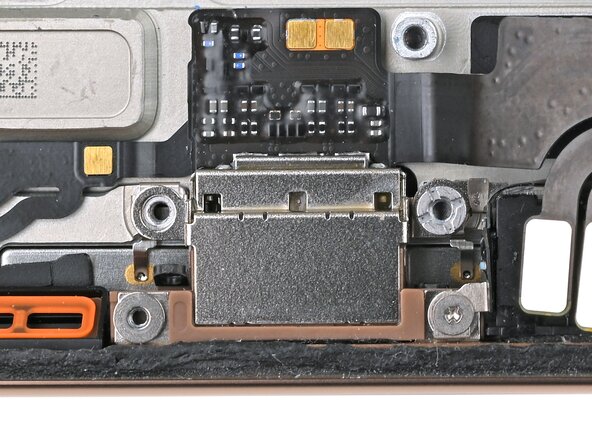
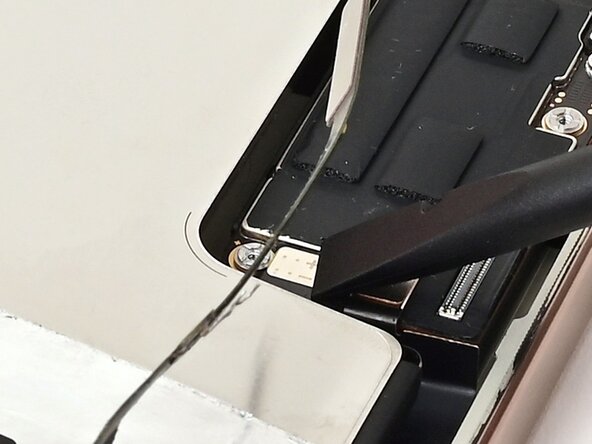
Use a standoff screwdriver to remove the 3.6 mm‑long screw securing the charging port to the frame.
-
-
-
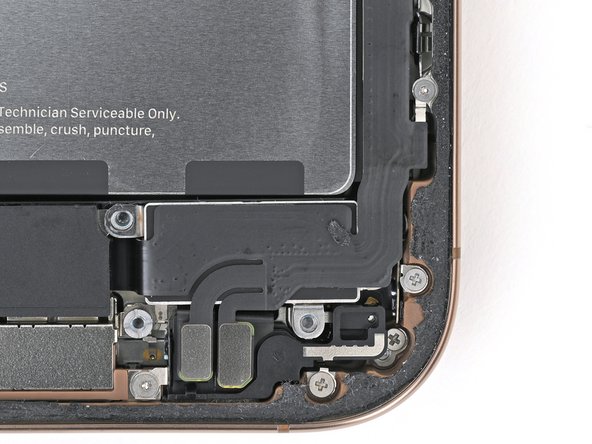
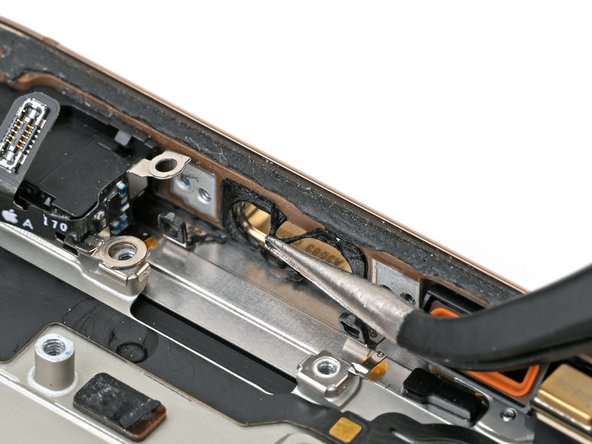
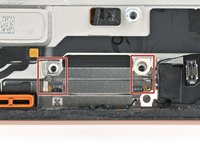
Grounding clips clip on top of both screw posts under the charging port. Make sure they're still clipped in place. The clips should face towards the bottom edge of the iPhone.
-
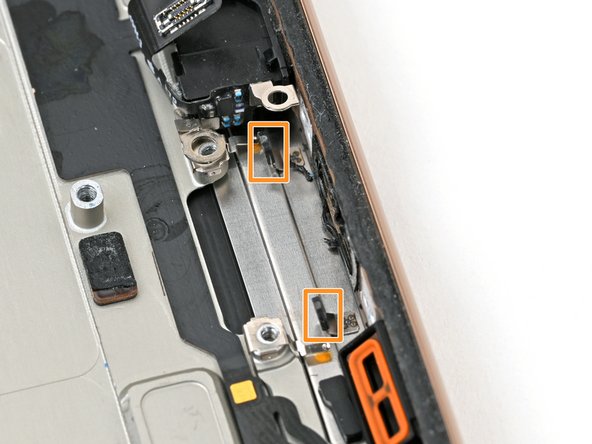
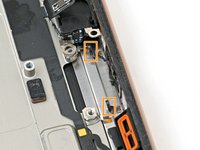
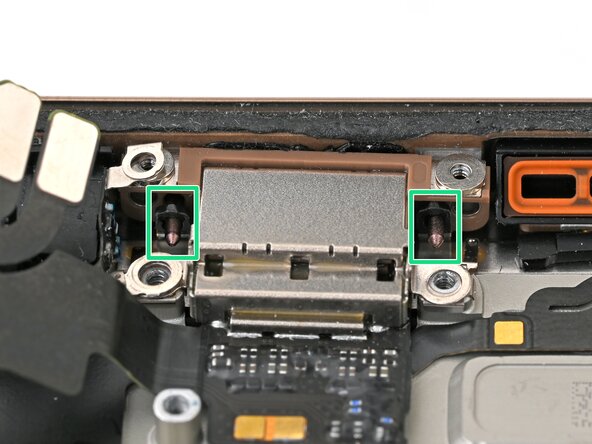
Make sure the two black prongs on either side of the charging port are standing straight up. If they were bent when you removed the port, use the point of a spudger to carefully straighten them.
-
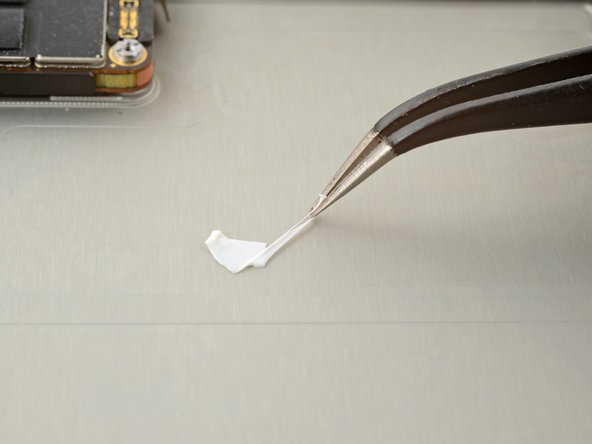
If you have replacement adhesive, use tweezers to remove all of the original adhesive securing the port to the frame before installing it.
-
-
-
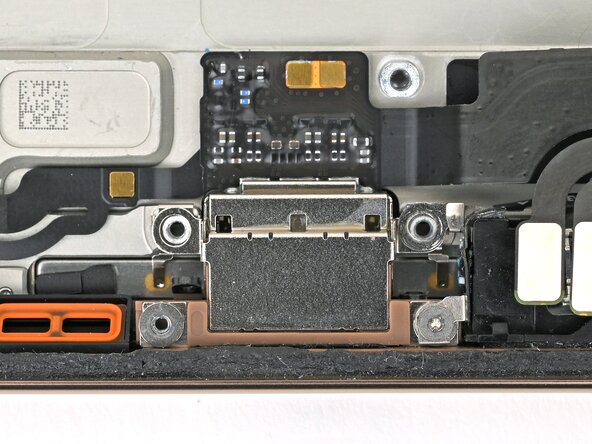
Slide the charging port in place so its screw posts sit between the black prongs and the bottom of the frame.
-
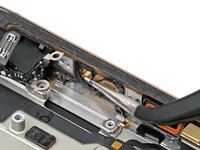
Slide the charging port screw tabs on the cable-side of the port between the screw posts and the screw tabs on the microphone.
-
-
-
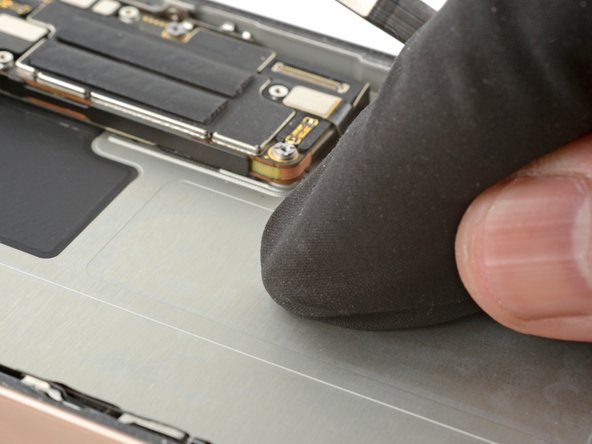
Remove any remaining adhesive from the battery recess.
-
Wipe the frame surface with a lint-free cloth and a few drops of isopropyl alcohol. Wait for the alcohol to fully evaporate before installing the new battery.
-
Before removing any liners on the adhesive, place the battery in its recess to check that it fits and that its cable reaches its socket on the logic board. Don't connect the battery yet!
-
-
Tool used on this step:Stretch Release Battery Adhesive$3.99
-
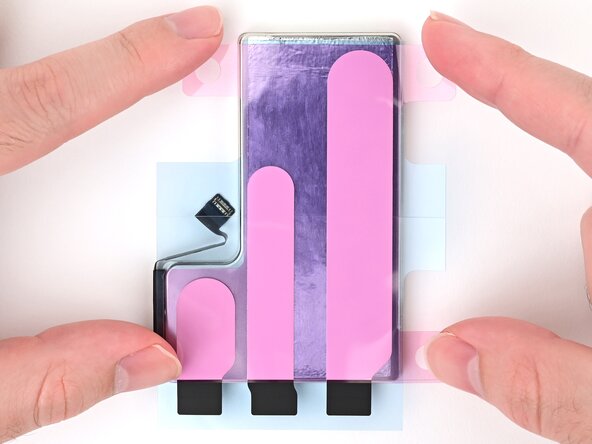
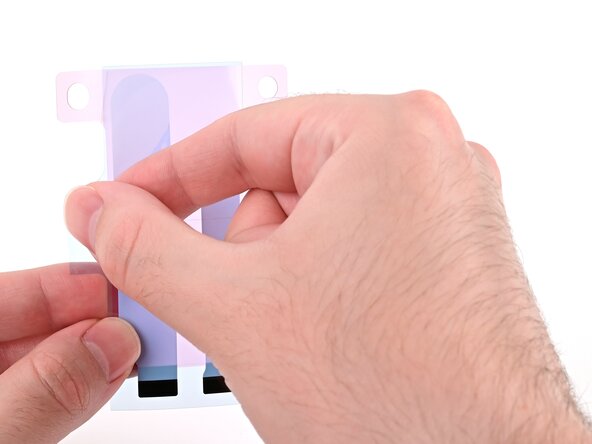
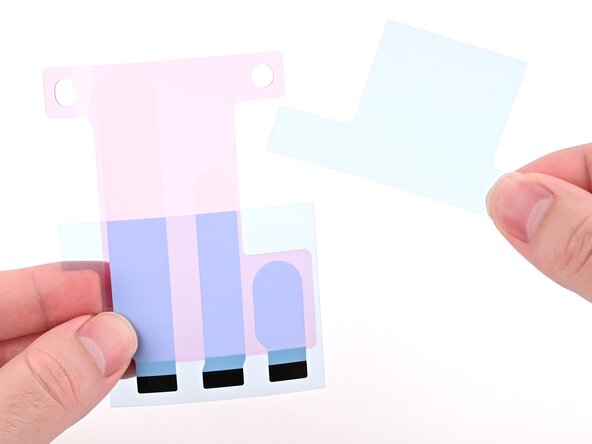
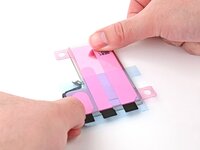
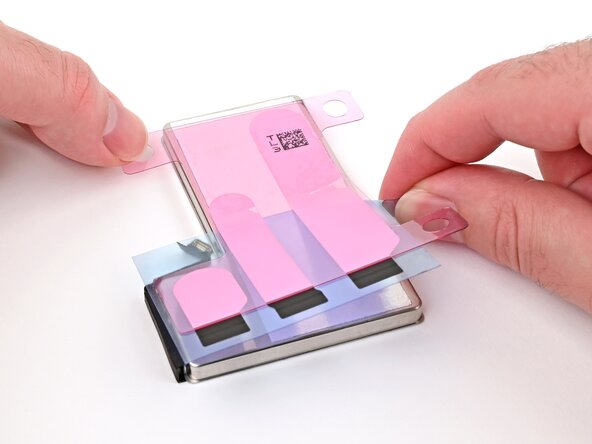
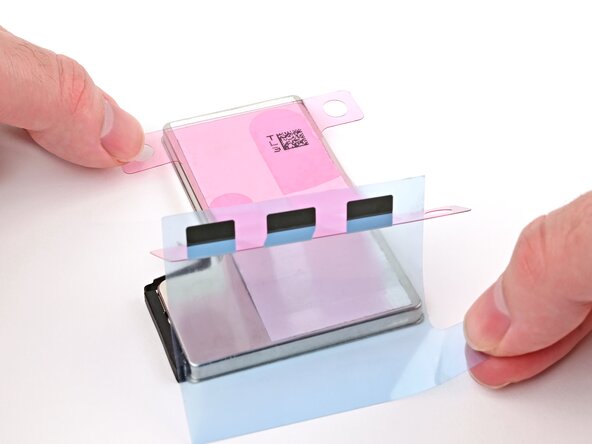
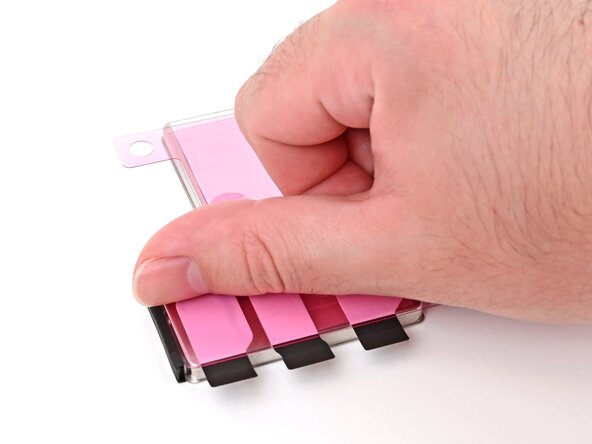
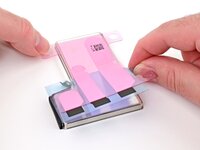
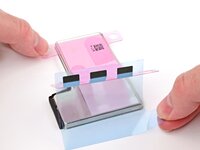
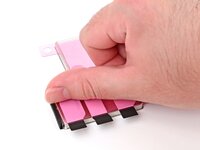
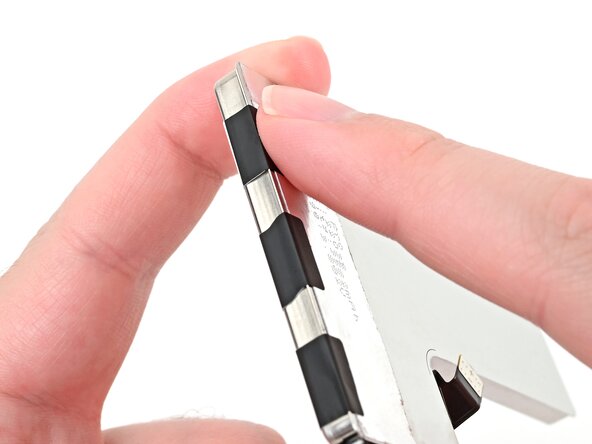
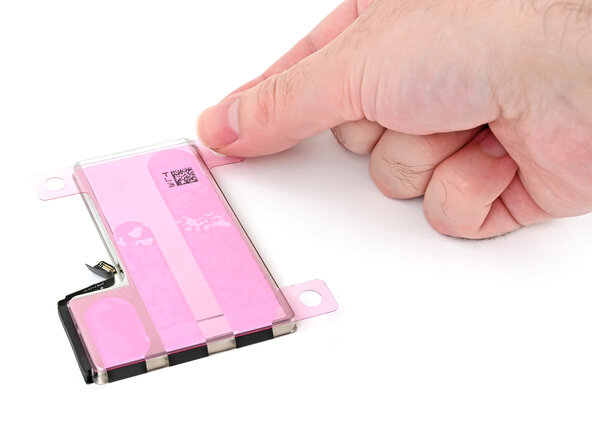
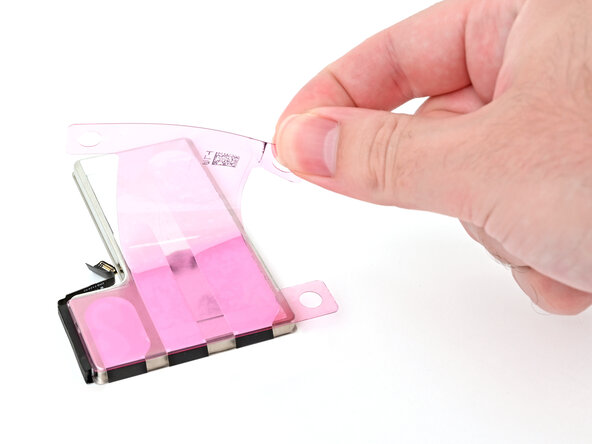
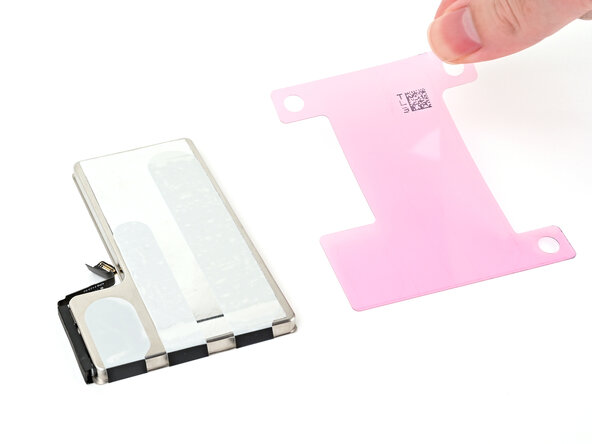
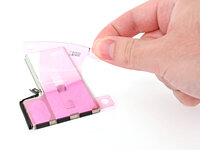
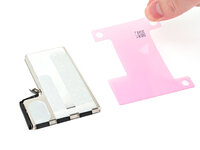
Align the new adhesive with your battery to see how it needs to be applied. Set all strips fully on the battery, and align the top edges of the black pull tabs with the bottom edge of the battery.
-
If the battery‑side of your adhesive has two liners, remove the top liner.
-
If the battery‑side of your adhesive has one liner, remove it.
-
-
-
Lower the battery partially into its recess, making sure the adhesive doesn't touch the frame.
-
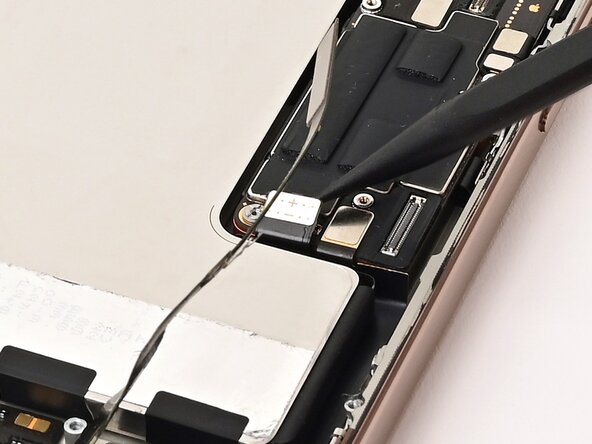
Use a spudger or your finger to connect the battery cable's press connector to ensure that the cable reaches.
-
-
-
Push the battery towards the top of the iPhone, and lay it in its recess.
-
Use your fingers to press firmly against the battery for ten seconds to bond it to the frame.
-
Use a spudger or your finger to disconnect the battery from the logic board.
-
-
-
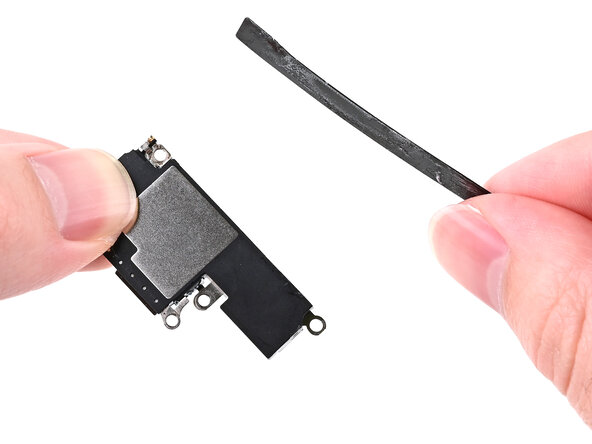
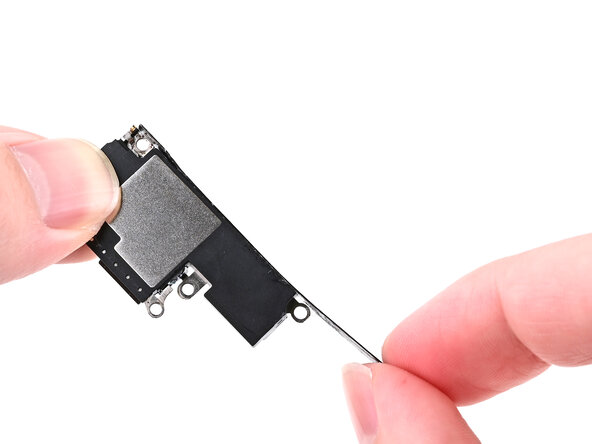
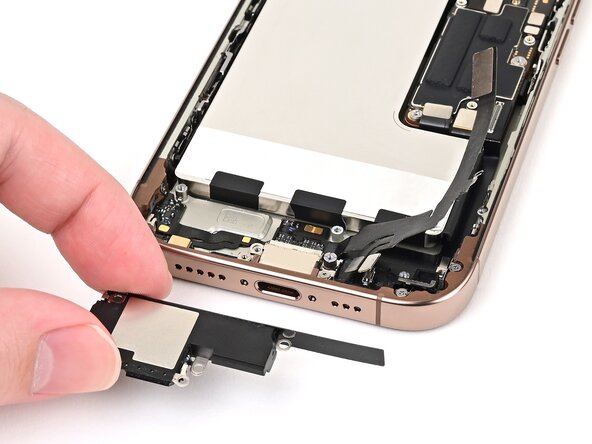
Align the battery shim so it's flush with the new loudspeaker's left edge and underside. Press it onto the loudspeaker to adhere it.
-
-
-
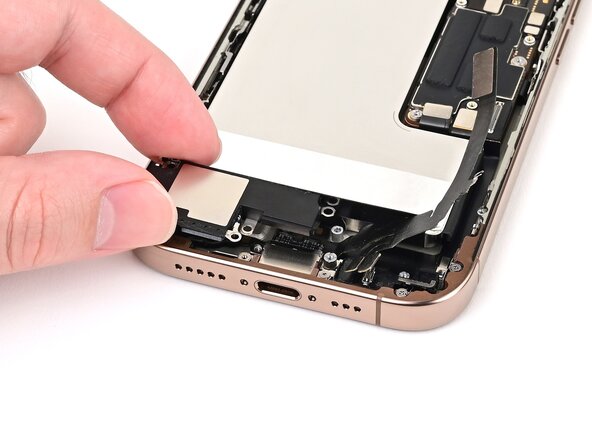
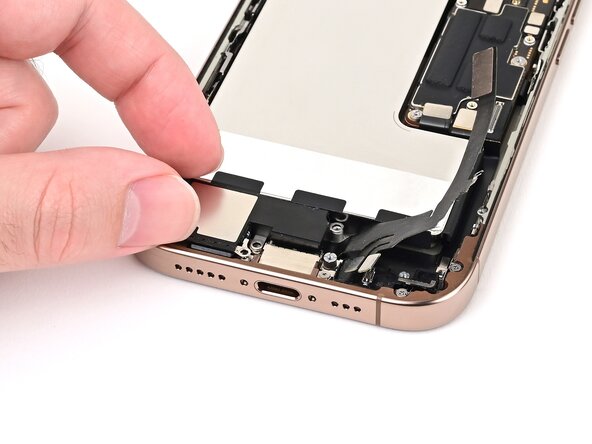
Align the bottom edge of the loudspeaker with the frame.
-
Set the loudspeaker into its recess.
-
-
-
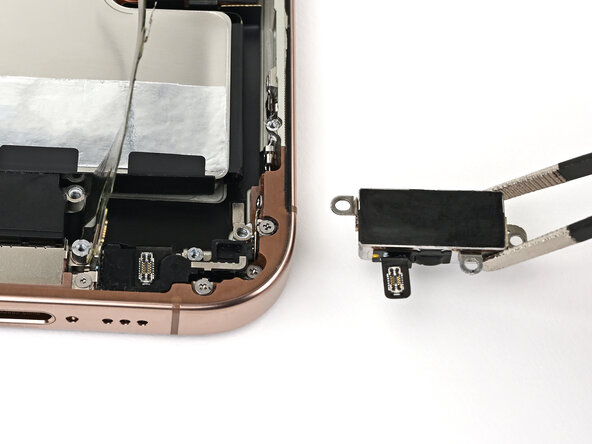
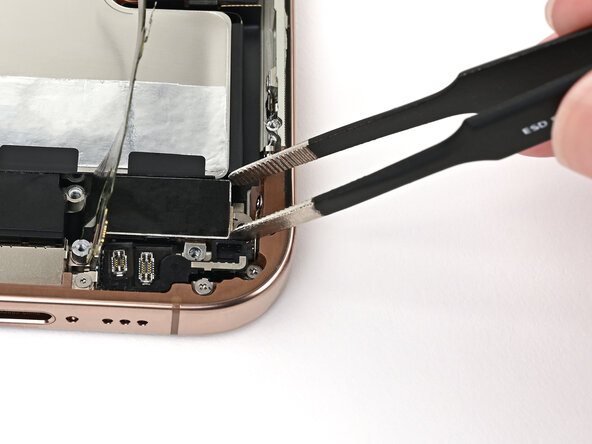
Use blunt-nose tweezers or your fingers to align the Taptic Engine with its screw posts and place it in the frame.
-
-
-
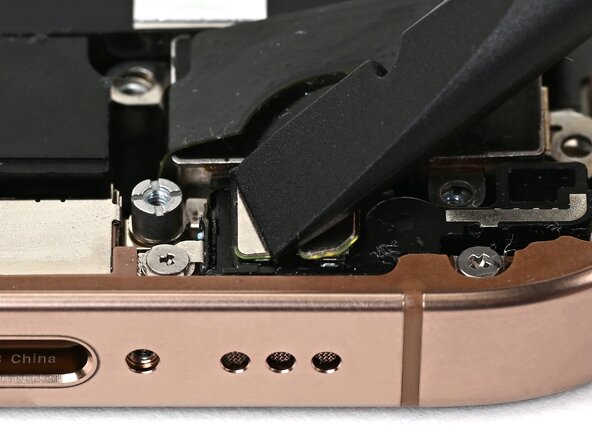
Use your finger or a spudger to connect the two lower assembly press connectors.
-
-
-
Use your finger or a spudger to connect the lower assembly cable press connector, located in the bottom-right corner of the logic board.
-
-
-
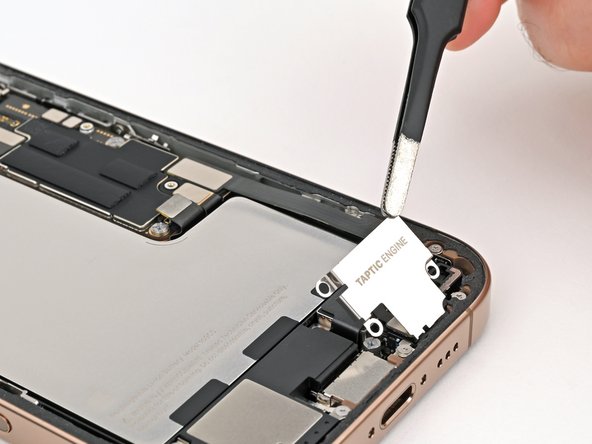
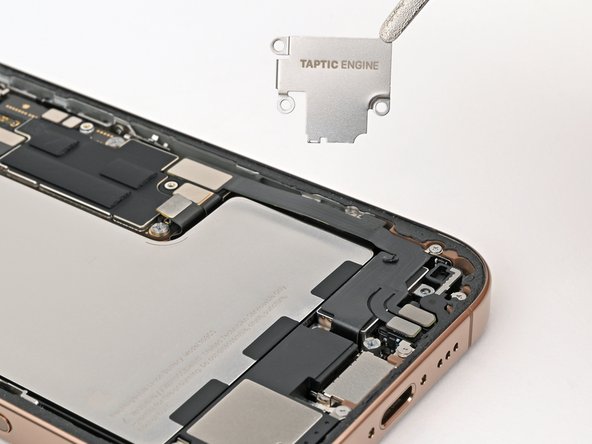
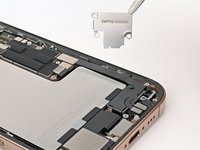
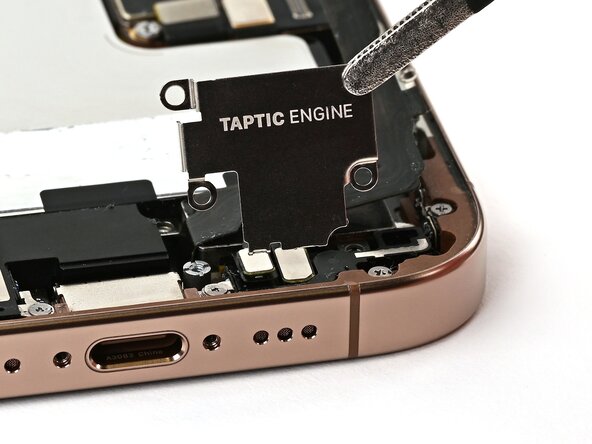
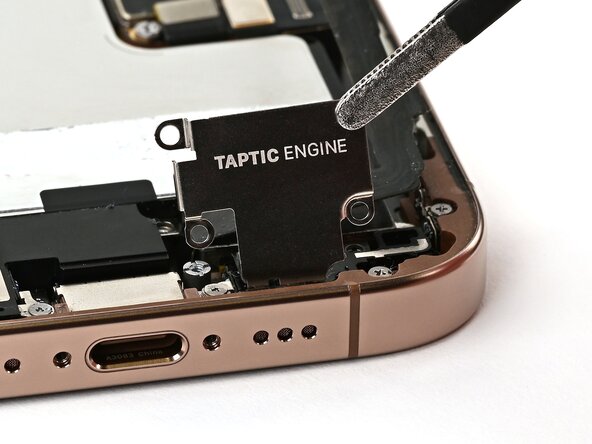
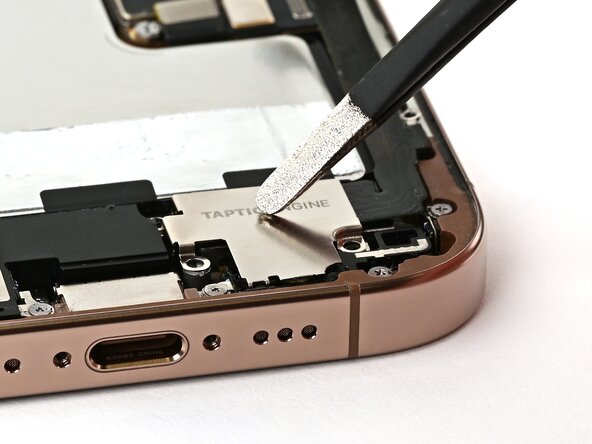
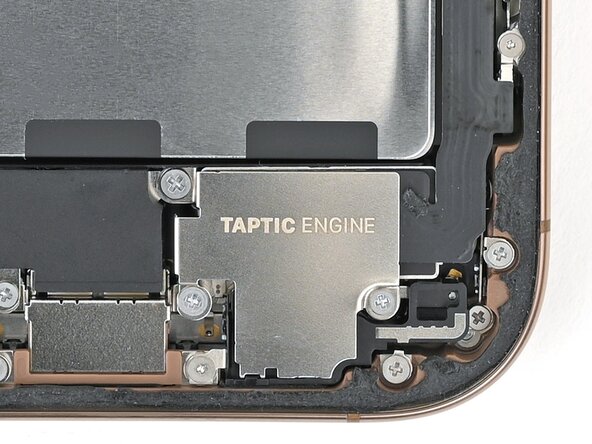
Use tweezers or your fingers to install the Taptic Engine cover.
-
-
Tool used on this step:Tweezers$4.99
-
Use blunt nose tweezers or your fingers to remove large pieces of adhesive from the frame perimeter.
-
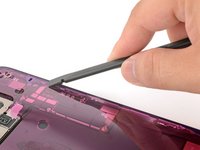
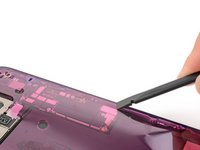
Use a spudger to scrape the adhesive residue off of the frame.
-
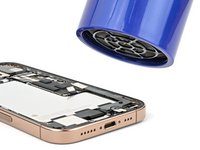
If the adhesive feels stubborn, apply some heat using a hair dryer or heat gun and try again.
-
-
Tool used on this step:Microfiber Cleaning Cloths$3.99
-
If you're reusing your back glass, apply a few drops of highly-concentrated isopropyl alcohol (over 90%) to a microfiber or lint-free cloth and wipe around the perimeter to prepare the surface for new adhesive.
-
-
-
Wrap a lint-free cloth or a coffee filter over the point of a spudger and apply a few drops of highly-concentrated isopropyl alcohol (over 90%) to it.
-
Wipe in one direction along the perimeter of the frame to clean the adhesive residue.
-
-
-
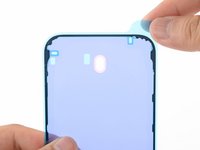
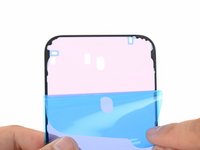
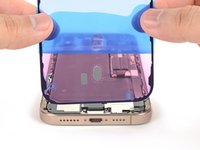
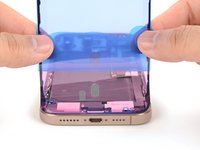
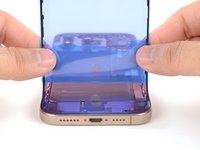
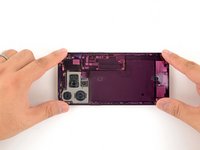
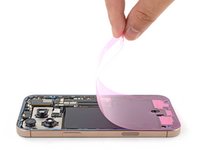
Lay the adhesive sheet over the frame to determine its proper orientation.
-
-
-
Use your finger or a spudger to press and connect the battery press connector onto the logic board.
-
-
-
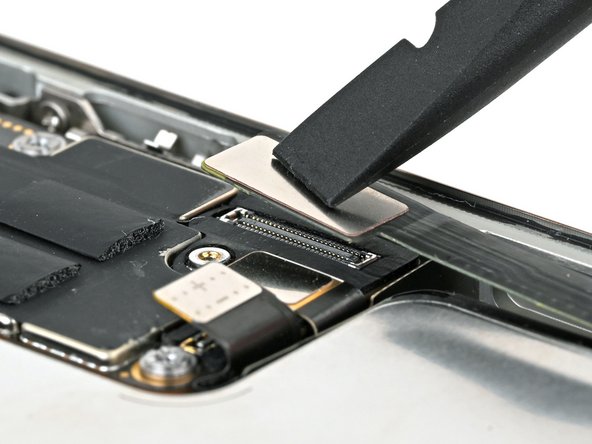
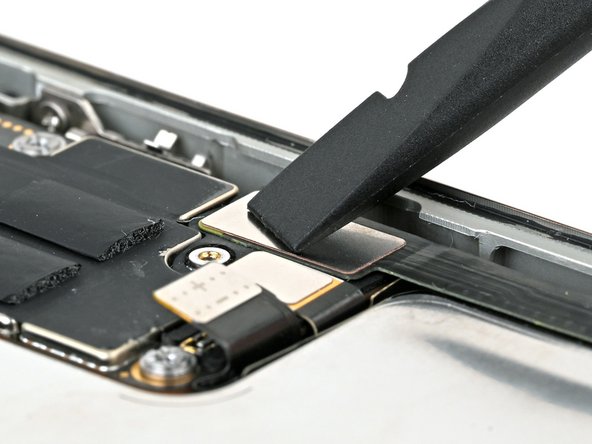
Align the back glass connector cover by its screw holes and lay it in place.
-
-
-
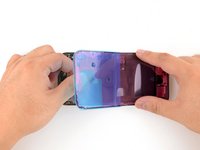
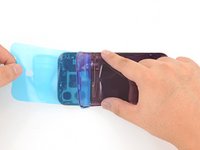
Use your fingers or a spudger to peel away all perimeter liners, exposing the adhesive.
-
Check the frame and back glass for any stray liners and remove them. There should be no liners remaining.
-
-
-
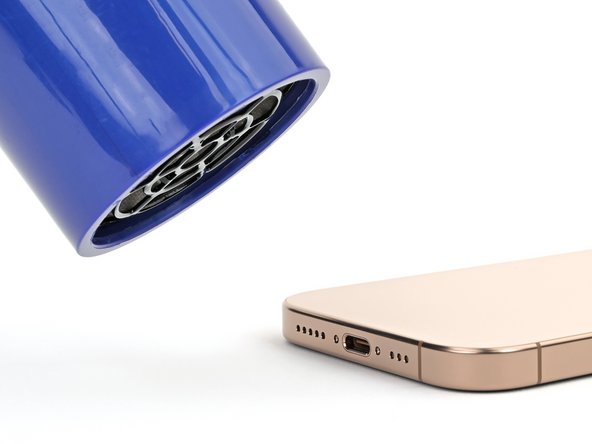
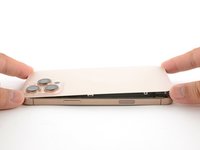
Use a hair dryer, heat gun, or an iOpener to heat the back glass perimeter until it's slightly too hot to touch.
-
-
-
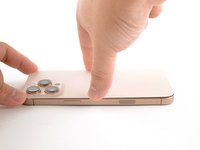
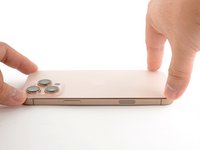
Use a P2 pentalobe screwdriver to install the two 7.4 mm‑long screws on either side of the USB-C port.
-





















































































Take your e-waste to an R2 or e-Stewards certified recycler.
Repair didn’t go as planned? Try some basic troubleshooting, or ask our iPhone 16 Pro Answers community for help.
Cancel: I did not complete this guide.
2 other people completed this guide.



