Free Shipping on Domestic Orders $75+

iPhone 15 Pro Loudspeaker Replacement

What you need

  1. iPhone 15 Pro Loudspeaker Replacement, Prepare your iPhone for disassembly: step 1, image 1 of 2 iPhone 15 Pro Loudspeaker Replacement, Prepare your iPhone for disassembly: step 1, image 2 of 2
    • Let your phone's battery drain below 25% before starting this repair—a charged lithium‑ion battery may catch fire if damaged.

    • Unplug all cables from your phone.

    • Hold the power and either volume button and slide to power off your phone.

  2. iPhone 15 Pro Loudspeaker Replacement, Tape over any cracks: step 2, image 1 of 2 iPhone 15 Pro Loudspeaker Replacement, Tape over any cracks: step 2, image 2 of 2
    • If your screen or back glass is cracked, lay overlapping strips of packing tape over the glass to protect yourself and make disassembly easier.

    • Make sure there's a smooth area near the bottom edge that's big enough for a suction cup to stick to.

  3. iPhone 15 Pro Loudspeaker Replacement, Mark your opening picks: step 3, image 1 of 3 iPhone 15 Pro Loudspeaker Replacement, Mark your opening picks: step 3, image 2 of 3 iPhone 15 Pro Loudspeaker Replacement, Mark your opening picks: step 3, image 3 of 3
    • If inserted too far, an opening pick can damage your device. Follow this step to mark your pick and prevent damage.

    • Measure 3 mm from the tip and mark the opening pick with a permanent marker.

    • You can also mark the other corners of the pick with different measurements.

    • Alternatively, tape a coin to a pick 3 mm from the tip.

  4. iPhone 15 Pro Loudspeaker Replacement, Remove the pentalobe screws: step 4, image 1 of 2 iPhone 15 Pro Loudspeaker Replacement, Remove the pentalobe screws: step 4, image 2 of 2
    • Use a P2 pentalobe screwdriver to remove the two 7 mm‑long screws on either side of the charging port.

  5. iPhone 15 Pro Loudspeaker Replacement, Heat the bottom edge: step 5, image 1 of 1
    • Use a hair dryer or heat gun to heat the bottom edge of the screen until it's hot to the touch.

    • Be careful not to heat the phone hotter than this—the battery is susceptible to heat damage.

  6. iPhone 15 Pro Loudspeaker Replacement, Insert an opening pick: step 6, image 1 of 3 iPhone 15 Pro Loudspeaker Replacement, Insert an opening pick: step 6, image 2 of 3 iPhone 15 Pro Loudspeaker Replacement, Insert an opening pick: step 6, image 3 of 3
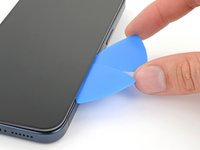
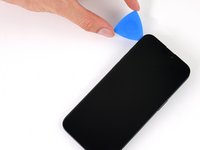
    • Apply a suction handle to the bottom edge of the screen.

    • Pull up on the handle with a strong, steady force to create a gap between the screen and the frame.

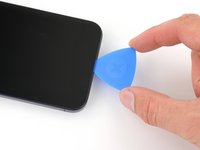
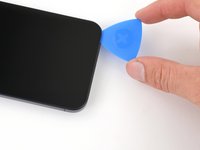
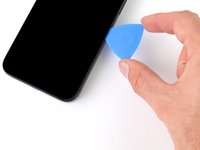
    • Insert the tip of an opening pick into the gap.

  7. iPhone 15 Pro Loudspeaker Replacement, Screen information: step 7, image 1 of 1
    • As you slice the adhesive securing the screen in the next steps, be careful of the following areas:

    • There are two delicate cables connecting the screen to the phone: one just above the action button, and the other near the middle of the left edge.

    • There are multiple spring contacts around the perimeter of the phone. Be extra careful not to insert your pick deeper than suggested in these locations to avoid bending the contacts.

  8. iPhone 15 Pro Loudspeaker Replacement, Separate the bottom edge adhesive: step 8, image 1 of 3 iPhone 15 Pro Loudspeaker Replacement, Separate the bottom edge adhesive: step 8, image 2 of 3 iPhone 15 Pro Loudspeaker Replacement, Separate the bottom edge adhesive: step 8, image 3 of 3
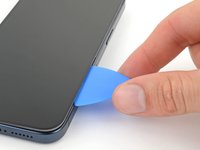
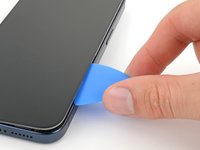
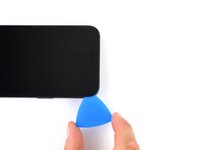
    • Don't insert your opening pick deeper than 3 mm along the bottom edge.

    • Slide your pick back and forth along the bottom edge to separate the adhesive.

    • Leave your pick inserted in the bottom right corner to prevent the adhesive from re-sealing.

  9. iPhone 15 Pro Loudspeaker Replacement, Heat the right edge: step 9, image 1 of 1
    • Heat the right edge of the screen until it's hot to the touch.

  10. iPhone 15 Pro Loudspeaker Replacement, Position the opening pick: step 10, image 1 of 3 iPhone 15 Pro Loudspeaker Replacement, Position the opening pick: step 10, image 2 of 3 iPhone 15 Pro Loudspeaker Replacement, Position the opening pick: step 10, image 3 of 3
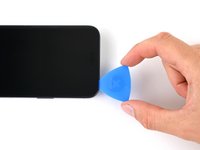
    • Don't insert your pick deeper than 5 mm along the right edge.

    • Slide your pick around the bottom right corner of the screen and toward the power button until you feel a hard stop at a clip securing the screen.

    • Rotate your pick so the flat edge is under the screen.

  11. iPhone 15 Pro Loudspeaker Replacement, Release the right clip: step 11, image 1 of 3 iPhone 15 Pro Loudspeaker Replacement, Release the right clip: step 11, image 2 of 3 iPhone 15 Pro Loudspeaker Replacement, Release the right clip: step 11, image 3 of 3
    • Twist the pick to increase the gap between the screen and the frame until the right clip releases.

    • Insert a second opening pick to the right of the first pick.

  12. iPhone 15 Pro Loudspeaker Replacement, Separate the right edge adhesive: step 12, image 1 of 3 iPhone 15 Pro Loudspeaker Replacement, Separate the right edge adhesive: step 12, image 2 of 3 iPhone 15 Pro Loudspeaker Replacement, Separate the right edge adhesive: step 12, image 3 of 3
    • Slide the first pick back to the bottom right corner of the screen.

    • Slide the second pick to the top right corner of the screen to separate the adhesive.

    • Leave these picks inserted to prevent the adhesive from resealing.

  13. iPhone 15 Pro Loudspeaker Replacement, Heat the top edge: step 13, image 1 of 1
    • Heat the top edge of the screen until it's hot to the touch.

  14. iPhone 15 Pro Loudspeaker Replacement, Separate the top edge adhesive: step 14, image 1 of 3 iPhone 15 Pro Loudspeaker Replacement, Separate the top edge adhesive: step 14, image 2 of 3 iPhone 15 Pro Loudspeaker Replacement, Separate the top edge adhesive: step 14, image 3 of 3
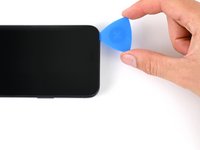
    • Don't insert your pick deeper than 3 mm along the top edge.

    • Slide your pick around the top right corner and along the top edge to release the two clips and adhesive securing it.

  15. iPhone 15 Pro Loudspeaker Replacement, Heat the left edge: step 15, image 1 of 1
    • Heat the left edge of the screen until it's hot to the touch.

  16. iPhone 15 Pro Loudspeaker Replacement, Separate the left edge adhesive: step 16, image 1 of 3 iPhone 15 Pro Loudspeaker Replacement, Separate the left edge adhesive: step 16, image 2 of 3 iPhone 15 Pro Loudspeaker Replacement, Separate the left edge adhesive: step 16, image 3 of 3
    • Don't insert your pick deeper than 2 mm along the left edge to avoid the two cables connecting the screen to the phone.

    • Rotate your pick around the top left corner of the screen.

    • Slide your pick to the bottom left corner of the screen to separate the adhesive.

  17. iPhone 15 Pro Loudspeaker Replacement, Prop up the screen: step 17, image 1 of 3 iPhone 15 Pro Loudspeaker Replacement, Prop up the screen: step 17, image 2 of 3 iPhone 15 Pro Loudspeaker Replacement, Prop up the screen: step 17, image 3 of 3
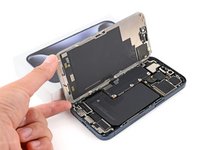
    • Place a small box or stack of books to the left of your phone so you can prop up the screen while disconnecting its cables.

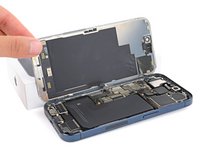
    • Swing up the right edge of the screen like the front cover of a book.

    • If the screen feels stuck, go back around the perimeter with an opening pick to separate any remaining adhesive.

    • Prop up the screen so you can access its cables without straining them.

  18. iPhone 15 Pro Loudspeaker Replacement, Unfasten the logic board cover: step 18, image 1 of 2 iPhone 15 Pro Loudspeaker Replacement, Unfasten the logic board cover: step 18, image 2 of 2
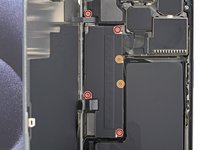
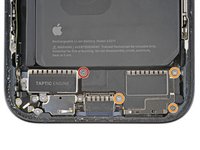
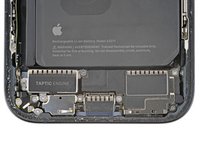
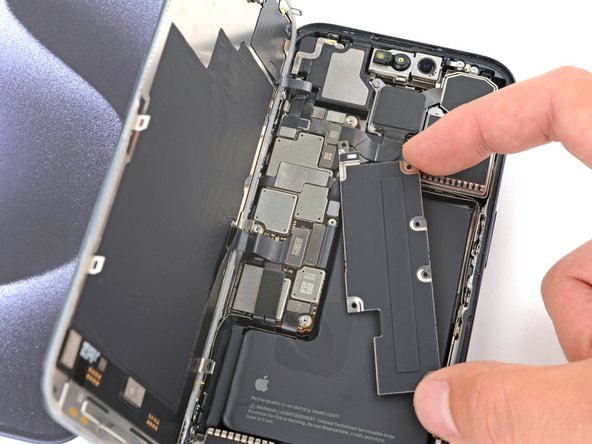
    • Use a Y000 screwdriver to remove the six screws securing the logic board cover:

    • Four 1.6 mm‑long screws

    • Two 1.3 mm‑long screws

  19. iPhone 15 Pro Loudspeaker Replacement, Remove the logic board cover: step 19, image 1 of 3 iPhone 15 Pro Loudspeaker Replacement, Remove the logic board cover: step 19, image 2 of 3 iPhone 15 Pro Loudspeaker Replacement, Remove the logic board cover: step 19, image 3 of 3
    • Rotate the bottom of the logic board cover counterclockwise and slide the top left corner out from under the ambient light sensor cable to remove it.

    • During reassembly, make sure the top left corner of the cover goes under the ambient light sensor cable.

  20. iPhone 15 Pro Loudspeaker Replacement, Disconnect the battery: step 20, image 1 of 3 iPhone 15 Pro Loudspeaker Replacement, Disconnect the battery: step 20, image 2 of 3 iPhone 15 Pro Loudspeaker Replacement, Disconnect the battery: step 20, image 3 of 3
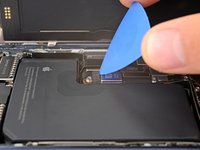
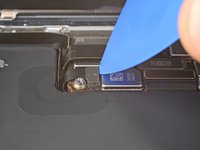
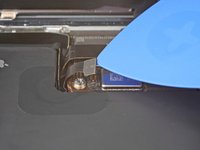
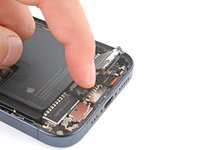
    • Use the tip of an opening pick to pry up and disconnect the battery press connector from the bottom right corner of the logic board.

    • To reconnect a press connector, align it over its socket and gently press down on one side until it clicks into place, then press down on the other side. Make sure it sits flat, as the insulating rubber around the sockets might prevent it from connecting fully.

  21. iPhone 15 Pro Loudspeaker Replacement, Disconnect the screen: step 21, image 1 of 2 iPhone 15 Pro Loudspeaker Replacement, Disconnect the screen: step 21, image 2 of 2
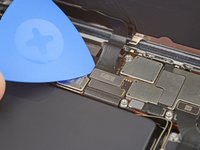
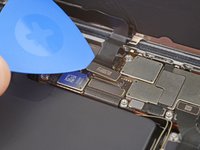
    • Use the tip of an opening pick to pry up and disconnect the screen cable from the center of the logic board.

  22. iPhone 15 Pro Loudspeaker Replacement, Disconnect the ambient light sensor: step 22, image 1 of 2 iPhone 15 Pro Loudspeaker Replacement, Disconnect the ambient light sensor: step 22, image 2 of 2
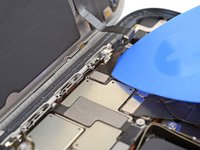
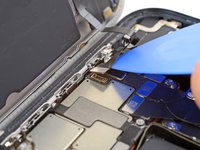
    • Gently slide the tip of an opening pick under the ambient light sensor cable near the top left corner of the logic board.

    • Lift the cable to disconnect it.

  23. iPhone 15 Pro Loudspeaker Replacement, Remove the screen: step 23, image 1 of 2 iPhone 15 Pro Loudspeaker Replacement, Remove the screen: step 23, image 2 of 2
    • Remove the screen.

    • During reassembly, follow this guide to apply new adhesive and install your screen.

    • Be careful not to damage any of the spring contacts as you clean the frame.

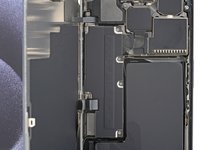
  24. iPhone 15 Pro Loudspeaker Replacement, Unfasten the loudspeaker: step 24, image 1 of 2 iPhone 15 Pro Loudspeaker Replacement, Unfasten the loudspeaker: step 24, image 2 of 2
    • Use a Phillips #000 screwdriver to remove the four screws securing the loudspeaker:

    • One 2.7 mm‑long screw

    • Three 2 mm‑long screws

  25. iPhone 15 Pro Loudspeaker Replacement, Remove the loudspeaker: step 25, image 1 of 3 iPhone 15 Pro Loudspeaker Replacement, Remove the loudspeaker: step 25, image 2 of 3 iPhone 15 Pro Loudspeaker Replacement, Remove the loudspeaker: step 25, image 3 of 3
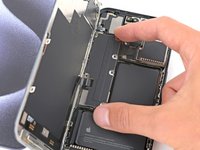
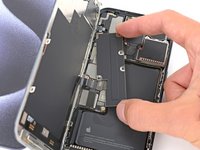
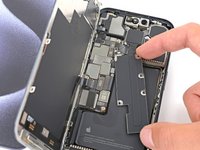
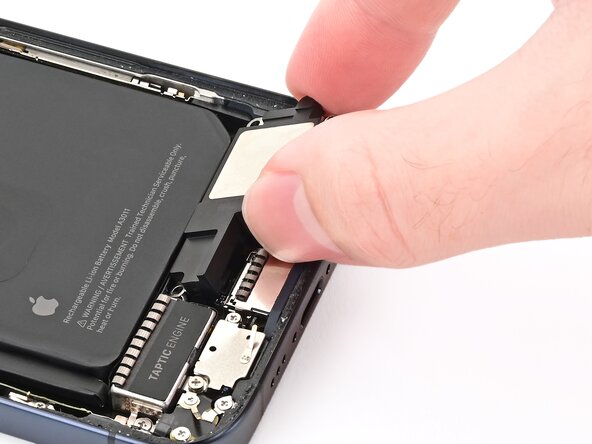
    • A plastic buffer is adhered to the top edges of the loudspeaker and Taptic Engine.

    • Lift the bottom edge of the loudspeaker until you can grab it with your fingers.

    • Peel the loudspeaker from the plastic buffer on its top edge and remove it.

  26. iPhone 15 Pro Loudspeaker Replacement, Disassembly complete: step 26, image 1 of 1
    • Congratulations on completing disassembly! The remaining steps show how to reassemble the iPhone.

  27. iPhone 15 Pro Loudspeaker Replacement, Install the loudspeaker: step 27, image 1 of 3 iPhone 15 Pro Loudspeaker Replacement, Install the loudspeaker: step 27, image 2 of 3 iPhone 15 Pro Loudspeaker Replacement, Install the loudspeaker: step 27, image 3 of 3
    • Set the loudspeaker into its recess in the phone.

  28. iPhone 15 Pro Loudspeaker Replacement, Install the loudspeaker screws: step 28, image 1 of 2 iPhone 15 Pro Loudspeaker Replacement, Install the loudspeaker screws: step 28, image 2 of 2
    • Use a Phillips #000 screwdriver to install the four screws securing the loudspeaker:

    • One 2.7 mm‑long screw

    • Three 2 mm‑long screws

  29. iPhone 15 Pro Loudspeaker Replacement, Remove the screen adhesive: step 29, image 1 of 3 iPhone 15 Pro Loudspeaker Replacement, Remove the screen adhesive: step 29, image 2 of 3 iPhone 15 Pro Loudspeaker Replacement, Remove the screen adhesive: step 29, image 3 of 3
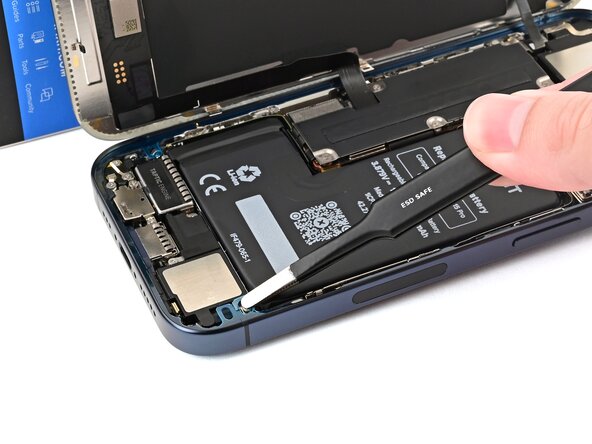
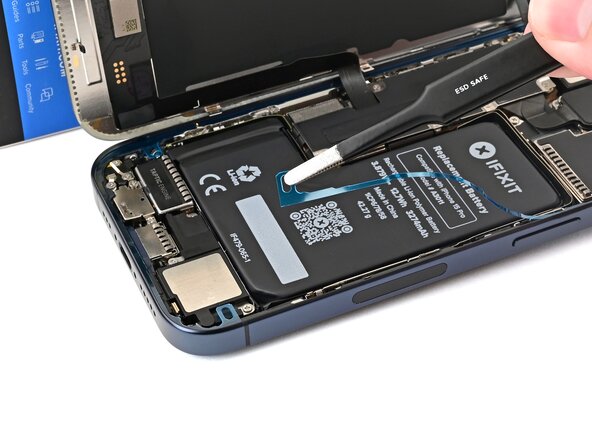
    • The adhesive remaining on the phone is difficult to remove and leaves residue. If you have trouble removing the adhesive, apply some heat using a hair dryer or heat gun.

    • Use a spudger to push the screen adhesive up until you can grab it with a pair of tweezers.

    • Use a pair of tweezers, or your fingers, to remove the adhesive around the entire perimeter of the iPhone.

  30. iPhone 15 Pro Loudspeaker Replacement: step 30, image 1 of 3 iPhone 15 Pro Loudspeaker Replacement: step 30, image 2 of 3 iPhone 15 Pro Loudspeaker Replacement: step 30, image 3 of 3
    • Any unevenness will compromise the iPhone's seal. Clean the frame thoroughly.

    • Apply a few drops of high-concentration (greater than 90%) isopropyl alcohol to a cotton swab or lint-free cloth.

    • Wipe along the perimeter of the frame to clean the adhesive residue.

    • Wait a few minutes before proceeding to make sure any excess alcohol has evaporated.

  31. iPhone 15 Pro Loudspeaker Replacement, Orient the adhesive: step 31, image 1 of 1
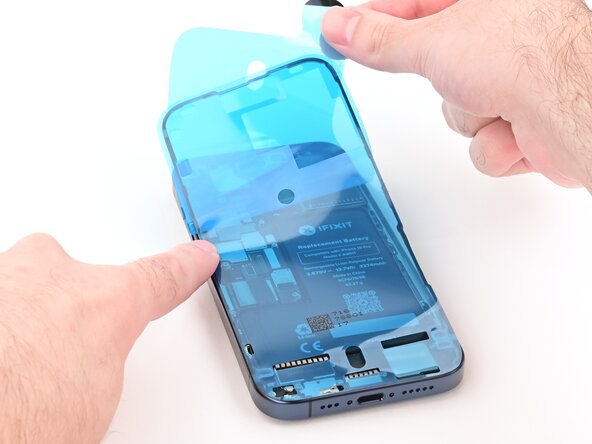
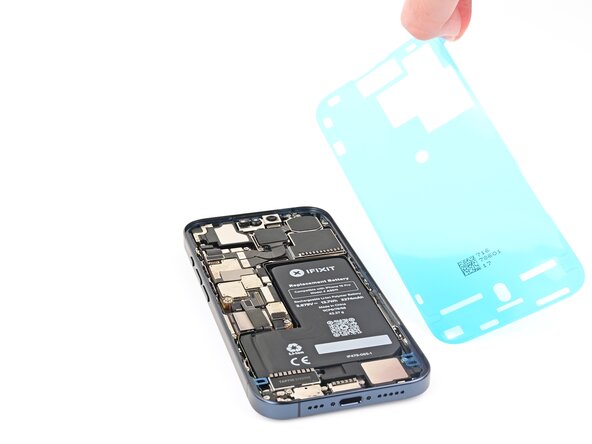
    • Lay the adhesive next to the phone and use features like cutouts for spring contacts and the front‑facing camera to orient it correctly.

  32. iPhone 15 Pro Loudspeaker Replacement, Apply the adhesive: step 32, image 1 of 3 iPhone 15 Pro Loudspeaker Replacement, Apply the adhesive: step 32, image 2 of 3 iPhone 15 Pro Loudspeaker Replacement, Apply the adhesive: step 32, image 3 of 3
    • Once the adhesive is pressed into place, you can't reposition it—you'll have to remove it and start over with new adhesive.

    • Use the pull tab to begin peeling the back liner off of the adhesive starting from the bottom, but don't remove it all the way.

    • While holding the back liner out of the way, carefully align the exposed edge of the adhesive to the bottom edge of the iPhone's frame.

    • When the adhesive is aligned, set it down along the bottom edge.

  33. iPhone 15 Pro Loudspeaker Replacement: step 33, image 1 of 3 iPhone 15 Pro Loudspeaker Replacement: step 33, image 2 of 3 iPhone 15 Pro Loudspeaker Replacement: step 33, image 3 of 3
    • Continue peeling the back liner off of the adhesive while setting the adhesive into place along the edges of the iPhone's frame.

    • If you correctly aligned the lower edge of the adhesive, the side and top edges will fall perfectly into place. If the adhesive is misaligned, remove it and start over with new adhesive.

    • If you don't have another one handy, it's okay to put your iPhone back together without adhesive, but keep in mind that it won't be water resistant until you install new adhesive.

  34. iPhone 15 Pro Loudspeaker Replacement, Press the adhesive into place: step 34, image 1 of 3 iPhone 15 Pro Loudspeaker Replacement, Press the adhesive into place: step 34, image 2 of 3 iPhone 15 Pro Loudspeaker Replacement, Press the adhesive into place: step 34, image 3 of 3
    • Use the flat end of a spudger to press the adhesive into place all around the iPhone.

    • Be careful not to press on the camera, spring contacts, or other internal components.

  35. iPhone 15 Pro Loudspeaker Replacement, Remove the top liner: step 35, image 1 of 2 iPhone 15 Pro Loudspeaker Replacement, Remove the top liner: step 35, image 2 of 2
    • Lift the pull tab in the top‑right corner of the frame to peel off the top liner and remove it.

    • Your pull tab may be in a different location. Make sure you're pulling the full-size top liner, not the thin liners along the edges.

  36. iPhone 15 Pro Loudspeaker Replacement, Adhesive information: step 36, image 1 of 1
    • Once the top liner is removed, there should be three narrow liners on top of the adhesive with pull tabs near the bottom edge.

    • Your pull tabs may be in different positions.

    • If you don't see these pull tabs, you may have accidentally removed the thin liners in the previous step. Be careful not to touch anything to the exposed adhesive.

  37. iPhone 15 Pro Loudspeaker Replacement, Prop up the screen: step 37, image 1 of 1
    • Prop the screen up along the left edge of the iPhone frame, using a box or similar sturdy object to support the screen.

  38. iPhone 15 Pro Loudspeaker Replacement, Connect the screen and ambient light sensor: step 38, image 1 of 3 iPhone 15 Pro Loudspeaker Replacement, Connect the screen and ambient light sensor: step 38, image 2 of 3 iPhone 15 Pro Loudspeaker Replacement, Connect the screen and ambient light sensor: step 38, image 3 of 3
    • Use your finger or the flat end of a spudger to connect the screen and ambient light sensor press connectors.

  39. iPhone 15 Pro Loudspeaker Replacement, Connect the battery: step 39, image 1 of 2 iPhone 15 Pro Loudspeaker Replacement, Connect the battery: step 39, image 2 of 2
    • Use your finger or the flat end of a spudger to connect the battery press connector.

  40. iPhone 15 Pro Loudspeaker Replacement, Install the logic board cover: step 40, image 1 of 3 iPhone 15 Pro Loudspeaker Replacement, Install the logic board cover: step 40, image 2 of 3 iPhone 15 Pro Loudspeaker Replacement, Install the logic board cover: step 40, image 3 of 3
  41. iPhone 15 Pro Loudspeaker Replacement, Fasten the logic board cover: step 41, image 1 of 1
    • Use a Y000 screwdriver to install the six screws securing the logic board cover:

    • Four 1.6 mm‑long screws

    • Two 1.3 mm‑long screws

  42. iPhone 15 Pro Loudspeaker Replacement, Remove the final adhesive liners: step 42, image 1 of 3 iPhone 15 Pro Loudspeaker Replacement, Remove the final adhesive liners: step 42, image 2 of 3 iPhone 15 Pro Loudspeaker Replacement, Remove the final adhesive liners: step 42, image 3 of 3
    • Once you remove the liners in this step, the adhesive will be fully exposed. Make sure nothing accidentally sticks to it.

    • Use tweezers to remove the two narrow liners covering the adhesive along the right, top, and bottom edges of the frame.

  43. iPhone 15 Pro Loudspeaker Replacement: step 43, image 1 of 2 iPhone 15 Pro Loudspeaker Replacement: step 43, image 2 of 2
    • Without letting the screen touch the adhesive, hold the screen over the phone so you can access the final liner along the left edge of the frame.

    • Use a pair of tweezers or your fingers to remove the final liner along the left edge of the frame.

  44. iPhone 15 Pro Loudspeaker Replacement, Place the screen: step 44, image 1 of 3 iPhone 15 Pro Loudspeaker Replacement, Place the screen: step 44, image 2 of 3 iPhone 15 Pro Loudspeaker Replacement, Place the screen: step 44, image 3 of 3
    • Align the screen over the frame, then lower it into place.

  45. iPhone 15 Pro Loudspeaker Replacement, Press the screen: step 45, image 1 of 2 iPhone 15 Pro Loudspeaker Replacement, Press the screen: step 45, image 2 of 2
    • Firmly press along the edges of the screen to engage the clips and compress the adhesive.

  46. iPhone 15 Pro Loudspeaker Replacement, Install the pentalobe screws: step 46, image 1 of 1
    • Use a P2 pentalobe screwdriver to install the two 7 mm‑long screws on either side of the charging port.

  47. iPhone 15 Pro Loudspeaker Replacement, Heat the screen: step 47, image 1 of 2 iPhone 15 Pro Loudspeaker Replacement, Heat the screen: step 47, image 2 of 2
    • To help the adhesive bond, apply heat to the edges of the screen using a hair dryer or heat gun until it's hot to the touch.

    • If you have screen vise clamps, use them to strengthen the bond of the new adhesive. If not, keep reading for more ways to secure the screen.

  48. iPhone 15 Pro Loudspeaker Replacement, Press the back glass: step 48, image 1 of 3 iPhone 15 Pro Loudspeaker Replacement, Press the back glass: step 48, image 2 of 3 iPhone 15 Pro Loudspeaker Replacement, Press the back glass: step 48, image 3 of 3
    • To evenly compress the iPhone and strengthen the bond of the screen to the frame, you need to account for the camera bump.

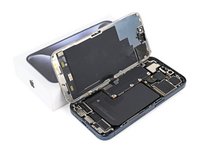
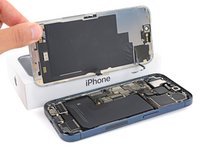
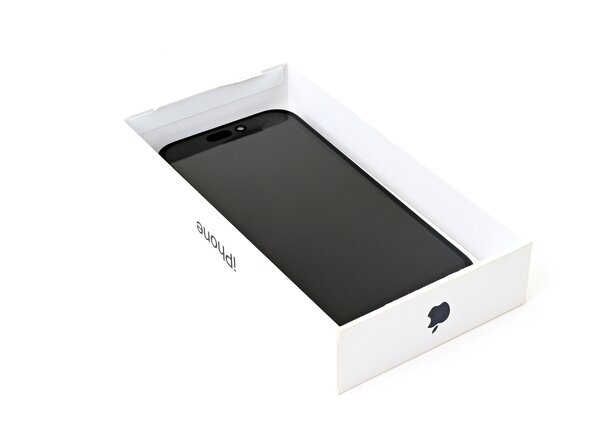
    • If you have the iPhone's original box, take the lid and place it on a flat surface.

    • If you don't have the original box, skip this step for an alternate method.

    • Place the iPhone screen-side-up in the lid of the box with the camera bump in its recess.

    • Find something close to the size of the iPhone, but taller than the sides of the box. Stack it on top of the iPhone, followed by a few heavy objects.

    • Leave the objects in place for at least thirty minutes, ideally overnight.

  49. iPhone 15 Pro Loudspeaker Replacement: step 49, image 1 of 3 iPhone 15 Pro Loudspeaker Replacement: step 49, image 2 of 3 iPhone 15 Pro Loudspeaker Replacement: step 49, image 3 of 3
    • If you don't have the iPhone's original box, follow the these two steps for another method to evenly compress the screen.

    • Place the iPhone screen-side-down on a soft, flat surface.

    • Apply tape to the back glass to protect its finish.

    • Place three layers of coins or similarly thick objects on the tape along the edges of the back glass.

    • Evenly distribute the coins and make sure they are at least as thick as the camera bump.

  50. iPhone 15 Pro Loudspeaker Replacement: step 50, image 1 of 1
    • Stack multiple books or other heavy objects on your iPhone.

    • The coins may leave an impression on the bottom object, so don't use anything valuable.

    • Leave the objects in place for at least thirty minutes, ideally overnight.

Conclusion

Congratulations on replacing the loudspeaker!

Take your e-waste to an R2 or e-Stewards certified recycler.

Repair didn’t go as planned? Try some basic troubleshooting, or ask our Answers community for help.

3 other people completed this guide.

Spencer Day

Member since: 09/14/22

182,666 Reputation

1,165 Guides authored

Team

iFixit Member of iFixit

Staff

123 Members

25,509 Guides authored

1 Guide Comment

شكرا لكم .تم بنجاح

KHALID T - Reply Share
Add Comment

View Statistics:

Past 24 Hours: 21

Past 7 Days: 87

Past 30 Days: 421

All Time: 10,019