TicWatch E3 Screen Replacement

What you need

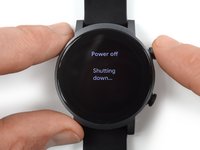
  1. TicWatch E3 Screen Replacement, Power down your watch: step 1, image 1 of 2 TicWatch E3 Screen Replacement, Power down your watch: step 1, image 2 of 2
    • Before starting repairs, take your watch off the charger and power it down.

    • Remove the watch band.

  2. TicWatch E3 Screen Replacement, Loosen the adhesive: step 2, image 1 of 1
    • Apply a heated iOpener to the rear side of the watch for 5 minutes to loosen the adhesive underneath.

    • A hair dryer, heat gun, or hot plate may also be used, but be careful not to overheat the device.

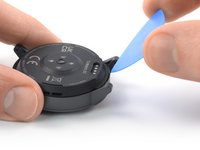
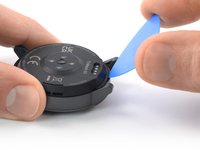
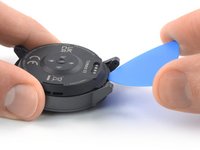
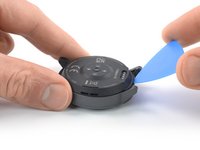
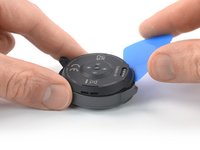
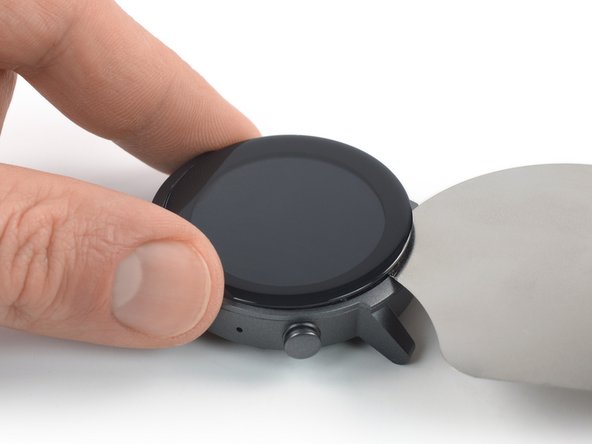
  3. TicWatch E3 Screen Replacement, Insert an opening pick: step 3, image 1 of 3 TicWatch E3 Screen Replacement, Insert an opening pick: step 3, image 2 of 3 TicWatch E3 Screen Replacement, Insert an opening pick: step 3, image 3 of 3
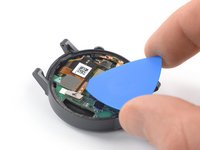
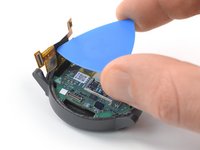
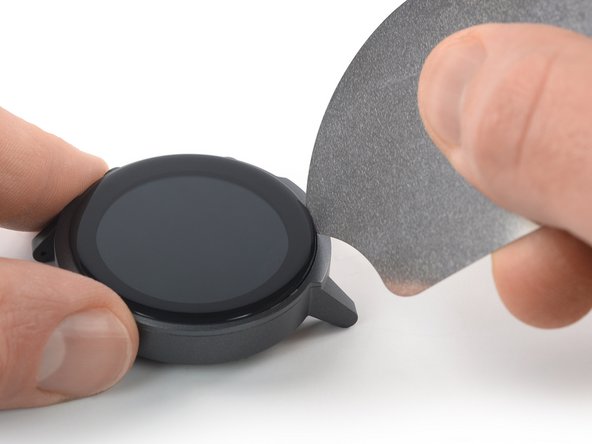
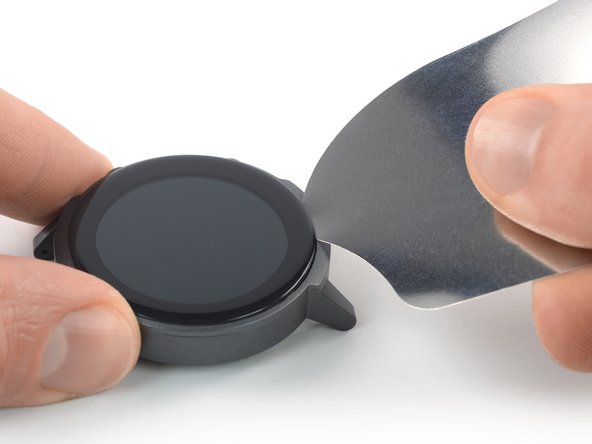
    • Insert an opening pick into the recess between the watch frame and the top edge of the back cover.

    • Push the opening pick to create a gap between the back cover and the watch frame.

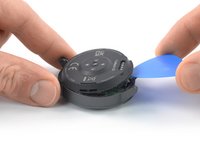
  4. TicWatch E3 Screen Replacement, Pry up the back cover assembly: step 4, image 1 of 3 TicWatch E3 Screen Replacement, Pry up the back cover assembly: step 4, image 2 of 3 TicWatch E3 Screen Replacement, Pry up the back cover assembly: step 4, image 3 of 3
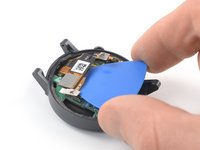
    • Twist the opening pick to widen the gap between the back cover assembly and the watch frame.

    • Pry upward to loosen the back cover assembly.

    • Don't try to remove the back cover assembly all the way yet. It's still connected to the motherboard.

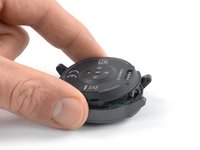
  5. TicWatch E3 Screen Replacement, Free the back cover assembly: step 5, image 1 of 2 TicWatch E3 Screen Replacement, Free the back cover assembly: step 5, image 2 of 2
    • Carefully lift up the bottom edge of the back cover assembly to make sure it isn't adhered to the watch frame anymore.

    • Avoid straining or tearing the sensor or battery cables.

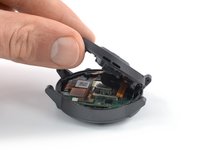
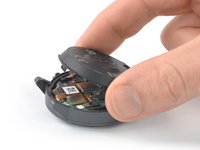
  6. TicWatch E3 Screen Replacement, Open the watch: step 6, image 1 of 2 TicWatch E3 Screen Replacement, Open the watch: step 6, image 2 of 2
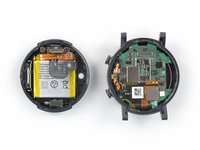
    • Grab the back cover assembly and carefully bring it into an upright position next to the watch housing.

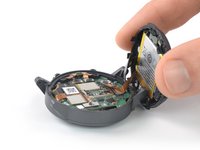
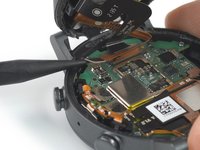
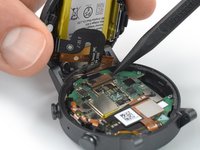
  7. TicWatch E3 Screen Replacement, Disconnect the battery cable: step 7, image 1 of 2 TicWatch E3 Screen Replacement, Disconnect the battery cable: step 7, image 2 of 2
    • Use a spudger to disconnect the battery cable by prying the connector straight up from its socket.

    • To re-attach press connectors like this one, carefully align and press down on one side until it clicks into place, then repeat on the other side. Do not press down on the middle. If the connector is misaligned, the pins can bend, causing permanent damage.

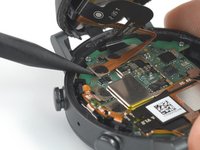
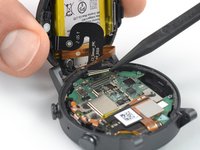
  8. TicWatch E3 Screen Replacement, Disconnect the sensor cable: step 8, image 1 of 2 TicWatch E3 Screen Replacement, Disconnect the sensor cable: step 8, image 2 of 2
    • Use a spudger to disconnect the sensor cable by prying the connector straight up from its socket.

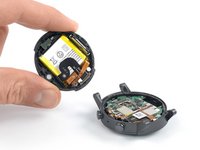
  9. TicWatch E3 Screen Replacement, Remove the back cover assembly: step 9, image 1 of 2 TicWatch E3 Screen Replacement, Remove the back cover assembly: step 9, image 2 of 2
    • Remove the back cover assembly.

  10. TicWatch E3 Screen Replacement, Disconnect the display cables: step 10, image 1 of 2 TicWatch E3 Screen Replacement, Disconnect the display cables: step 10, image 2 of 2
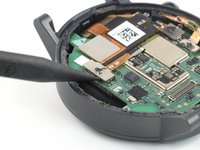
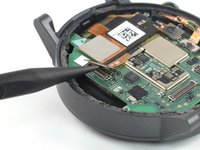
    • Use a spudger to disconnect the right display cable by prying the connector straight up from its socket.

  11. TicWatch E3 Screen Replacement: step 11, image 1 of 2 TicWatch E3 Screen Replacement: step 11, image 2 of 2
    • Use a spudger to disconnect the left display cable by prying the connector straight up from its socket.

  12. TicWatch E3 Screen Replacement, Free the display cable: step 12, image 1 of 3 TicWatch E3 Screen Replacement, Free the display cable: step 12, image 2 of 3 TicWatch E3 Screen Replacement, Free the display cable: step 12, image 3 of 3
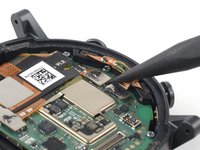
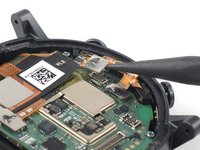
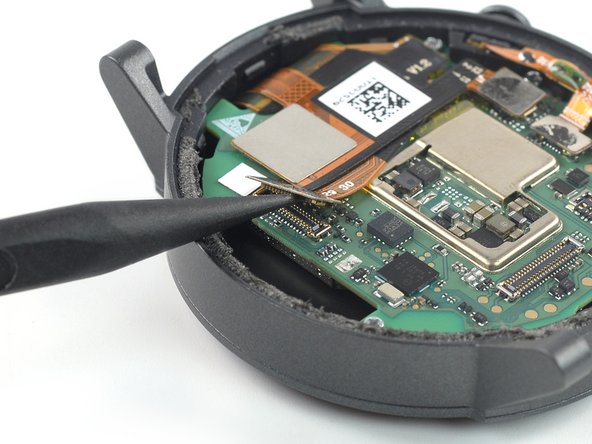
    • Carefully slide an opening pick underneath the display cable to separate it from the motherboard.

    • Use your opening pick to fold the display cable in an upright position.

  13. TicWatch E3 Screen Replacement, Unfasten the motherboard screws: step 13, image 1 of 1
    • Use a Phillips screwdriver to remove the four 4.1 mm-long screws securing the motherboard.

  14. TicWatch E3 Screen Replacement, Pry up the motherboard: step 14, image 1 of 2 TicWatch E3 Screen Replacement, Pry up the motherboard: step 14, image 2 of 2
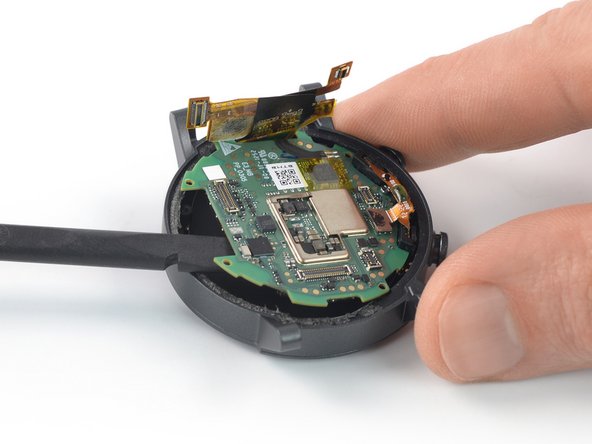
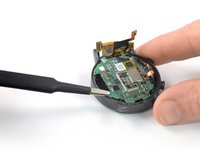
    • Insert a spudger underneath the edge of the motherboard opposite to the watch buttons.

    • Pry up to loosen the motherboard.

  15. TicWatch E3 Screen Replacement, Remove the motherboard: step 15, image 1 of 2 TicWatch E3 Screen Replacement, Remove the motherboard: step 15, image 2 of 2
    Tool used on this step:
    Tweezers
    $4.99
    Buy
    • Use a pair of tweezers to remove the motherboard.

  16. TicWatch E3 Screen Replacement, Loosen the display adhesive: step 16, image 1 of 1
    • Apply a heated iOpener to the screen for 5 minutes to loosen the adhesive underneath.

    • A hair dryer, heat gun, or hot plate may also be used, but be careful not to overheat the device.

  17. TicWatch E3 Screen Replacement, Insert an iFlex: step 17, image 1 of 3 TicWatch E3 Screen Replacement, Insert an iFlex: step 17, image 2 of 3 TicWatch E3 Screen Replacement, Insert an iFlex: step 17, image 3 of 3
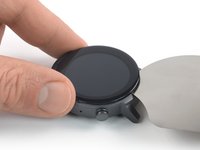
    • Insert an iFlex into the gap between the watch frame and the screen.

  18. TicWatch E3 Screen Replacement, Separate the screen: step 18, image 1 of 3 TicWatch E3 Screen Replacement, Separate the screen: step 18, image 2 of 3 TicWatch E3 Screen Replacement, Separate the screen: step 18, image 3 of 3
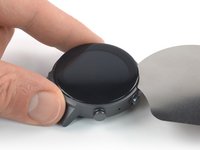
    • Slide the iFlex around the screen to cut through the display adhesive.

  19. TicWatch E3 Screen Replacement, Pry up the screen: step 19, image 1 of 2 TicWatch E3 Screen Replacement, Pry up the screen: step 19, image 2 of 2
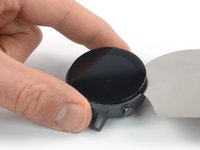
    • Twist the iFlex to pry up the screen and to separate it from the watch housing.

  20. TicWatch E3 Screen Replacement, Remove the screen: step 20, image 1 of 3 TicWatch E3 Screen Replacement, Remove the screen: step 20, image 2 of 3 TicWatch E3 Screen Replacement, Remove the screen: step 20, image 3 of 3
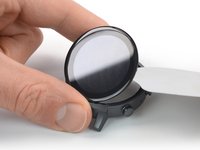
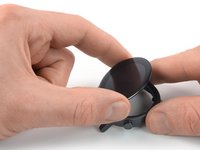
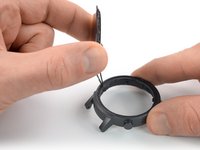
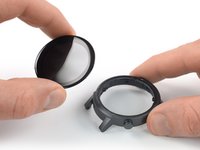
    • Remove the screen.

Conclusion

To reassemble your device, follow these instructions in reverse order.Compare your new replacement part to the original part—you may need to transfer remaining components or remove adhesive backings from the new part before you install it.

To reassemble your device, follow these instructions in reverse order.

During reassembly, apply new adhesive where it's necessary after cleaning the relevant areas with isopropyl alcohol (>90%).

Take your e-waste to an R2 or e-Stewards certified recycler.

Repair didn’t go as planned? Try some basic troubleshooting, or ask our TicWatch E3 answers community for help.

4 other people completed this guide.

Dominik Schnabelrauch

Member since: 11/23/16

247,064 Reputation

682 Guides authored

Team

iFixit Member of iFixit

Staff

123 Members

23,649 Guides authored

3 Guide Comments

Love the guide where would you recommend to look for a screen replacement?

Cameron Macdonald - Reply

Hi All, Where can I buy the display for this watch?

Péter Tápai - Reply

Can any one tell me from where I can buy this tic watch E3 screen.

Emo King - Reply

Add Comment

View Statistics:

Past 24 Hours: 1

Past 7 Days: 7

Past 30 Days: 24

All Time: 1,697