Introduction
Follow this guide to replace, upgrade, or customize the buttons in your Nintendo Game Boy Advance SP.
This guide covers how to replace the action (A + B), shoulder (L + R), D‑pad, brightness, and Start/Select buttons, plus the ON/OFF power switch cover.
If you're completely re‑shelling your Game Boy, follow this guide.
The Game Boy Advance SP uses JIS screws. If you use a non-iFixit Phillips driver in JIS screws, you'll risk stripping them. iFixit's Phillips bits are designed to be compatible with JIS screws.
What you need
-
-
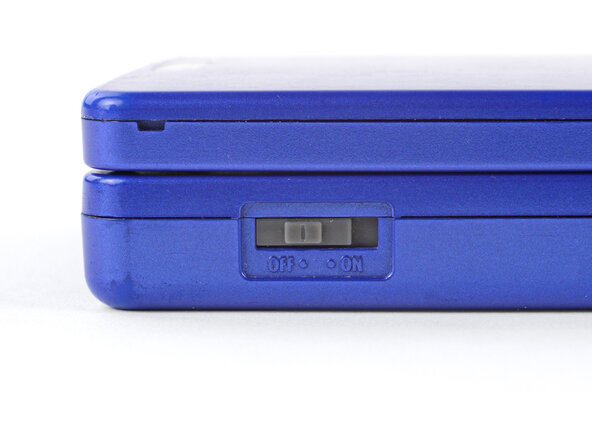
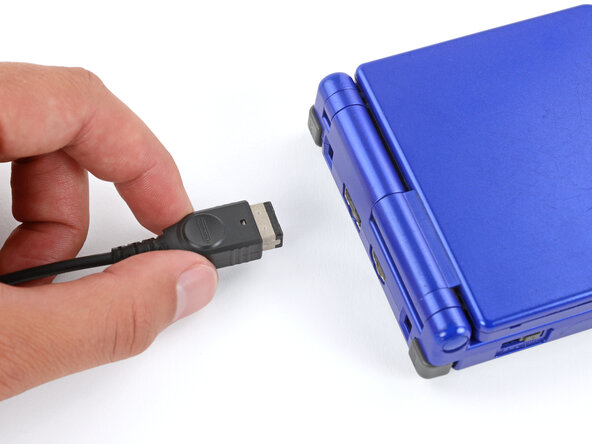
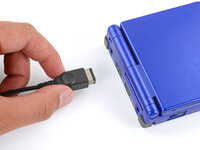
Slide the power switch to the OFF position and unplug any cables.
-
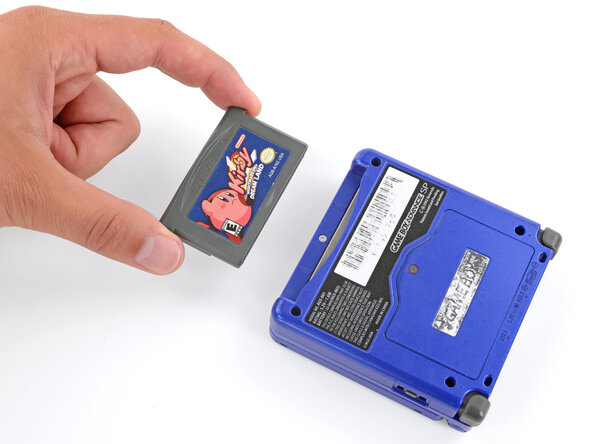
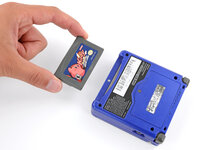
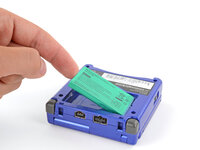
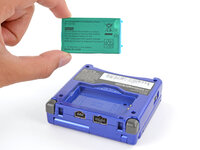
If you have a game cartridge in, remove it.
-
-
-
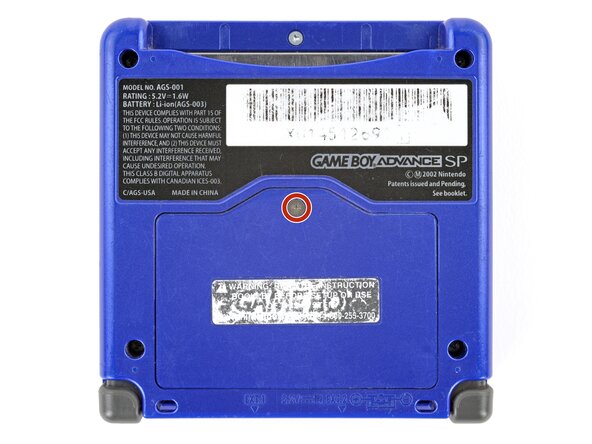
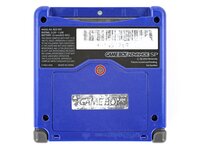
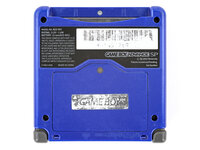
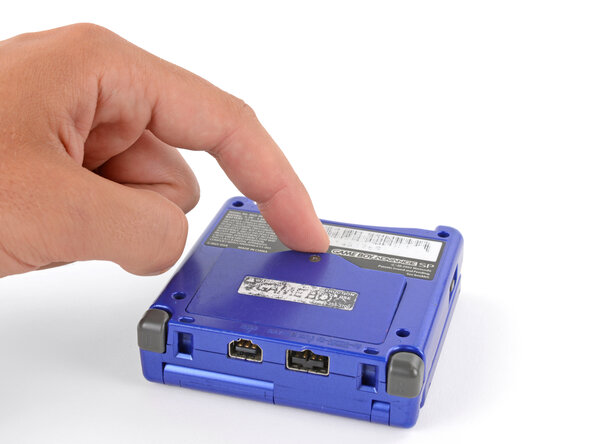
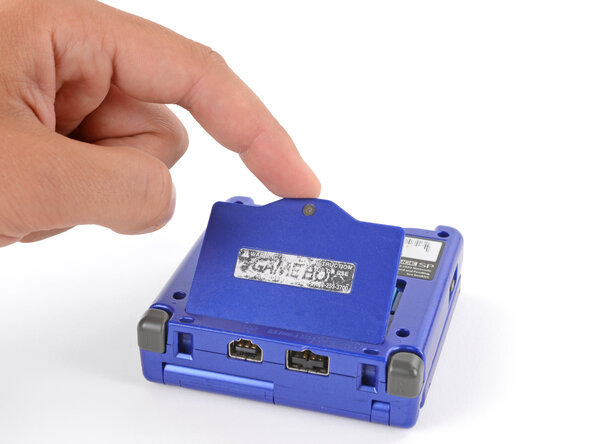
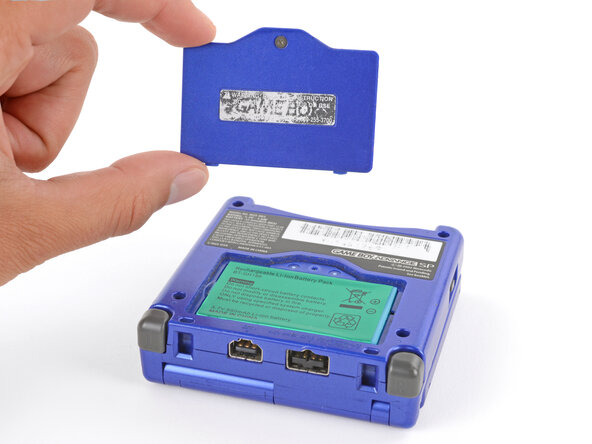
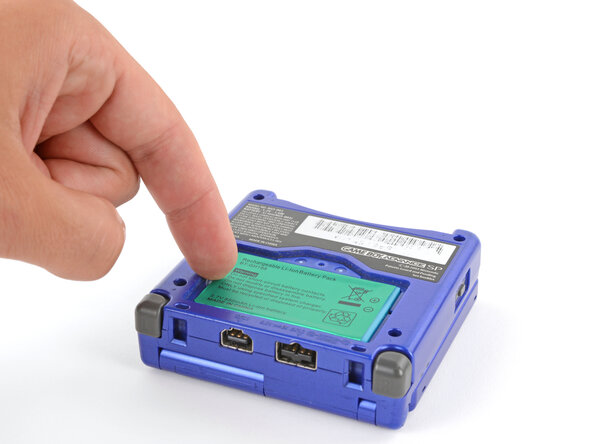
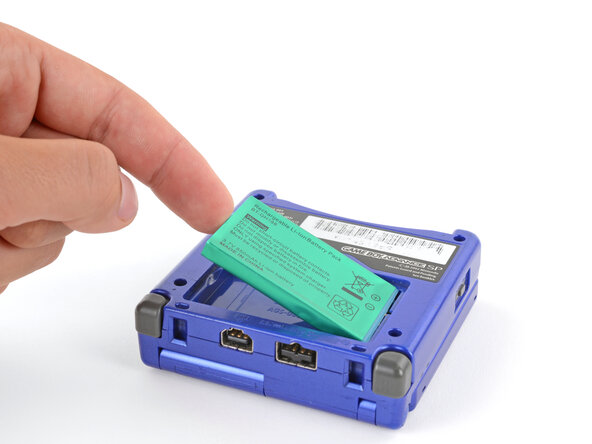
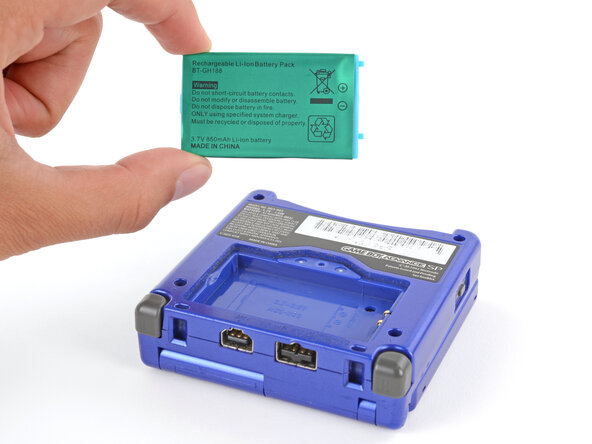
Use a JIS 00 screwdriver to loosen the captive screw securing the battery cover.
-
-
-
-
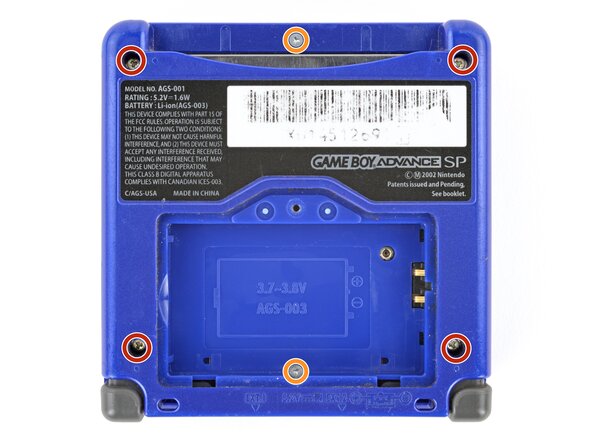
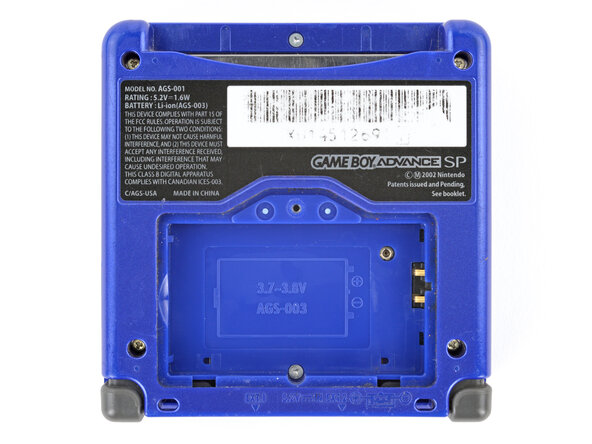
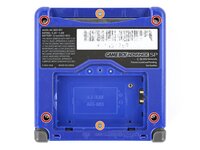
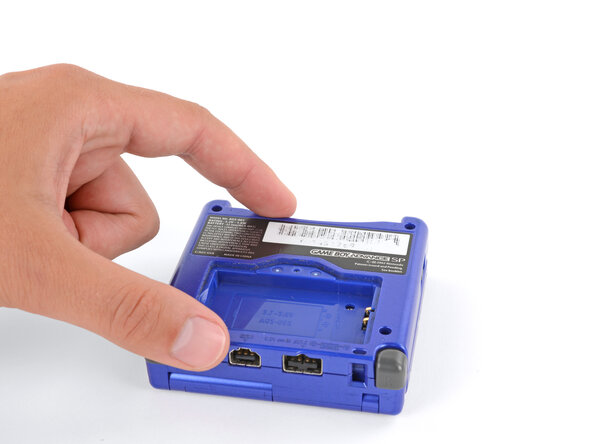
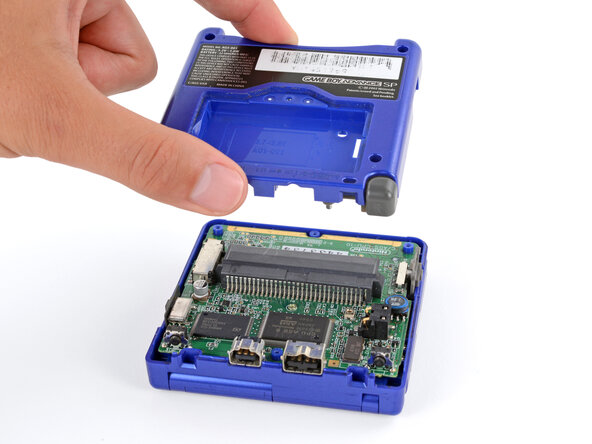
Use a tri‑point Y0 screwdriver to remove the six screws securing the bottom shell:
-
Four 6.3 mm‑long recessed screws
-
Two 4.6 mm‑long screws
-
-
-
-
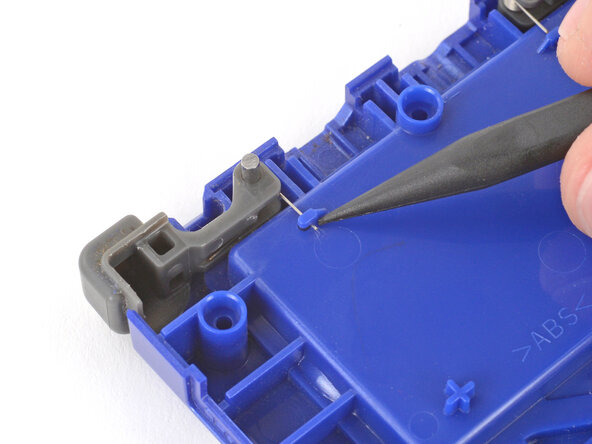
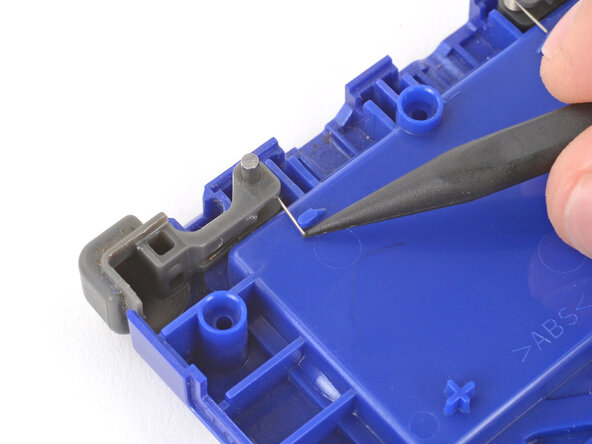
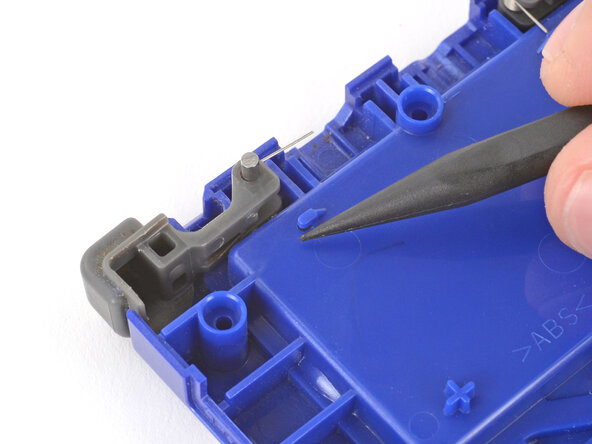
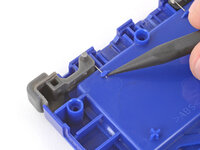
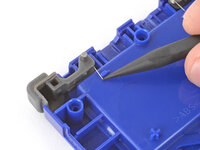
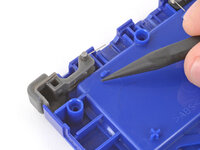
Use the point of a spudger to push the spring arm out from under its clip.
-
-
-
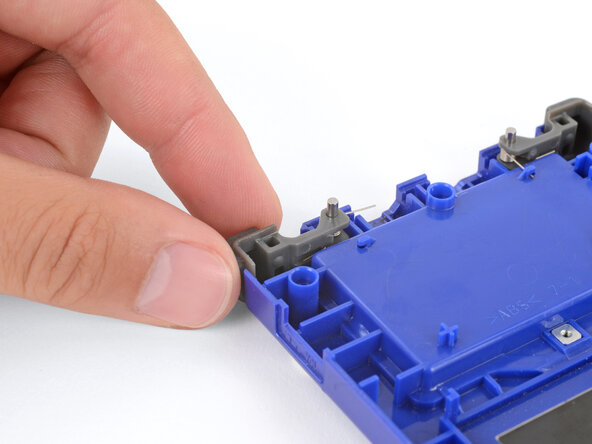
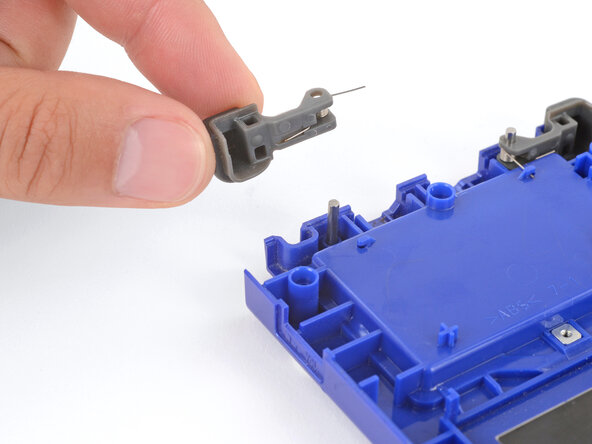
Lift the shoulder button straight up and off its hinge pin to remove it.
-
Repeat the process to remove the other shoulder button.
-
-
-
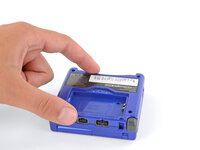
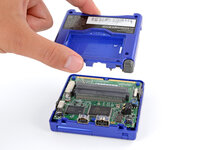
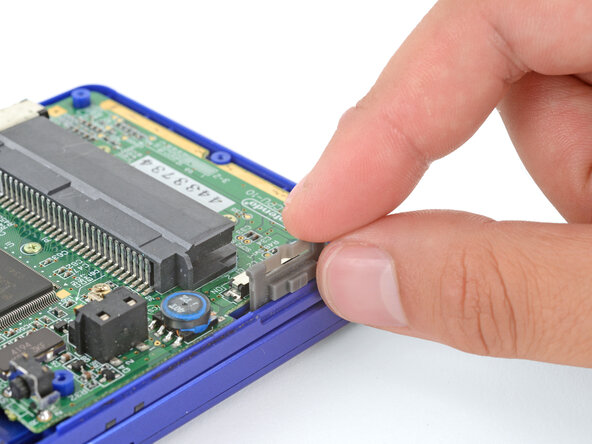
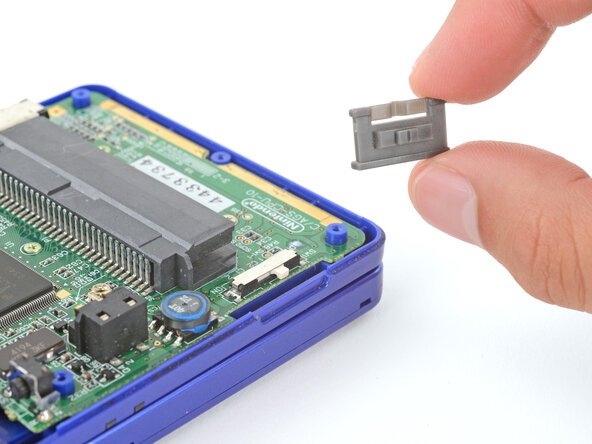
Use your fingers to lift and remove the power switch cover.
-
Use your fingers to put the power switch cover (notched side up) into place so the cutout goes around the actual switch.
-
Gently slide the cover back and forth to make sure it's positioned properly and moving the switch.
-
-
-
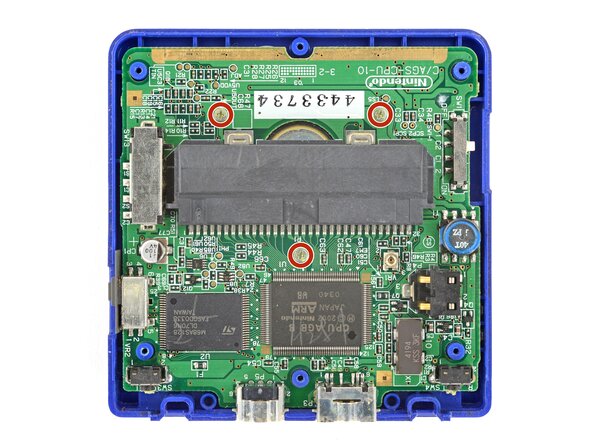
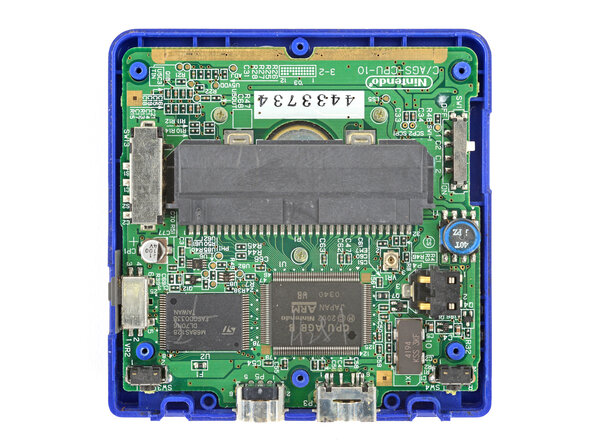
Use a JIS 00 screwdriver to remove the three 4.1 mm‑long screws securing the motherboard.
-
-
-
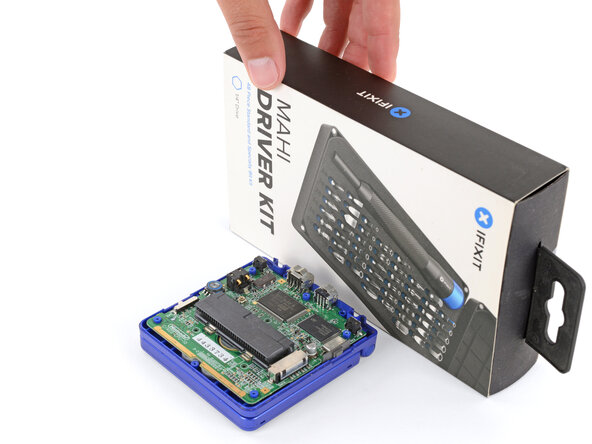
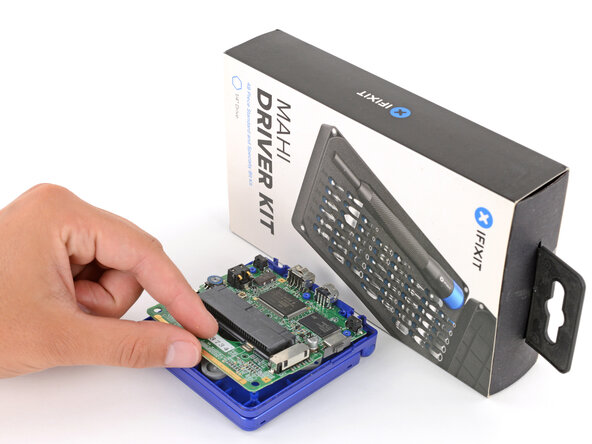
Place a sturdy object such as a stack of books or tool case along the edge of your Game Boy with the hinges.
-
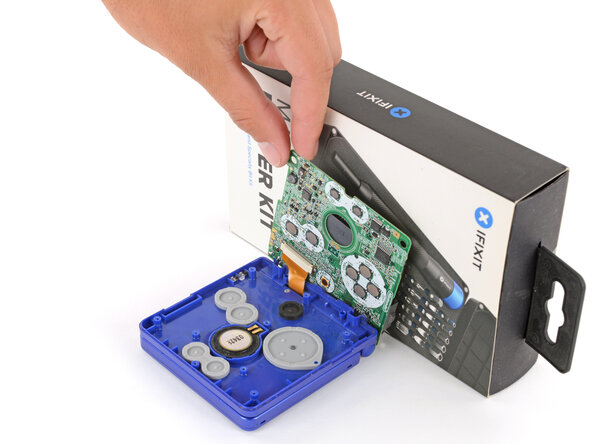
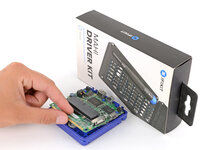
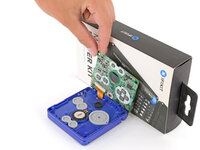
Use your fingers to gently flip the motherboard over the hinges and prop it up.
-
-
-
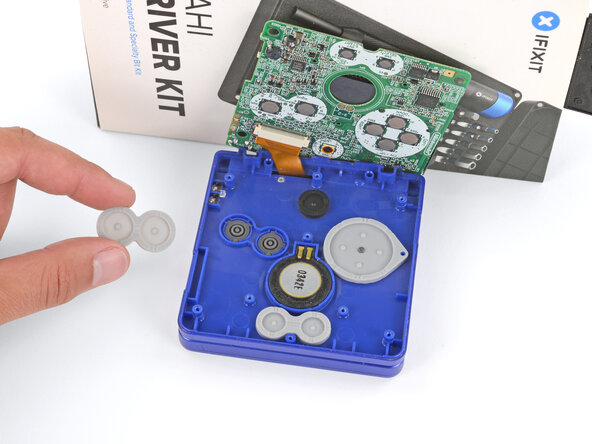
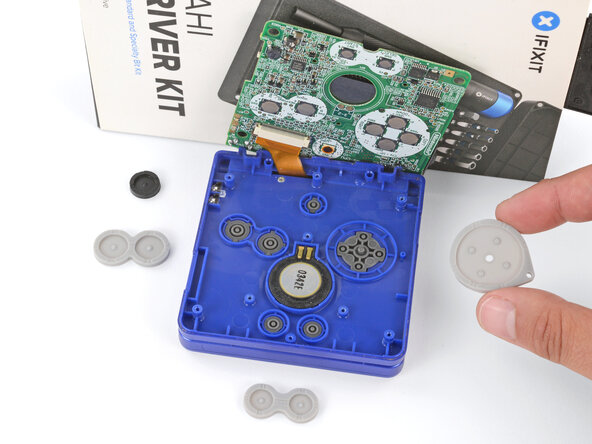
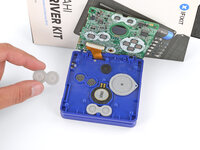
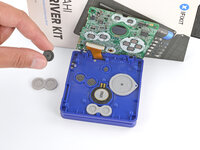
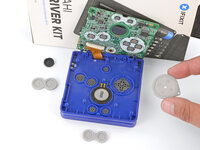
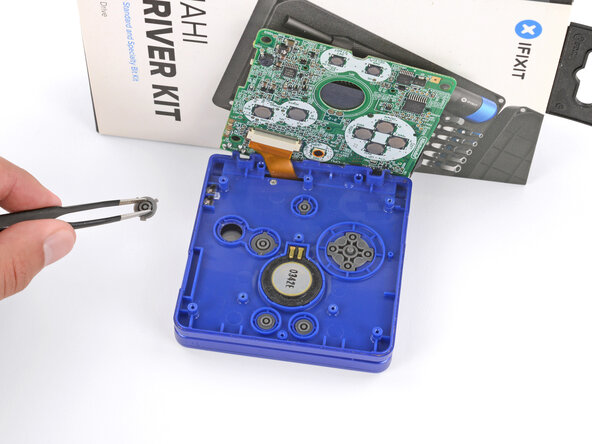
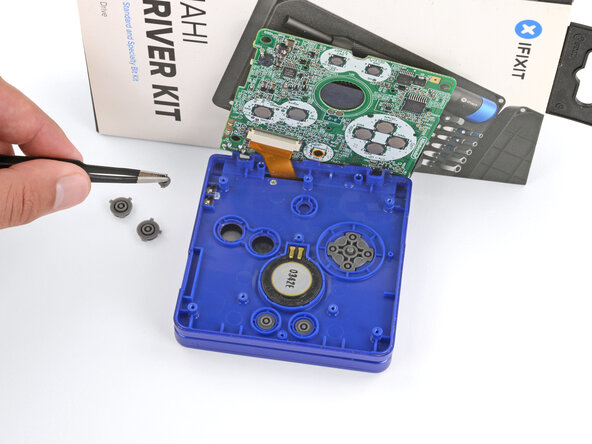
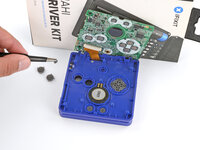
Use tweezers or your fingers to remove the four silicone pads covering the buttons (A and B, D‑pad, brightness, and Start/Select).
-
-
-
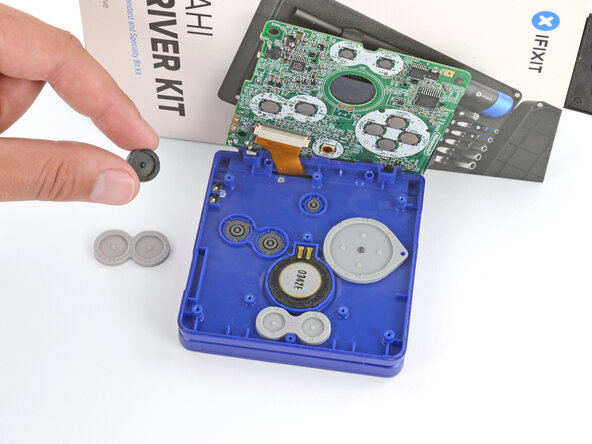
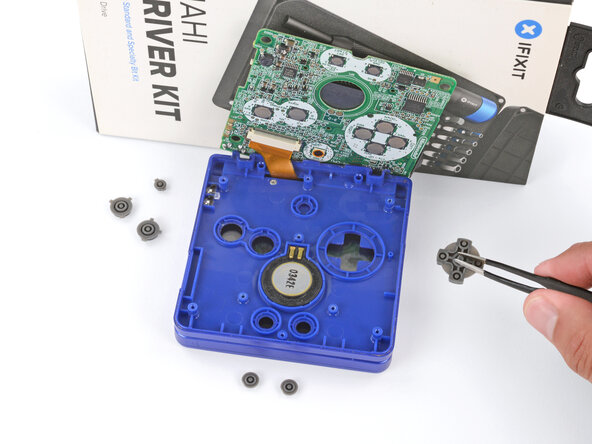
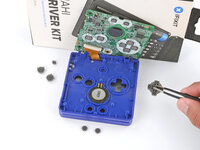
Use tweezers or your fingers to remove the buttons (A and B, D‑pad, brightness, and Start/Select).
-
To reassemble your device, follow these instructions in reverse order.
Take your e-waste to an R2 or e-Stewards certified recycler.
Repair didn’t go as planned? Try some basic troubleshooting, or ask our Answers Community for troubleshooting help.
Cancel: I did not complete this guide.
13 other people completed this guide.


5 Guide Comments
there is most likely a crack in the mother board or the battery has too much pressure placed onto it
you can fix this by changing the position of the battery and putting something to stop it from moving around so it fits tightly
@
