Introduction
Follow this guide to replace a broken or cracked trackpad in a MacBook Neo.
For your safety, discharge the battery below 25% before disassembly. This reduces the risk of a dangerous fire if the battery is accidentally damaged during the repair. If your battery is swollen, take appropriate precautions and replace it using this guide.
What you need
-
-
-
Fully shut down the MacBook and close the lid. Keep the lid closed until you've physically disconnected the battery.
-
Disconnect any cables and accessories.
-
Flip the computer upside‑down on a clean work surface.
 Ask FixBot
-
-
-
-
-
Use a P5 pentalobe driver to remove the eight screws securing the bottom cover:
-
Six 4.1 mm‑long screws
-
Two 4.5 mm‑long screws
-
-
-
Use your fingers to pry up the bottom cover from the top‑right corner, near the USB‑C ports, until the clip along the right edge of the laptop pops up.
-
Repeat this process on the left side to release its clip.
-
-
-
Pick up the bottom cover and lift it off the MacBook.
-
-
-
-
-
Use a Torx Plus 3IP driver to remove the two 1.7 mm‑long screws securing the battery connector cover.
-
-
-
Use the flat end of a spudger to pry up and disconnect the battery press connector.
-
-
-
-
-
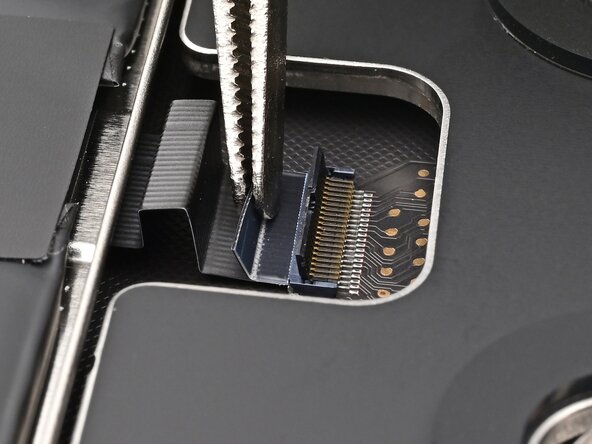
Use the flat end of a spudger to lift the hinged locking flap on the trackpad cable ZIF connector.
-
-
-
Use tweezers or your fingers to gently pull the trackpad cable out of its socket.
-
-
-
-
Use a Torx Plus 8IP driver to remove the four 5.3 mm‑long black screws securing the trackpad base plate.
-
-
-
Use a Torx Plus 8IP driver to remove the four 5.0 mm‑long silver screws securing the trackpad.
-
-
-
Pick up the trackpad from the center and slide it out from beneath its cable to remove it.
-
-
-
-
-
Congratulations on completing disassembly! The remaining steps will show how to reassemble the MacBook.
-
-
-
-
-
Hold the new trackpad from the center to slide it beneath its cable and set it into the frame.
-
-
-
Use a Torx Plus 8IP driver to install the four 5.0 mm‑long silver screws securing the trackpad.
-
-
-
Align the trackpad base plate with its screw holes, making sure the notch on its long edge is facing the battery.
-
Set the trackpad base plate into place.
-
-
-
Use a Torx Plus 8IP driver to install the four 5.3 mm‑long black screws securing the trackpad base plate.
-
-
-
Make sure the locking flap is flipped up and gently insert the trackpad cable into its socket.
-
Flip the locking flap down to secure the cable.
-
-
-
Use a Torx Plus 8IP driver to loosen (not remove) the four 5.0 mm‑long silver screws securing the trackpad.
-
-
-
Cut a stack of two sticky notes horizontally in half, then vertically into four equally‑sized pieces.
-
Slide the non-sticky side of each piece into the gap between the trackpad and the frame, centrally on each edge.
-
Fold each piece down and adhere it to the laptop.
-
-
-
Close the laptop, flip it upside down, and use a Torx Plus 8IP driver to tighten the four 5.0 mm‑long silver screws securing the trackpad.
-
Reopen the laptop, remove the sticky notes, and inspect it to ensure it's centered. If it isn't, loosen the screws from the last bullet and hold it in the correct position while you tighten them.
-
Carefully close the laptop.
-
-
-
-
-
Align the battery connector carefully over its socket and press down until it clicks into place. Don't try to force the connector into place. If you're having trouble, reposition it and try again.
-
-
-
Set the battery connector cover in place, aligned with its screw holes.
-
Use a Torx Plus 3IP driver to install the two 1.7 mm‑long screws securing the battery connector cover.
-
-
-
-
-
Align the bottom cover with its screw holes, then press on the two short sides until the clip on each side snaps into place.
-
-
-
Use a P5 pentalobe driver to install the eight screws securing the bottom cover:
-
Six 4.1 mm‑long screws
-
Two 4.5 mm‑long screws
-
-




Congratulations on completing your repair!
Take your e-waste to an R2 or e-Stewards certified recycler.
Repair didn’t go as planned? Try some basic troubleshooting, or ask our Answers community for help.

