15% Off Selected iFixit Tools — Limited Time
Free Shipping on Domestic Orders $75+

MacBook Neo Battery Replacement

What you need

  1. MacBook Neo Battery Replacement, Prepare the MacBook for disassembly: step 1, image 1 of 3 MacBook Neo Battery Replacement, Prepare the MacBook for disassembly: step 1, image 2 of 3 MacBook Neo Battery Replacement, Prepare the MacBook for disassembly: step 1, image 3 of 3
    • Fully shut down the MacBook and close the lid. Keep the lid closed until you've physically disconnected the battery.

    • Disconnect any cables and accessories.

    • Flip the computer upside‑down on a clean work surface.

    Ask FixBot

    Add Comment

  2. MacBook Neo Battery Replacement, Remove the bottom cover screws: step 2, image 1 of 1
    • Use a P5 pentalobe driver to remove the eight screws securing the bottom cover:

    • Six 4.1 mm‑long screws

    • Two 4.5 mm‑long screws

    • During reassembly, partially install the screws to ensure alignment, then tighten the screws at each corner (like top‑right, bottom‑left, etc.) before the rest.

    Ask FixBot

    Add Comment

  3. MacBook Neo Battery Replacement, Pry up the bottom cover: step 3, image 1 of 3 MacBook Neo Battery Replacement, Pry up the bottom cover: step 3, image 2 of 3 MacBook Neo Battery Replacement, Pry up the bottom cover: step 3, image 3 of 3
    • The bottom cover is held in place with two clips, one on each side.

    • Use your fingers to lift the top right corner of the bottom cover, near the USB‑C ports, until the clip along the right edge releases.

    • If you're having trouble, use the flat end of a spudger to pry up the corner until you can grab it with your fingers. You can also slide an opening pick down each edge to release the clips.

    • Repeat this process on the left side to release its clip.

    Ask FixBot

    Add Comment

  4. MacBook Neo Battery Replacement, Remove the bottom cover: step 4, image 1 of 2 MacBook Neo Battery Replacement, Remove the bottom cover: step 4, image 2 of 2
    • Remove the bottom cover.

    • During reassembly, align the bottom cover with its screw holes, then press on the two short sides until the clip on each side snaps into place.

    Ask FixBot

    Add Comment

  5. MacBook Neo Battery Replacement, Remove the battery connector cover: step 5, image 1 of 1
    • Use a Torx Plus 3IP driver to remove the two 1.7 mm‑long screws securing the battery connector cover.

    • While the MacBook Neo uses Torx Plus screws, standard Torx bits also work (T3 in place of 3IP, for example). Apply constant, downward force to prevent stripping the screw.

    Ask FixBot

    Add Comment

  6. MacBook Neo Battery Replacement: step 6, image 1 of 2 MacBook Neo Battery Replacement: step 6, image 2 of 2
    • Use tweezers or your fingers to remove the battery connector cover.

    Ask FixBot

    Add Comment

  7. MacBook Neo Battery Replacement, Disconnect the battery: step 7, image 1 of 2 MacBook Neo Battery Replacement, Disconnect the battery: step 7, image 2 of 2
    • Use the flat end of a spudger to pry up and disconnect the battery press connector.

    • To reconnect, align the connector carefully over its socket and press down—first on one of the short sides, then the other—until it clicks into place. Don't try to force the connector into place. If you're having trouble, reposition it and try again.

    Ask FixBot

    Add Comment

  8. MacBook Neo Battery Replacement, Disconnect the headphone jack and left speaker: step 8, image 1 of 3 MacBook Neo Battery Replacement, Disconnect the headphone jack and left speaker: step 8, image 2 of 3 MacBook Neo Battery Replacement, Disconnect the headphone jack and left speaker: step 8, image 3 of 3
    • Insert the point of a spudger beneath the headphone jack connector, located on the right side of the logic board directly above the battery, and pry it straight up to disconnect it.

    • Repeat to disconnect the left speaker connector, adjacent to the headphone jack connector.

    Ask FixBot

    Add Comment

  9. MacBook Neo Battery Replacement, Disconnect the right speaker: step 9, image 1 of 3 MacBook Neo Battery Replacement, Disconnect the right speaker: step 9, image 2 of 3 MacBook Neo Battery Replacement, Disconnect the right speaker: step 9, image 3 of 3
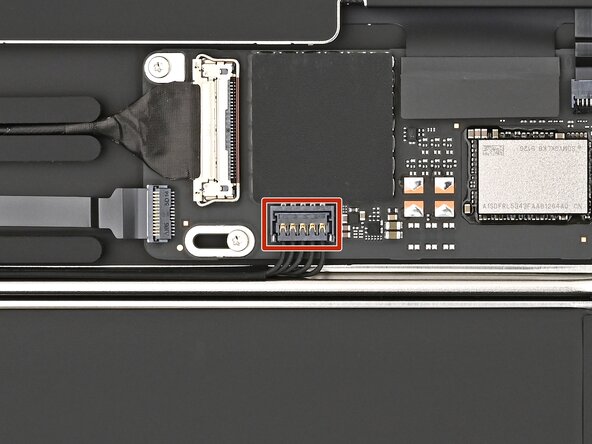
    • Disconnect the right speaker connector, located on the opposite end of the logic board.

    • To reconnect, align the connector over its socket and gently press down with your fingertip or the flat end of a spudger until it sits flush.

    Ask FixBot

    Add Comment

  10. MacBook Neo Battery Replacement, Free the right speaker cable: step 10, image 1 of 3 MacBook Neo Battery Replacement, Free the right speaker cable: step 10, image 2 of 3 MacBook Neo Battery Replacement, Free the right speaker cable: step 10, image 3 of 3
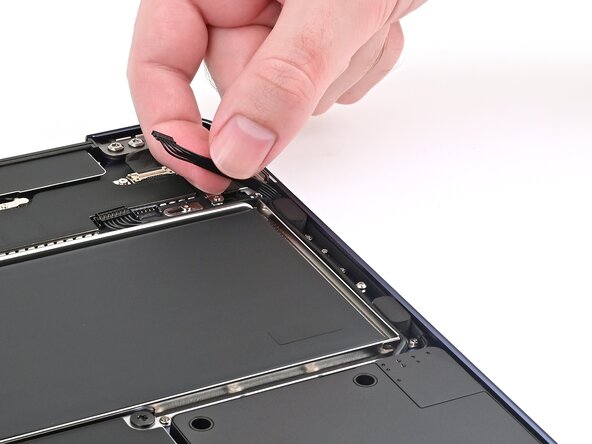
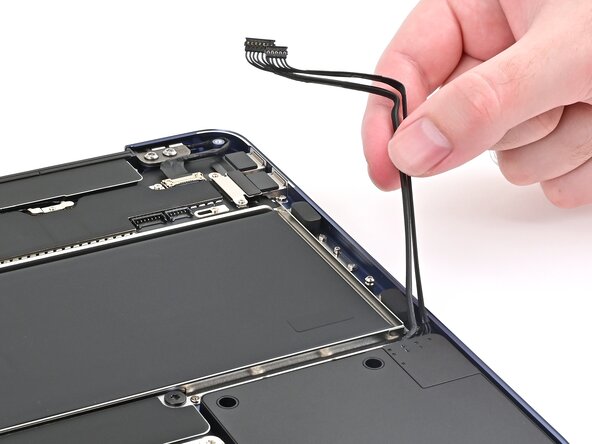
    • Gently lift the right speaker cable out of its channel around the battery.

    Ask FixBot

    Add Comment

  11. MacBook Neo Battery Replacement, Free the left speaker cable: step 11, image 1 of 3 MacBook Neo Battery Replacement, Free the left speaker cable: step 11, image 2 of 3 MacBook Neo Battery Replacement, Free the left speaker cable: step 11, image 3 of 3
    • Repeat this procedure to free the left speaker cable.

    Ask FixBot

    Add Comment

  12. MacBook Neo Battery Replacement, Free the headphone jack cable: step 12, image 1 of 3 MacBook Neo Battery Replacement, Free the headphone jack cable: step 12, image 2 of 3 MacBook Neo Battery Replacement, Free the headphone jack cable: step 12, image 3 of 3
    • The headphone jack cable is secured to the battery with adhesive.

    • Gently peel up the headphone jack cable and lift it out of its channel around the battery.

    Ask FixBot

    Add Comment

  13. MacBook Neo Battery Replacement, Remove the battery screws: step 13, image 1 of 1
    • Ensure the cables freed from around the battery are out of the way of the screws securing it.

    • Use a Torx Plus 5IP driver to remove the eighteen 2.8 mm‑long screws securing the battery.

    • Don't remove the two 3IP screws marked in yellow.

    • During reassembly, install the screws on the top‑left and bottom‑right corners of the battery first to align it. Then, install the remaining screws.

    Ask FixBot

    Add Comment

  14. MacBook Neo Battery Replacement, Lift the battery: step 14, image 1 of 2 MacBook Neo Battery Replacement, Lift the battery: step 14, image 2 of 2
    • Insert the flat end of a spudger beneath the battery's left edge and lift it until you can grab it with your fingers.

    Ask FixBot

    Add Comment

  15. MacBook Neo Battery Replacement, Remove the battery: step 15, image 1 of 3 MacBook Neo Battery Replacement, Remove the battery: step 15, image 2 of 3 MacBook Neo Battery Replacement, Remove the battery: step 15, image 3 of 3
    • Be careful not to pinch the cables near the bottom edge of the battery.

    • Tilt the battery upwards to a roughly 45‑degree angle and remove it.

    • During reassembly, insert the bottom edge of the battery first. Lower the top edge, then wiggle it into place so the standoff screws in the frame slot through their holes on the battery.

    Ask FixBot

    Add Comment

Conclusion

Compare the new replacement part to the original part—you may need to remove plastic liners from the new part before you install it.

To reassemble the MacBook, follow these instructions in reverse order.

Calibrate your newly installed battery after completing this guide.

Take your e-waste to an R2 or e-Stewards certified recycler.

Repair didn’t go as planned? Try some basic troubleshooting, or ask our Answers community for help.

Cancel: I did not complete this guide.

One other person completed this guide.

Nick Schultz

Member since: 03/24/24

56,933 Reputation

318 Guides authored

0 Guide Comments

Add Comment

View Statistics:

Past 24 Hours: 30

Past 7 Days: 239

Past 30 Days: 1,137

All Time: 6,484