Introduction
Follow this guide to replace the keyboard in a MacBook Neo.
The keyboard has a protective cover beneath it to help keep debris out called the keyboard shield. Removing the old keyboard destroys it, so you'll need a new keyboard shield to retain the ingress protection.
What you need
-
-
-
Fully shut down the MacBook and close the lid. Keep the lid closed until you've physically disconnected the battery.
-
Disconnect any cables and accessories.
-
Flip the computer upside‑down on a clean work surface.
 Ask FixBot
-
-
-
-
-
Use a P5 pentalobe driver to remove the eight screws securing the bottom cover:
-
Six 4.1 mm‑long screws
-
Two 4.5 mm‑long screws
-
-
-
Use your fingers to lift the top right corner of the bottom cover, near the USB‑C ports, until the clip along the right edge releases.
-
Repeat this process on the left side to release its clip.
-
-
-
-
-
Use a Torx Plus 3IP driver to remove the two 1.7 mm‑long screws securing the battery connector cover.
-
-
-
Use the flat end of a spudger to pry up and disconnect the battery press connector.
-
-
-
-
-
Use a Torx Plus 3IP driver to remove the 1.7 mm‑long screw securing the antenna connector cover.
-
-
-
Insert one arm of angled tweezers under the metal neck of one of the antenna coaxial connectors and lift straight up to disconnect it.
-
Repeat the process to disconnect the second antenna cable.
-
-
-
Use a Torx Plus 5IP driver to remove the four 2.9 mm‑long screws securing the antenna.
-
-
-
-
-
Use the flat end of a spudger to gently push under the metal buckle of the display cable connector, located on the top‑right corner of the logic board, to unclip it.
-
-
-
Grab the buckle and cable together and gently pull the connector straight out of its socket.
-
-
-
Repeat this procedure to disconnect the camera cable, located on the left edge of the logic board.
-
Grip the buckle and insert the connector fully into its socket. Realign it as necessary and don't try to force it in.
-
Flip the buckle over the socket and press it down until it clicks into place.
-
-
-
Pick up the buckle and cable together and gently pull the camera cable out of its channel securing it to the frame.
-
Free the cable so it's not wrapped around the corner of the laptop frame.
-
-
-
Hold the display cable's buckle and cable together and free it from the laptop frame.
-
-
-
Use a Torx Plus 8IP driver to loosen (not remove) all four hinge screws.
-
-
Tool used on this step:IC-LOC-Blue Nonpermanent Threadlocker$6.99
-
Loosen the hinge screws at least one full turn.
-
Adjust the screen until it's correctly centered and aligned on each side. The screen should sit flush with the rest of the laptop.
-
Fully tighten the four hinge screws.
-
-
-
Open the laptop all the way and gently place it keyboard side down on a table, so the screen hangs over the edge.
-
-
-
Support the screen with one hand.
-
With your free hand, use a Torx Plus 8IP driver to remove the four 6.2 mm–long screws securing the hinges.
-
-
-
-
Hold the screen with both hands and lift the hinges out of their recesses to remove it.
-
-
-
-
-
Remove the bottom adhesive liner off the keyboard shield foam stickers.
-
Align the foam with the bottom and left edges of the battery and set it into place.
-
Press the keyboard shield foam onto the frame to secure it, then remove the top liner.
-
-
-
-
-
Use a Torx Plus 3IP driver to remove the two 1.7 mm‑long screws securing the USB ports connector cover.
-
-
-
Use the flat end of a spudger to disconnect the USB ports press connector.
-
-
-
Use a Torx Plus 5IP driver to remove the four 2.8 mm‑long screws securing the USB ports.
-
-
-
Set the USB ports into the frame, then use a Torx Plus 5IP driver to partially install the four 2.8 mm‑long screws securing them.
-
Plug both ends of a USB‑C to USB‑C cable into the ports. If either port feels stiff, shift the port and reconnect the cable until it feels smooth.
-
Fully tighten the screws securing the USB ports, and disconnect the cable from both.
-
-
-
Insert the point of a spudger beneath the right speaker connector, located on the left side of the logic board directly above the battery, and pry it straight up to disconnect it.
-
-
-
Repeat to disconnect the headphone jack and left speaker connectors, located on the opposite end of the logic board.
-
-
-
Gently lift the speaker cables out of their channels around the battery.
-
-
-
Gently peel up the headphone jack cable and lift it out of its channel around the battery.
-
-
-
Use tweezers to peel up the black sticker over the keyboard cable, just until it comes off the socket on the board. Make sure it stays attached to the cable.
-
-
-
Use the flat end of a spudger to flip up the hinged locking flap on the keyboard cable ZIF connector.
-
-
-
Use tweezers or your fingers to gently grip the keyboard cable by its cover and slide the cable out of its socket.
-
-
-
Flip up the hinged locking flap and disconnect the microphone cable ZIF connector, adjacent to the keyboard cable.
-
-
-
Repeat to disconnect the trackpad cable ZIF connector, adjacent to the microphone cable.
-
-
-
Repeat to disconnect the Touch ID cable ZIF connector, located on the left edge of the logic board.
-
-
-
Use a Torx Plus 3IP driver to remove the five 1.7 mm‑long screws securing the logic board.
-
-
-
Carefully lift the logic board around the cables and out of the MacBook.
-
-
-
Keyboard, microphone, and trackpad cables
-
Audio board cable
-
USB ports cable
-
Touch ID board cable (if present)
-
-
-
Use a Torx Plus 5IP driver to remove the eighteen 2.8 mm‑long screws securing the battery.
-
Don't remove the four tall screws marked in yellow.
-
-
-
Insert the flat end of a spudger beneath the battery's left edge and lift it until you can grab it with your fingers.
-
Tilt the top edge of the battery upwards to a roughly 45‑degree angle and remove it.
-
-
-
Use the flat end of a spudger to lift the hinged locking flap on the trackpad cable ZIF connector.
-
Use tweezers or your fingers to gently pull the trackpad cable out of its socket.
-
-
-
Slowly peel up the trackpad cable to separate the light adhesive securing it to the keyboard shield.
-
Remove the trackpad cable.
-
-
-
Peel up the keyboard cable on the top edge of the keyboard shield.
-
-
-
Peel up and remove the three foam strips on the Touch ID cable and keyboard shield.
-
-
-
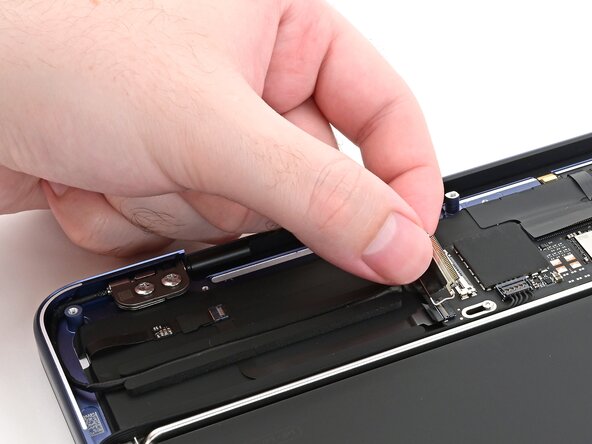
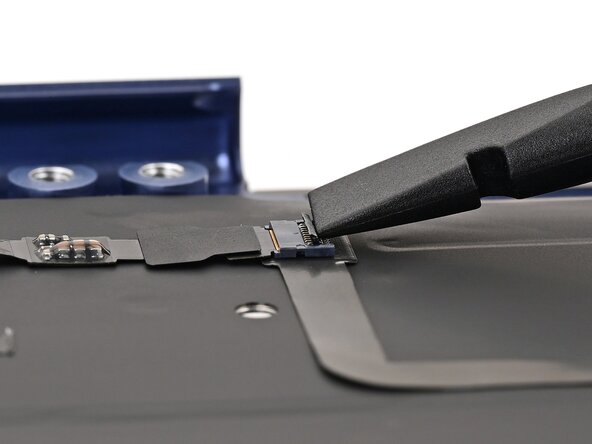
Use the flat end of a spudger to pry up the hinged locking flap on the Touch ID interconnect cable.
-
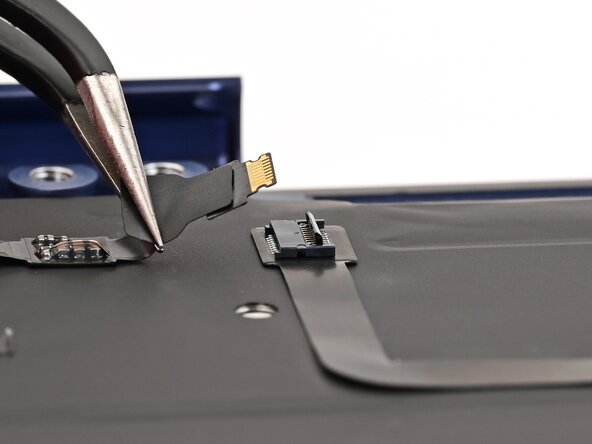
Use tweezers or your fingers to pull the Touch ID cable out of its socket.
-
-
-
Peel up the Touch ID interconnect cable off the keyboard shield.
-
-
-
Use the flat end of a spudger to gently lift the Touch ID cable off the keyboard shield.
-
Position the cable over the edge of the frame so it's out of the way.
-
-
-
Use the point of a spudger to pry up the keyboard shield until you can grab it with tweezers.
-
-
-
Use tweezers to slowly peel up an entire edge of the keyboard shield so you can grab it with your fingers.
-
-
-
Peel up the keyboard shield at a low angle. Try to lift it in one large piece.
-
-
-
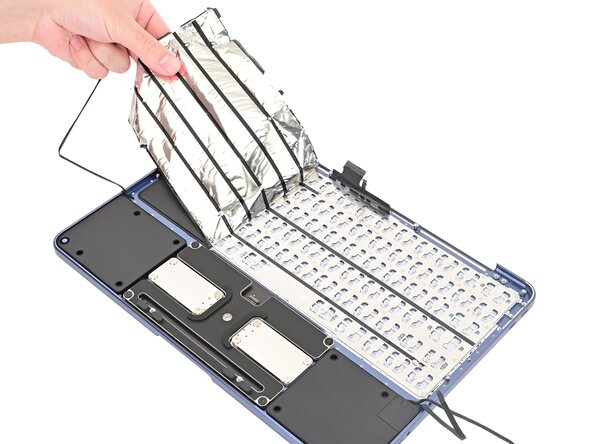
Peel off the entire keyboard shield. Try to keep it in one piece.
-
If the shield tears, peel up any remnants off the laptop.
-
-
-
Set the new keyboard shield in place so the holes in the shield are aligned with the posts on the keyboard.
-
Use the flat end of a spudger to press the entire perimeter of the keyboard shield into place.
-
Remove any remaining liners off the keyboard shield.
-
-
-
To install a new keyboard shield:
-
Clean up any residual adhesive off the frame of the laptop.
-
Remove the adhesive liner off the bottom (shiny side) of the new keyboard shield.
-
-
-
Use a Torx Plus 3IP driver to remove the four 1.9 mm‑long screws securing the Touch ID sensor.
-
Use a Torx Plus 1IP driver to remove the four 2.2 mm‑long screws securing the Touch ID backplate.
-
-
-
Lift the laptop frame to let the Touch ID sensor fall out.
-
Remove the Touch ID sensor and set the laptop back down.
-
-
-
Use tweezers to lift any residual adhesive covering any of the screws securing the keyboard.
-
-
-
Use a Torx Plus 1IP driver to remove the forty‑one 1.7 mm‑long screws securing the keyboard.
-
If the laptop doesn't have Touch ID, use a Torx Plus 1IP driver to remove the remaining four screws securing the keyboard.
-
-









To reassemble the MacBook, follow these instructions in reverse order.
Take your e-waste to an R2 or e-Stewards certified recycler.
Repair didn’t go as planned? Try some basic troubleshooting, or ask our Answers community for help.
Cancel: I did not complete this guide.
One other person completed this guide.

