Introduction
Follow this guide to replace a worn-out or dead battery in your Logitech Zone 301 headset. The battery resides within the right ear cup.
It’s natural for batteries to lose capacity as they age. If your headset dies quickly and doesn't hold a charge, it may be time to replace the battery.
For safety, perform this repair when your battery is below 15% charge. Any charged lithium-ion battery can be hazardous if punctured or damaged. If your battery looks puffy or swollen, take appropriate precautions.
What you need
-
-
-
Power off the headset and unplug all cables.
 Ask FixBot
-
-
-
With one hand, firmly hold the ear cup steady.
-
With your free hand, slowly pull the ear pad away from the cup until it slides completely off its plastic lip.
-
Remove the ear pad from the ear cup.
-
-
-
-
-
Insert the point of an opening pick into the seam between the speaker plate and ear cup.
-
Slide the pick along the seam to release the four speaker plate clips.
-
-
-
Use your fingers to move the speaker plate towards the right side of the ear cup so you can access the screws.
-
-
-
Use a Phillips screwdriver to remove the 7.1 mm‑long pancake screw securing the speaker housing.
-
-
-
Align the speaker plate to the speaker housing and squeeze firmly to engage two of the four clips.
-
-
-
Use your fingers to grab the speaker housing from the back.
-
Pull firmly to pop the housing off from its ball joint.
-
-
-
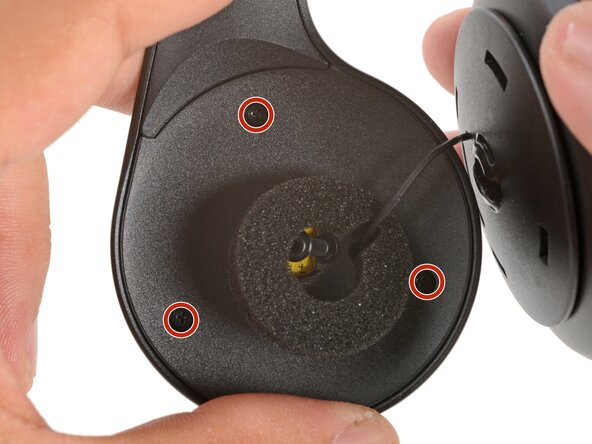
Use a Phillips screwdriver to remove the three 5.3 mm‑long screws securing the midplate.
-
-
-
Use your fingers to swing the midplate away from the ear cup.
-
-
-
-
Slide the tip of an opening pick under the battery and pry gently to separate it from the midplate.
-
-
-
Use your fingers to peel and remove the foam pad covering the circuit board.
-
Store this pad in a clean location for reassembly.
-
-
-
Use angled tweezers to grip the edges of the battery connector.
-
Gently rock the connector side-to-side and slide the battery connector out of its socket.
-
Push down on the socket with your finger while you rock the connector to prevent the socket from breaking off the circuit board.
-
-
Tool used on this step:Tesa 61395 Tape$2.95
-
Cut and attach a small strip of double-sided tape onto the battery.
-
Remove the adhesive liner to expose the adhesive.
-
-
-
Use your fingers to slide the battery connector fully into its circuit board socket.
-
-
-
Place the foam pad over the circuit board and use your finger to press it in place.
-
-
-
Align the battery in the midplate recess such that the battery cable reaches its circuit board connector.
-
Use your fingers to press the battery onto the midplate.
-
-
-
Use a Phillips screwdriver to install the three 5.3 mm‑long screws to secure the midplate.
-
-
-
Use your fingers to unclip the speaker plate from the housing.
-
-
-
Align the speaker housing to the midplate such that the speaker wire threads through both parts without twisting.
-
Align the foam piece so that it's centered around the ball joint.
-
-
-
Align the ball joint to the speaker housing's center cutout.
-
Use your fingers to firmly press the speaker housing onto the ball joint to pop it back in place.
-
-
-
Use a Phillips screwdriver to install the 7.1 mm‑long pancake screw to secure the speaker housing.
-
-
-
Use your fingers to move the speaker plate back over the speaker housing.
-
The top clip is wider than the rest of the clips and is located above a set of vent holes. Use this to help align the speaker plate to the housing.
-
-
-
Use your fingers to squeeze and engage the four clips to secure the speaker plate to the housing.
-
-
-
-
-
With one hand, firmly hold an ear cup steady.
-
With your free hand, place the pad over the top of the cup, so the fabric flap slips over the cup's plastic lip.
-
-
-
Thread the rest of the flap over the lip, working your way around the entire cup. Gently stretch the pad as necessary.
-
Check the entire perimeter of the cup to make sure the ear pad is fully on. If any of the fabric flap is sticking out, try to push it over the lip or remove the ear pad and try again.
-
-




Repair didn’t go as planned? Try some basic troubleshooting, or ask our Answers community for help.
Reuse or Recycle—Never put discarded electronic parts in household waste. Visit Logitech Recycling to find your nearest recycling points, including the option to mail back old devices to Logitech for free if there’s no convenient solution in your area. You can also take your e-waste to any R2 or e-Stewards certified recycler. And don’t let good working parts or repaired devices die a slow death in your sock drawer—pass them along to someone who can use them.
Share your experience—Leave a comment here or send your feedback directly to Logitech at repair@logitech.com to help shape future repair guides and product design.

