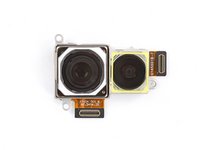
Google Pixel 9 Rear Camera Module Replacement

What you need

  1. Google Pixel 9 Rear Camera Module Replacement, Prepare your Pixel for disassembly: step 1, image 1 of 3 Google Pixel 9 Rear Camera Module Replacement, Prepare your Pixel for disassembly: step 1, image 2 of 3 Google Pixel 9 Rear Camera Module Replacement, Prepare your Pixel for disassembly: step 1, image 3 of 3
    • Let your Pixel's battery drain below 25% before starting this repair. A charged lithium‑ion battery may catch fire if damaged.

    • Unplug all cables from your phone.

    • Completely power off your phone.

    • Press the power and volume up buttons at the same time to bring up the shutdown menu.

  2. Google Pixel 9 Rear Camera Module Replacement, Adhesive information: step 2, image 1 of 3 Google Pixel 9 Rear Camera Module Replacement, Adhesive information: step 2, image 2 of 3 Google Pixel 9 Rear Camera Module Replacement, Adhesive information: step 2, image 3 of 3
    • Adhesive secures the perimeter of the back glass to the frame.

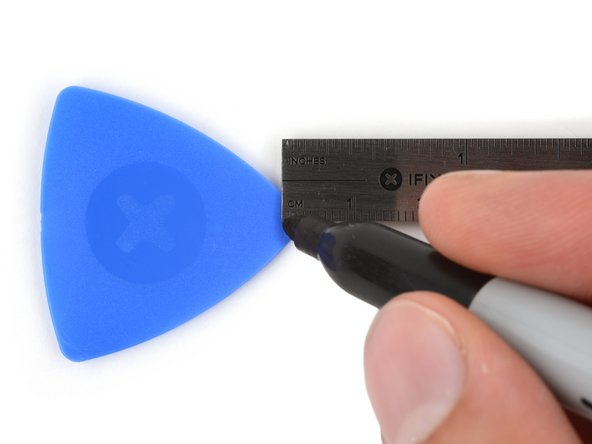
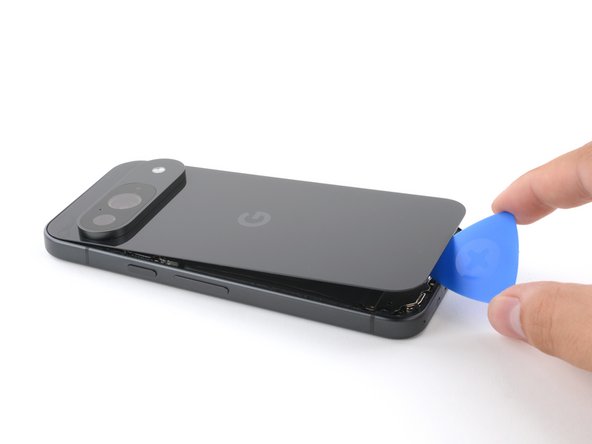
    • When separating the adhesive, don't insert your tool more than 3 mm under the back glass to avoid damaging the internal components.

    • To help, measure and mark 3 mm from the tip of an opening pick with a permanent marker.

    • If your screen or back glass is badly cracked, a suction cup may not perfectly adhere.

    • Lay overlapping strips of packing tape over the glass to protect yourself and make disassembly easier. Ensure there's a smooth area near the bottom edge that's large and smooth enough for a suction cup to stick to.

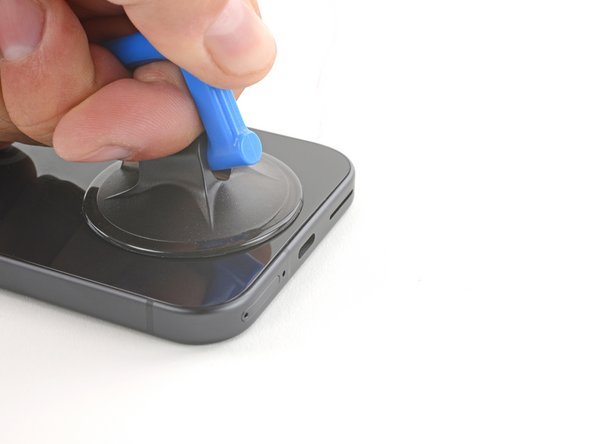
  3. Google Pixel 9 Rear Camera Module Replacement, Apply a suction handle: step 3, image 1 of 2 Google Pixel 9 Rear Camera Module Replacement, Apply a suction handle: step 3, image 2 of 2
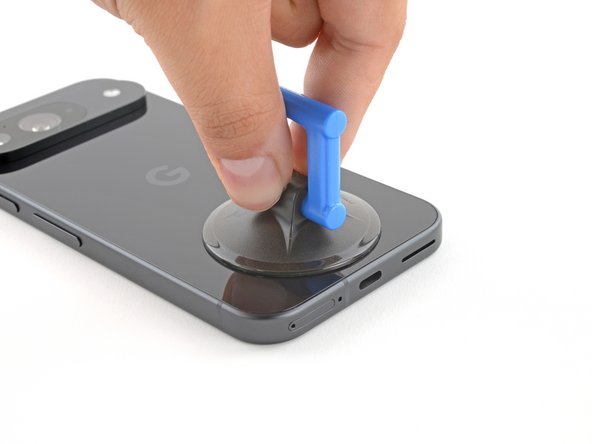
    • Place a suction handle at the bottom edge of the back glass, as close to the edge as possible.

    • Push down to attach the suction cup.

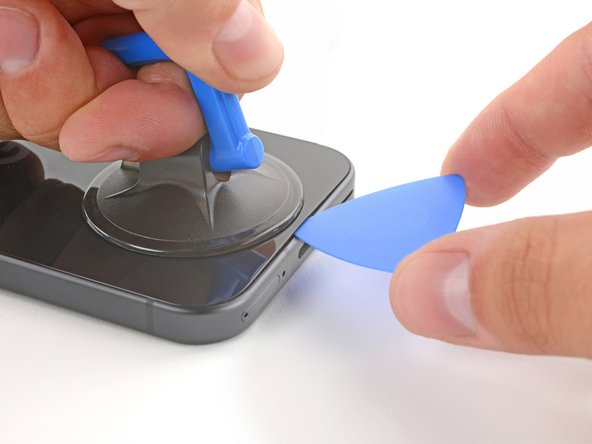
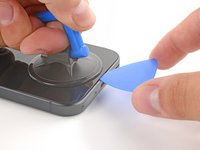
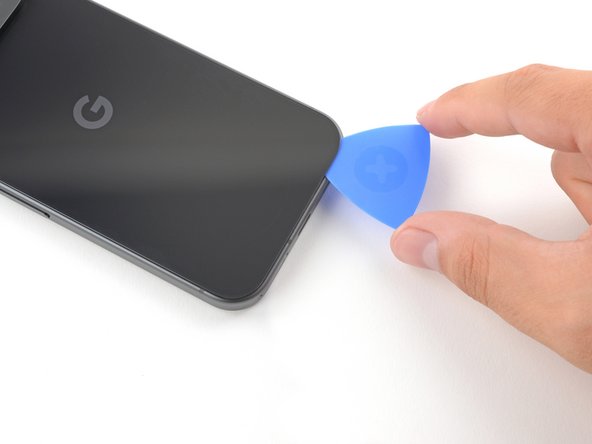
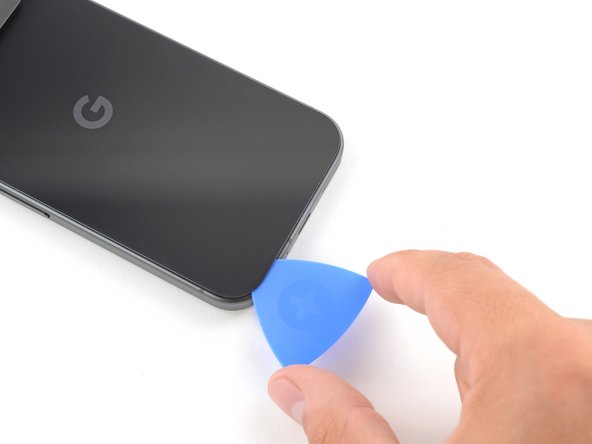
  4. Google Pixel 9 Rear Camera Module Replacement, Insert an opening pick: step 4, image 1 of 3 Google Pixel 9 Rear Camera Module Replacement, Insert an opening pick: step 4, image 2 of 3 Google Pixel 9 Rear Camera Module Replacement, Insert an opening pick: step 4, image 3 of 3
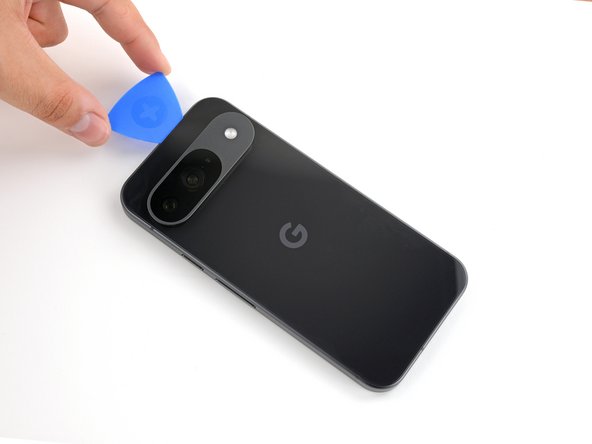
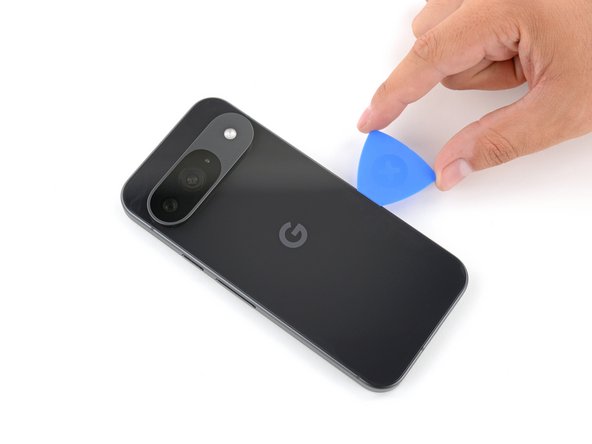
    • Pull up on the suction handle with strong, steady force to create a small gap under the back glass.

    • Insert the tip of an opening pick into the gap.

  5. Google Pixel 9 Rear Camera Module Replacement, Separate the back glass adhesive: step 5, image 1 of 3 Google Pixel 9 Rear Camera Module Replacement, Separate the back glass adhesive: step 5, image 2 of 3 Google Pixel 9 Rear Camera Module Replacement, Separate the back glass adhesive: step 5, image 3 of 3
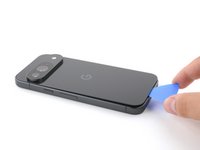
    • Slide the opening pick back and forth along the bottom edge to separate the adhesive securing it.

    • Remember: don't insert the opening pick deeper than 3 mm.

  6. Google Pixel 9 Rear Camera Module Replacement: step 6, image 1 of 3 Google Pixel 9 Rear Camera Module Replacement: step 6, image 2 of 3 Google Pixel 9 Rear Camera Module Replacement: step 6, image 3 of 3
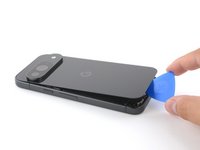
    • Slide the opening pick around the perimeter of the phone, slicing the rest of the adhesive.

  7. Google Pixel 9 Rear Camera Module Replacement: step 7, image 1 of 3 Google Pixel 9 Rear Camera Module Replacement: step 7, image 2 of 3 Google Pixel 9 Rear Camera Module Replacement: step 7, image 3 of 3
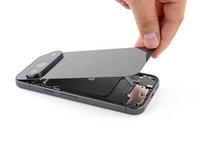
    • With most of the adhesive separated, lightly twist the opening pick at the bottom edge to lift the back glass up until you can grip it with your fingers.

    • Use the opening pick to separate any remaining sections of adhesive securing the back glass.

  8. Google Pixel 9 Rear Camera Module Replacement, Remove the back glass: step 8, image 1 of 1
    • Remove the back glass.

    • During reassembly:

    • Now is a good time to test your phone before sealing it up. Power it on and check that it works. Power it back down before you continue reassembly.

    • Follow this guide to apply new adhesive and install your back glass.

  9. Google Pixel 9 Rear Camera Module Replacement, Remove the upper board cover: step 9, image 1 of 1
    Tool used on this step:
    FixMat
    $31.41
    Buy
    • Throughout this repair, keep track of each screw and make sure it goes back exactly where it came from.

    • While the Pixel 9 uses Torx Plus screws, standard Torx bits also work. Make sure to apply constant, downward force to prevent stripping.

    • Use a 3IP Torx Plus driver to remove the single 5.4 mm‑long screw securing the upper board cover.

  10. Google Pixel 9 Rear Camera Module Replacement: step 10, image 1 of 2 Google Pixel 9 Rear Camera Module Replacement: step 10, image 2 of 2
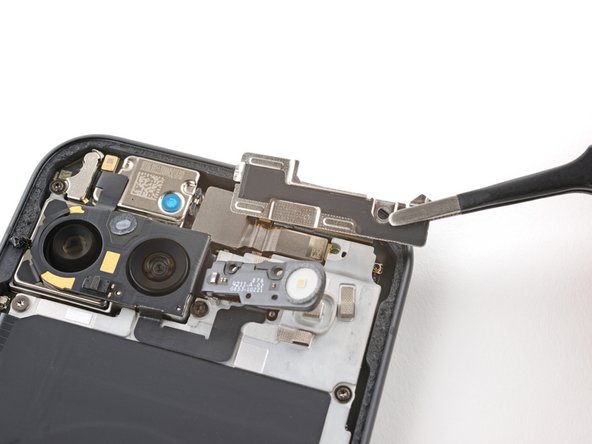
    • Use a pair of tweezers to remove the upper board cover.

  11. Google Pixel 9 Rear Camera Module Replacement, Remove the midframe: step 11, image 1 of 1
    • Use a 3IP Torx driver to remove the five screws securing the midframe and wireless charging coil:

    • Four 5.4 mm-long screws

    • One 2.2 mm-long screw

  12. Google Pixel 9 Rear Camera Module Replacement, Peel up the flash cable: step 12, image 1 of 2 Google Pixel 9 Rear Camera Module Replacement, Peel up the flash cable: step 12, image 2 of 2
    • Use a pair of tweezers to peel the flash cable off of the metal midframe.

  13. Google Pixel 9 Rear Camera Module Replacement, Remove the midframe: step 13, image 1 of 2 Google Pixel 9 Rear Camera Module Replacement, Remove the midframe: step 13, image 2 of 2
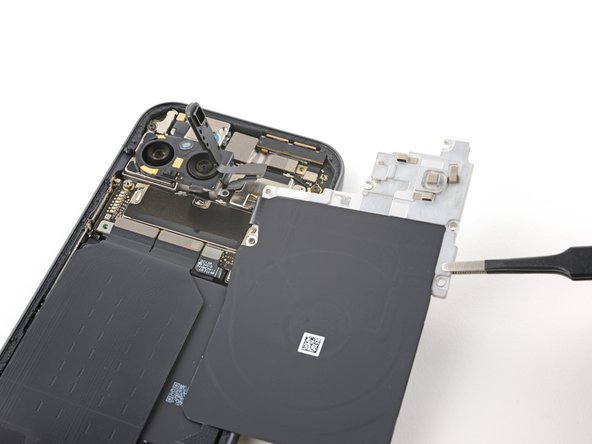
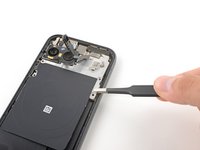
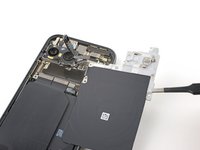
    • Remove the midframe, wireless charging coil, and NFC assembly.

  14. Google Pixel 9 Rear Camera Module Replacement, Disconnect the battery: step 14, image 1 of 2 Google Pixel 9 Rear Camera Module Replacement, Disconnect the battery: step 14, image 2 of 2
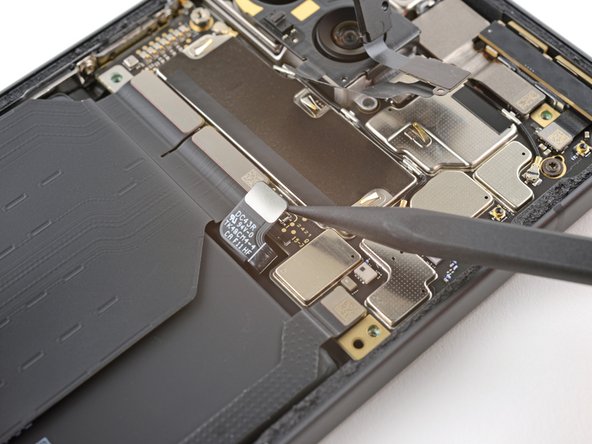
    • Use the tip of a spudger to pry up and disconnect the battery connector.

  15. Google Pixel 9 Rear Camera Module Replacement, Disconnect the 5G mmWave antenna: step 15, image 1 of 3 Google Pixel 9 Rear Camera Module Replacement, Disconnect the 5G mmWave antenna: step 15, image 2 of 3 Google Pixel 9 Rear Camera Module Replacement, Disconnect the 5G mmWave antenna: step 15, image 3 of 3
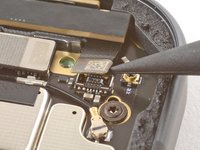
    • Use the tip of a spudger to pry up and disconnect the 5G mmWave antenna's press connector.

  16. Google Pixel 9 Rear Camera Module Replacement, Remove the 5G mmWave antenna: step 16, image 1 of 3 Google Pixel 9 Rear Camera Module Replacement, Remove the 5G mmWave antenna: step 16, image 2 of 3 Google Pixel 9 Rear Camera Module Replacement, Remove the 5G mmWave antenna: step 16, image 3 of 3
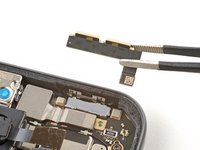
    • Remove the 5G mmWave antenna.

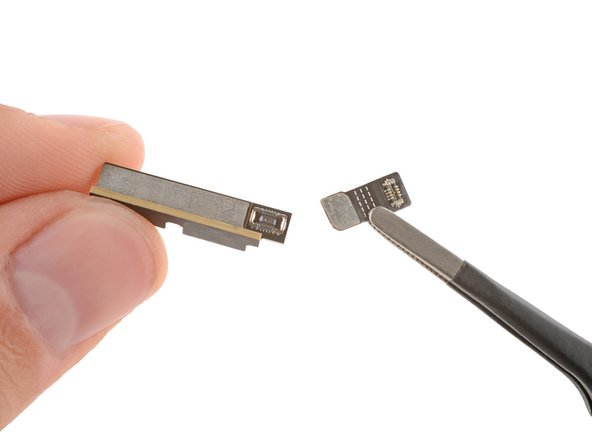
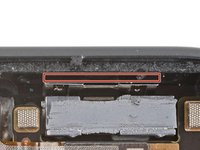
    • A small flex cable attaches to the back of the antenna with a press connector. You may need to reconnect it if it falls off.

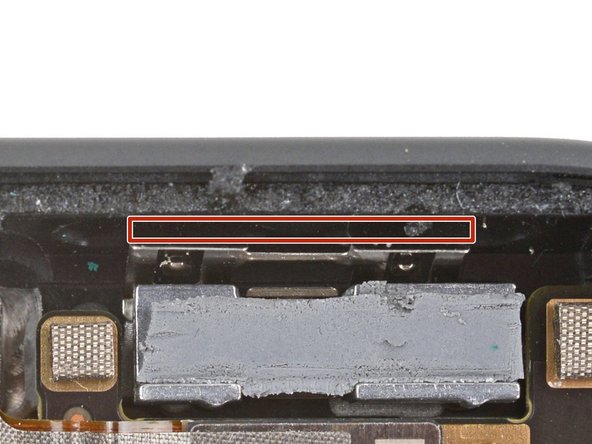
    • During reassembly, insert the antenna so it's between the frame and the small metal bracket near the top right corner.

  17. Google Pixel 9 Rear Camera Module Replacement, Remove the antenna board cover: step 17, image 1 of 1
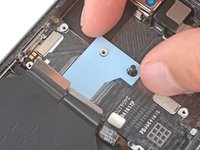
    • Use a 3IP Torx Plus driver to remove the 5.4 mm-long screw securing the antenna board cover.

  18. Google Pixel 9 Rear Camera Module Replacement: step 18, image 1 of 1
    • Use a pair of tweezers to remove the antenna board cover.

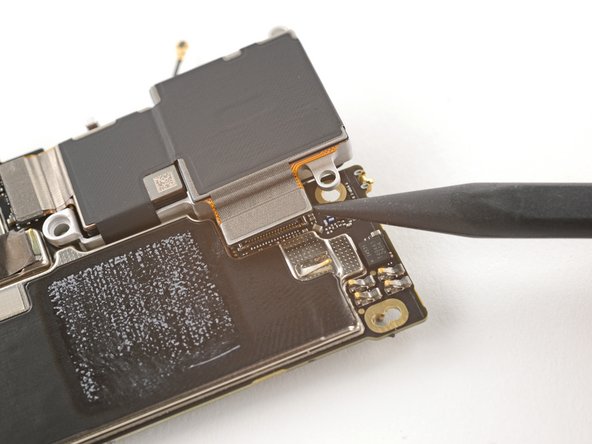
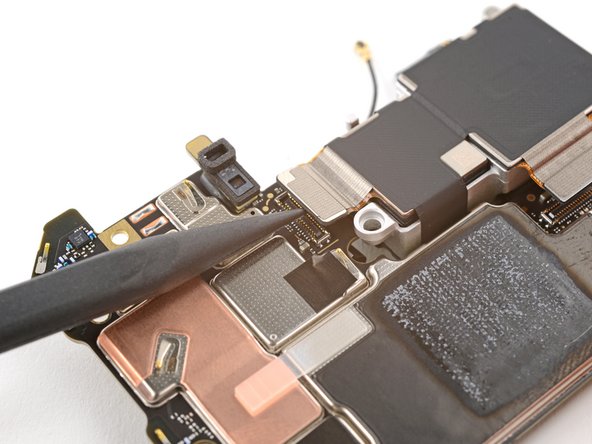
  19. Google Pixel 9 Rear Camera Module Replacement, Disconnect the autofocus cable: step 19, image 1 of 2 Google Pixel 9 Rear Camera Module Replacement, Disconnect the autofocus cable: step 19, image 2 of 2
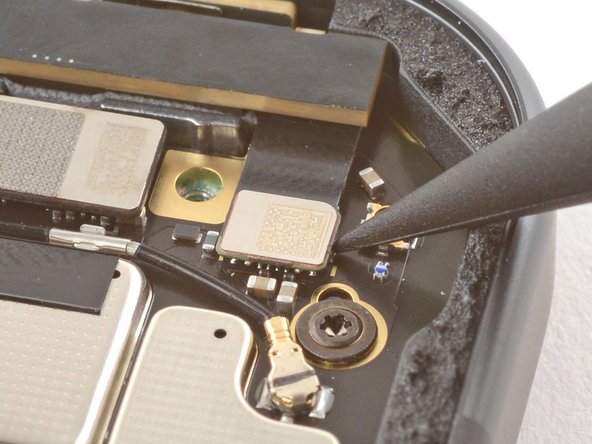
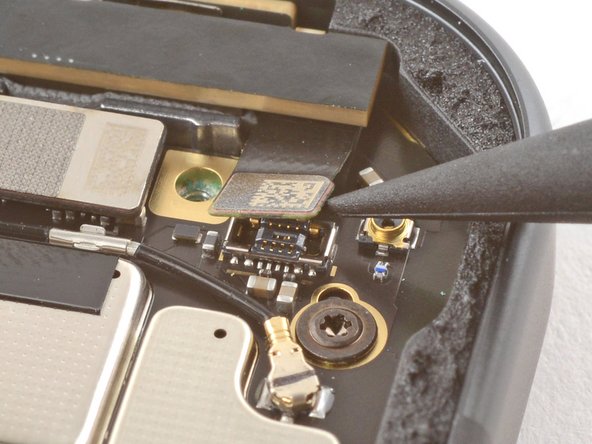
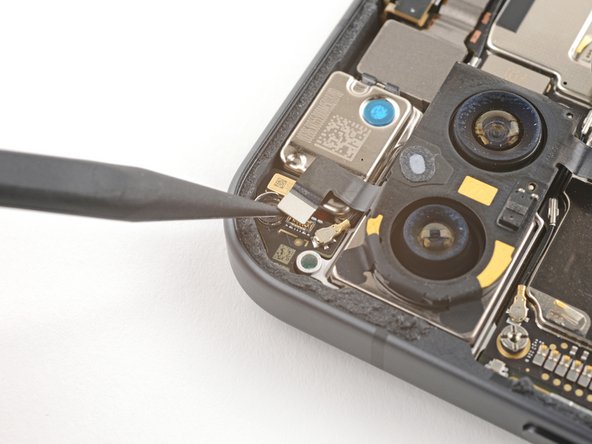
    • Use the tip of a spudger to pry up and disconnect the autofocus connector from the motherboard.

  20. Google Pixel 9 Rear Camera Module Replacement, Disconnect the antenna cable: step 20, image 1 of 2 Google Pixel 9 Rear Camera Module Replacement, Disconnect the antenna cable: step 20, image 2 of 2
    • Insert one arm of a pair of angled tweezers under the metal neck of the antenna board's coaxial antenna cable.

    • Lift straight up to disconnect the antenna.

  21. Google Pixel 9 Rear Camera Module Replacement, Disconnect the front camera: step 21, image 1 of 2 Google Pixel 9 Rear Camera Module Replacement, Disconnect the front camera: step 21, image 2 of 2
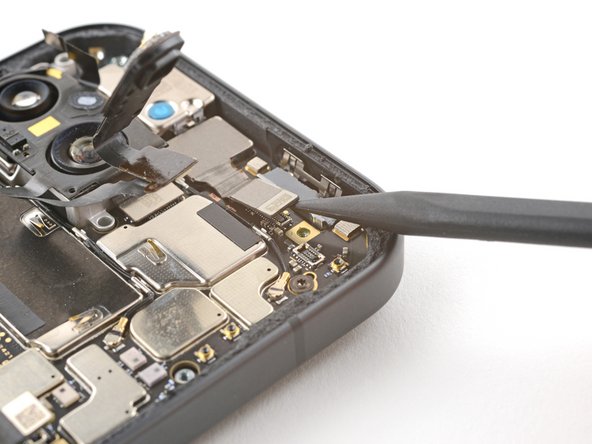
    • Use the tip of a spudger to pry up and disconnect the front camera press connector.

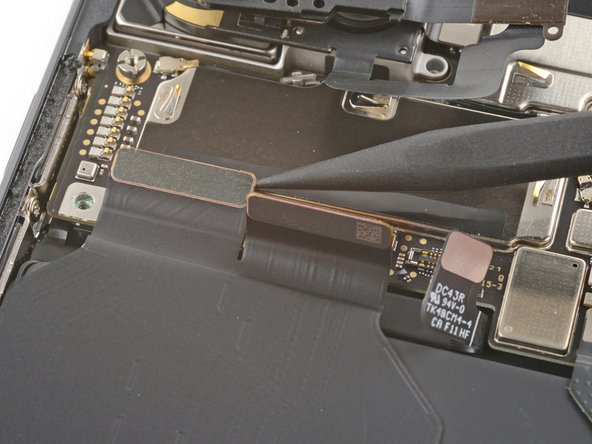
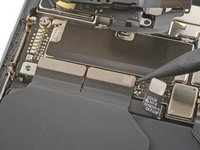
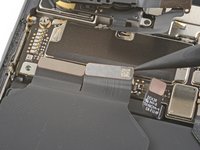
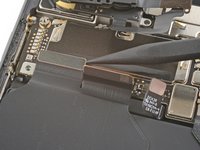
  22. Google Pixel 9 Rear Camera Module Replacement, Disconnect the interconnect cables: step 22, image 1 of 3 Google Pixel 9 Rear Camera Module Replacement, Disconnect the interconnect cables: step 22, image 2 of 3 Google Pixel 9 Rear Camera Module Replacement, Disconnect the interconnect cables: step 22, image 3 of 3
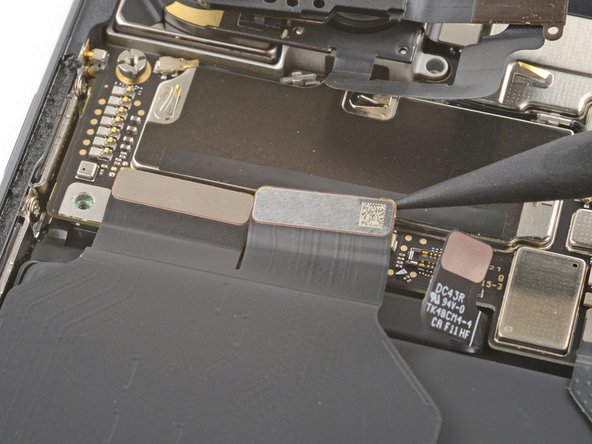
    • Use the tip of a spudger to pry up and disconnect the top two interconnect cable press connectors from the bottom edge of the motherboard.

  23. Google Pixel 9 Rear Camera Module Replacement, Unscrew the motherboard: step 23, image 1 of 1
    Tool used on this step:
    Standoff Screwdriver for iPhones
    $5.49
    Buy
    • Remove the two screws securing the motherboard:

    • One 2.9 mm-long 3IP Torx Plus screw

    • One 5 mm-long standoff screw

  24. Google Pixel 9 Rear Camera Module Replacement, Lift up the motherboard: step 24, image 1 of 3 Google Pixel 9 Rear Camera Module Replacement, Lift up the motherboard: step 24, image 2 of 3 Google Pixel 9 Rear Camera Module Replacement, Lift up the motherboard: step 24, image 3 of 3
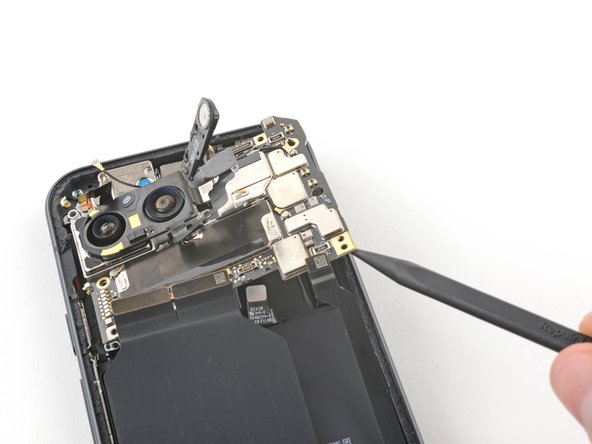
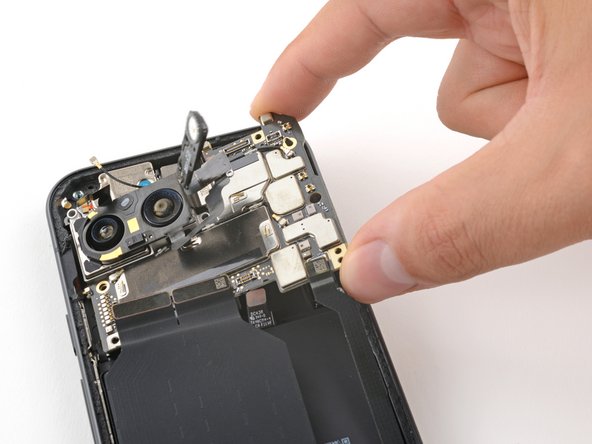
    • Insert the tip of a spudger underneath the bottom right corner of the motherboard.

    • Lift up with the spudger to dislodge the motherboard.

    • Lift the motherboard up until you can grip it with your fingers.

  25. Google Pixel 9 Rear Camera Module Replacement, Remove the motherboard: step 25, image 1 of 2 Google Pixel 9 Rear Camera Module Replacement, Remove the motherboard: step 25, image 2 of 2
    • Remove the motherboard.

  26. Google Pixel 9 Rear Camera Module Replacement, Thermal pad reassembly information: step 26, image 1 of 3 Google Pixel 9 Rear Camera Module Replacement, Thermal pad reassembly information: step 26, image 2 of 3 Google Pixel 9 Rear Camera Module Replacement, Thermal pad reassembly information: step 26, image 3 of 3
    • During reassembly:

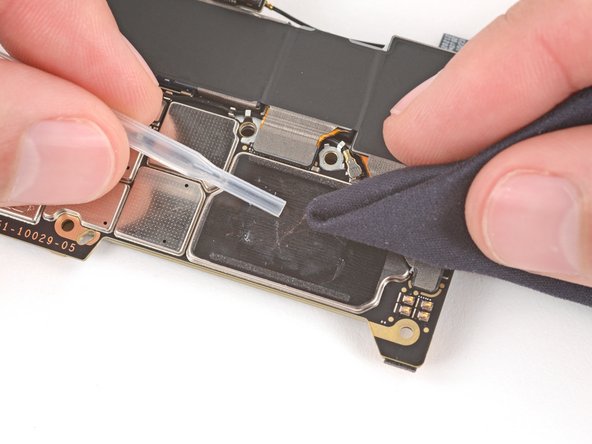
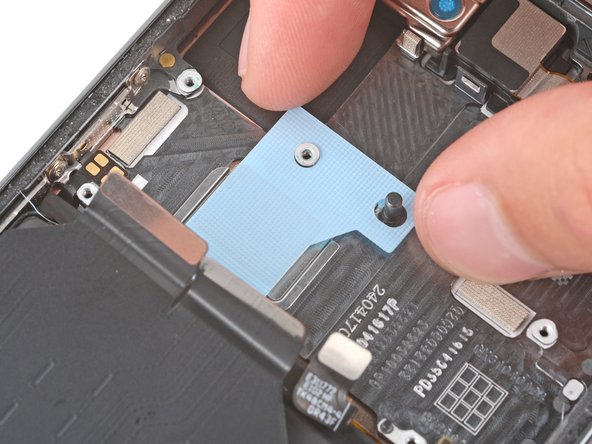
    • Check the condition of the logic board thermal pad—it will either be on the bottom of the logic board or on the frame.

    • If the pad is undamaged, skip the rest of this step.

    • If the pad is damaged, use the flat end of a spudger to scrape it up and remove it.

    • Use isopropyl alcohol (greater than 90%) and a microfiber cloth to remove all thermal pad residue from the frame and bottom of the logic board.

    • Apply a new thermal pad to its spot on the frame.

  27. Google Pixel 9 Rear Camera Module Replacement, Disconnect the flash: step 27, image 1 of 2 Google Pixel 9 Rear Camera Module Replacement, Disconnect the flash: step 27, image 2 of 2
    • Use the tip of a spudger to pry up and disconnect the flash connector from the motherboard.

  28. Google Pixel 9 Rear Camera Module Replacement, Disconnect the wide camera: step 28, image 1 of 2 Google Pixel 9 Rear Camera Module Replacement, Disconnect the wide camera: step 28, image 2 of 2
    • Use the tip of a spudger to pry up and disconnect the wide camera.

  29. Google Pixel 9 Rear Camera Module Replacement, Disconnect the ultrawide camera: step 29, image 1 of 2 Google Pixel 9 Rear Camera Module Replacement, Disconnect the ultrawide camera: step 29, image 2 of 2
    • Use the tip of a spudger to pry up and disconnect the ultrawide camera.

  30. Google Pixel 9 Rear Camera Module Replacement, Remove the motherboard: step 30, image 1 of 2 Google Pixel 9 Rear Camera Module Replacement, Remove the motherboard: step 30, image 2 of 2
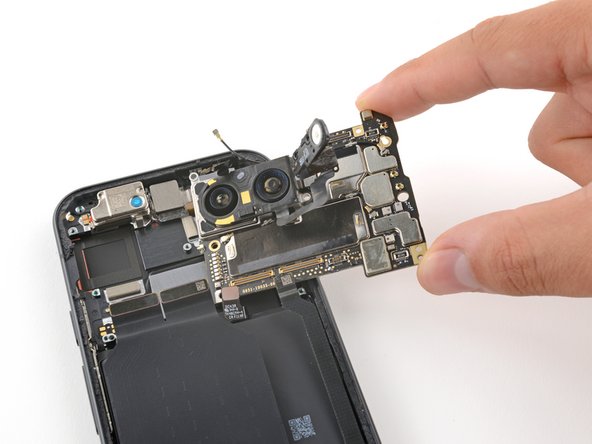
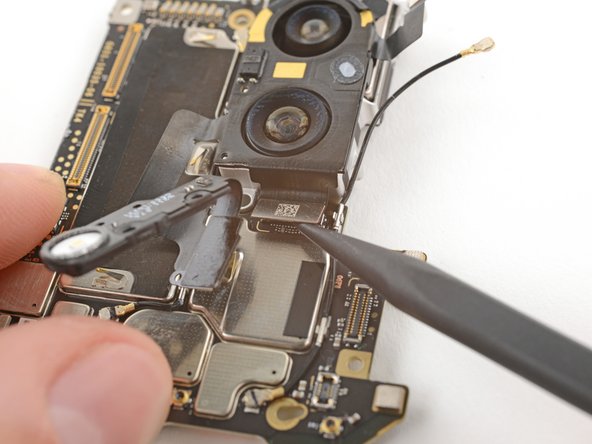
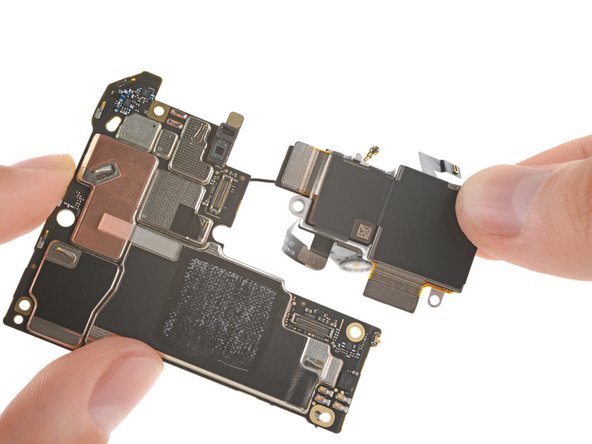
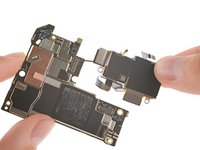
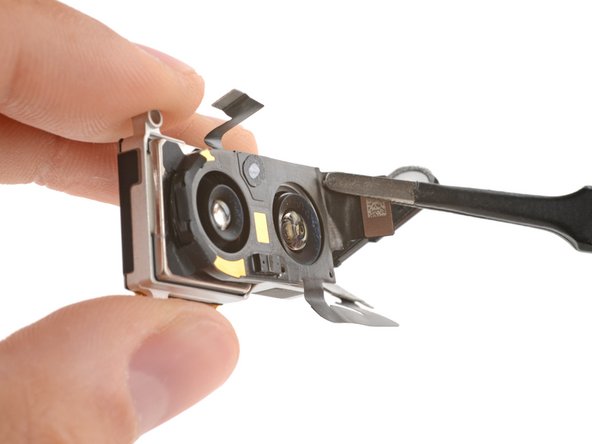
    • Remove the rear camera module from the motherboard.

  31. Google Pixel 9 Rear Camera Module Replacement: step 31, image 1 of 1
    • Only the motherboard remains.

  32. Google Pixel 9 Rear Camera Module Replacement, Remove the rear camera module: step 32, image 1 of 3 Google Pixel 9 Rear Camera Module Replacement, Remove the rear camera module: step 32, image 2 of 3 Google Pixel 9 Rear Camera Module Replacement, Remove the rear camera module: step 32, image 3 of 3
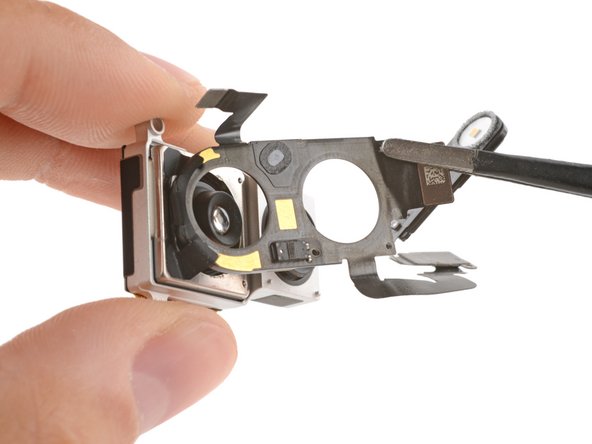
    • Check if there's an autofocus sensor pre‑installed on the top of your replacement rear cameras. If there isn't, follow the remaining steps to remove and transfer the sensor from your old cameras.

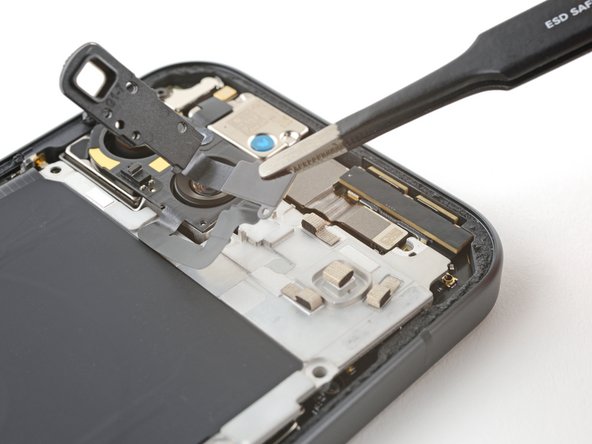
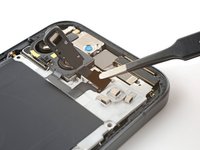
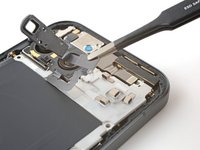
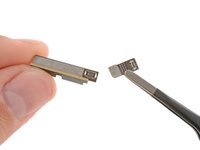
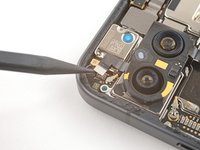
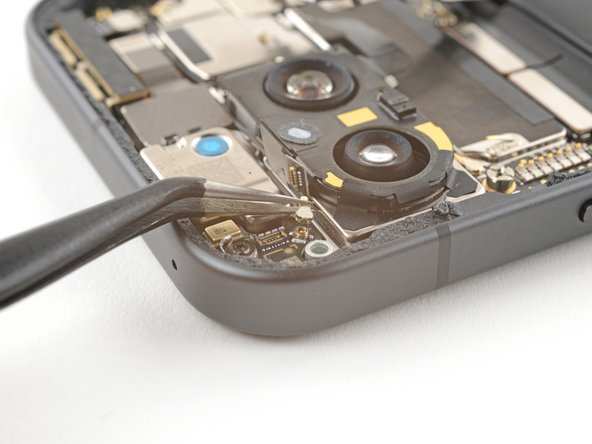
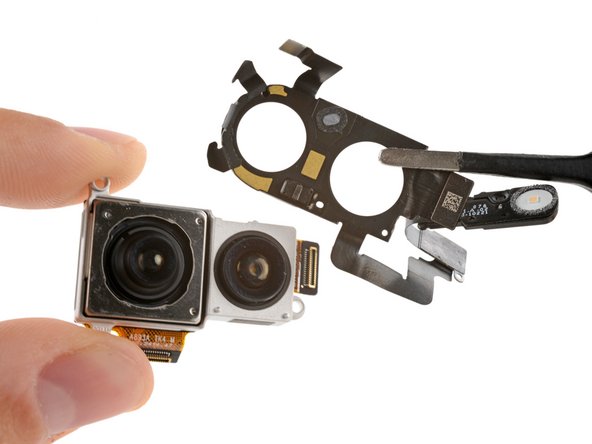
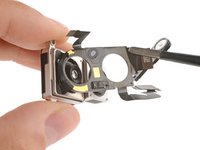
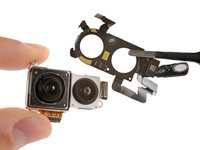
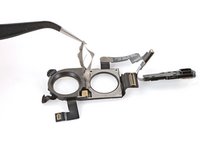
    • Use a pair of tweezers to gently peel the autofocus and flash assembly off of the rear camera module, being very careful not to damage the cable or press connectors.

    • If you're having trouble, use an iOpener or hair dryer to lightly heat the sensor.

    • Only the rear camera module remains.

  33. Google Pixel 9 Rear Camera Module Replacement, Install new flash module adhesive: step 33, image 1 of 3 Google Pixel 9 Rear Camera Module Replacement, Install new flash module adhesive: step 33, image 2 of 3 Google Pixel 9 Rear Camera Module Replacement, Install new flash module adhesive: step 33, image 3 of 3
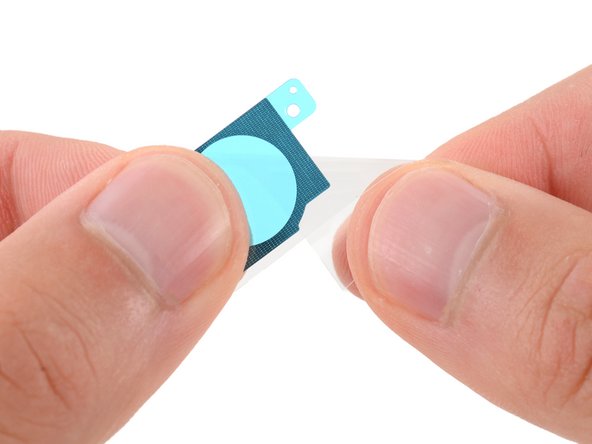
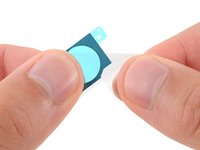
    • Use a spudger and tweezers to remove the two pieces of adhesive from the bottom of the LDAF and flash module.

    • Remove the larger clear liners from one of the flash module adhesives.

    • Place the adhesive into place on the bottom of the module and press down firmly with the flat end of a spudger to secure the adhesive.

    • Repeat the process to apply the other piece of flash adhesive.

    • Remove the two remaining blue liners.

  34. Google Pixel 9 Rear Camera Module Replacement, Transfer the autofocus sensor: step 34, image 1 of 2 Google Pixel 9 Rear Camera Module Replacement, Transfer the autofocus sensor: step 34, image 2 of 2
    • Be very careful not to touch the camera lenses during this step. If you accidentally do, wipe them with a clean microfiber or lint‑free cloth.

    • If your replacement rear cameras have protective caps or liners, remove them.

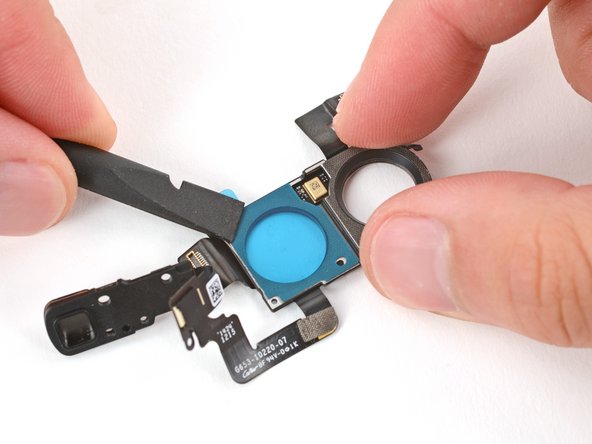
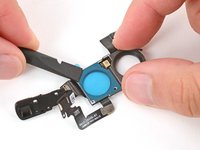
    • Carefully lay the sensor over the rear camera and press it into place, securing it with the adhesive.

    • The side with the longer cable should be over the smaller camera.

Conclusion

To reassemble your device, follow these instructions in reverse order starting with this step.

To run a diagnostics test with the built-in Pixel Diagnostic tool, click here.

Take your e-waste to an R2 or e-Stewards certified recycler.

Repair didn’t go as planned? Try some basic troubleshooting, or ask our Pixel 9 Answers Community for help.


Carsten Frauenheim

Member since: 03/10/20

155,514 Reputation

439 Guides authored

Team

iFixit Member of iFixit

Staff

123 Members

23,638 Guides authored

0 Guide Comments

Add Comment

View Statistics:

Past 24 Hours: 4

Past 7 Days: 33

Past 30 Days: 138

All Time: 1,960