Free Shipping on Domestic Orders $75+

Samsung Galaxy S25 Ultra Battery Replacement

What you need

  1. Samsung Galaxy S25 Ultra Battery Replacement, Safety precautions: step 1, image 1 of 2 Samsung Galaxy S25 Ultra Battery Replacement, Safety precautions: step 1, image 2 of 2
    • Let your Galaxy's battery drain below 25% before starting this repair—a charged lithium‑ion battery may catch fire if damaged.

    • Unplug all cables from your phone.

    • Completely power off your phone by holding the side key and volume down button and selecting Power off.

    Ask FixBot

    Add Comment

  2. Samsung Galaxy S25 Ultra Battery Replacement, Cracked glass preparation: step 2, image 1 of 3 Samsung Galaxy S25 Ultra Battery Replacement, Cracked glass preparation: step 2, image 2 of 3 Samsung Galaxy S25 Ultra Battery Replacement, Cracked glass preparation: step 2, image 3 of 3
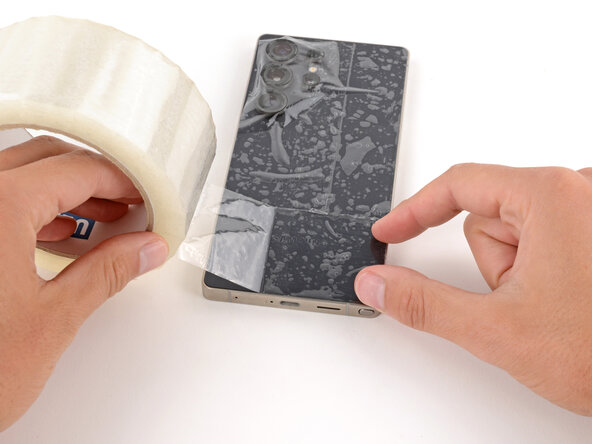
    • Glass shards can complicate disassembly—or worse, cause injury. If your phone's back glass is cracked, follow this step.

    • Apply strips of packing tape to the cracked glass until it's completely covered—this will help keep the glass contained and allow the suction cup to stick.

    • Make sure there's a single strip (not overlapping) of tape across the bottom edge, big enough for a suction cup to fit on.

    • Only cover the glass itself—don't stick any tape to the frame.

    • Consider wearing safety glasses to protect your eyes from any glass shaken free during the repair.

    Ask FixBot

    Add Comment

  3. Samsung Galaxy S25 Ultra Battery Replacement, Heat the back cover: step 3, image 1 of 1
    • Adhesive secures the back cover to the frame. Heating the cover softens the adhesive, making it easier to separate.

    • Heat an iOpener and lay it on the bottom edge of the back cover for two minutes.

    • Alternatively, you can use a hair dryer or heat gun to heat the cover.

    • Improper use of a heat gun can destroy the display and/or battery—follow the linked instructions carefully.

    Ask FixBot

    Add Comment

  4. Samsung Galaxy S25 Ultra Battery Replacement, Adhesive information: step 4, image 1 of 3 Samsung Galaxy S25 Ultra Battery Replacement, Adhesive information: step 4, image 2 of 3 Samsung Galaxy S25 Ultra Battery Replacement, Adhesive information: step 4, image 3 of 3
    • While the back cover heats, note the following about its adhesive:

    • The cover is secured with adhesive around the perimeter of the frame. Use this picture as a reference while you separate the adhesive.

    • Only insert your tool slightly under the cover near the cameras to avoid damaging them.

    Ask FixBot

    Add Comment

  5. Samsung Galaxy S25 Ultra Battery Replacement, Apply a suction handle: step 5, image 1 of 2 Samsung Galaxy S25 Ultra Battery Replacement, Apply a suction handle: step 5, image 2 of 2
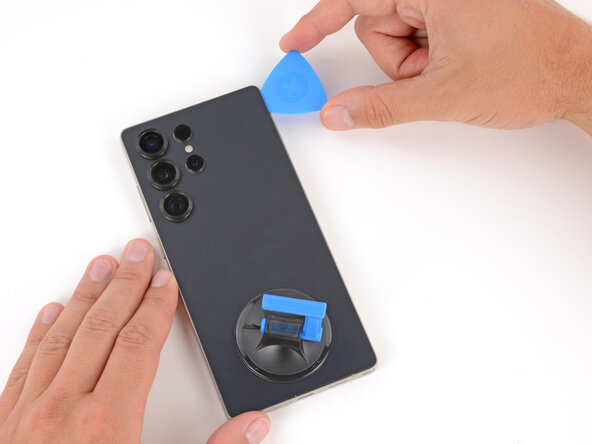
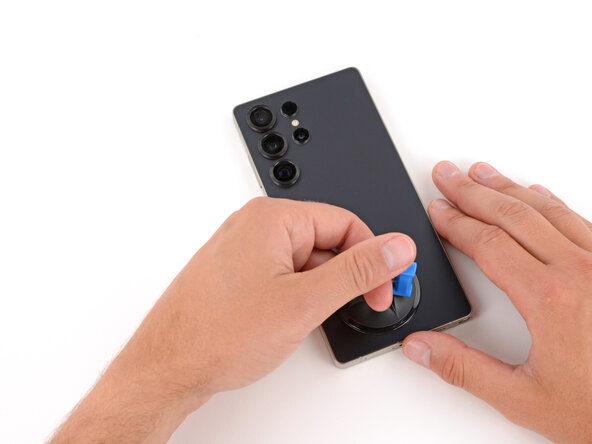
    • Apply a suction handle to the center of the back cover's bottom edge, as close to the edge as possible.

    Ask FixBot

    Add Comment

  6. Samsung Galaxy S25 Ultra Battery Replacement, Insert an opening pick: step 6, image 1 of 3 Samsung Galaxy S25 Ultra Battery Replacement, Insert an opening pick: step 6, image 2 of 3 Samsung Galaxy S25 Ultra Battery Replacement, Insert an opening pick: step 6, image 3 of 3
    • Pull up on the suction handle with strong, steady force until a gap forms between the back glass and frame.

    • Use the fingers of your lifting hand to hold the phone down, or steady the frame with your free hand—be careful, your phone may be hot.

    • Insert the tip of an opening pick into the gap.

    Ask FixBot

    Add Comment

  7. Samsung Galaxy S25 Ultra Battery Replacement, Separate the bottom edge adhesive: step 7, image 1 of 3 Samsung Galaxy S25 Ultra Battery Replacement, Separate the bottom edge adhesive: step 7, image 2 of 3 Samsung Galaxy S25 Ultra Battery Replacement, Separate the bottom edge adhesive: step 7, image 3 of 3
    • If the back cover feels stuck at any point when separating the adhesive, apply heat to the area and try again.

    • Slide the opening pick along the bottom edge to separate the adhesive.

    Ask FixBot

    Add Comment

  8. Samsung Galaxy S25 Ultra Battery Replacement, Separate the right edge adhesive: step 8, image 1 of 2 Samsung Galaxy S25 Ultra Battery Replacement, Separate the right edge adhesive: step 8, image 2 of 2
    • Slide the opening pick around the bottom right corner and up the right edge to separate the adhesive.

    Ask FixBot

    Add Comment

  9. Samsung Galaxy S25 Ultra Battery Replacement, Separate the top edge adhesive: step 9, image 1 of 2 Samsung Galaxy S25 Ultra Battery Replacement, Separate the top edge adhesive: step 9, image 2 of 2
    • In the next two steps, only insert the pick slightly (a few millimeters) near the cameras to avoid damaging them.

    • Slide the opening pick around the top right corner and along the top edge to separate the adhesive.

    Ask FixBot

    Add Comment

  10. Samsung Galaxy S25 Ultra Battery Replacement, Separate the left edge adhesive: step 10, image 1 of 2 Samsung Galaxy S25 Ultra Battery Replacement, Separate the left edge adhesive: step 10, image 2 of 2
    • Slide the opening pick around the top left corner and down the left edge to separate the adhesive.

    Ask FixBot

    Add Comment

  11. Samsung Galaxy S25 Ultra Battery Replacement, Remove the back cover: step 11, image 1 of 3 Samsung Galaxy S25 Ultra Battery Replacement, Remove the back cover: step 11, image 2 of 3 Samsung Galaxy S25 Ultra Battery Replacement, Remove the back cover: step 11, image 3 of 3
    • Use the suction handle to lift and remove the back cover.

    • If the cover still feels stuck, go back around the perimeter with an opening pick and separate any remaining adhesive.

    • During reassembly:

    • This is a good point to power on your phone and test all functions before sealing it up. Be sure to power your phone back down completely before you continue working.

    • Check your rear cameras for any smudges and gently wipe them with a clean, lint–free cloth if necessary.

    • Your replacement back cover adhesive will be applied to either the frame or the back cover. Use cutouts and contours to see where it lines up best. If it matches the back cover, follow this guide. If it matches the frame, use this guide.

    Ask FixBot

    Add Comment

  12. Samsung Galaxy S25 Ultra Battery Replacement, Disconnect the wireless charging coil: step 12, image 1 of 2 Samsung Galaxy S25 Ultra Battery Replacement, Disconnect the wireless charging coil: step 12, image 2 of 2
    • Use the point of a spudger to pry up and disconnect the wireless charging coil press connector.

    Ask FixBot

    Add Comment

  13. Samsung Galaxy S25 Ultra Battery Replacement, Remove the wireless charging and loudspeaker screws: step 13, image 1 of 3 Samsung Galaxy S25 Ultra Battery Replacement, Remove the wireless charging and loudspeaker screws: step 13, image 2 of 3 Samsung Galaxy S25 Ultra Battery Replacement, Remove the wireless charging and loudspeaker screws: step 13, image 3 of 3
    Tool used on this step:
    Magnetic Project Mat
    $19.95
    Buy
    • Throughout this repair, keep track of each screw and make sure it goes back exactly where it came from to avoid damaging your phone.

    • Use a Phillips screwdriver to remove the ten screws securing the wireless charging and loudspeaker assembly:

    • Four 3.5 mm‑long screws securing the wireless charging coil

    • Six 3.5 mm‑long screws securing the loudspeaker

    Ask FixBot

    Add Comment

  14. Samsung Galaxy S25 Ultra Battery Replacement, Heat the wireless charging adhesive: step 14, image 1 of 2 Samsung Galaxy S25 Ultra Battery Replacement, Heat the wireless charging adhesive: step 14, image 2 of 2
    • Two tabs on the right side of the wireless charging coil are secured with mild adhesive.

    • Heat an iOpener and lay it on the tabs for one minute to soften the adhesive.

    Ask FixBot

    Add Comment

  15. Samsung Galaxy S25 Ultra Battery Replacement, Detach the wireless charging coil tabs: step 15, image 1 of 3 Samsung Galaxy S25 Ultra Battery Replacement, Detach the wireless charging coil tabs: step 15, image 2 of 3 Samsung Galaxy S25 Ultra Battery Replacement, Detach the wireless charging coil tabs: step 15, image 3 of 3
    • During the next two steps, be very careful not to puncture or dent the battery, as it can leak dangerous chemicals or catch fire. Don’t use sharp or metal tools.

    • The tabs are very fragile. If it feels like they may tear, apply more heat and try again.

    • Gently slide the point of a spudger under the top edge of the upper tab and lift slowly to separate it.

    • You may need to do this a few times before the tab fully separates.

    Ask FixBot

    Add Comment

  16. Samsung Galaxy S25 Ultra Battery Replacement, Detach the wireless charging coil tape: step 16, image 1 of 3 Samsung Galaxy S25 Ultra Battery Replacement, Detach the wireless charging coil tape: step 16, image 2 of 3 Samsung Galaxy S25 Ultra Battery Replacement, Detach the wireless charging coil tape: step 16, image 3 of 3
    • Repeat the previous step to separate the lower tab, starting at the bottom edge.

    Ask FixBot

    Add Comment

  17. Samsung Galaxy S25 Ultra Battery Replacement, Pry up the loudspeaker: step 17, image 1 of 2 Samsung Galaxy S25 Ultra Battery Replacement, Pry up the loudspeaker: step 17, image 2 of 2
    • Use the point of a spudger to pry up the right side of the loudspeaker and unclip it.

    • During reassembly, press firmly around the perimeter of the loudspeaker to engage its clips.

    Ask FixBot

    Add Comment

  18. Samsung Galaxy S25 Ultra Battery Replacement, Remove the wireless charging and loudspeaker assembly: step 18, image 1 of 2 Samsung Galaxy S25 Ultra Battery Replacement, Remove the wireless charging and loudspeaker assembly: step 18, image 2 of 2
    • Use two hands to remove the wireless charging and loudspeaker assembly.

    Ask FixBot

    Add Comment

  19. Samsung Galaxy S25 Ultra Battery Replacement, Disconnect the battery: step 19, image 1 of 2 Samsung Galaxy S25 Ultra Battery Replacement, Disconnect the battery: step 19, image 2 of 2
    • Every press connector has a corresponding gold arrow on the board that shows the proper location to pry—nifty! Prying at the wrong location risks damaging the fragile surface‑mounted components on the board.

    • Use the point of a spudger to pry up and disconnect the battery press connector.

    Ask FixBot

    Add Comment

  20. Samsung Galaxy S25 Ultra Battery Replacement, Disconnect the interconnect cables: step 20, image 1 of 3 Samsung Galaxy S25 Ultra Battery Replacement, Disconnect the interconnect cables: step 20, image 2 of 3 Samsung Galaxy S25 Ultra Battery Replacement, Disconnect the interconnect cables: step 20, image 3 of 3
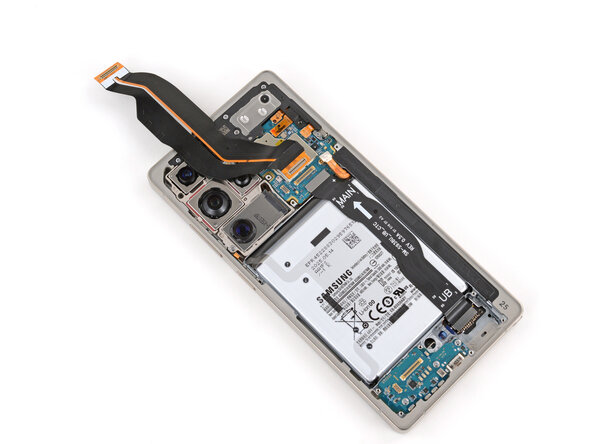
    • Use the point of a spudger to pry up and disconnect the two press connectors on the USB‑C board's top edge.

    Ask FixBot

    Add Comment

  21. Samsung Galaxy S25 Ultra Battery Replacement: step 21, image 1 of 3 Samsung Galaxy S25 Ultra Battery Replacement: step 21, image 2 of 3 Samsung Galaxy S25 Ultra Battery Replacement: step 21, image 3 of 3
    • Be very careful not to scrape the small surface-mounted components around the connector—only pry from its short edges to avoid damage.

    • Use the point of a spudger to disconnect the screen cable press connector from the bottom right of the phone.

    Ask FixBot

    Add Comment

  22. Samsung Galaxy S25 Ultra Battery Replacement: step 22, image 1 of 2 Samsung Galaxy S25 Ultra Battery Replacement: step 22, image 2 of 2
    • Use the point of a spudger to pry up and disconnect the leftmost (skinny) interconnect cable's press connector from the motherboard.

    Ask FixBot

    Add Comment

  23. Samsung Galaxy S25 Ultra Battery Replacement: step 23, image 1 of 2 Samsung Galaxy S25 Ultra Battery Replacement: step 23, image 2 of 2
    • Use the point of a spudger to pry up and disconnect the wide interconnect cable press connector from the motherboard, just to the right of the previous one.

    • Only pry up the connector until it disconnects, or you may damage the tape holding it in place.

    Ask FixBot

    Add Comment

  24. Samsung Galaxy S25 Ultra Battery Replacement, Remove the skinny interconnect cable: step 24, image 1 of 2 Samsung Galaxy S25 Ultra Battery Replacement, Remove the skinny interconnect cable: step 24, image 2 of 2
    • Remove the skinny interconnect cable.

    Ask FixBot

    Add Comment

  25. Samsung Galaxy S25 Ultra Battery Replacement, Reposition the interconnect cable: step 25, image 1 of 3 Samsung Galaxy S25 Ultra Battery Replacement, Reposition the interconnect cable: step 25, image 2 of 3 Samsung Galaxy S25 Ultra Battery Replacement, Reposition the interconnect cable: step 25, image 3 of 3
    • Flip the middle (widest) interconnect cable over the top edge of the phone, so it's out of the way of the battery.

    Ask FixBot

    Add Comment

  26. Samsung Galaxy S25 Ultra Battery Replacement, Disconnect the screen cable: step 26, image 1 of 2 Samsung Galaxy S25 Ultra Battery Replacement, Disconnect the screen cable: step 26, image 2 of 2
    • Use the point of a spudger to pry up and disconnect the screen cable press connector from the bottom edge of the motherboard.

    Ask FixBot

    Add Comment

  27. Samsung Galaxy S25 Ultra Battery Replacement, Remove the screen cable: step 27, image 1 of 2 Samsung Galaxy S25 Ultra Battery Replacement, Remove the screen cable: step 27, image 2 of 2
    • Remove the screen cable.

    Ask FixBot

    Add Comment

  28. Samsung Galaxy S25 Ultra Battery Replacement, Peel up the plastic battery tabs: step 28, image 1 of 3 Samsung Galaxy S25 Ultra Battery Replacement, Peel up the plastic battery tabs: step 28, image 2 of 3 Samsung Galaxy S25 Ultra Battery Replacement, Peel up the plastic battery tabs: step 28, image 3 of 3
    • Be very careful not to puncture or dent the battery, as it can leak dangerous chemicals or catch fire. Don’t use sharp or metal tools.

    • Use your fingers to peel up the plastic tabs on the edges of the battery, starting at the black, circular arrow markings.

    • If you're having trouble, use the tip of an opening pick to gently lift the tab until you can grip it with your fingers.

    Ask FixBot

    Add Comment

  29. Samsung Galaxy S25 Ultra Battery Replacement, Remove the battery: step 29, image 1 of 3 Samsung Galaxy S25 Ultra Battery Replacement, Remove the battery: step 29, image 2 of 3 Samsung Galaxy S25 Ultra Battery Replacement, Remove the battery: step 29, image 3 of 3
    • Hold the plastic tabs out of the way and remove the battery.

    • If the battery feels stuck, don't try to force it out. Check that all the plastic tabs are fully out of the way—the battery should lift away effortlessly.

    • During reassembly:

    • The plastic sleeve on your replacement battery may differ from the original—don't worry! Just make sure the replacement battery matches the original.

    • Remove any adhesive liners from the bottom of the battery.

    • Hold the battery above its recess and use your finger to reconnect the battery press connector—temporarily reconnecting the battery ensures it's sitting properly in its recess.

    • Lay the battery into its recess and press down firmly to secure it.

    • Disconnect the battery before continuing.

    Ask FixBot

    Add Comment

  30. Samsung Galaxy S25 Ultra Battery Replacement, Remove the old adhesive: step 30, image 1 of 3 Samsung Galaxy S25 Ultra Battery Replacement, Remove the old adhesive: step 30, image 2 of 3 Samsung Galaxy S25 Ultra Battery Replacement, Remove the old adhesive: step 30, image 3 of 3
    • Slowly peel up and remove the old battery sleeve—most of the adhesive should come up with the sleeve.

    • Don't use tools to remove the adhesive on the shiny, metallic vapor chamber in the center of the battery recess—it's delicate and you may cause damage.

    • Use your fingers to gently peel up and remove any adhesive left on the vapor chamber, using the small white tab near the top edge.

    • If any adhesive is still on the frame, use a spudger or your fingers to remove it.

    Ask FixBot

    Add Comment

Conclusion

Compare your new replacement part to the original part—you may need to transfer remaining components or remove adhesive backings from the new part before you install it.

To reassemble your device, follow these instructions in reverse order.

For optimal performance, calibrate your newly installed battery after reassembling your phone.

Take your e-waste to an R2 or e-Stewards certified recycler.

Repair didn’t go as planned? Try some basic troubleshooting, or ask our Answers Community for troubleshooting help.

Cancel: I did not complete this guide.

One other person completed this guide.

Spencer Day

Member since: 09/14/22

190,922 Reputation

1,204 Guides authored

0 Guide Comments

Add Comment

View Statistics:

Past 24 Hours: 28

Past 7 Days: 175

Past 30 Days: 749

All Time: 2,561