
Causes
- First, we will determine whether the issue is due to software or hardware. Test the keyboard across different programs to confirm that it fails everywhere.
- If the keyboard works on only certain programs, the issue is related to the settings within the specific program, and you should consult the program’s help menu.
- Restart the computer to reinitialize the drivers.
- Reinstall the keyboard drivers for the laptop from Dell’s website here.
- If this does not resolve the problem, plug in an external keyboard to determine whether the issue is system wide.
- If any key does not rebound properly or feels sticky, this indicates that something has been spilled on the keyboard. Attempt to clean the keys using rubbing alcohol and cotton swabs. After the keys have been cleaned, check to see if the keys register. If not, the contacts for the key may have been damaged, and the keyboard needs to be replaced.
- Inspect the keyboard for any cracks or chips, as this would indicate that the keyboard has been physically damaged. This could result in specific key or whole keyboard unresponsiveness.
- If this does not solve the problem, you may need to replace the keyboard or the rebound cup.
Related Problems


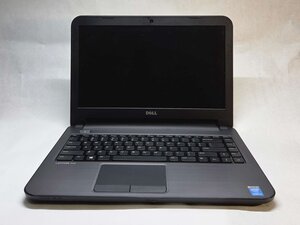
Dell Latitude 3440
Find free step-by-step repair instructions, manuals, schematics, community support, and other DIY resources. You can do it! We show you how.
15 common problems
View allHaven't found the solution to your problem?Browse our forum
