Free Shipping on Domestic Orders $75+
Causes
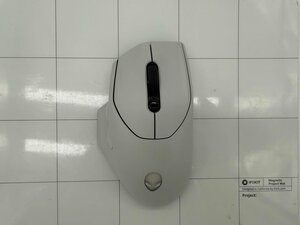
If the Alienware AW620M has an obstructed sensor it will inhibit the mouse’s response time. Before cleaning the sensor, turn off your computer and disconnect the Alienware AW620M. Locate the optical sensor on the bottom center of the device. Gently clean the sensor with a clean microfiber cloth, a cotton swab, or a can of compressed air.
A damaged USB port can cause an improper connection between the mouse and computer and cause a jumpy and delayed cursor response. In wired mode, connect the USB charging cable to another USB port, then wait for a notification indicating the driver installation is complete before using the mouse. In wireless mode, connect the USB wireless dongle to another USB port or connect the USB wireless dongle and USB charging cable to the dongle extender. Wait for a notification indicating the driver installation is complete before using the mouse. If the USB port is physically damaged, it will need to be replaced.
1 common problem
View allDescribe your problem in your own words
