
iPhone 18 Pro Max Screen Replacement

Last updated on Oct 5, 2026
Views: 1.8K
View statistics:
- Past 24 Hours:
- 85
- Past 7 Days:
- 587
- Past 30 Days:
- 1,811
- All Time:
- 1,811
Comments: 0
No one has left comments on this guide. Will you be first?
Go to guide commentsCompleted: 1 2
1 person has marked this guide "completed." Will you be next?
2 people have marked this guide "completed." Including you — great job!
Favorites: 0 1
No one has favorited (and subscribed to) this guide. Will you be the first?
1 person has favorited (and subscribed to) this guide — and that's you!
Featured Guide
This guide has been found to be exceptionally cool by the iFixit staff.
Introduction
Go to step 1 ↓Follow this guide to replace a broken, cracked, or non‑responsive screen on an iPhone 18 Pro Max.
Note: You'll need replacement screen adhesive to complete this repair.
What you need
Tools
-
-
-
-
-
-
-
Spudger4.9
-
-
-
-
-


-
-
-
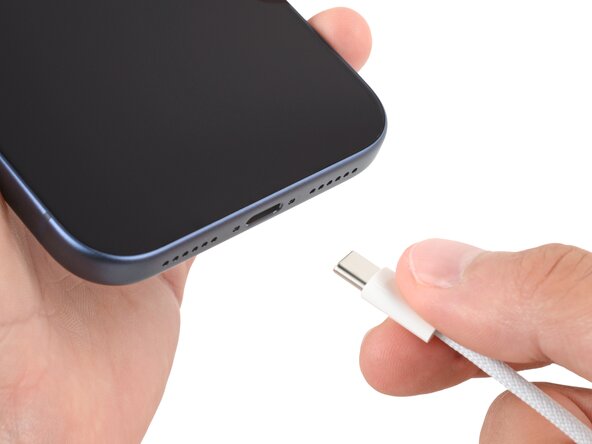
Unplug all cables from your phone.
-
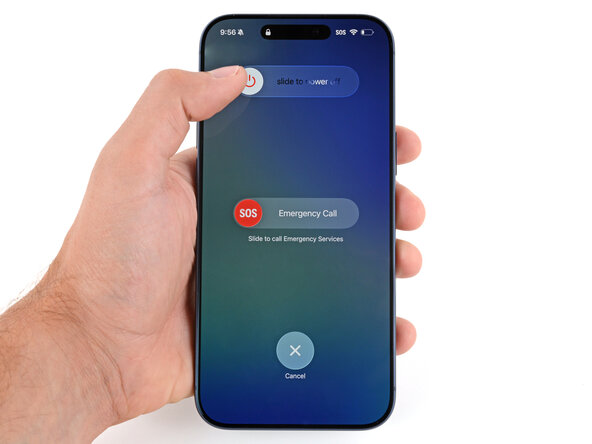
Hold the power and either volume button and slide to power off your phone.
 Ask FixBot
-
-
Tool used on this step:iFixit Safety Glasses$7.95
-
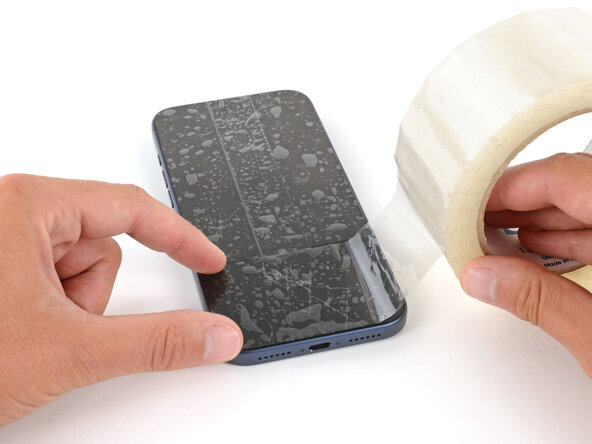
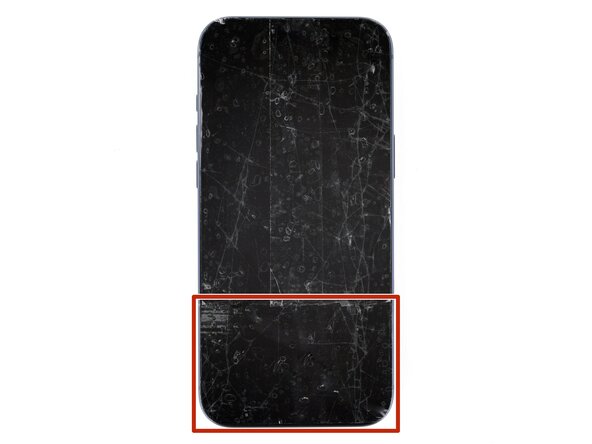
Apply strips of packing tape to the cracked glass until it's completely covered—this will help keep the glass contained and allow the suction cup to stick.
-
Make sure there's a single strip of tape (not overlapping) across the bottom edge, big enough for a suction cup to fit on.
-
-
-
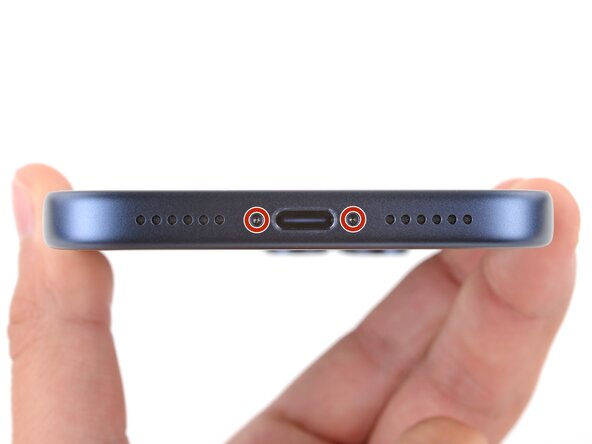
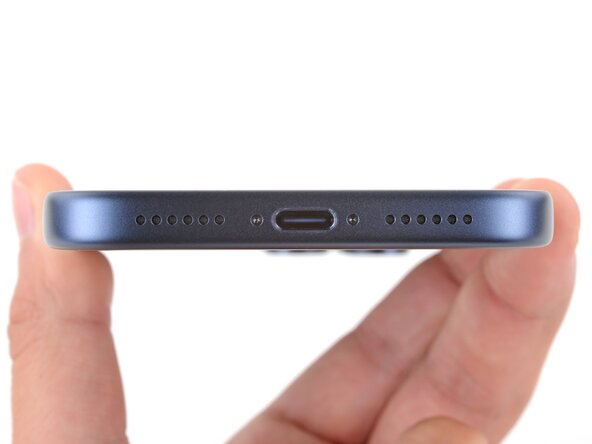
Use a P2 pentalobe screwdriver to remove the two 7.5 mm‑long screws on either side of the charging port.
-
-
-
-
-
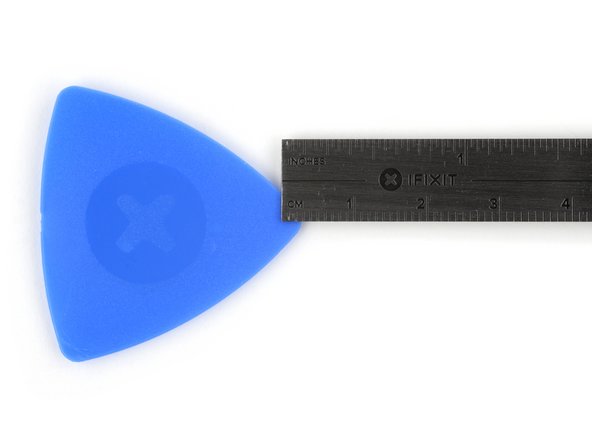
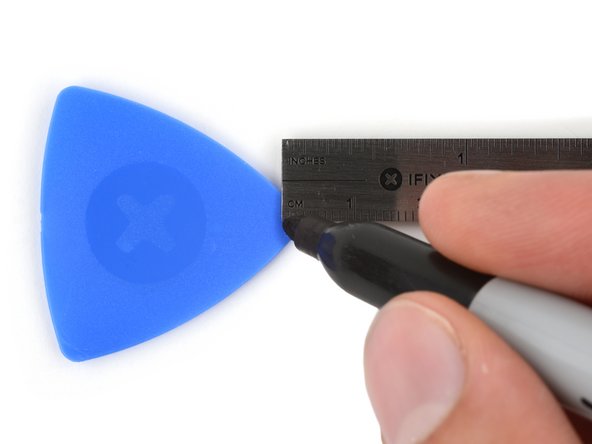
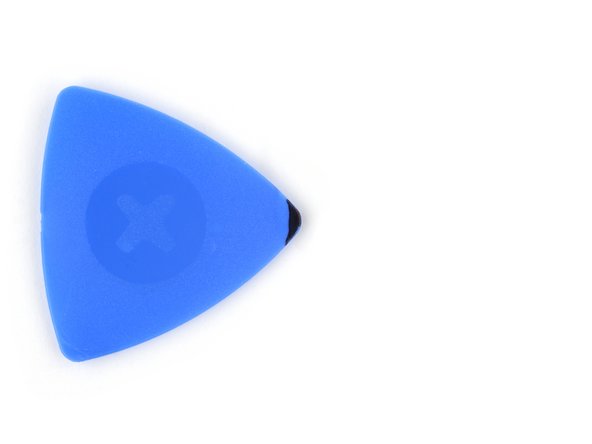
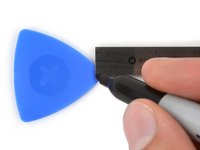
Measure 3 mm from the tip and mark the opening pick with a permanent marker.
-
-
-
Use a hair dryer or heat gun to heat the bottom edge of the screen until it's slightly too hot to touch.
-
-
-
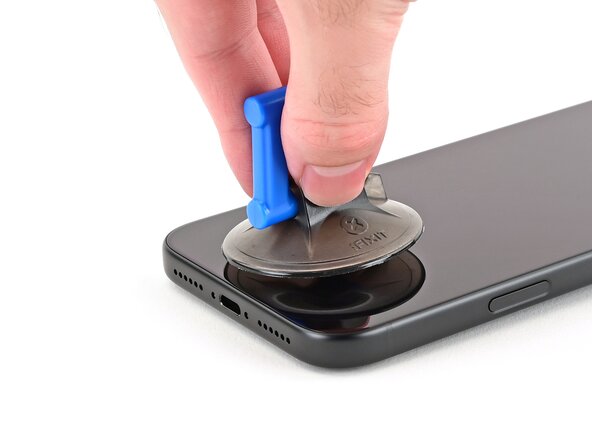
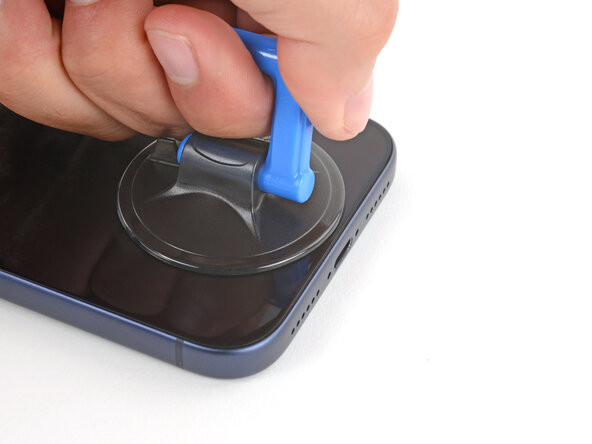
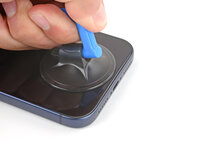
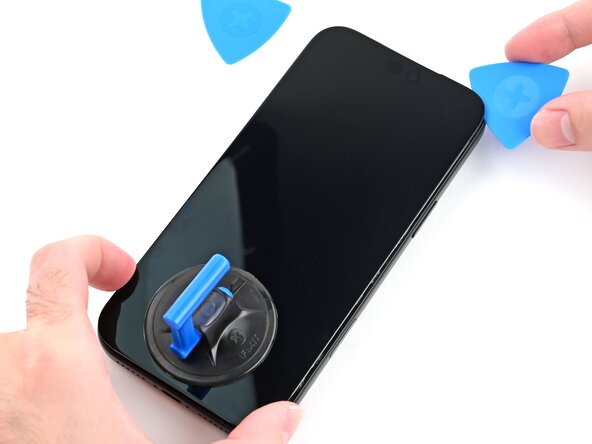
Apply a suction handle to the bottom edge of the screen, as close to the edge as possible.
-
-
-
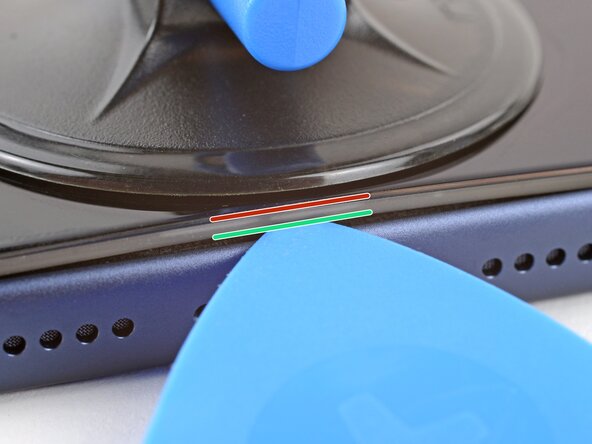
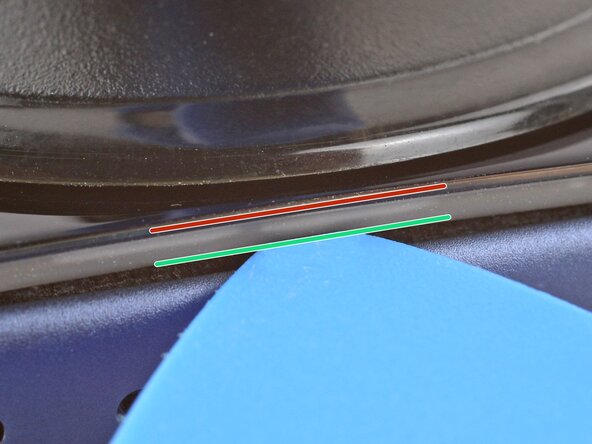
To avoid damaging your screen in the next step, note the following:
-
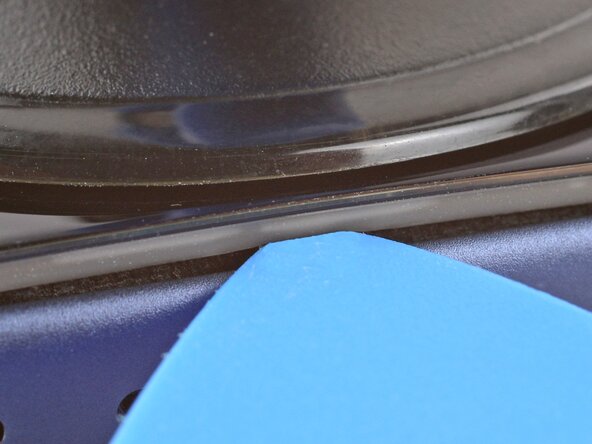
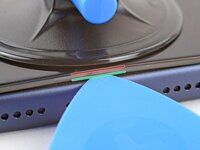
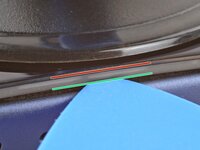
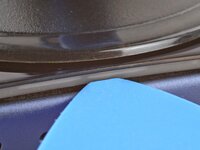
There's a plastic bezel on the underside of the screen. Your opening pick will go underneath this bezel.
-
There's a seam between the plastic bezel and the display panel. Don't insert your pick here or you'll damage the screen.
-
-
-
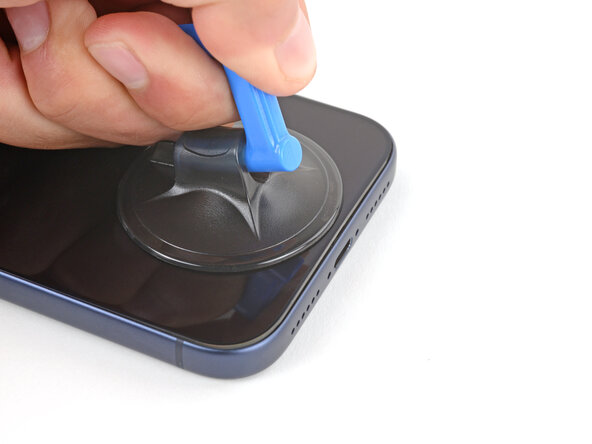
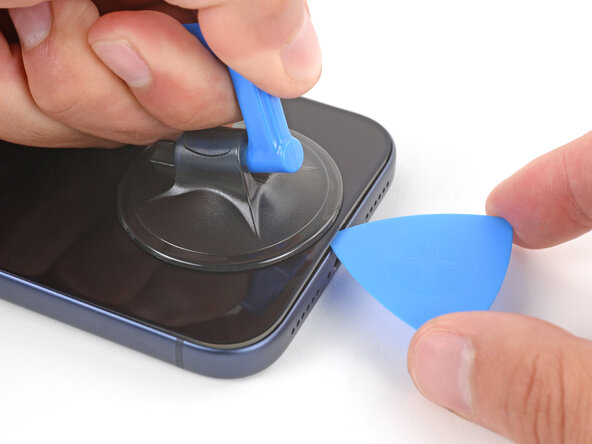
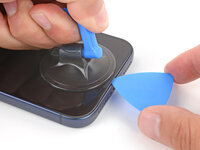
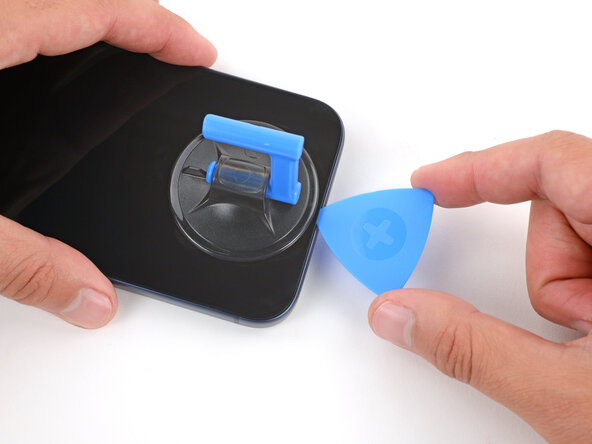
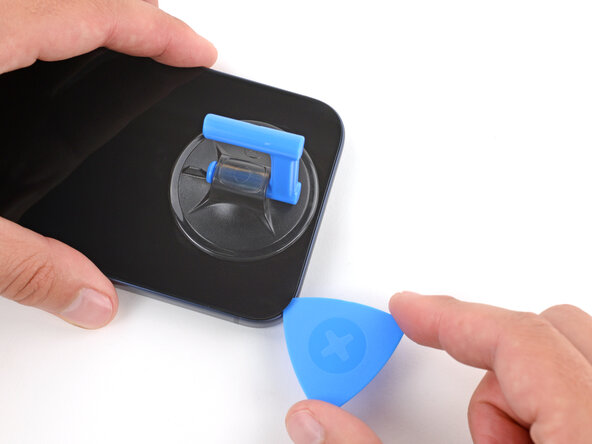
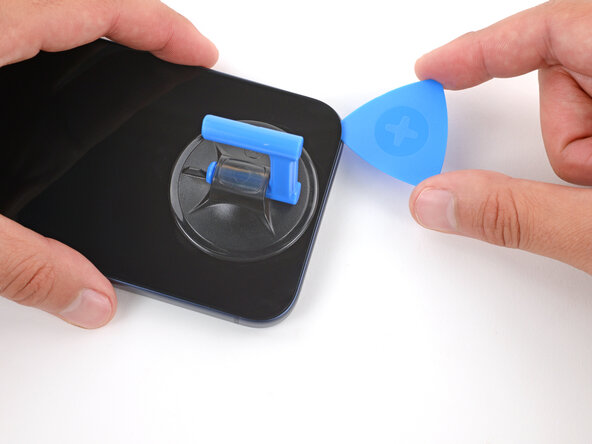
Pull up on the suction handle with strong, steady force until a gap forms between the screen and frame.
-
Insert the tip of an opening pick in the gap you just created.
-
-
-
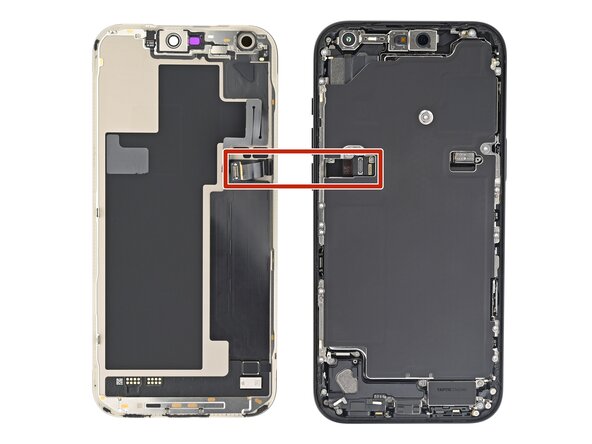
The screen and ambient light sensor cables, located near the volume buttons.
-
Delicate spring contacts around the perimeter of the phone.
-
The underside of the screen has thin, metal clips that go into corresponding slots on the frame.
-
-
-
Slide the opening pick along the bottom edge to separate the adhesive.
-
Leave the pick inserted under the bottom right corner to prevent the adhesive from re‑sealing.
-
-
-
Use a hair dryer or heat gun to heat the right edge of the screen until it's slightly too hot to touch.
-
-
-
Insert a second opening pick under the bottom right corner of the screen.
-
Slide the pick up the right edge, stopping just before the antenna line, to separate the adhesive and release the two clips.
-
Leave the pick inserted under the top right corner to prevent the adhesive from re‑sealing.
-
-
-
Use a hair dryer or heat gun to heat the left edge of the screen until it's slightly too hot to touch.
-
-
-
Insert a third opening pick near the bottom left corner of the screen.
-
Slide the pick up around the bottom left corner, then up the left edge to separate the adhesive and release the clip, stopping just before the antenna line.
-
-
-
Use a hair dryer or heat gun to heat the top edge of the screen until it's slightly too hot to touch.
-
-
-
Gently pull the screen downwards, and slide the pick on the right edge around the top right corner of the screen.
-
Slide the broad side of the opening pick along the top to slice the adhesive while gently pulling the screen down.
-
-
-
Lift the screen straight up and swing it over the left edge of the phone, propping it up against a sturdy box or stack of books so the cables aren't strained.
-
-
Tool used on this step:FixMat$36.95
-
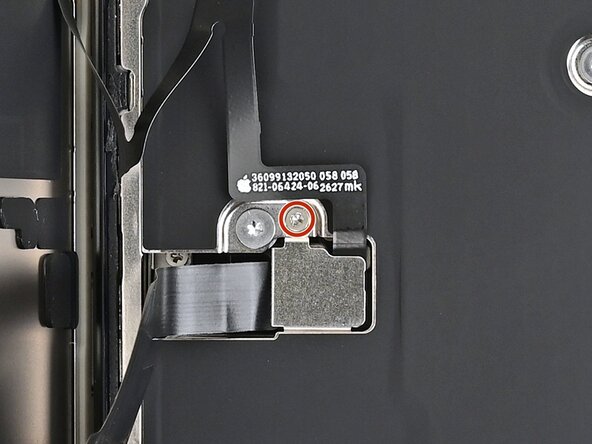
Use a JIS 00 screwdriver to remove the two 1.2 mm‑long screws securing the battery and screen cable covers (one for each cover).
-
-
-
Use the point of a spudger to pry up and disconnect the battery press connector.
-
-
-
Use the point of a spudger or tip of an opening pick to pry up and disconnect the screen and front sensors press connectors.
-
-
-
-
-
Tool used on this step:Tweezers$4.99
-
Use tweezers or your fingers to remove large pieces of adhesive from the frame perimeter.
-
Use a spudger to scrape the adhesive residue off the frame.
-
-
-
Apply a few drops of high concentration (>90%) isopropyl alcohol to the adhesive residue.
-
Use a microfiber or lint-free cloth to wipe in one direction along the perimeter of the frame to clean the residue.
-
-
Tool used on this step:Microfiber Cleaning Cloths$3.99
-
If you're reusing your screen, apply a few drops of highly-concentrated isopropyl alcohol (over 90%) to a microfiber or lint-free cloth and wipe around the perimeter to prepare the surface for new adhesive.
-
-
-
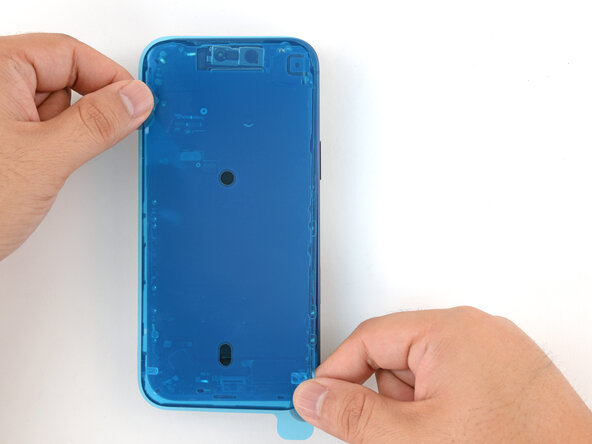
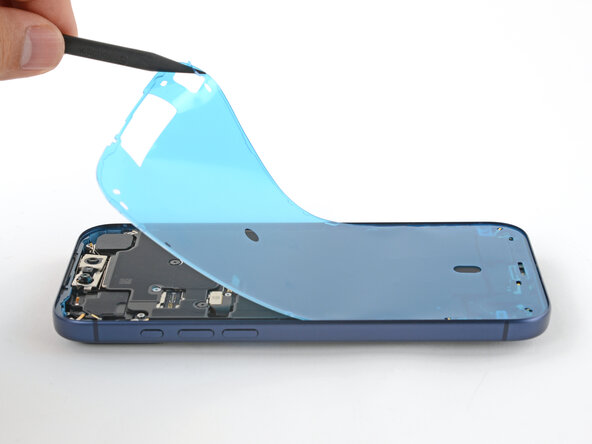
Without peeling any liners, lay the adhesive sheet over the frame to determine its proper orientation.
-
-
-
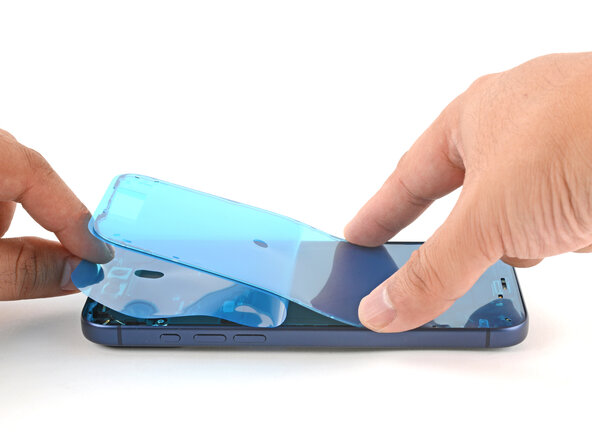
Grab the tab in the corner of the adhesive sheet and peel the liner to expose a third of the adhesive.
-
-
-
Carefully align the exposed edge of the adhesive strip with the corresponding edge of the iPhone's frame.
-
When it's correctly aligned, gently press the exposed adhesive strip onto the frame.
-
-
-
Continue peeling away the liner from the adhesive as you gently press the adhesive into place.
-
-
-
-
Use a spudger to press the adhesive around the entire perimeter of your iPhone.
-
-
-
Use the pull tab to peel off the large front liner from the adhesive. The pull tab is often in a corner of the liner.
-
At this point, you'll still have liners covering the perimeter. Don't remove these liners yet—they prevent the adhesive from accidentally sticking while you reassemble your iPhone.
-
-
-
Set the iPhone screen next to the frame such that the screen cables can comfortably reach the logic board.
-
-
-
Use your finger or the flat end of a spudger to press and connect the two screen connectors onto the logic board.
-
-
-
Use your finger or the flat end of a spudger to press and connect the battery connector onto the logic board.
-
-
-
Power on your iPhone and make sure it works as expected. Power it back down and continue reassembly.
-
If your iPhone doesn't turn on, connect it to a power source and try again.
-
-
-
Tuck the top edge of the battery connector cover under the cutout lip.
-
Align the cover by its screw hole and lay it in place.
-
-
-
Use a JIS 00 screwdriver to install the 1.2 mm‑long screw to secure the battery connector cover.
-
-
-
Tuck the left edge of the screen connector cover under the cutout lip.
-
Align the cover by its screw hole and lay it in place.
-
-
-
Use a JIS 00 screwdriver to install the 1.2 mm‑long screw to secure the screen connector cover.
-
-
-
With one hand hold the screen steady.
-
Use your fingers or tweezers to peel away all perimeter liners, exposing the adhesive.
-
Check the internals for any stray liners and remove them. There should be no liners remaining.
-
-
-
Lower the screen onto the frame, beginning with the top edge.
-
Press along the edges of the iPhone until the screen sits flush against the frame.
-
-
-
Use a hair dryer, heat gun, or an iOpener to heat the screen perimeter until it's slightly too hot to touch.
-
-
-
-
-
Use a P2 pentalobe screwdriver to install the two 7.5 mm‑long screws on either side of the charging port.
-
-




















After your repair, calibrate a genuine replacement screen using Apple's Repair Assistant. Navigate to Settings → General → About → Parts & Service History, tap Restart & Finish Repair, and follow the onscreen prompts.
Take your e-waste to an R2 or e-Stewards certified recycler.
Repair didn’t go as planned? Try some basic troubleshooting, or ask our Answers Community for help.
Cancel: I did not complete this guide.
One other person completed this guide.

