Free Shipping on Domestic Orders $75+

OnePlus 9 5G Interconnect Cable Replacement

Prerequisite Only
This is a prerequisite-only guide! This guide is part of another procedure and isn’t meant to be used alone.

What you need

    1. OnePlus 9 5G Interconnect Cable Replacement, Loosen the rear glass: step 1, image 1 of 1
      • Completely power off your phone before you begin.

      • Prepare an iOpener and apply it to the rear glass for at least three minutes to loosen the adhesive underneath.

      • A hair dryer, heat gun, or hot plate may also be used, but be careful not to overheat the phone—the display and internal battery are both susceptible to heat damage.

      Ask FixBot

      Add Comment

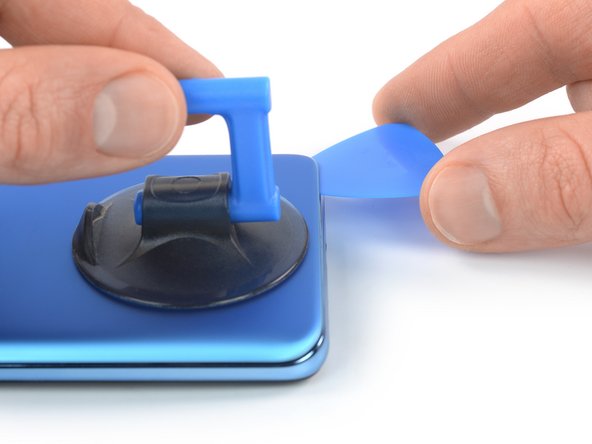
    2. OnePlus 9 5G Interconnect Cable Replacement, Insert an opening pick: step 2, image 1 of 3 OnePlus 9 5G Interconnect Cable Replacement, Insert an opening pick: step 2, image 2 of 3 OnePlus 9 5G Interconnect Cable Replacement, Insert an opening pick: step 2, image 3 of 3
      • Apply a suction handle to the rear glass, as close to the bottom edge as possible.

      • If your rear glass is badly cracked, covering it with a layer of clear packing tape may allow the suction handle to adhere. Alternatively, very strong tape may be used instead of the suction handle. If all else fails, you can superglue the suction handle to the broken rear glass.

      • Pull up on the suction handle with strong, steady force to create a gap between the glass and the frame.

      • If you have trouble creating a gap, apply more heat to further soften the adhesive.

      • Insert an opening pick into the gap.

      Ask FixBot

      Add Comment

    3. OnePlus 9 5G Interconnect Cable Replacement, Slice the bottom edge adhesive: step 3, image 1 of 2 OnePlus 9 5G Interconnect Cable Replacement, Slice the bottom edge adhesive: step 3, image 2 of 2
      • Slide the opening pick to the bottom right corner to slice the adhesive.

      • Leave the opening pick in place to prevent the adhesive from resealing.

      Ask FixBot

      Add Comment

    4. OnePlus 9 5G Interconnect Cable Replacement, Insert a second opening pick: step 4, image 1 of 2 OnePlus 9 5G Interconnect Cable Replacement, Insert a second opening pick: step 4, image 2 of 2
      • Insert a second opening pick underneath the bottom edge of the rear glass.

      • Slide the opening pick to the bottom left corner to slice the adhesive.

      • Leave the opening picks in place to prevent the adhesive from resealing.

      Ask FixBot

      Add Comment

    5. OnePlus 9 5G Interconnect Cable Replacement, Slice the left edge adhesive: step 5, image 1 of 3 OnePlus 9 5G Interconnect Cable Replacement, Slice the left edge adhesive: step 5, image 2 of 3 OnePlus 9 5G Interconnect Cable Replacement, Slice the left edge adhesive: step 5, image 3 of 3
      • If the adhesive becomes hard to cut, it has most likely cooled down. Use your iOpener to reheat it.

      • Insert a third opening pick underneath the bottom left corner of the rear glass.

      • Slide the opening pick along the left edge of your phone to slice the adhesive.

      • Leave the opening pick in the top left corner to prevent the adhesive from resealing.

      Ask FixBot

      Add Comment

    6. OnePlus 9 5G Interconnect Cable Replacement, Slice the top edge adhesive: step 6, image 1 of 2 OnePlus 9 5G Interconnect Cable Replacement, Slice the top edge adhesive: step 6, image 2 of 2
      • Insert a fourth opening pick underneath the top left corner of the rear glass.

      • Slide the opening pick along the top edge to slice the adhesive.

      • Leave the opening pick in the top right corner to prevent the adhesive from resealing.

      Ask FixBot

      Add Comment

    7. OnePlus 9 5G Interconnect Cable Replacement, Slice the right edge adhesive: step 7, image 1 of 2 OnePlus 9 5G Interconnect Cable Replacement, Slice the right edge adhesive: step 7, image 2 of 2
      • Insert a fifth and final opening pick underneath the top right corner of the rear glass.

      • Slide the opening pick along the right edge of the back cover to slice the remaining adhesive.

      Ask FixBot

      Add Comment

    8. OnePlus 9 5G Interconnect Cable Replacement, Remove the rear glass: step 8, image 1 of 2 OnePlus 9 5G Interconnect Cable Replacement, Remove the rear glass: step 8, image 2 of 2
      • Remove the rear glass.

      • If the rear glass is still stuck to the frame, slide an opening pick around the entire perimeter until the rear glass separates completely.

      • During reassembly secure the rear glass with pre-cut adhesive or double-sided adhesive tape. After installing the rear glass, apply strong, steady pressure to your phone for several minutes to help the adhesive form a good bond—a stack of heavy books works well.

      Ask FixBot

      Add Comment

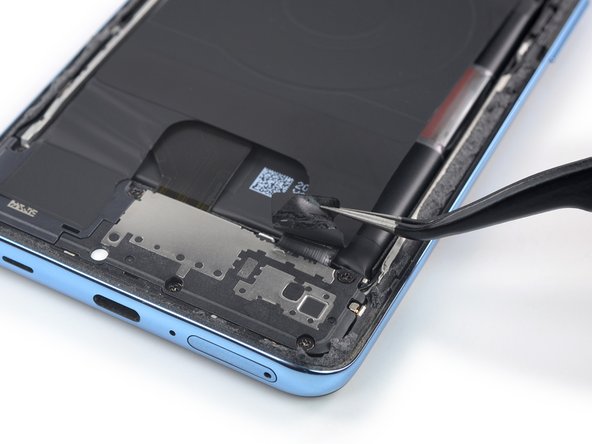
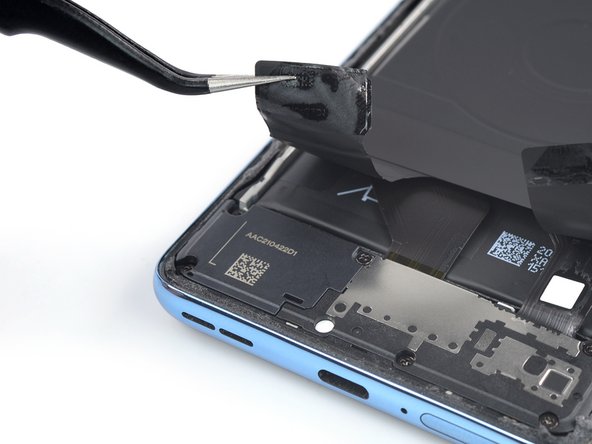
    1. OnePlus 9 5G Interconnect Cable Replacement, Peel off the tape: step 9, image 1 of 3 OnePlus 9 5G Interconnect Cable Replacement, Peel off the tape: step 9, image 2 of 3 OnePlus 9 5G Interconnect Cable Replacement, Peel off the tape: step 9, image 3 of 3
      Tool used on this step:
      Tweezers
      $4.99
      Buy
      • Use a pair of tweezers to carefully peel the bottom right corner of the charging coil tape off of the daughterboard cover.

      Ask FixBot

      Add Comment

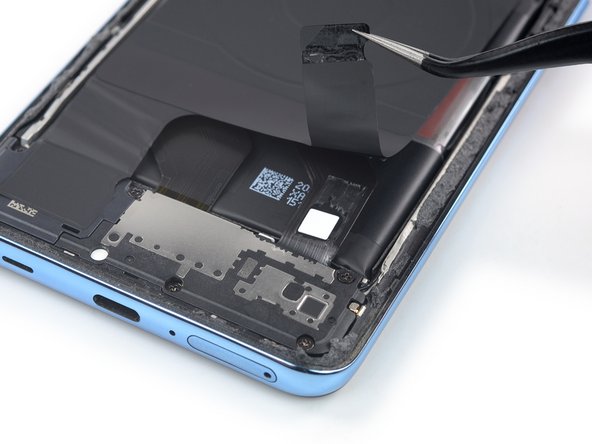
    2. OnePlus 9 5G Interconnect Cable Replacement: step 10, image 1 of 2 OnePlus 9 5G Interconnect Cable Replacement: step 10, image 2 of 2
      • Use a pair of tweezers to carefully peel the bottom left corner of the charging coil tape off of the loudspeaker.

      Ask FixBot

      Add Comment

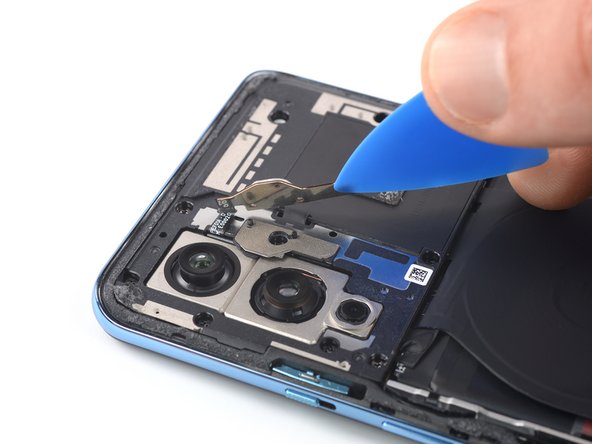
    3. OnePlus 9 5G Interconnect Cable Replacement, Pry up the flash assembly: step 11, image 1 of 2 OnePlus 9 5G Interconnect Cable Replacement, Pry up the flash assembly: step 11, image 2 of 2
      • The flash assembly is held in place by mild adhesive and covers a motherboard cover screw.

      • Carefully slide an opening pick underneath the bottom edge of the flash assembly.

      • Use your opening pick to pry up the flash assembly.

      • Don't try to remove the flash assembly all the way during this procedure. Its cable is adhered to the backside of the motherboard cover.

      Ask FixBot

      Add Comment

    4. OnePlus 9 5G Interconnect Cable Replacement, Unfasten the motherboard cover: step 12, image 1 of 1
      • Use a Phillips screwdriver to remove the ten 3.8 mm-long screws securing the motherboard cover.

      • One of the motherboard cover screws is covered by a white water ingress sticker. To unfasten the screw you can puncture the sticker with your screwdriver.

      Ask FixBot

      Add Comment

    5. OnePlus 9 5G Interconnect Cable Replacement, Pry up the motherboard cover: step 13, image 1 of 2 OnePlus 9 5G Interconnect Cable Replacement, Pry up the motherboard cover: step 13, image 2 of 2
      • The motherboard cover is further held in place by tight plastic clips.

      • Insert a spudger underneath the bottom right edge of the motherboard cover.

      • Pry upwards to loosen the motherboard cover and create a gap.

      Ask FixBot

      Add Comment

    6. OnePlus 9 5G Interconnect Cable Replacement: step 14, image 1 of 3 OnePlus 9 5G Interconnect Cable Replacement: step 14, image 2 of 3 OnePlus 9 5G Interconnect Cable Replacement: step 14, image 3 of 3
      • Insert an opening pick underneath the bottom right edge of the motherboard cover.

      • Slide the opening pick up along the right edge of the motherboard cover.

      • Twist the opening pick to release the plastic clips and pry up the motherboard cover.

      Ask FixBot

      Add Comment

    7. OnePlus 9 5G Interconnect Cable Replacement, Remove the motherboard cover: step 15, image 1 of 2 OnePlus 9 5G Interconnect Cable Replacement, Remove the motherboard cover: step 15, image 2 of 2
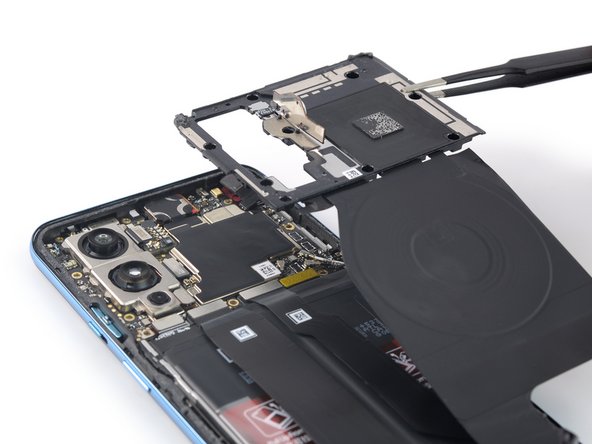
      • Use a pair of tweezers or your fingers to remove the motherboard cover.

      • The charging coil is attached to the motherboard cover and will lift up at the same time.

      Ask FixBot

      Add Comment

    8. OnePlus 9 5G Interconnect Cable Replacement, Disconnect the battery cable: step 16, image 1 of 2 OnePlus 9 5G Interconnect Cable Replacement, Disconnect the battery cable: step 16, image 2 of 2
      • Use a spudger to disconnect the battery cable by prying the connector straight up from its socket on the bottom left corner of the motherboard.

      • To re-attach press connectors like this one, carefully align and press down on one side until it clicks into place, then repeat on the other side. Do not press down on the middle. If the connector is misaligned, the pins can bend and cause permanent damage.

      Ask FixBot

      Add Comment

    1. OnePlus 9 5G Interconnect Cable Replacement, Unfasten the daughterboard cover: step 17, image 1 of 1
      • Use a Phillips screwdriver to remove the five 3.8 mm-long screws securing the daugtherboard cover.

      • One of the daughterboard cover screws is covered by a white water ingress sticker. To unfasten the screw you can puncture the sticker with your screwdriver.

      Ask FixBot

      Add Comment

    2. OnePlus 9 5G Interconnect Cable Replacement, Pry up the daughterboard cover: step 18, image 1 of 2 OnePlus 9 5G Interconnect Cable Replacement, Pry up the daughterboard cover: step 18, image 2 of 2
      • Insert the point of a spudger underneath the top right edge of the daughterboard cover.

      • Pry upwards to loosen the daughterboard cover.

      Ask FixBot

      Add Comment

    3. OnePlus 9 5G Interconnect Cable Replacement, Remove the daughterboard cover: step 19, image 1 of 2 OnePlus 9 5G Interconnect Cable Replacement, Remove the daughterboard cover: step 19, image 2 of 2
      Tool used on this step:
      Tweezers
      $4.99
      Buy
      • Use a pair of tweezers or your fingers to remove the daughterboard cover.

      Ask FixBot

      Add Comment

    4. OnePlus 9 5G Interconnect Cable Replacement, Disconnect the interconnect cable: step 20, image 1 of 2 OnePlus 9 5G Interconnect Cable Replacement, Disconnect the interconnect cable: step 20, image 2 of 2
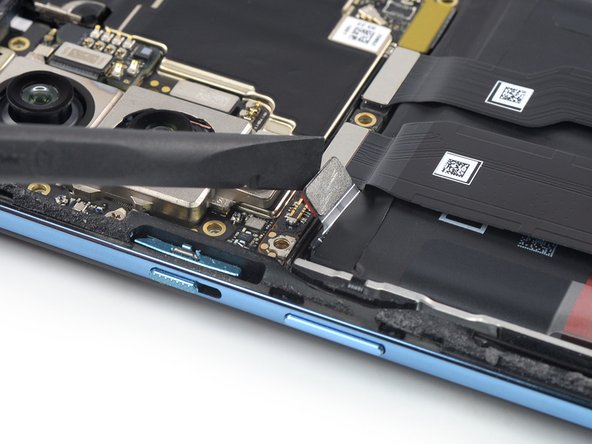
      • Use a spudger to disconnect the interconnect cable from the motherboard by prying the connector straight up from its socket.

      Ask FixBot

      Add Comment

    5. OnePlus 9 5G Interconnect Cable Replacement, Remove the metal bracket: step 21, image 1 of 3 OnePlus 9 5G Interconnect Cable Replacement, Remove the metal bracket: step 21, image 2 of 3 OnePlus 9 5G Interconnect Cable Replacement, Remove the metal bracket: step 21, image 3 of 3
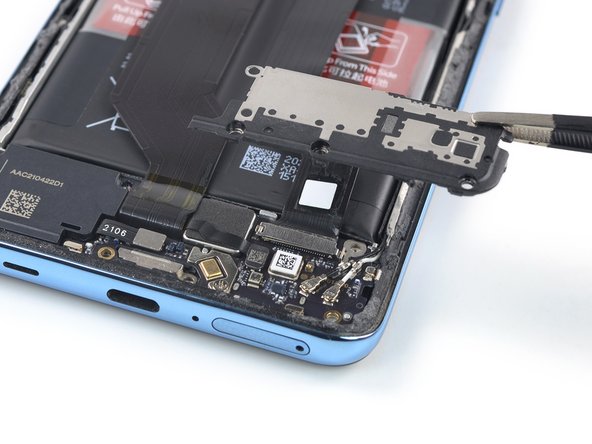
      • Slide one arm of a pair of tweezers underneath the metal bracket covering the interconnect cable.

      • Use your tweezers to lift and unhinge the metal bracket.

      • Remove the metal bracket.

      Ask FixBot

      Add Comment

    6. OnePlus 9 5G Interconnect Cable Replacement, Disconnect the interconnect cable: step 22, image 1 of 2 OnePlus 9 5G Interconnect Cable Replacement, Disconnect the interconnect cable: step 22, image 2 of 2
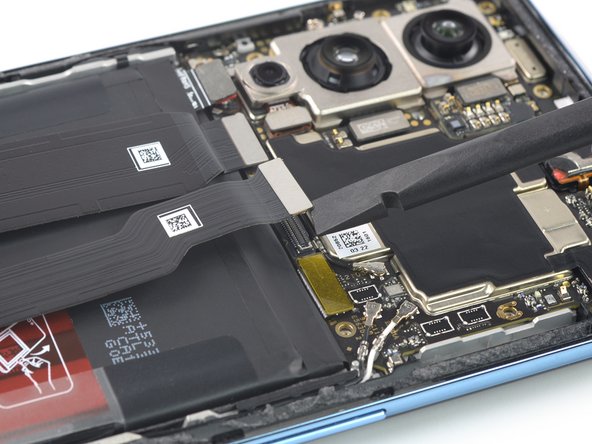
      • Use a spudger to disconnect the interconnect cable from the daughterboard by prying the connector straight up from its socket.

      Ask FixBot

      Add Comment

    7. OnePlus 9 5G Interconnect Cable Replacement, Remove the interconnect cable: step 23, image 1 of 1
      • Use a pair of tweezers or your fingers to remove the interconnect cable.

      Ask FixBot

      Add Comment

Conclusion

To reassemble your device, follow these instructions in reverse order.

Repair didn’t go as planned? Try some basic troubleshooting, or ask our OnePlus 9 5G answers community for help.


Cancel: I did not complete this guide.

Dominik Schnabelrauch

Member since: 11/23/16

265,503 Reputation

682 Guides authored

Team

iFixit Member of iFixit

Staff

122 Members

72,401 Guides authored

0 Guide Comments

Add Comment

View Statistics:

Past 24 Hours: 0

Past 7 Days: 5

Past 30 Days: 14

All Time: 200