Introduction
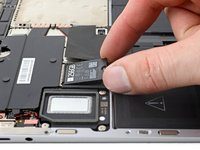
Use this guide to remove or replace the SSD in your Microsoft Surface Laptop 4 (13.5-inch).
Removing the SSD functions as a battery disconnect and should be performed before all major repairs.
If your battery is swollen, take appropriate precautions.
Some photos in this guide are from a different model and may contain slight visual discrepancies, but they won't affect the guide procedure.
What you need
-
-
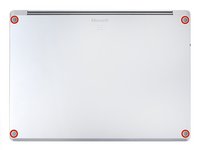
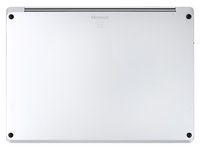
Close the screen and lay your laptop down with the rear case facing up to access the four rubber feet.
-
-
-
The back feet recesses are closest to the back edge of the laptop.
-
The front feet recesses are closest to the front edge of the laptop.
-
-
Tool used on this step:Tweezers$4.99
-
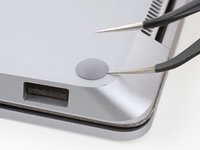
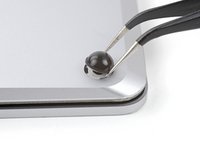
Insert one arm of your tweezers into the recess of one of the feet.
-
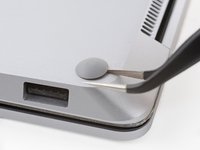
Twist your tweezers and pry up to separate the adhesive and unclip the foot from the laptop.
-
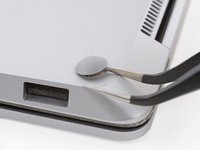
Remove the foot.
-
Repeat this process on the remaining feet.
-
-
Tool used on this step:Tesa 61395 Tape$5.99
-
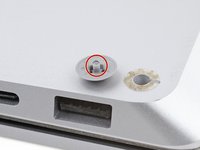
The rear feet have a single center clip.
-
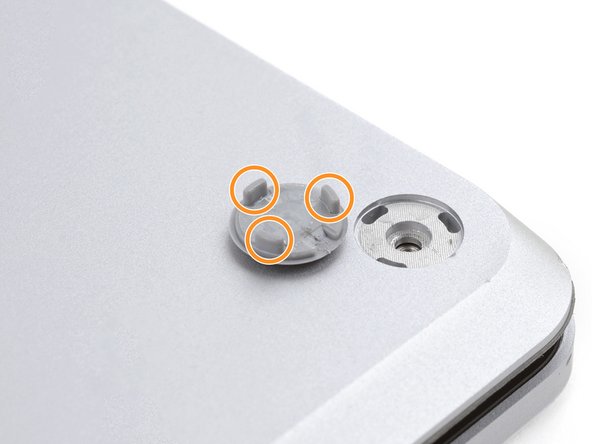
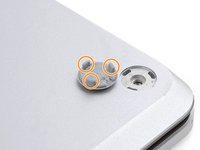
The front feet have three clips and can only be reinserted one way.
-
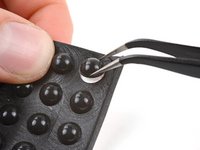
If the existing feet no longer adhere to the frame, remove the old adhesive and apply a small amount of Tesa Tape where the old adhesive was.
-
-
-
Tool used on this step:FixMat$31.41
-
Use a T5 Torx driver to remove the four 3 mm screws securing the upper case.
-
-
-
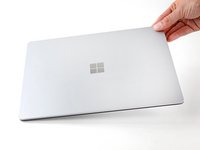
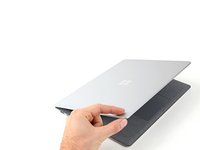
Grip the top edge of the upper case above the keyboard and lift straight up to release it.
-
Lift the bottom edge of the upper case up and away from the laptop, taking care to not strain the ribbon cable underneath.
-
-
-
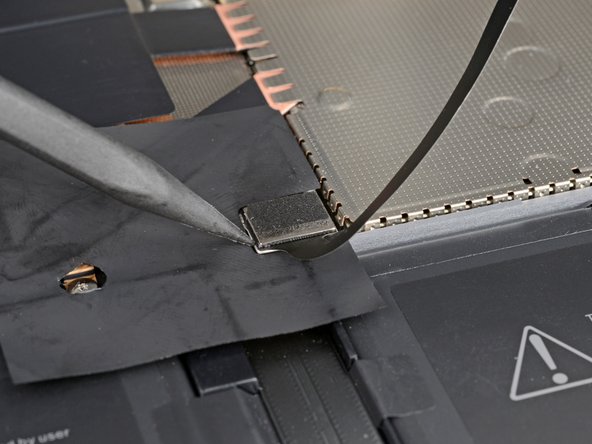
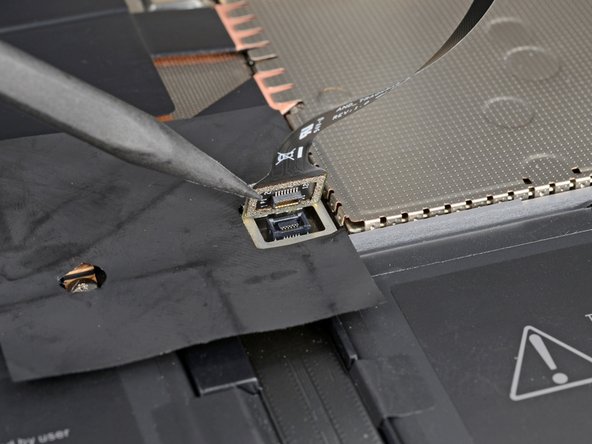
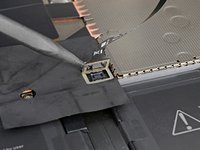
Insert the pointed end of a spudger under one edge of the magnet connector and pry up to disconnect it.
-
-
-
Remove the upper case and set it keyboard-side down on a clean surface.
-
















To reassemble your device, follow these instructions in reverse order.
Take your e-waste to an R2 or e-Stewards certified recycler.
Repair didn’t go as planned? Try some basic troubleshooting, or ask our Answers community for help.
Cancel: I did not complete this guide.
5 other people completed this guide.


Team

