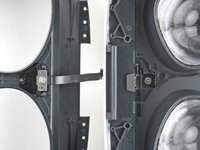
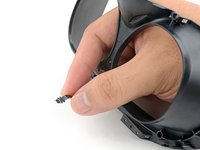
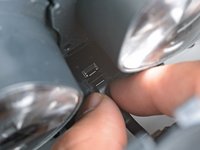
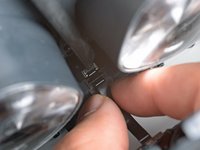
Meta Quest 2 Lower Cameras Replacement

What you need

  1. Meta Quest 2 Lower Cameras Replacement, Power off your Meta Quest 2: step 1, image 1 of 1
    • Hold the power button for three seconds to fully turn off your headset.

    • You'll hear a power down chime, and the LED next to the power button will turn off.

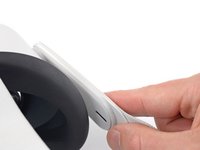
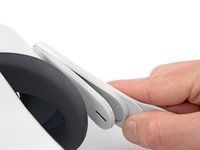
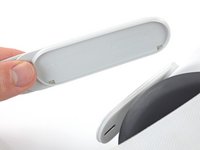
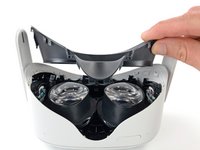
  2. Meta Quest 2 Lower Cameras Replacement, Remove the facial interface: step 2, image 1 of 2 Meta Quest 2 Lower Cameras Replacement, Remove the facial interface: step 2, image 2 of 2
    • Grasp and pull on the nose section of the facial interface to unclip it from the headset.

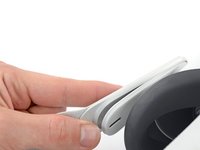
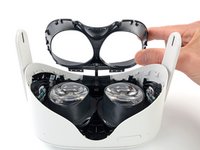
  3. Meta Quest 2 Lower Cameras Replacement: step 3, image 1 of 2 Meta Quest 2 Lower Cameras Replacement: step 3, image 2 of 2
    • Grasp and pull on the top section of the facial interface to unclip it from the headset.

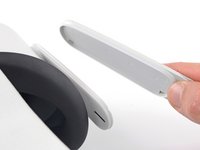
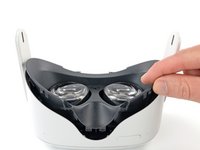
  4. Meta Quest 2 Lower Cameras Replacement: step 4, image 1 of 1
    • Remove the facial interface.

    • During reassembly, align the facial interface to the headset and use your fingers to press along the perimeter to clip it back in.

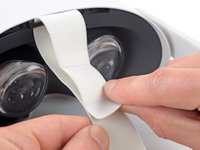
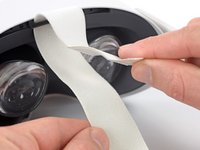
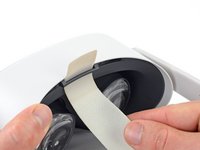
  5. Meta Quest 2 Lower Cameras Replacement, Unclip the side straps: step 5, image 1 of 3 Meta Quest 2 Lower Cameras Replacement, Unclip the side straps: step 5, image 2 of 3 Meta Quest 2 Lower Cameras Replacement, Unclip the side straps: step 5, image 3 of 3
    • Use your fingers to grasp the right strap near the headset.

    • Peel the right strap away from the headset arm to unclip it.

  6. Meta Quest 2 Lower Cameras Replacement: step 6, image 1 of 2 Meta Quest 2 Lower Cameras Replacement: step 6, image 2 of 2
    • Repeat the procedure to peel the left strap away from the arm to unclip it.

  7. Meta Quest 2 Lower Cameras Replacement, Remove the top strap: step 7, image 1 of 2 Meta Quest 2 Lower Cameras Replacement, Remove the top strap: step 7, image 2 of 2
    • Separate the hook and loop strip on the top strap.

  8. Meta Quest 2 Lower Cameras Replacement, Remove the head strap: step 8, image 1 of 2 Meta Quest 2 Lower Cameras Replacement, Remove the head strap: step 8, image 2 of 2
    • Unthread the top strap from its bracket.

    • Remove the head strap.

  9. Meta Quest 2 Lower Cameras Replacement, Remove the eyepiece trim screws: step 9, image 1 of 2 Meta Quest 2 Lower Cameras Replacement, Remove the eyepiece trim screws: step 9, image 2 of 2
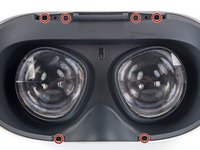
    • Use a Torx T2 driver to remove the six 3.5 mm‑long screws securing the eyepiece trim.

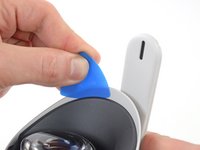
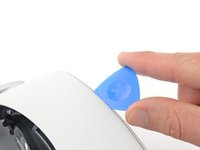
  10. Meta Quest 2 Lower Cameras Replacement, Release the eyepiece trim clips: step 10, image 1 of 2 Meta Quest 2 Lower Cameras Replacement, Release the eyepiece trim clips: step 10, image 2 of 2
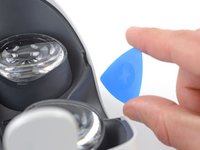
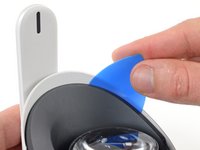
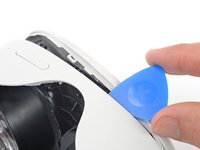
    • Insert an opening pick into the seam between the eyepiece trim and white outer shell, near the nose cutout.

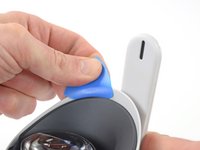
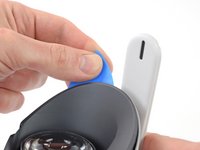
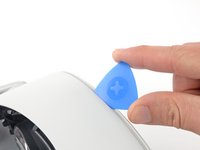
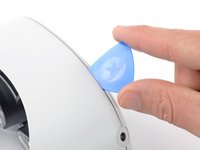
  11. Meta Quest 2 Lower Cameras Replacement: step 11, image 1 of 3 Meta Quest 2 Lower Cameras Replacement: step 11, image 2 of 3 Meta Quest 2 Lower Cameras Replacement: step 11, image 3 of 3
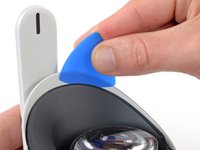
    • Slide the opening pick to the right along the seam to release the clips securing the eyepiece trim.

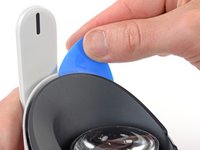
    • Pry with the opening pick to release the clips securing the right side of the eyepiece trim.

    • Leave the opening pick in the seam to prevent the clips from reengaging.

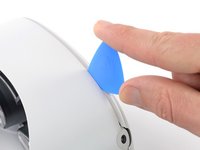
  12. Meta Quest 2 Lower Cameras Replacement: step 12, image 1 of 3 Meta Quest 2 Lower Cameras Replacement: step 12, image 2 of 3 Meta Quest 2 Lower Cameras Replacement: step 12, image 3 of 3
    • Repeat the prying procedure along the left edge to release the clips securing the eyepiece trim.

    • During reassembly, press your fingers along the perimeter of the eyepiece trim to clip it back in place.

  13. Meta Quest 2 Lower Cameras Replacement, Reposition the eyepiece trim: step 13, image 1 of 3 Meta Quest 2 Lower Cameras Replacement, Reposition the eyepiece trim: step 13, image 2 of 3 Meta Quest 2 Lower Cameras Replacement, Reposition the eyepiece trim: step 13, image 3 of 3
    • Don’t try to fully remove the eyepiece trim in this step. It’s still connected to the headset by a short cable.

    • Lift the eyepiece trim slightly and tilt it towards the top edge of the headset.

    • Set the trim down on your work surface, making sure not to strain the cable.

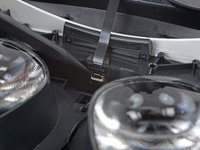
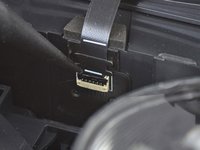
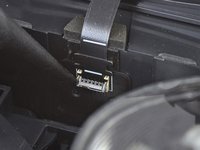
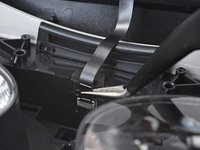
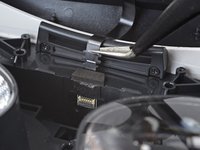
  14. Meta Quest 2 Lower Cameras Replacement, Disconnect the face sensor: step 14, image 1 of 3 Meta Quest 2 Lower Cameras Replacement, Disconnect the face sensor: step 14, image 2 of 3 Meta Quest 2 Lower Cameras Replacement, Disconnect the face sensor: step 14, image 3 of 3
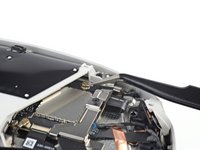
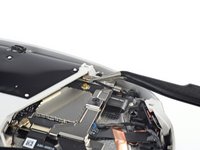
    • Use the point of a spudger to flip open the black lock tab on the ZIF connector securing the face sensor cable.

  15. Meta Quest 2 Lower Cameras Replacement: step 15, image 1 of 2 Meta Quest 2 Lower Cameras Replacement: step 15, image 2 of 2
    Tool used on this step:
    Tweezers
    $4.99
    Buy
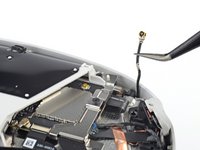
    • Use tweezers to pull the face sensor cable out of the ZIF connector.

  16. Meta Quest 2 Lower Cameras Replacement, Remove the eyepiece trim: step 16, image 1 of 1
    • Remove the eyepiece trim.

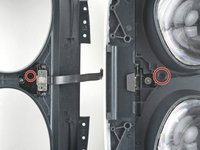
  17. Meta Quest 2 Lower Cameras Replacement, Reassembly note: step 17, image 1 of 2 Meta Quest 2 Lower Cameras Replacement, Reassembly note: step 17, image 2 of 2
    • During reassembly:

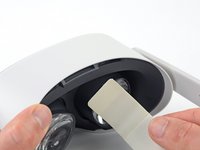
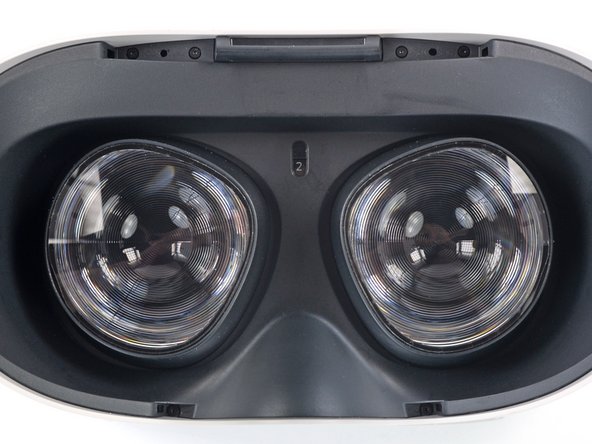
    • Make sure the lens spacing matches the spacing indicator. This allows the indicator peg to sit correctly in its notch.

    • If the lens spacing doesn't match the indicator, manually adjust the lens with your fingers.

  18. Meta Quest 2 Lower Cameras Replacement, Reassembly note: step 18, image 1 of 3 Meta Quest 2 Lower Cameras Replacement, Reassembly note: step 18, image 2 of 3 Meta Quest 2 Lower Cameras Replacement, Reassembly note: step 18, image 3 of 3
    • During reassembly, the face sensor cable can be tricky to connect. Follow these tips to connect the cable:

    • Thread your fingers through the eyepiece trim’s eyeholes and grasp the edges of the sensor cable.

    • Slide the sensor cable into the socket until the first set of tabs rests in the socket. This should flip the lock tab down partially.

    • Use a spudger to press the lock tab down towards the cable to lock it in place.

  19. Meta Quest 2 Lower Cameras Replacement, Remove the front cover screws: step 19, image 1 of 3 Meta Quest 2 Lower Cameras Replacement, Remove the front cover screws: step 19, image 2 of 3 Meta Quest 2 Lower Cameras Replacement, Remove the front cover screws: step 19, image 3 of 3
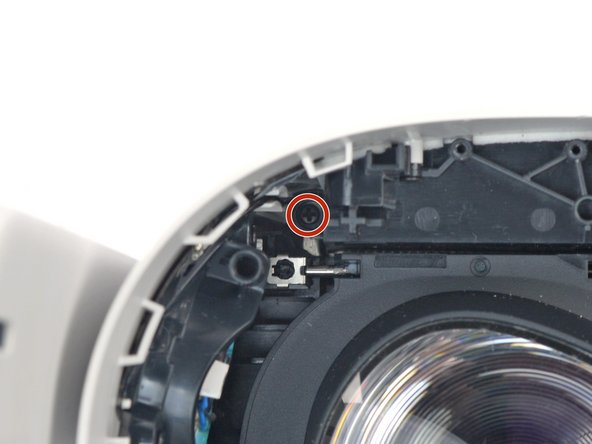
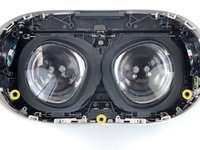
    • Use a Phillips screwdriver to remove the five 7.7 mm‑long screws securing the front cover to the headset:

    • One recessed in the top-left corner

    • One recessed in the top-right corner

    • Three along the lower edge

  20. Meta Quest 2 Lower Cameras Replacement, Release the front cover clips: step 20, image 1 of 2 Meta Quest 2 Lower Cameras Replacement, Release the front cover clips: step 20, image 2 of 2
    • The front cover is still held in place by clips along the bottom and side edges.

    • Insert an opening pick into the seam between the bottom edge of the front cover and the headset.

    • Pry with the opening pick to release the front cover clips.

  21. Meta Quest 2 Lower Cameras Replacement: step 21, image 1 of 3 Meta Quest 2 Lower Cameras Replacement: step 21, image 2 of 3 Meta Quest 2 Lower Cameras Replacement: step 21, image 3 of 3
    • Slide the opening clip along the seam and pry to release all the clips securing the front cover.

  22. Meta Quest 2 Lower Cameras Replacement, Remove the front cover: step 22, image 1 of 1
    • Remove the front cover.

  23. Meta Quest 2 Lower Cameras Replacement, Disconnect the top right antenna: step 23, image 1 of 3 Meta Quest 2 Lower Cameras Replacement, Disconnect the top right antenna: step 23, image 2 of 3 Meta Quest 2 Lower Cameras Replacement, Disconnect the top right antenna: step 23, image 3 of 3
    Tool used on this step:
    Tweezers
    $4.99
    Buy
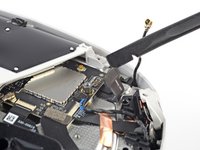
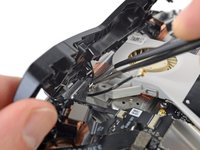
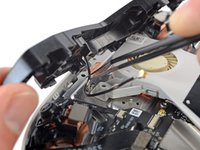
    • Use a pair of tweezers to grasp the metal neck of the top-right antenna cable.

    • Lift the antenna connector straight up to disconnect it.

    • Guide the antenna cable out of its metal clip holding it in place.

  24. Meta Quest 2 Lower Cameras Replacement, Remove the battery cable bracket: step 24, image 1 of 1
    • Use a Phillips screwdriver to remove the three screws securing the battery cable bracket:

    • One 4.4 mm‑long screw

    • Two 2.3 mm‑long screws

  25. Meta Quest 2 Lower Cameras Replacement: step 25, image 1 of 3 Meta Quest 2 Lower Cameras Replacement: step 25, image 2 of 3 Meta Quest 2 Lower Cameras Replacement: step 25, image 3 of 3
    • Use tweezers or your fingers to grasp the battery cable bracket.

    • Twist the cable bracket slightly so that its bottom left corner unclips from the motherboard.

    • Remove the battery cable bracket.

  26. Meta Quest 2 Lower Cameras Replacement, Disconnect the battery: step 26, image 1 of 2 Meta Quest 2 Lower Cameras Replacement, Disconnect the battery: step 26, image 2 of 2
    • Use a spudger to pry up and disconnect the battery press connector from the motherboard.

    • The battery press connector can disconnect accidentally during reassembly. Check this connector before you attach the bracket.

  27. Meta Quest 2 Lower Cameras Replacement, Disconnect the antenna: step 27, image 1 of 3 Meta Quest 2 Lower Cameras Replacement, Disconnect the antenna: step 27, image 2 of 3 Meta Quest 2 Lower Cameras Replacement, Disconnect the antenna: step 27, image 3 of 3
    Tool used on this step:
    Tweezers
    $4.99
    Buy
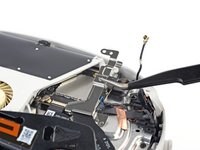
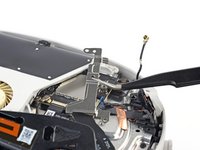
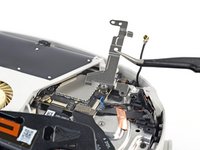
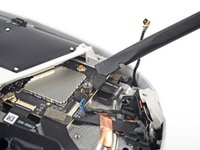
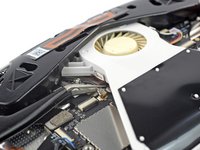
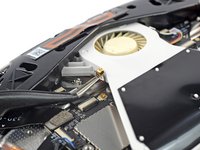
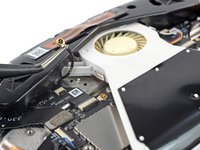
    • Insert one arm of a pair of tweezers under the metal neck of the black antenna cable near the fan assembly.

    • Lift the antenna connector straight up to disconnect it.

    • Guide the antenna cable out of its metal clip holding it in place.

  28. Meta Quest 2 Lower Cameras Replacement, Loosen the front antenna assembly: step 28, image 1 of 2 Meta Quest 2 Lower Cameras Replacement, Loosen the front antenna assembly: step 28, image 2 of 2
    • Use a Phillips screwdriver to remove the eight screws securing the antenna assembly to the headset:

    • Four 4.4 mm‑long screws

    • Two 4.8 mm‑long screws

    • Two 10.7 mm‑long screws

  29. Meta Quest 2 Lower Cameras Replacement: step 29, image 1 of 2 Meta Quest 2 Lower Cameras Replacement: step 29, image 2 of 2
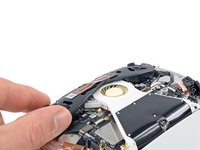
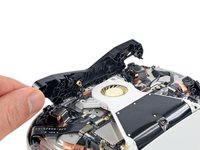
    • Use your fingers to flip up the antenna assembly enough to access the cable underneath it.

  30. Meta Quest 2 Lower Cameras Replacement: step 30, image 1 of 2 Meta Quest 2 Lower Cameras Replacement: step 30, image 2 of 2
    • Use tweezers to unclip the antenna cable from its metal clip.

  31. Meta Quest 2 Lower Cameras Replacement, Remove the front antenna assembly: step 31, image 1 of 1
    • Remove the front antenna assembly.

  32. Meta Quest 2 Lower Cameras Replacement, Disconnect the lower camera: step 32, image 1 of 2 Meta Quest 2 Lower Cameras Replacement, Disconnect the lower camera: step 32, image 2 of 2
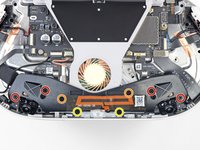
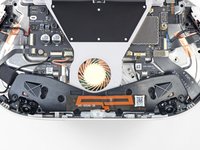
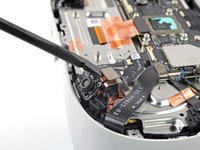
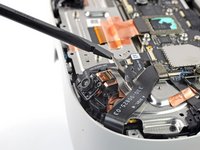
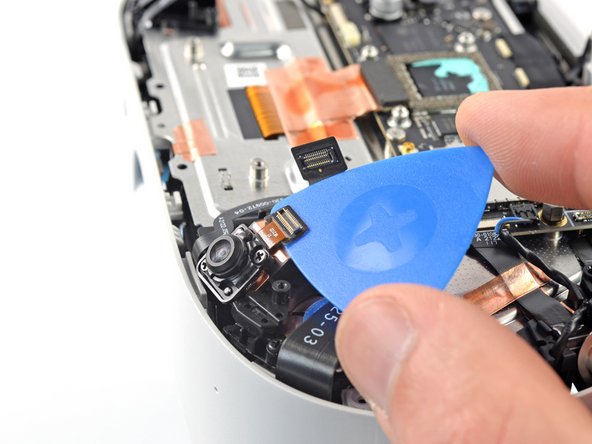
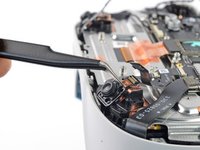
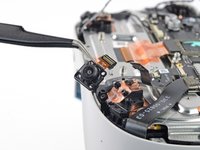
    • Use a spudger to pry up and disconnect the lower camera connector.

  33. Meta Quest 2 Lower Cameras Replacement, Loosen the lower camera: step 33, image 1 of 2 Meta Quest 2 Lower Cameras Replacement, Loosen the lower camera: step 33, image 2 of 2
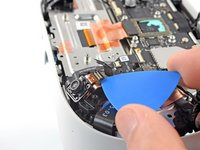
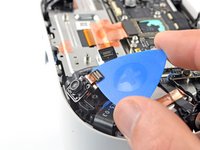
    • Slide an opening pick under the camera cable to loosen it from the headset.

  34. Meta Quest 2 Lower Cameras Replacement: step 34, image 1 of 1
    • Use a Phillips screwdriver to remove the two 3.5 mm‑long screws securing the camera.

  35. Meta Quest 2 Lower Cameras Replacement, Remove the camera: step 35, image 1 of 2 Meta Quest 2 Lower Cameras Replacement, Remove the camera: step 35, image 2 of 2
    Tool used on this step:
    iFixit Thermal Putty
    $9.95
    Buy
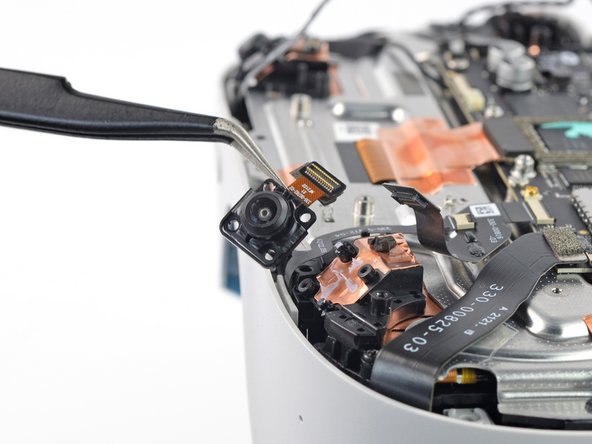
    • Lift and remove the lower camera.

    • You can reuse the thermal paste if you keep it clean. Otherwise, use a spudger to scrape off the old paste and apply a small amount of thermal putty or viscous thermal compound (such as K5 Pro) to the back of the camera.

Conclusion

To reassemble your device, follow these instructions in reverse order.

Take your e-waste to an R2 or e-Stewards certified recycler.

Repair didn’t go as planned? Try some basic troubleshooting, or ask our Answers community for help.

2 other people completed this guide.

Arthur Shi

Member since: 01/03/18

307,464 Reputation

692 Guides authored

Team

iFixit Member of iFixit

Staff

122 Members

23,347 Guides authored

0 Guide Comments

Add Comment

View Statistics:

Past 24 Hours: 2

Past 7 Days: 24

Past 30 Days: 93

All Time: 2,494