Free Shipping on Domestic Orders $75+

Lenovo ThinkPad T480s SSD Replacement

Views: 5.4K

View statistics:

Past 24 Hours:
5
Past 7 Days:
38
Past 30 Days:
159
All Time:
5,386
Comments: 4

1 comment on steps, 3 guide comments.

Go to guide comments
Completed: 1

1 person has marked this guide "completed." Will you be next?

Favorites: 0

No one has favorited (and subscribed to) this guide. Will you be the first?

Time Required: 10 - 20 minutes
Difficulty: Moderate
Lenovo ThinkPad T480s SSD Replacement

Introduction

Go to step 1 ↓

Use this guide to replace the SSD in your Lenovo ThinkPad T480s laptop.

An SSD (short for “solid-state drive”) is a storage component in a computer. SSDs use flash memory, as opposed to the spinning disks and moveable parts used in an HDD (hard disk drive). As a result, SSDs are much quieter and operate more quickly than HDDs. Signs your SSD may be faulty include corrupted data, read-only errors, frequent crashes, or blue screen of death.

If you are able to recover any data saved to your SSD, be sure to back up your files before beginning this guide. Also, make sure to disable the internal battery, power down your device, and disconnect from any external power sources before you begin.


What you need

Fix Kit

This kit contains all the parts and tools needed to complete this guide.

Parts

Tools

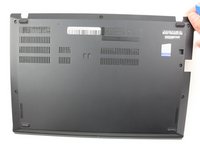
    1. Lenovo ThinkPad T480s SSD Replacement, Bottom Cover: step 1, image 1 of 2 Lenovo ThinkPad T480s SSD Replacement, Bottom Cover: step 1, image 2 of 2
      • Disable the battery, power down the device, and unplug the power adapter from your device before proceeding/beginning the guide.

      • Loosen the six captive screws with a Phillips #1 screwdriver.

      Ask FixBot

      Add Comment

    2. Lenovo ThinkPad T480s SSD Replacement: step 2, image 1 of 3 Lenovo ThinkPad T480s SSD Replacement: step 2, image 2 of 3 Lenovo ThinkPad T480s SSD Replacement: step 2, image 3 of 3
      • Remove the bottom cover with an opening tool.

      • Start from the top edge near the hinge and work your way along the edge until all of the clips are unsnapped.

      Ask FixBot

      Add Comment

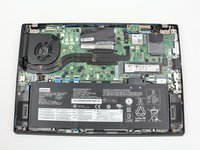
    3. Lenovo ThinkPad T480s SSD Replacement: step 3, image 1 of 2 Lenovo ThinkPad T480s SSD Replacement: step 3, image 2 of 2
      • Lift the bottom cover off.

      Ask FixBot

      Add Comment

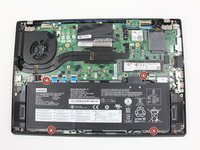
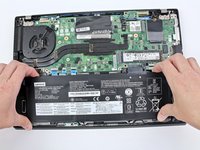
    1. Lenovo ThinkPad T480s SSD Replacement, Battery: step 4, image 1 of 2 Lenovo ThinkPad T480s SSD Replacement, Battery: step 4, image 2 of 2
      • Use the Phillips #1 screwdriver to remove four 4.5mm screws that hold the battery down to the mid frame.

      Ask FixBot

      Add Comment

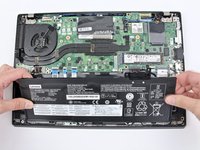
    2. Lenovo ThinkPad T480s SSD Replacement: step 5, image 1 of 3 Lenovo ThinkPad T480s SSD Replacement: step 5, image 2 of 3 Lenovo ThinkPad T480s SSD Replacement: step 5, image 3 of 3
      • Lift the battery near the connector and remove it from the system.

      Ask FixBot

      Add Comment

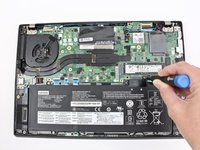
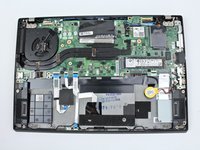
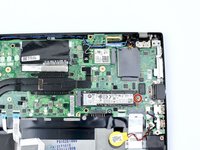
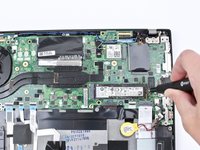
    1. Lenovo ThinkPad T480s SSD Replacement, SSD: step 6, image 1 of 2 Lenovo ThinkPad T480s SSD Replacement, SSD: step 6, image 2 of 2
      • Use the Phillips #1 screwdriver to remove one 2.8 mm screw securing the SSD.

      Ask FixBot

      Add Comment

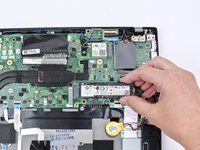
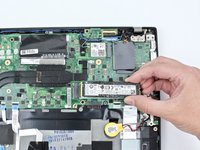
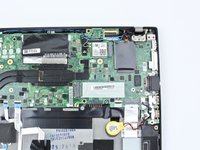
    2. Lenovo ThinkPad T480s SSD Replacement: step 7, image 1 of 3 Lenovo ThinkPad T480s SSD Replacement: step 7, image 2 of 3 Lenovo ThinkPad T480s SSD Replacement: step 7, image 3 of 3
      • Pull the SSD out of the socket.

      Ask FixBot

      Add Comment

Conclusion

To reassemble your device, follow these instructions in reverse order.

Take your e-waste to an R2 or e-Stewards certified recycler.

Repair didn’t go as planned? Try some basic troubleshooting, or ask our Answers community for help.

Cancel: I did not complete this guide.

One other person completed this guide.

Sarah Westberg

Member since: 03/11/19

43,334 Reputation

72 Guides authored

Team

iFixit Member of iFixit

Staff

121 Members

72,892 Guides authored

3 Guide Comments

Is there a need to remove the battery?

Sanjay - Reply Share

Hi Sanjay, we just want to make sure that there is no power to the system and the step to remove the battery is included as a precaution. Typically, you could detach the connector from the motherboard without removing the battery, and that would be sufficient. This connector is integrated into the battery case so we recommend battery removal. Thanks!

Sarah Westberg - Reply Share

For ThinkPads, you can also disable the built-in battery in the BIOS settings before opening up the laptop. (You can always check if this is working by trying to turn on the laptop afterwards.) The internal battery stays off until you plug in the laptop with its wall charger again. This is shown in this video of the T480s (timestamped), before opening up the laptop.

Tai Lam - Reply Share

Add Comment

View Statistics:

Past 24 Hours: 5

Past 7 Days: 38

Past 30 Days: 159

All Time: 5,386