Free Shipping on Domestic Orders $75+

HP EliteBook 840 G7 Memory Module Replacement

Views: 2.5K

View statistics:

Past 24 Hours:
3
Past 7 Days:
39
Past 30 Days:
165
All Time:
2,462
Comments: 0

No one has left comments on this guide. Will you be first?

Go to guide comments
Completed: 0

No one has marked this guide "completed." Will you be the first?

Favorites: 0

No one has favorited (and subscribed to) this guide. Will you be the first?

Time Required: 15 - 20 minutes
Difficulty: Moderate
OEM Guide

iFixit collaborated with the manufacturer to make this guide.

HP EliteBook 840 G7 Memory Module Replacement

Introduction

Go to step 1 ↓

Use this guide to replace or upgrade the memory modules (aka RAM) in your HP EliteBook 840 G7 laptop.

This laptop has two slots that support DDR4 SO‑DIMM memory modules.

Still under warranty? Contact HP to learn your warranty status, receive a repair under warranty if eligible, or for further warranty information.

What you need

Tools

  • Phillips #1 Screwdriver
    5
  • Spudger
    4.9
    1. HP EliteBook 840 G7 Memory Module Replacement, Before you begin: step 1, image 1 of 2 HP EliteBook 840 G7 Memory Module Replacement, Before you begin: step 1, image 2 of 2
      • Before starting your repair, allow your laptop's battery to drain below 25%—a charged lithium-ion battery is a potential safety hazard if accidentally damaged.

      • Save your work, fully shut down your laptop, and unplug all cables.

      Ask FixBot

      Add Comment

    1. HP EliteBook 840 G7 Memory Module Replacement, Unfasten the bottom cover: step 2, image 1 of 2 HP EliteBook 840 G7 Memory Module Replacement, Unfasten the bottom cover: step 2, image 2 of 2
      • Despite the standards, Phillips screwdrivers can vary in size and shape—two drivers labeled as the same size may fit differently in the same screw. Use the size that fits the most snug into the screw head to avoid stripping it.

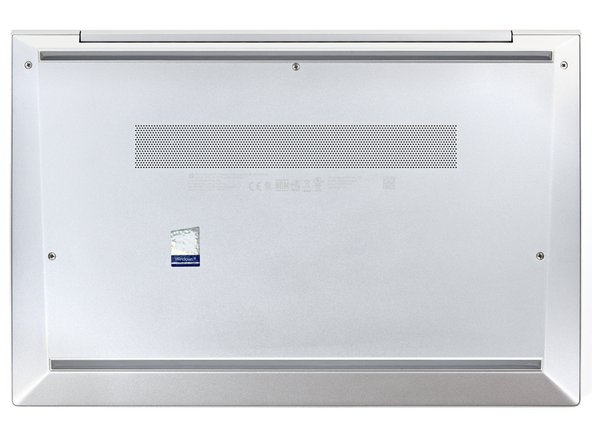
      • Use a Phillips screwdriver to fully loosen (but not remove) the five captive screws securing the bottom cover.

      Ask FixBot

      Add Comment

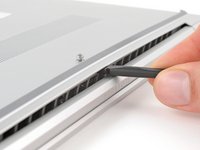
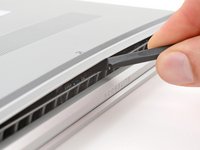
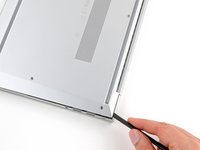
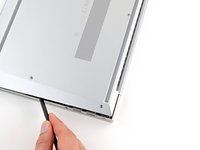
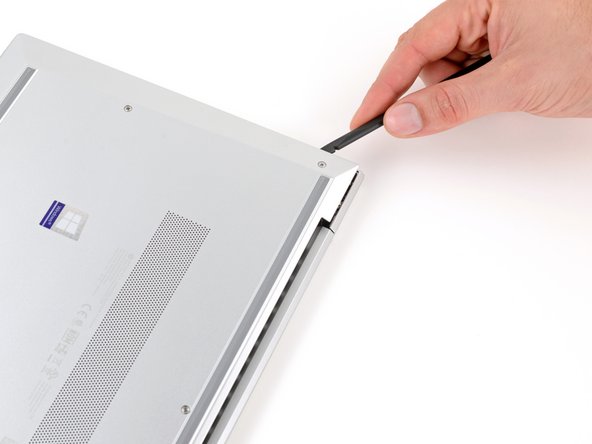
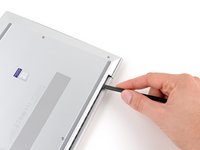
    2. HP EliteBook 840 G7 Memory Module Replacement, Release the bottom cover clips: step 3, image 1 of 3 HP EliteBook 840 G7 Memory Module Replacement, Release the bottom cover clips: step 3, image 2 of 3 HP EliteBook 840 G7 Memory Module Replacement, Release the bottom cover clips: step 3, image 3 of 3
      • Position your laptop so the rear edge (with the screen hinge) is closest to you.

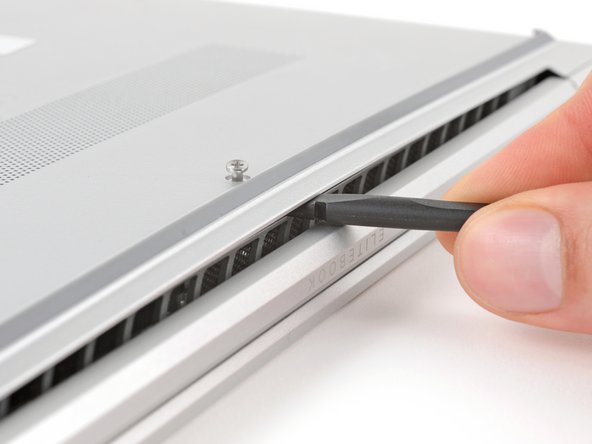
      • Insert the flat end of a spudger between the rear edge of the bottom cover and the frame, near the middle screw and ELITEBOOK text.

      • If you're having trouble inserting your spudger, make sure the screw is fully loosened. If necessary, use your fingers to gently pull the screw up.

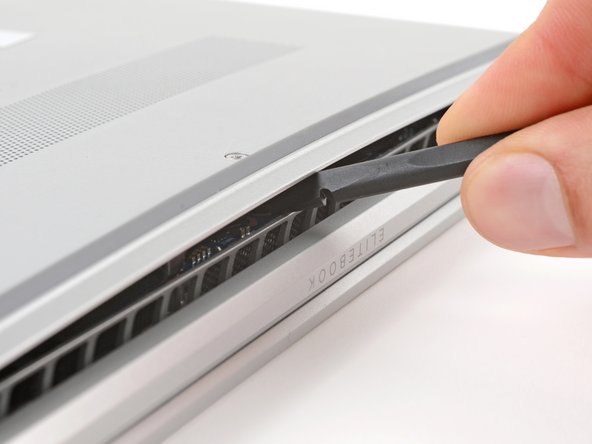
      • Use your spudger to pry up the cover to release the clip securing it.

      • Leave the spudger inserted under the bottom cover for the next step.

      Ask FixBot

      Add Comment

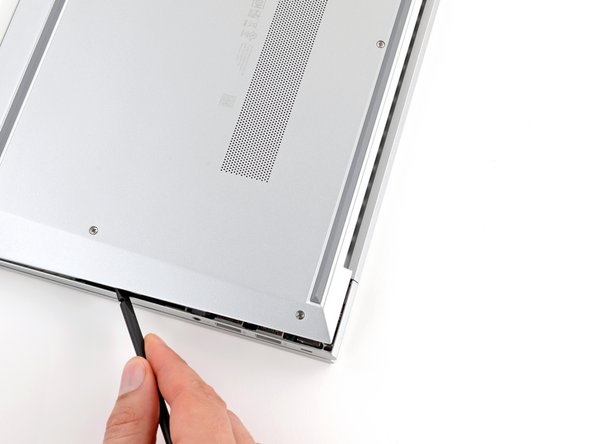
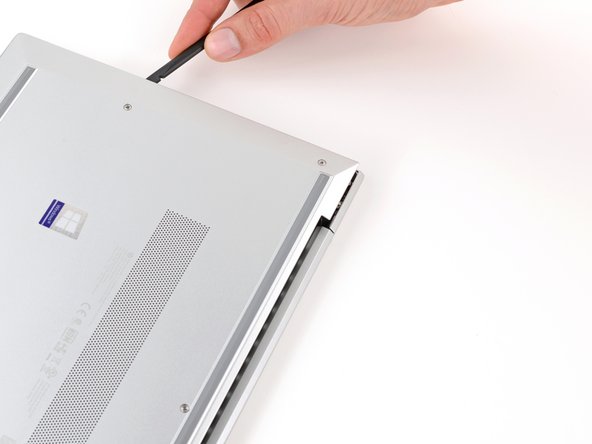
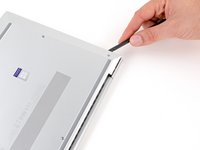
    3. HP EliteBook 840 G7 Memory Module Replacement: step 4, image 1 of 3 HP EliteBook 840 G7 Memory Module Replacement: step 4, image 2 of 3 HP EliteBook 840 G7 Memory Module Replacement: step 4, image 3 of 3
      • Slide your spudger along the rear edge toward one of the corners to release the rear edge clips.

      • Rotate your spudger around the corner and up the edge to release the clips securing the short edge of the cover.

      Ask FixBot

      Add Comment

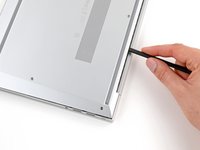
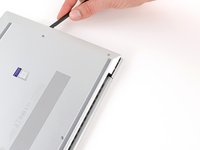
    4. HP EliteBook 840 G7 Memory Module Replacement: step 5, image 1 of 3 HP EliteBook 840 G7 Memory Module Replacement: step 5, image 2 of 3 HP EliteBook 840 G7 Memory Module Replacement: step 5, image 3 of 3
      • Reinsert the flat end of a spudger near the ELITEBOOK text.

      • Repeat the previous step for the other side of the cover to release the remaining clips.

      Ask FixBot

      Add Comment

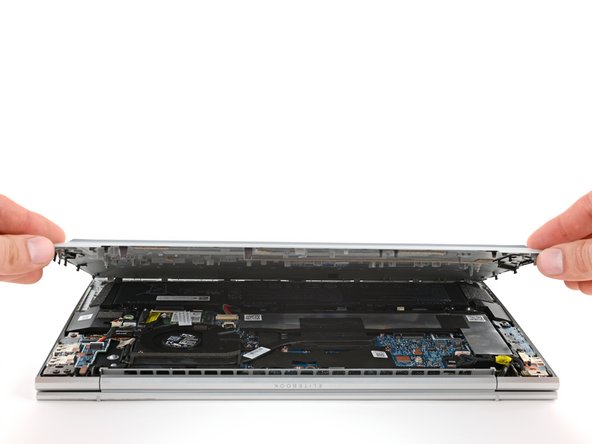
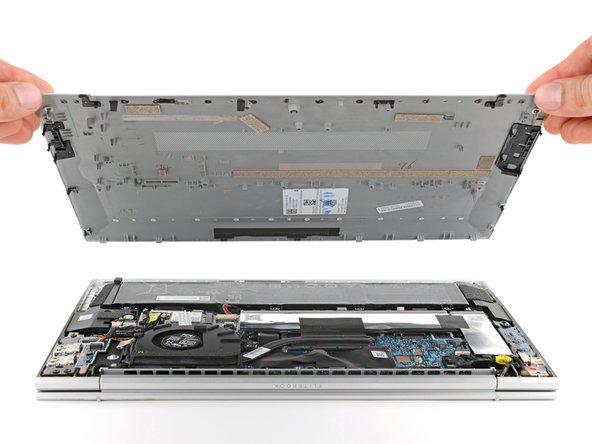
    5. HP EliteBook 840 G7 Memory Module Replacement, Remove the bottom cover: step 6, image 1 of 3 HP EliteBook 840 G7 Memory Module Replacement, Remove the bottom cover: step 6, image 2 of 3 HP EliteBook 840 G7 Memory Module Replacement, Remove the bottom cover: step 6, image 3 of 3
      • Lift and remove the bottom cover.

      • The cover should lift away easily. If you feel resistance, use the flat end of a spudger to release any remaining clips, and check that all screws are fully loosened.

      • During reassembly, slide the clips along the front edge of the cover (opposite the hinge) into their slots on the frame, then lay the cover down. Press firmly around the perimeter to engage all of the clips.

      Ask FixBot

      Add Comment

    1. HP EliteBook 840 G7 Memory Module Replacement, Disconnect the battery: step 7, image 1 of 3 HP EliteBook 840 G7 Memory Module Replacement, Disconnect the battery: step 7, image 2 of 3 HP EliteBook 840 G7 Memory Module Replacement, Disconnect the battery: step 7, image 3 of 3
      • Position your laptop so the front edge (opposite the screen hinges) is closest to you.

      • Use the point of a spudger or your fingernail to push on alternating sides of the battery's sliding connector to walk it completely out of its socket.

      Ask FixBot

      Add Comment

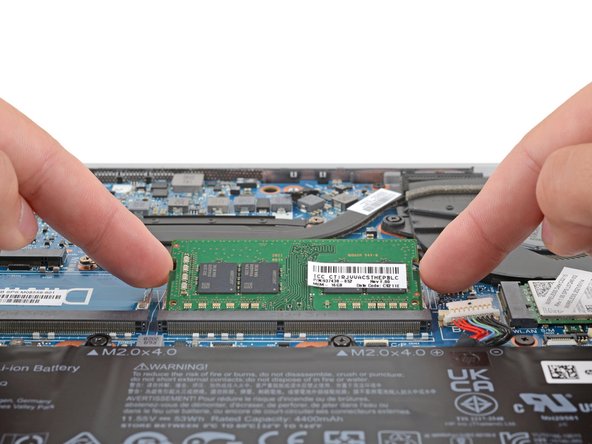
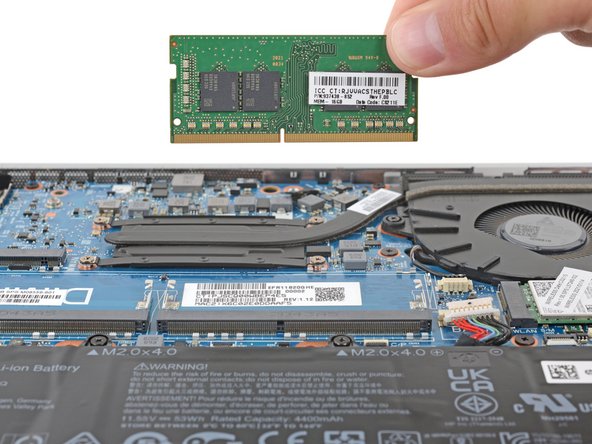
    1. HP EliteBook 840 G7 Memory Module Replacement, Remove the memory module: step 8, image 1 of 3 HP EliteBook 840 G7 Memory Module Replacement, Remove the memory module: step 8, image 2 of 3 HP EliteBook 840 G7 Memory Module Replacement, Remove the memory module: step 8, image 3 of 3
      • Depending on your laptop configuration, you may need to remove a metal shield or plastic cover to access the memory modules.

      • Your laptop has two memory slots, each with a pair of metal arms that secure a memory module. This laptop supports DDR4 SODIMM modules.

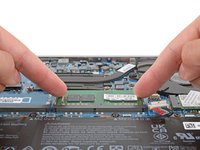
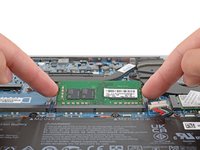
      • Simultaneously push out the metal arms on each side of the memory module until they disengage and the module pops up at a slight angle.

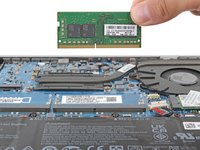
      • Pull the module out of its socket to remove it.

      • Use the same process to remove the other memory module.

      • To install a memory module, insert it into its socket at a slight downward angle, then push down firmly until both metal arms lock it in place.

      • If only installing one module, insert it into the slot labeled DIMM 1.

      Ask FixBot

      Add Comment

Conclusion

To reassemble your device, follow these instructions in reverse order.

Take your e-waste to an R2 or e-Stewards certified recycler. Depending on your region, used HP devices and parts can be returned for reuse or recycling through the HP Planet Partners program.

Repair didn’t go as planned? Try some basic troubleshooting, or ask our Answers community for help.


Cancel: I did not complete this guide.

Spencer Day

Member since: 09/14/22

207,995 Reputation

1,266 Guides authored

Team

iFixit Member of iFixit

Staff

121 Members

72,931 Guides authored

0 Guide Comments

Add Comment

View Statistics:

Past 24 Hours: 3

Past 7 Days: 39

Past 30 Days: 165

All Time: 2,462