Free Shipping on Domestic Orders $75+

Google Pixel Watch 4 Screen Replacement

What you need

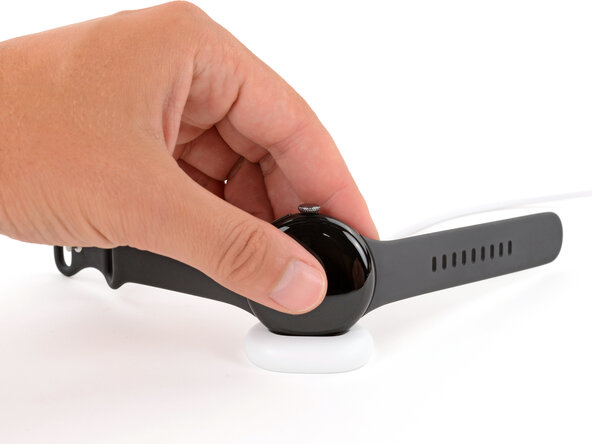
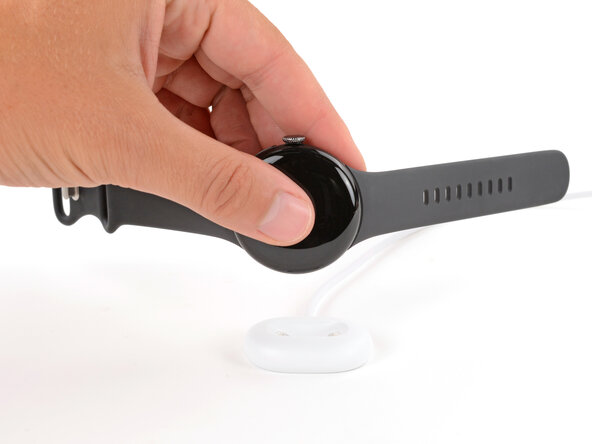
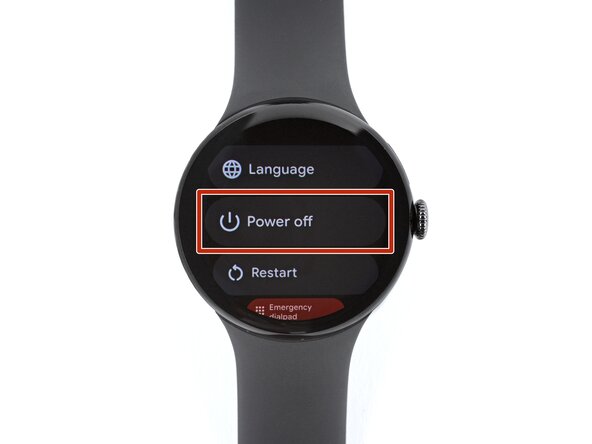
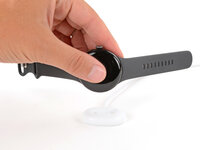
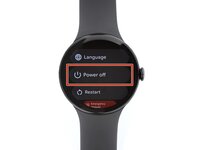
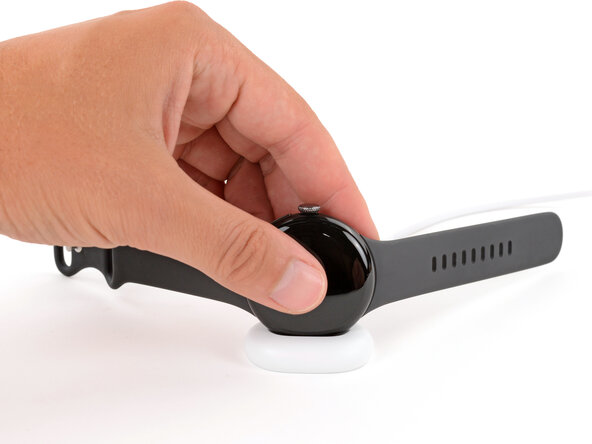
  1. Google Pixel Watch 4 Screen Replacement, Prepare your watch for disassembly: step 1, image 1 of 3 Google Pixel Watch 4 Screen Replacement, Prepare your watch for disassembly: step 1, image 2 of 3 Google Pixel Watch 4 Screen Replacement, Prepare your watch for disassembly: step 1, image 3 of 3
    • Before starting your repair:

    • Remove your watch from the charger.

    • Press and hold the crown button, then tap Power off to shut down your watch.

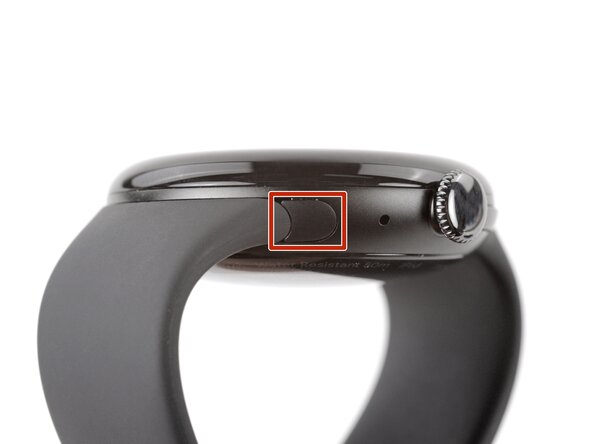
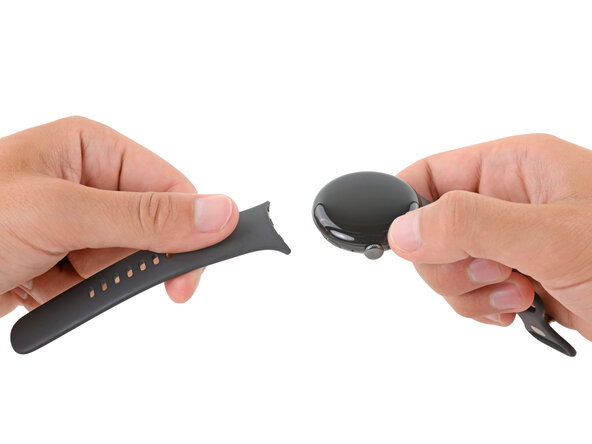
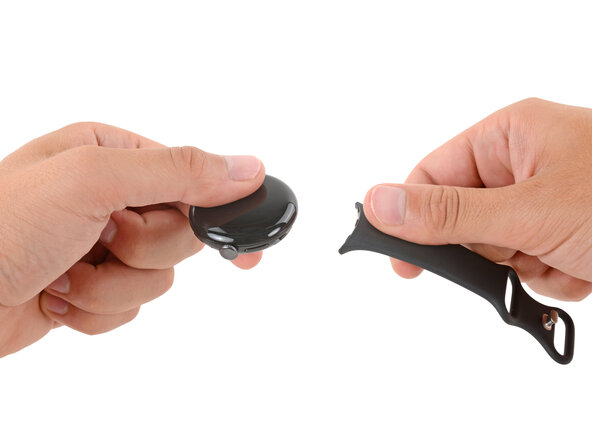
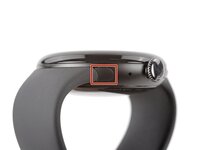
  2. Google Pixel Watch 4 Screen Replacement, Remove the watch bands: step 2, image 1 of 3 Google Pixel Watch 4 Screen Replacement, Remove the watch bands: step 2, image 2 of 3 Google Pixel Watch 4 Screen Replacement, Remove the watch bands: step 2, image 3 of 3
    • Remove each watch band by depressing the release button and sliding the band out of its groove.

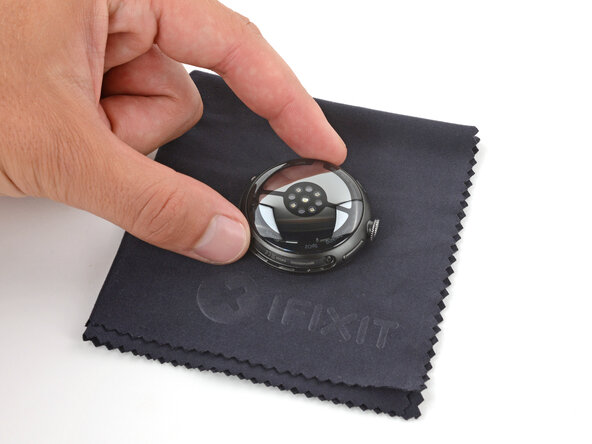
  3. Google Pixel Watch 4 Screen Replacement: step 3, image 1 of 1
    • Throughout the rest of your repair, consider placing your watch on something soft like a clean cloth to help stabilize it and prevent scratches to the front glass.

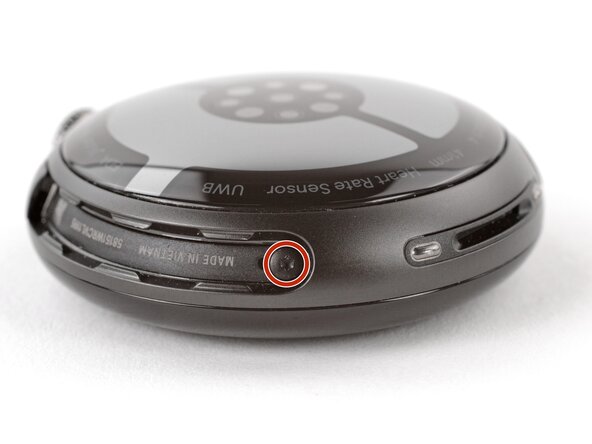
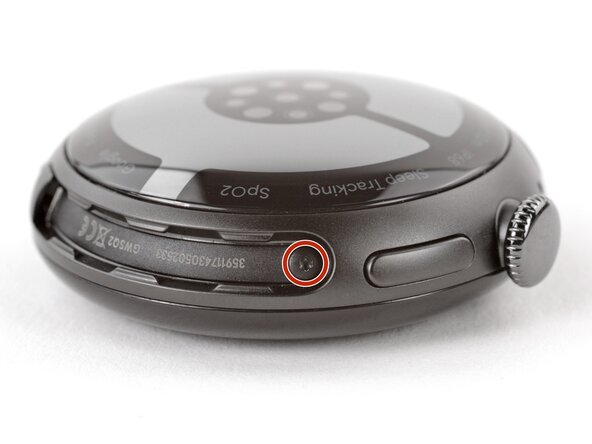
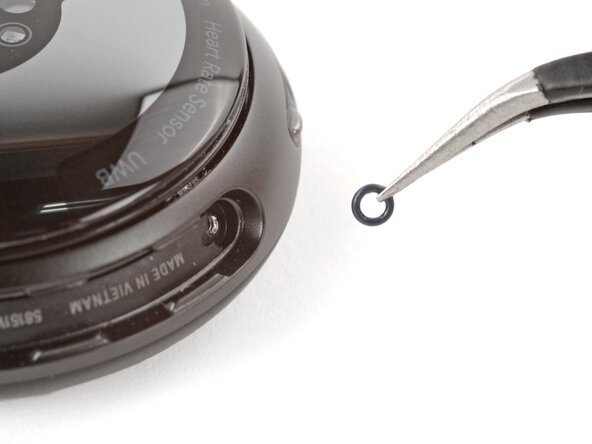
  4. Google Pixel Watch 4 Screen Replacement, Remove the back sensor glass screws: step 4, image 1 of 3 Google Pixel Watch 4 Screen Replacement, Remove the back sensor glass screws: step 4, image 2 of 3 Google Pixel Watch 4 Screen Replacement, Remove the back sensor glass screws: step 4, image 3 of 3
    • Use a Torx Plus 2IP screwdriver to remove the 3.0 mm‑long screw from both watch band grooves (two screws total).

    • Both screws have a tiny O‑ring. If they don't lift away with the screw, use a pair of tweezers to carefully remove them from the band groove and set them aside. These O-rings are required to maintain waterproofing.

    • Handle these O-rings carefully. Avoid pinching or slicing them with your tool.

    • During reassembly:

    • Make sure the O‑rings are on the screws before installing them.

    • Push down firmly on the back glass while installing the screws to make sure the glass gets properly seated.

    • If there's a gap between the back glass and frame, remove the screws and reinstall them.

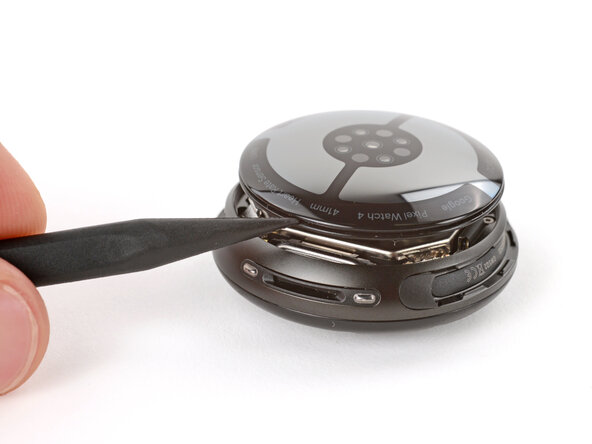
  5. Google Pixel Watch 4 Screen Replacement, Separate the back sensor glass: step 5, image 1 of 2 Google Pixel Watch 4 Screen Replacement, Separate the back sensor glass: step 5, image 2 of 2
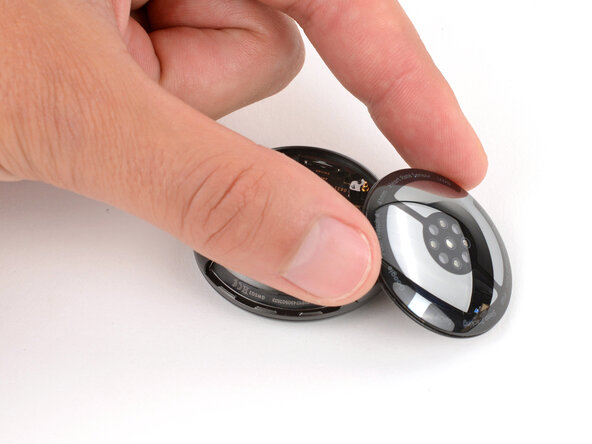
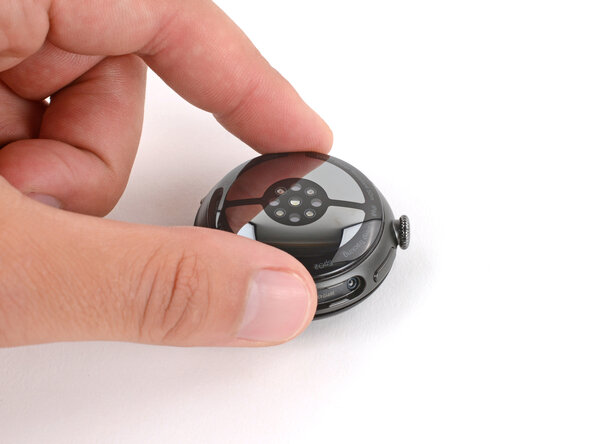
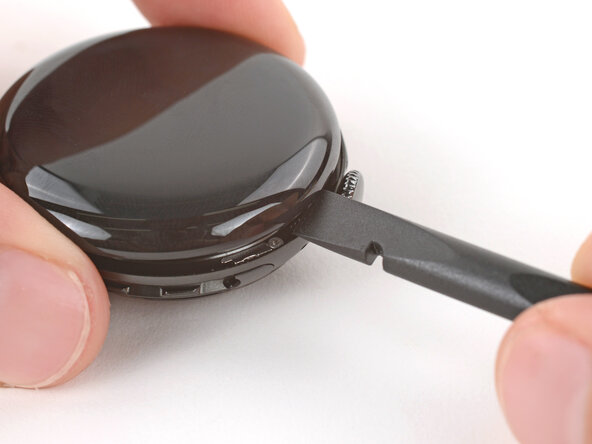
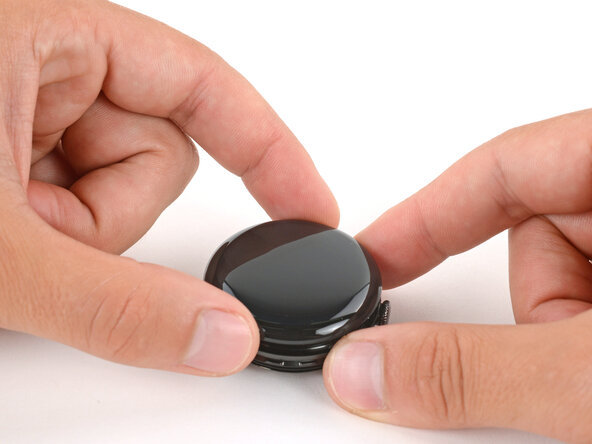
    • Insert the point of a spudger (or a clean fingernail) into the seam between the back sensor glass and frame and pry up until the cover detaches.

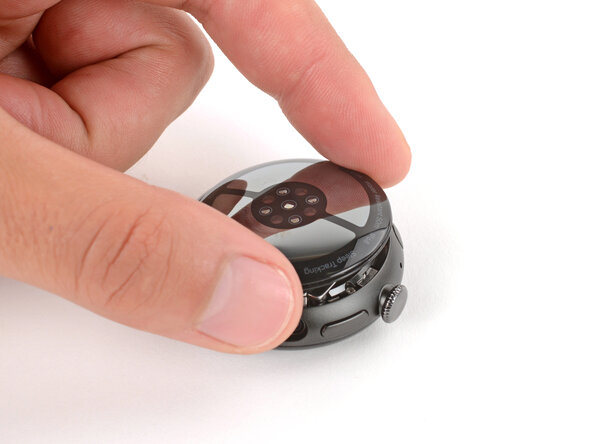
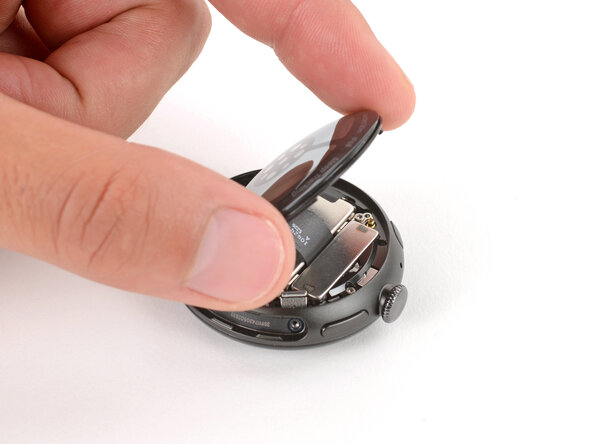
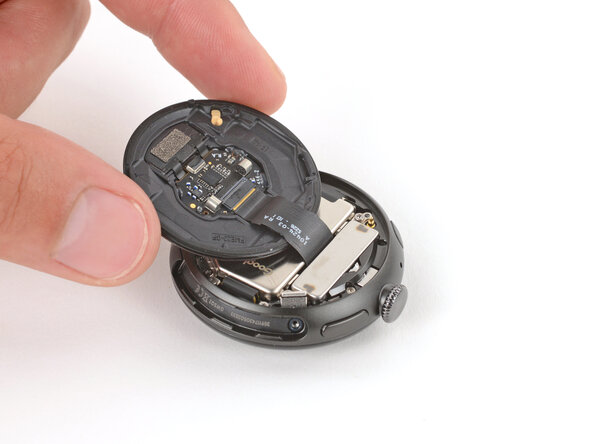
  6. Google Pixel Watch 4 Screen Replacement, Reposition the back sensor glass: step 6, image 1 of 3 Google Pixel Watch 4 Screen Replacement, Reposition the back sensor glass: step 6, image 2 of 3 Google Pixel Watch 4 Screen Replacement, Reposition the back sensor glass: step 6, image 3 of 3
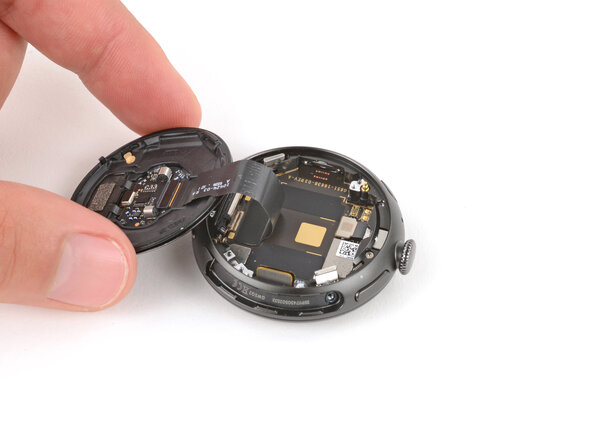
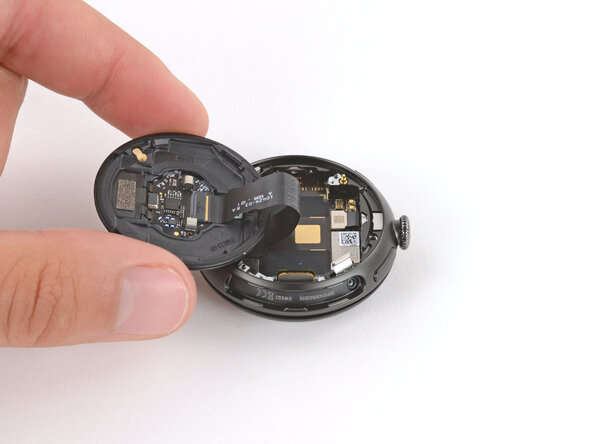
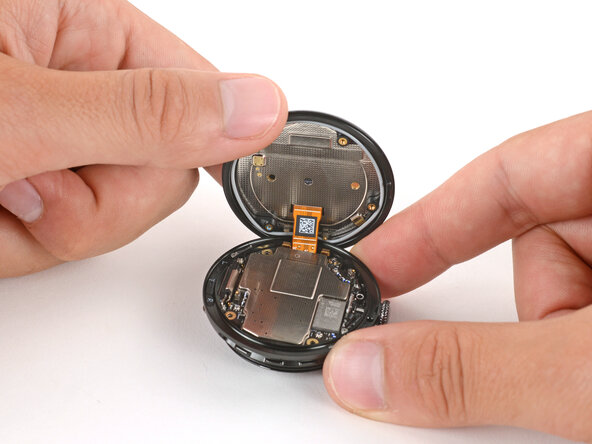
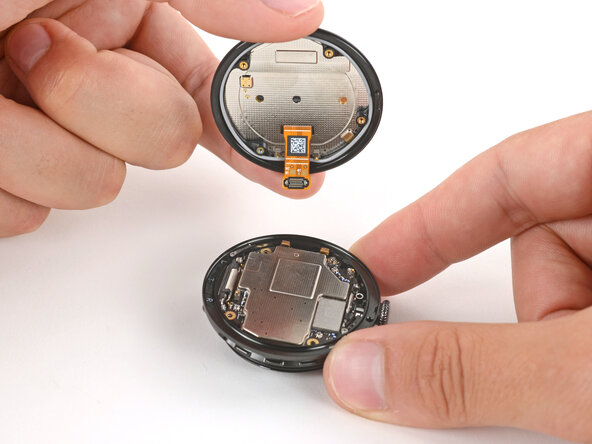
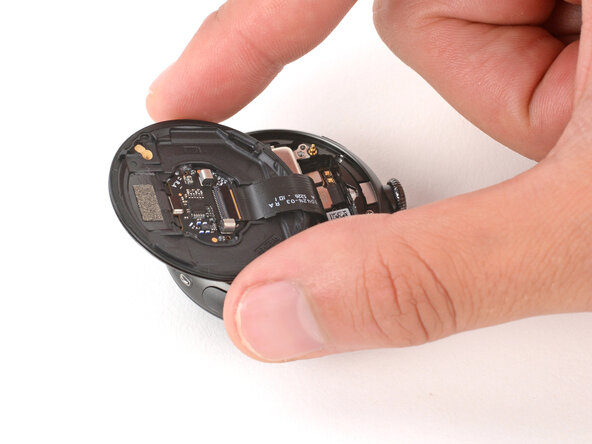
    • Gently lift the back glass and flip it over the side of the watch opposite the crown.

    • Be careful not to strain the cable connecting the back sensor glass.

  7. Google Pixel Watch 4 Screen Replacement, Remove the vibration motor screws: step 7, image 1 of 2 Google Pixel Watch 4 Screen Replacement, Remove the vibration motor screws: step 7, image 2 of 2
    • Optionally, you can disconnect the back glass to give you more room to work—though you can complete the repair just fine with it still connected.

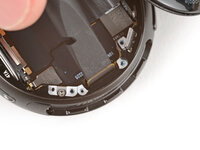
    • Use a Torx Plus 2IP screwdriver to remove the two 2.2 mm‑long screws securing the vibration motor.

  8. Google Pixel Watch 4 Screen Replacement, Remove the vibration motor: step 8, image 1 of 2 Google Pixel Watch 4 Screen Replacement, Remove the vibration motor: step 8, image 2 of 2
  9. Google Pixel Watch 4 Screen Replacement, Reposition the back sensor glass: step 9, image 1 of 3 Google Pixel Watch 4 Screen Replacement, Reposition the back sensor glass: step 9, image 2 of 3 Google Pixel Watch 4 Screen Replacement, Reposition the back sensor glass: step 9, image 3 of 3
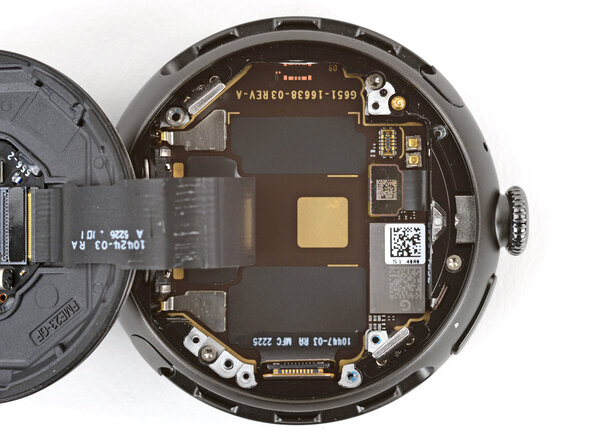
    • Gently flip the back sensor glass over the crown-side of the watch.

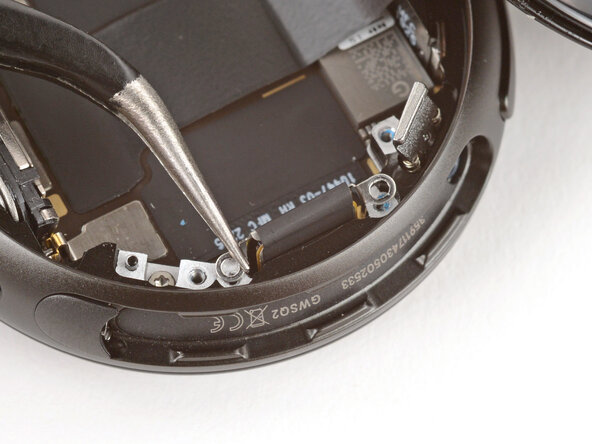
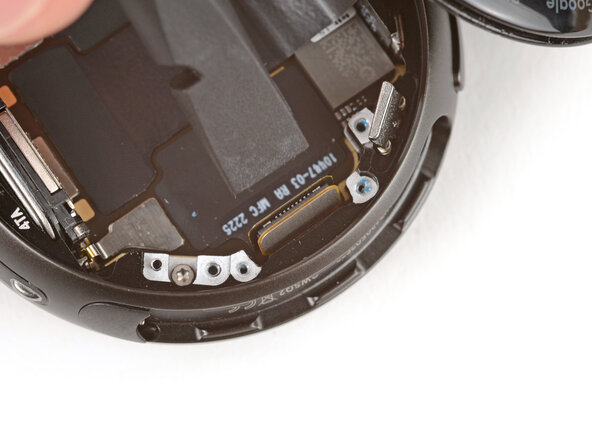
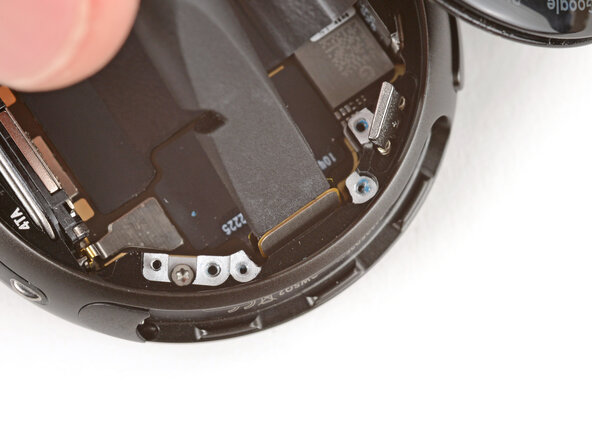
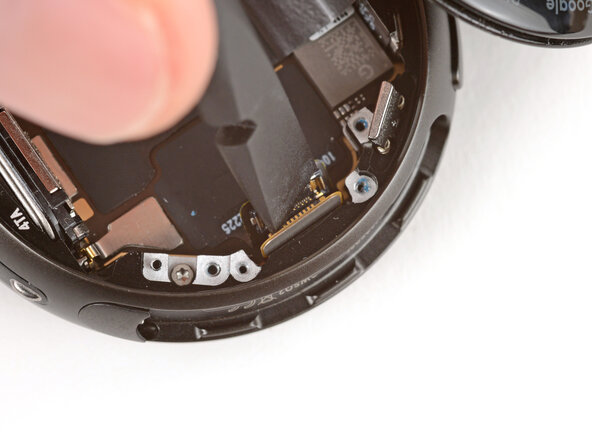
  10. Google Pixel Watch 4 Screen Replacement, Disconnect the battery: step 10, image 1 of 2 Google Pixel Watch 4 Screen Replacement, Disconnect the battery: step 10, image 2 of 2
    • Use the point of a spudger to pry up and disconnect the battery press connector.

    • During reassembly, use the point of a spudger to press down and reconnect the press connector.

    • This can be tricky, and may take a few tries.

    • If you're having trouble, loosen the two battery screws and reposition the connector. Once connected, re-tighten the battery screws.

  11. Google Pixel Watch 4 Screen Replacement, Remove the battery screws: step 11, image 1 of 2 Google Pixel Watch 4 Screen Replacement, Remove the battery screws: step 11, image 2 of 2
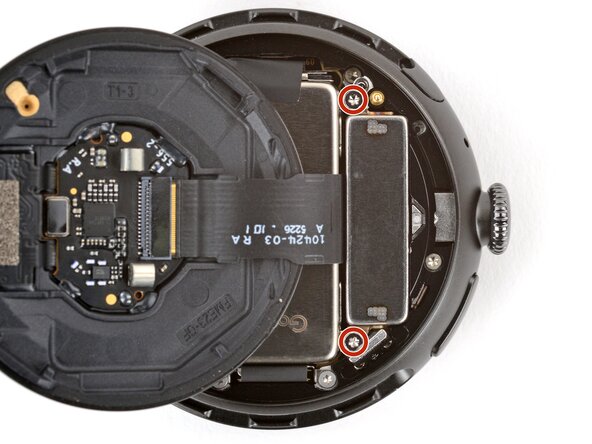
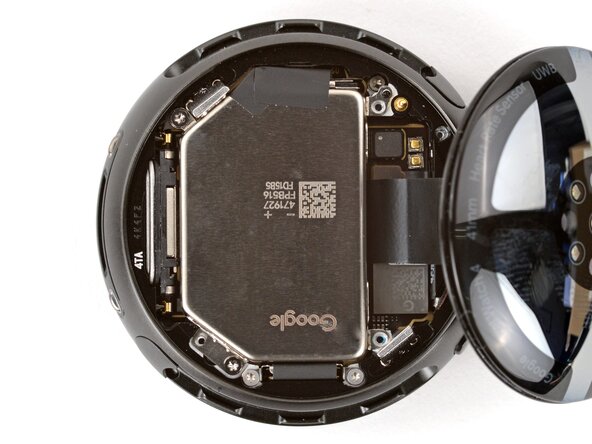
    • Use a Torx Plus 2IP screwdriver to remove the two 2.2 mm‑long screws securing the battery.

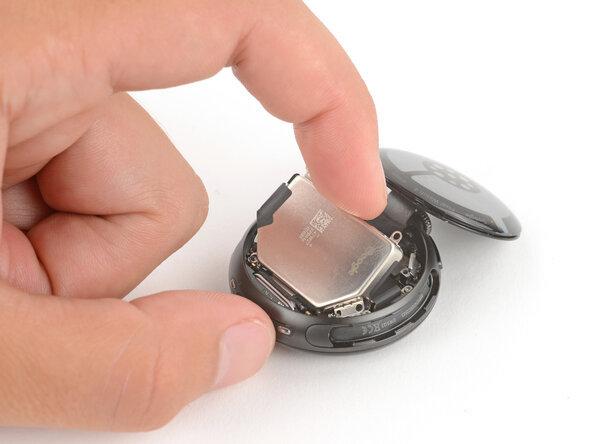
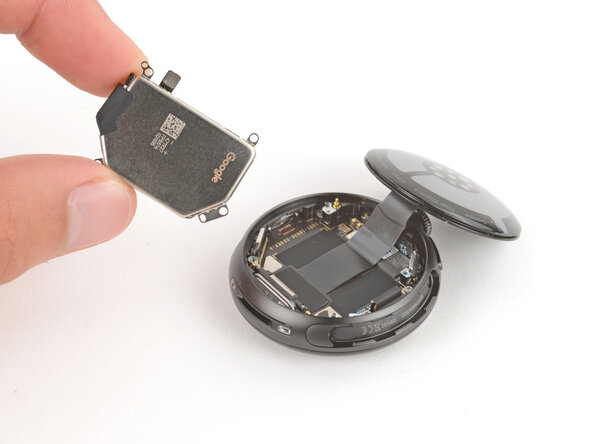
  12. Google Pixel Watch 4 Screen Replacement, Remove the battery: step 12, image 1 of 3 Google Pixel Watch 4 Screen Replacement, Remove the battery: step 12, image 2 of 3 Google Pixel Watch 4 Screen Replacement, Remove the battery: step 12, image 3 of 3
    • Remove the battery.

  13. Google Pixel Watch 4 Screen Replacement, Remove the screen cable bracket screws: step 13, image 1 of 2 Google Pixel Watch 4 Screen Replacement, Remove the screen cable bracket screws: step 13, image 2 of 2
    • Use a Torx Plus 1IP screwdriver to remove the two 2.0 mm‑long screws seucuring the screen cable bracket.

  14. Google Pixel Watch 4 Screen Replacement, Remove the screen cable bracket: step 14, image 1 of 3 Google Pixel Watch 4 Screen Replacement, Remove the screen cable bracket: step 14, image 2 of 3 Google Pixel Watch 4 Screen Replacement, Remove the screen cable bracket: step 14, image 3 of 3
    • Use tweezers to flip the bracket up and slowly peel it off the connector, being careful not to damage the tape.

    • During reassembly, apply the tape to the outer press connector before flipping the bracket over and into place.

  15. Google Pixel Watch 4 Screen Replacement, Disconnect the screen cable: step 15, image 1 of 3 Google Pixel Watch 4 Screen Replacement, Disconnect the screen cable: step 15, image 2 of 3 Google Pixel Watch 4 Screen Replacement, Disconnect the screen cable: step 15, image 3 of 3
    • Insert the flat end of a spudger into the gap in the two screen cable press connectors.

    • Twist the spudger to disconnect the cables.

    • During reassembly, line the press connectors up and pinch them together to connect them.

  16. Google Pixel Watch 4 Screen Replacement, Reposition the back sensor glass: step 16, image 1 of 2 Google Pixel Watch 4 Screen Replacement, Reposition the back sensor glass: step 16, image 2 of 2
    • Gently flip the back glass over the side of the watch opposite the crown.

  17. Google Pixel Watch 4 Screen Replacement, Remove the screen screws: step 17, image 1 of 2 Google Pixel Watch 4 Screen Replacement, Remove the screen screws: step 17, image 2 of 2
    • Remove the four screws securing the display:

    • One 5.1 mm‑long Torx Plus 2IP screw

    • Two 3.3 mm‑long Torx Plus 2IP screws

    • One 4.2 mm‑long Torx Plus 5IP standoff screw

    • During reassembly, push down on the frame while installing the screws to make sure they're threading into their holes on the display.

  18. Google Pixel Watch 4 Screen Replacement, Move the back sensor glass and flip over the watch: step 18, image 1 of 3 Google Pixel Watch 4 Screen Replacement, Move the back sensor glass and flip over the watch: step 18, image 2 of 3 Google Pixel Watch 4 Screen Replacement, Move the back sensor glass and flip over the watch: step 18, image 3 of 3
    • Flip the back sensor glass into place and flip your watch over so the screen faces up.

  19. Google Pixel Watch 4 Screen Replacement, Separate the screen: step 19, image 1 of 2 Google Pixel Watch 4 Screen Replacement, Separate the screen: step 19, image 2 of 2
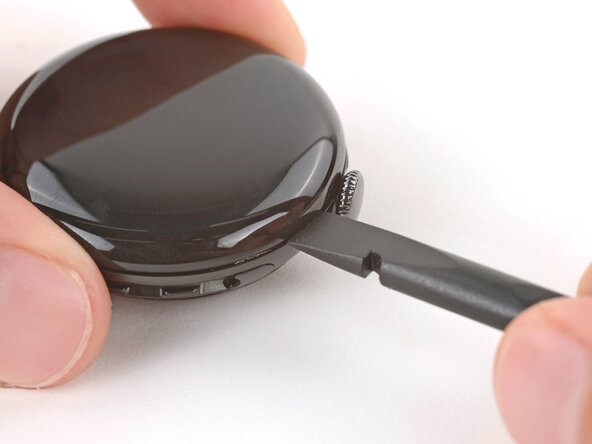
    • Insert the flat end of a spudger in the seam between the screen and frame and twist the spudger to separate the screen.

    • The display seals with an O-ring and might "pop" up once released.

  20. Google Pixel Watch 4 Screen Replacement, Remove the screen: step 20, image 1 of 3 Google Pixel Watch 4 Screen Replacement, Remove the screen: step 20, image 2 of 3 Google Pixel Watch 4 Screen Replacement, Remove the screen: step 20, image 3 of 3
    • Lift the display up and carefully guide the screen cable out of its cutout to remove the screen.

    • During reassembly, feed the screen cable through its cutout until you can grip it with your fingers on the opposite side, then gently pull it through.

  21. Google Pixel Watch 4 Screen Replacement, O-ring installation: step 21, image 1 of 3 Google Pixel Watch 4 Screen Replacement, O-ring installation: step 21, image 2 of 3 Google Pixel Watch 4 Screen Replacement, O-ring installation: step 21, image 3 of 3
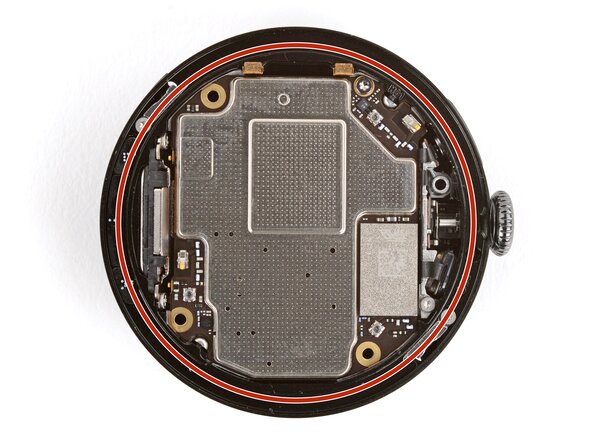
    • If you plan to reuse the existing O-ring, be gentle when handling it—especially with sharp tweezers. Even a small indent may compromise the watch's water and dust resistance.

    • Use a pair of tweezers to remove the screen O‑ring—it will either be stuck to the frame or the underside of the screen.

    • If the O‑ring's groove is dirty or has gunk built up, apply a few drops of high‑concentration (>90%) isopropyl alcohol to a cotton swab and wipe it clean.

    • Avoid applying isopropyl alcohol to the magnetic strip on the side opposite the crown.

    • Place the new O‑ring loosely onto its lip on the frame.

    • Optionally, coat the O-ring in a small amount of O-ring-specific grease during installation.

    • Use your fingers to hold the O-ring in place and use a spudger to slide the opposite side up and over the lip until it seats in its groove.

    • Make sure the entire O‑ring is properly seated in its groove before continuing reassembly.

Conclusion

To reassemble your device, follow these instructions in reverse order.

Once you've completed your repair, your watch may not power back on until connected to power.

Take your e-waste to an R2 or e-Stewards certified recycler.

Repair didn’t go as planned? Try some basic troubleshooting, or ask our Answers community for help.

11 other people completed this guide.

Spencer Day

Member since: 09/14/22

187,058 Reputation

1,187 Guides authored

9 Guide Comments

Any idea when the replacement screens will be available to purchase?

nathan - Reply Share
When will the parts be available?

JR1 - Reply Share

I've reassembled after a screen replacement and the watch wont boot. Is this most likely a battery connector problem?

Adam D - Reply Share

I have the same issue. The watch wont boot after reassembling

Yurii Abramkin - Reply Share
I had the same issue. The Solution was to leave it on the charger for 15-20 Minutes. On the charger it showed the Google-Logo and then 0%, after a few minutes it showed the real 100% again and the watch worked without anny issues.

Andi “DasGorke” - Reply Share

Add Comment

View Statistics:

Past 24 Hours: 83

Past 7 Days: 317

Past 30 Days: 1,390

All Time: 11,401