Introduction
This repair guide was authored by the iFixit staff and hasn’t been endorsed by Google. Learn more about our repair guides here.
Use this guide to replace a dead or worn-out battery in your Google Pixel Watch 4.
Your watch's battery has a limited lifespan. If your watch doesn't hold a charge or dies unexpectedly, it might be time to replace the battery.
This guide was written using a 41 mm LTE model Pixel Watch 4. While some photos may contain slight visual discrepancies, procedures for all 41 mm and 45 mm models are functionally the same.
What you need
-
-
-
Before starting your repair:
-
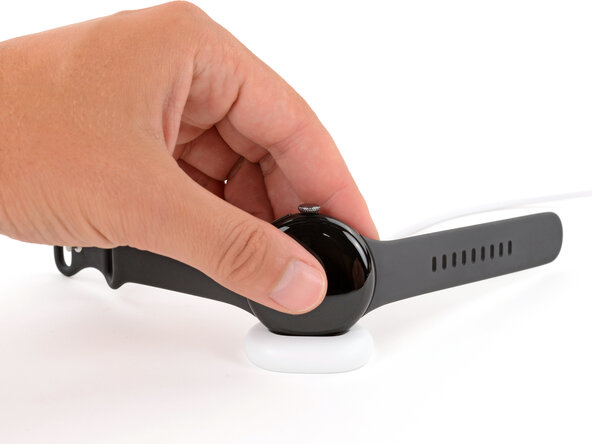
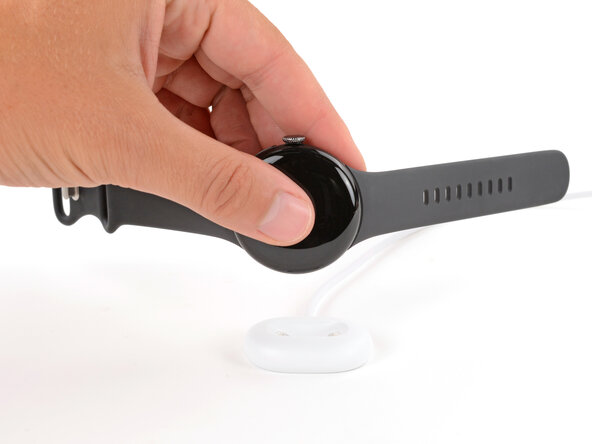
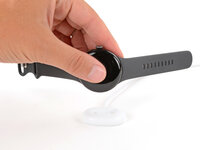
Remove your watch from the charger.
-
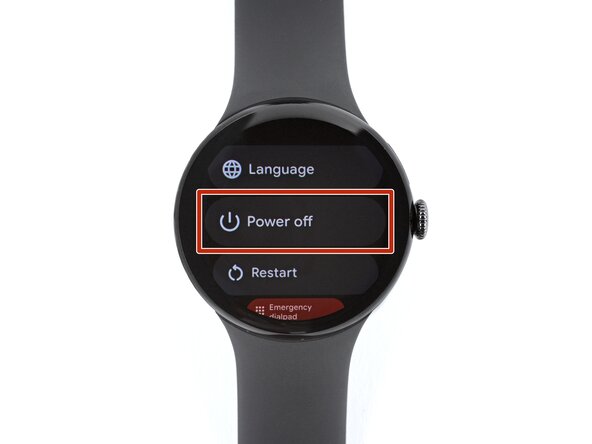
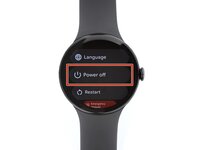
Press and hold the crown button, then tap Power off to shut down your watch.
 Ask FixBot
-
-
-
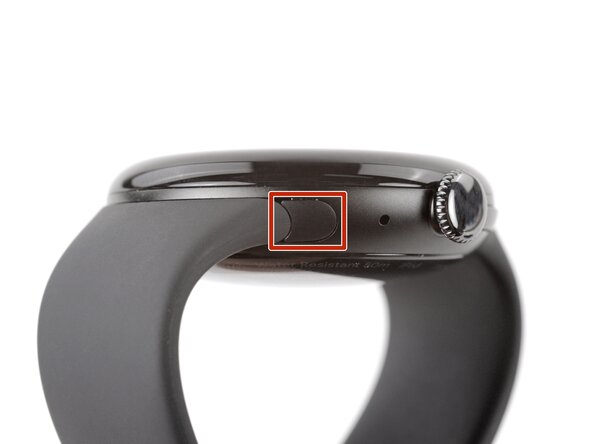
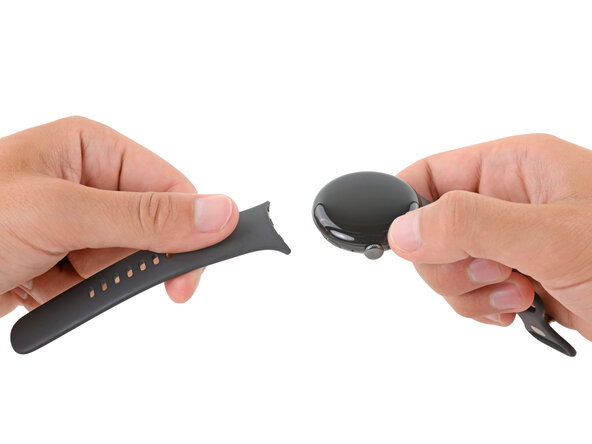
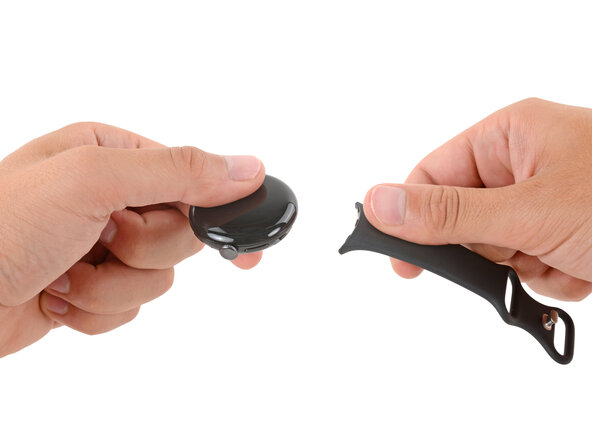
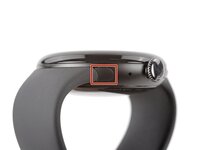
Remove each watch band by depressing the release button and sliding the band out of its groove.
-
-
-
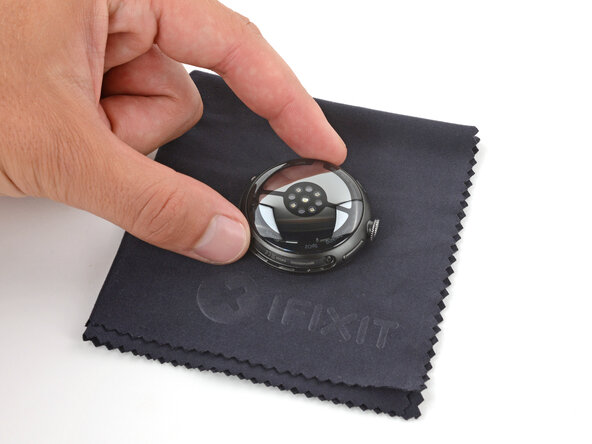
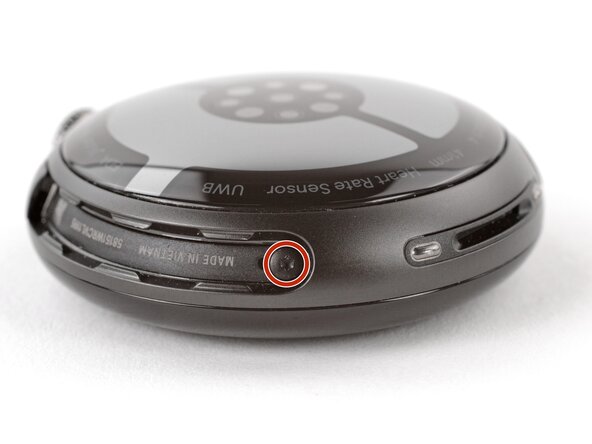
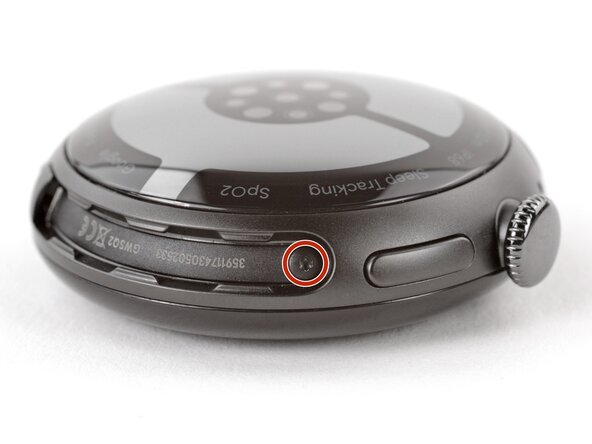
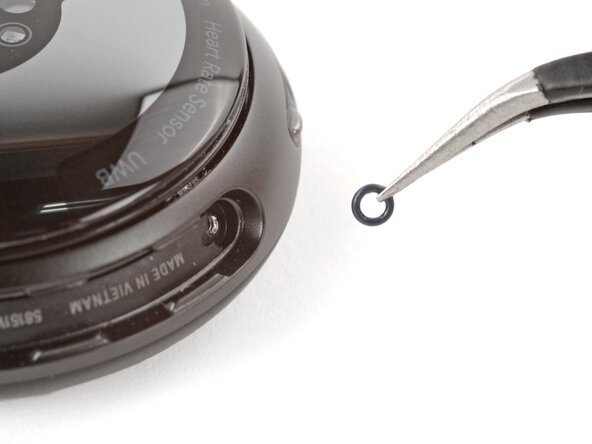
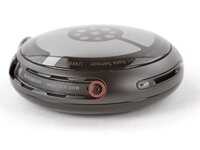
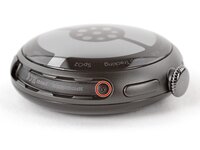
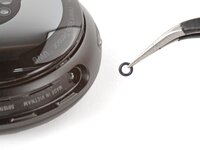
Use a Torx Plus 2IP screwdriver to remove the 3.0 mm‑long screw from both watch band grooves (two screws total).
-
Make sure the O‑rings are on the screws before installing them.
-
Push down firmly on the back glass while installing the screws to make sure the glass gets properly seated.
-
-
-
-
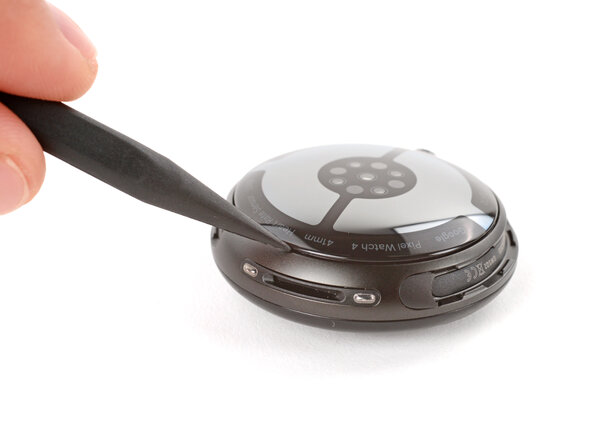
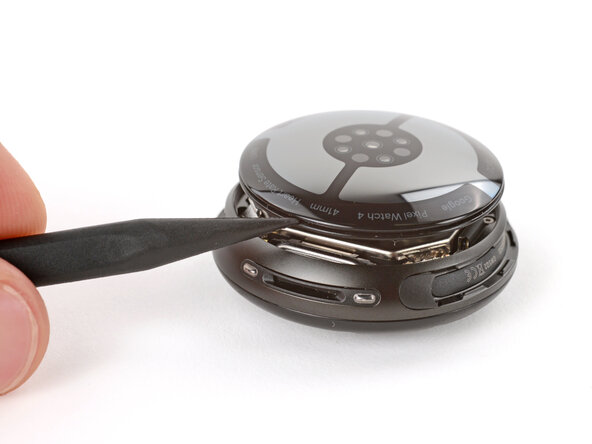
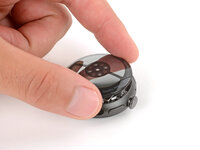
Insert the point of a spudger (or a clean fingernail) into the seam between the back sensor glass and frame and pry up until the cover detaches.
-
-
-
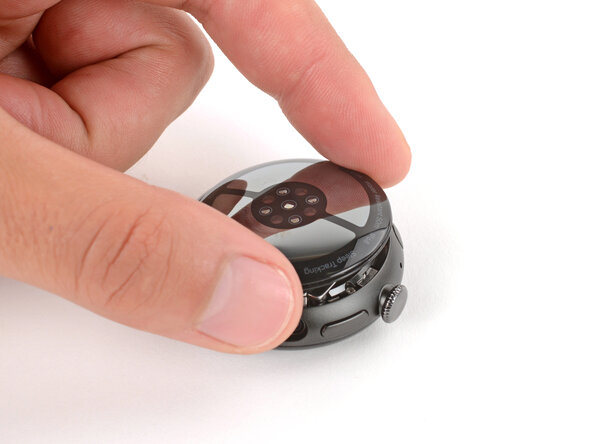
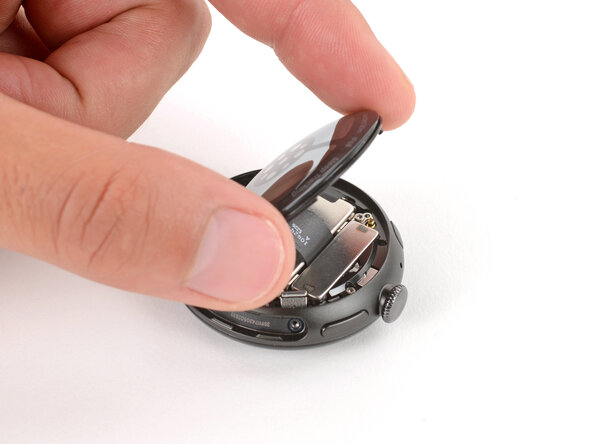
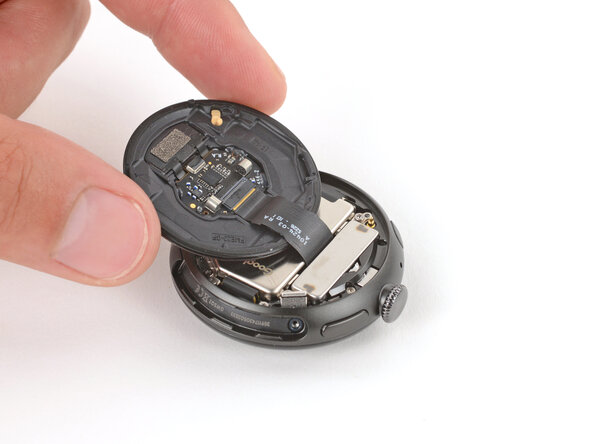
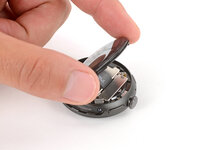
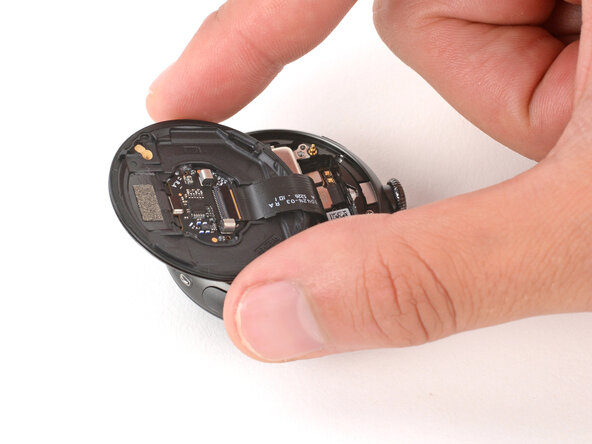
Gently lift the back glass and flip it over the side of the watch opposite the crown.
-
-
-
-
-
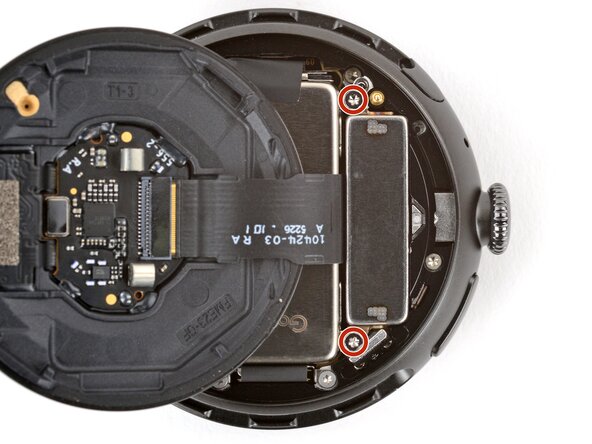
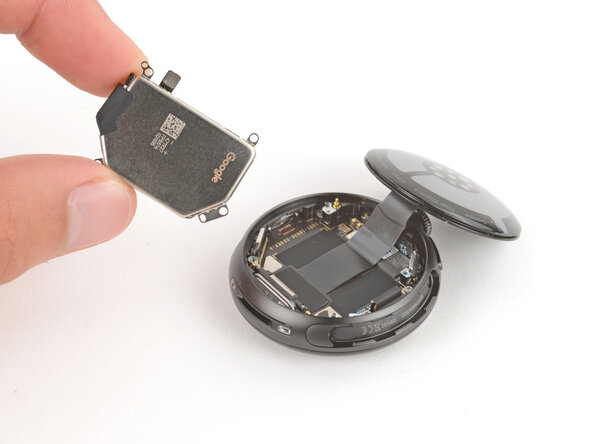
Use a Torx Plus 2IP screwdriver to remove the two 2.2 mm‑long screws securing the vibration motor.
-
-
-
-
-
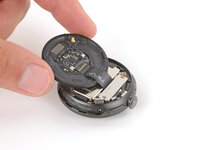
Gently flip the back sensor glass over the crown-side of the watch.
-
-
-
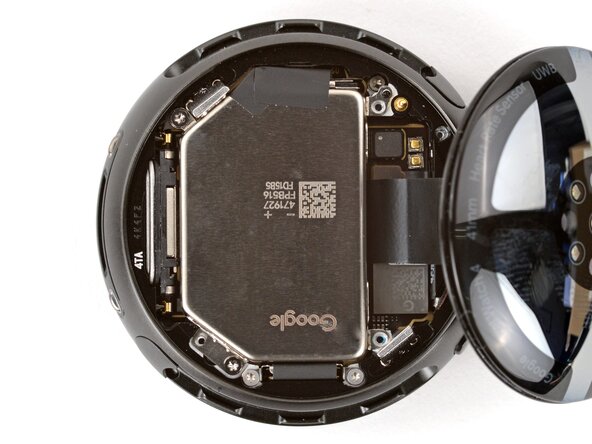
Use the point of a spudger to pry up and disconnect the battery press connector.
-
If you're having trouble, loosen the two battery screws and reposition the connector. Once connected, re-tighten the battery screws.
-
-
-
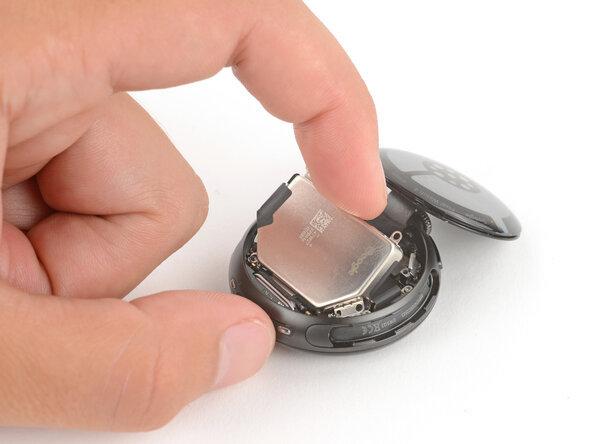
Use a Torx Plus 2IP screwdriver to remove the two 2.2 mm‑long screws securing the battery.
-
-









To reassemble your device, follow these instructions in reverse order.
For optimal performance, calibrate your newly installed battery after completing this guide.
Take your e-waste to an R2 or e-Stewards certified recycler.
Repair didn’t go as planned? Try some basic troubleshooting, or ask our Answers community for help.
Cancel: I did not complete this guide.
2 other people completed this guide.

1 Guide Comment
No adhesive needed? This feels very refreshing, good job google!
