Free Shipping on Domestic Orders $75+

Framework Laptop 16 Webcam Replacement

What you need

  1. Framework Laptop 16 Webcam Replacement, Before you begin: step 1, image 1 of 1
    • Unplug all cables and fully shut down your laptop.

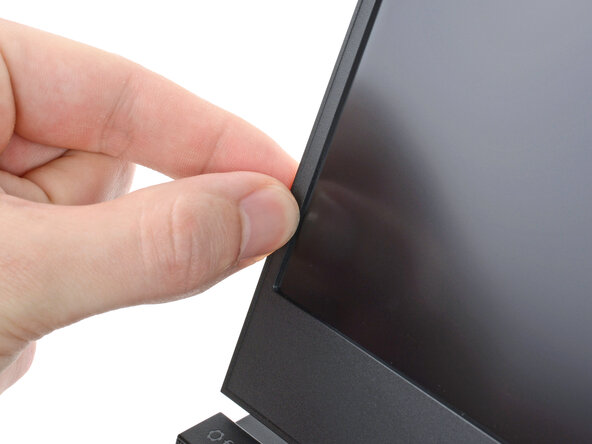
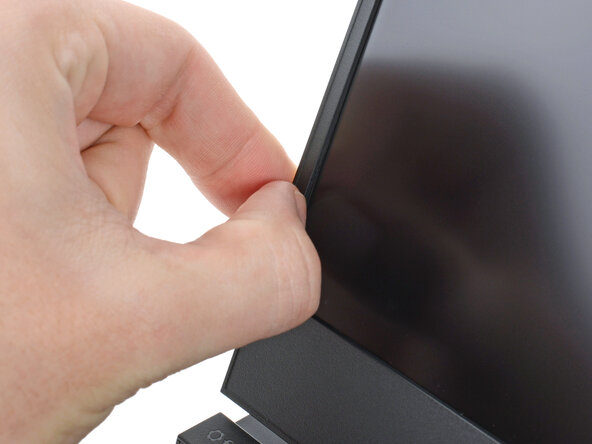
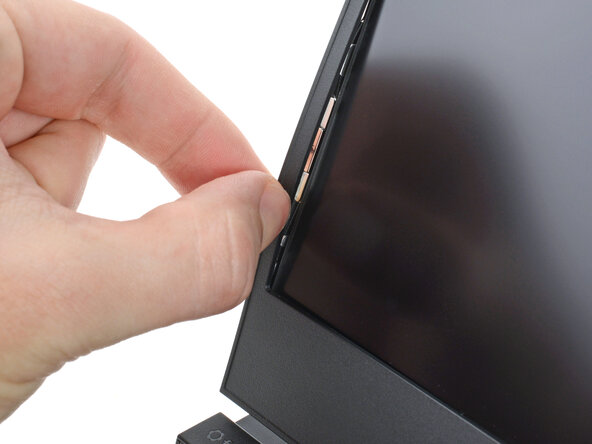
  2. Framework Laptop 16 Webcam Replacement, Create a gap: step 2, image 1 of 3 Framework Laptop 16 Webcam Replacement, Create a gap: step 2, image 2 of 3 Framework Laptop 16 Webcam Replacement, Create a gap: step 2, image 3 of 3
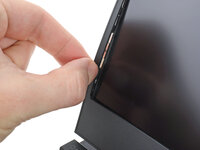
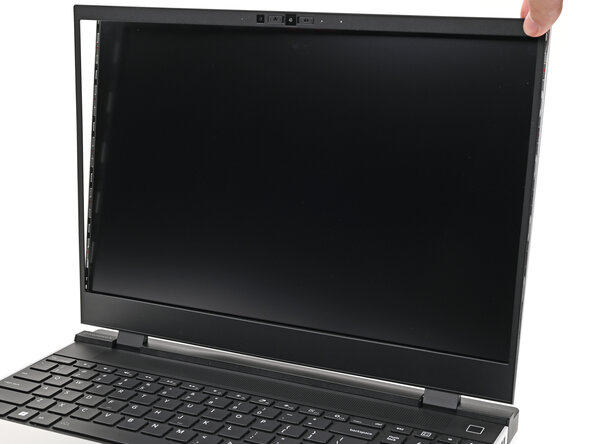
    • The bezel is secured with magnets.

    • Slide your fingernail under the inside edge of either bottom corner of the bezel.

    • Pull the bezel away from the screen to release the first few magnets.

  3. Framework Laptop 16 Webcam Replacement, Remove the bezel: step 3, image 1 of 3 Framework Laptop 16 Webcam Replacement, Remove the bezel: step 3, image 2 of 3 Framework Laptop 16 Webcam Replacement, Remove the bezel: step 3, image 3 of 3
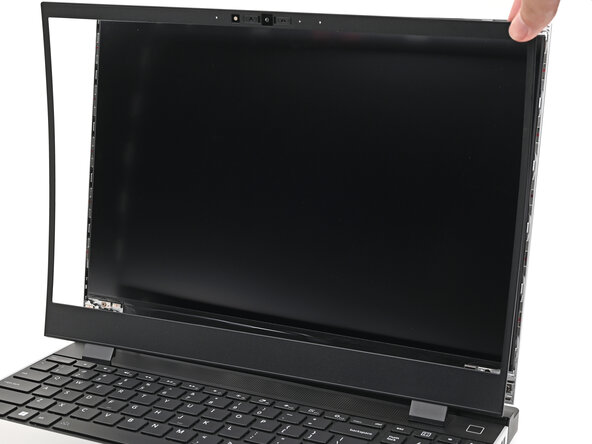
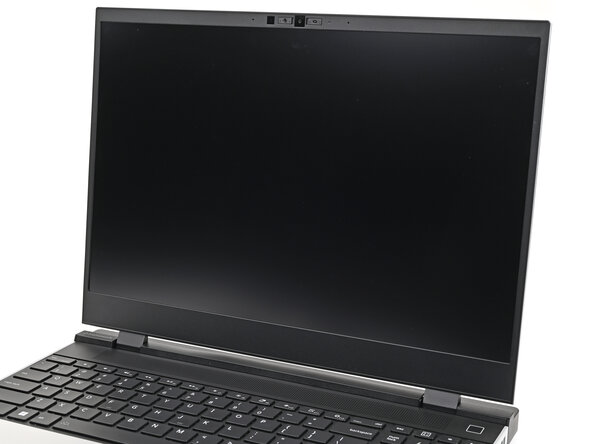
    • Lift the bezel around the perimeter of the screen until all of its magnets are released.

    • Remove the bezel.

  4. Framework Laptop 16 Webcam Replacement, Disconnect the webcam: step 4, image 1 of 2 Framework Laptop 16 Webcam Replacement, Disconnect the webcam: step 4, image 2 of 2
    • Use the flat end of a spudger, or a clean fingernail, to lift up the locking tab on the webcam ZIF connector.

  5. Framework Laptop 16 Webcam Replacement, Remove the webcam screws: step 5, image 1 of 3 Framework Laptop 16 Webcam Replacement, Remove the webcam screws: step 5, image 2 of 3 Framework Laptop 16 Webcam Replacement, Remove the webcam screws: step 5, image 3 of 3
    • While supporting the screen with one hand, use your Framework Screwdriver to remove the two 2.0 mm‑long T5 Torx screws securing the webcam.

    • The washers underneath the screws are magnetic. If they come off with the screws, you can skip the next step.

  6. Framework Laptop 16 Webcam Replacement, Remove the washers: step 6, image 1 of 3 Framework Laptop 16 Webcam Replacement, Remove the washers: step 6, image 2 of 3 Framework Laptop 16 Webcam Replacement, Remove the washers: step 6, image 3 of 3
    • Use the magnetic tip of your Framework Screwdriver to pull the two washers off the Top Cover.

  7. Framework Laptop 16 Webcam Replacement, Remove the webcam: step 7, image 1 of 2 Framework Laptop 16 Webcam Replacement, Remove the webcam: step 7, image 2 of 2
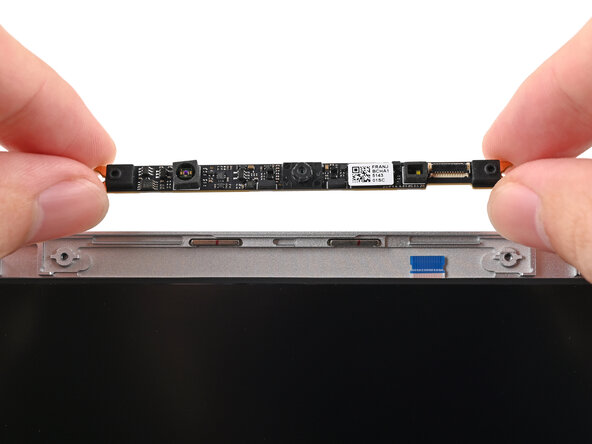
    • Grip the edges of the webcam and lift it straight up so its cable slides out of the ZIF connector.

    • Remove the webcam.

  8. Framework Laptop 16 Webcam Replacement, Reassembly information: step 8, image 1 of 3 Framework Laptop 16 Webcam Replacement, Reassembly information: step 8, image 2 of 3 Framework Laptop 16 Webcam Replacement, Reassembly information: step 8, image 3 of 3
    • Reconnecting the webcam module is a little tricky. If you're having difficulty, you can reposition the display to give the webcam cable more slack.

    • During reassembly, follow these instructions to reinstall a new webcam module:

    • Use tweezers to gently bend the webcam cable away from the screen frame.

    • Use your other hand to align the webcam module over the cable and lower it into place.

    • Make sure the webcam module sits level with the display before flipping down the cable locking tab and continuing reassembly.

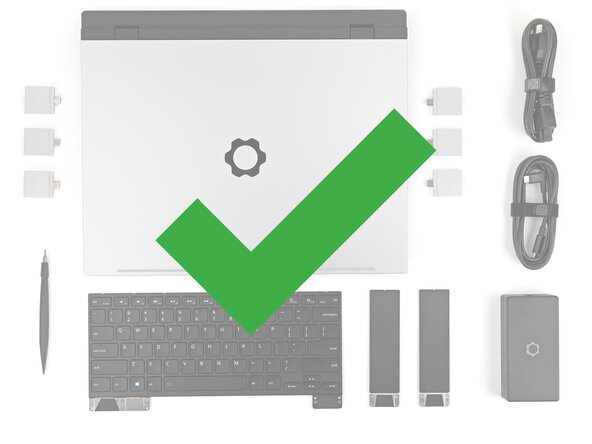
  9. Framework Laptop 16 Webcam Replacement, Disassembly complete: step 9, image 1 of 1
    • Congratulations on completing disassembly! The remaining steps will show how to reassemble your Framework Laptop.

  10. Framework Laptop 16 Webcam Replacement, Place the webcam: step 10, image 1 of 2 Framework Laptop 16 Webcam Replacement, Place the webcam: step 10, image 2 of 2
    • If your replacement webcam comes with liners covering the lenses, remove them now.

    • Place the webcam into its spot above the display, making sure the cable slides into its socket.

  11. Framework Laptop 16 Webcam Replacement: step 11, image 1 of 2 Framework Laptop 16 Webcam Replacement: step 11, image 2 of 2
    • Use the flat end of your Framework Screwdriver, or a clean fingernail, to press down the locking tab on the webcam ZIF connector.
  12. Framework Laptop 16 Webcam Replacement, Place the washers: step 12, image 1 of 3 Framework Laptop 16 Webcam Replacement, Place the washers: step 12, image 2 of 3 Framework Laptop 16 Webcam Replacement, Place the washers: step 12, image 3 of 3
    • Use your fingers to place the washers into their spots on the Top Cover.

    • The washers only fit one way. If they're aren't fitting properly, flip them over.

  13. Framework Laptop 16 Webcam Replacement, Install the webcam screws: step 13, image 1 of 2 Framework Laptop 16 Webcam Replacement, Install the webcam screws: step 13, image 2 of 2
    • While supporting the screen with one hand, use your Framework Screwdriver to install the two 2.0 mm‑long T5 Torx screws securing the webcam.

  14. Framework Laptop 16 Webcam Replacement, Install the bezel: step 14, image 1 of 3 Framework Laptop 16 Webcam Replacement, Install the bezel: step 14, image 2 of 3 Framework Laptop 16 Webcam Replacement, Install the bezel: step 14, image 3 of 3
    • Align the bezel over the perimeter of the display and let the magnets pull the bezel into place.

    • The bezel should "snap" into place. If it doesn't, realign it and make sure it sits flush with the display.

Conclusion

You finished fixing your Framework Laptop!

Take your e-waste to an R2 or e-Stewards certified recycler.

If you need help, contact Framework support.

Alex Diaz-Kokaisl

Member since: 01/16/22

236,098 Reputation

1,168 Guides authored

0 Guide Comments

Add Comment

View Statistics:

Past 24 Hours: 3

Past 7 Days: 6

Past 30 Days: 26

All Time: 130