
Free Shipping on Domestic Orders $75+

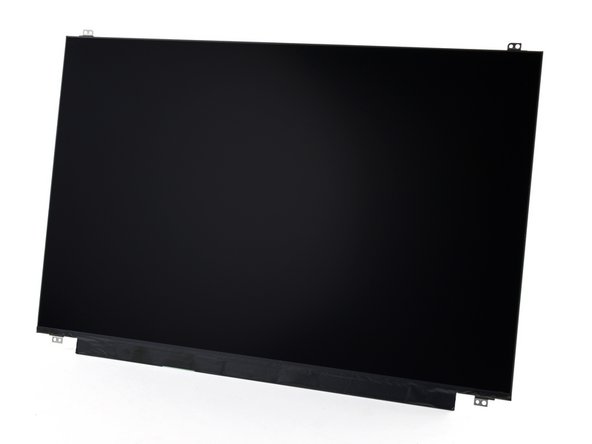
Framework Laptop 16" Display Replacement

Archived Guide
This guide is retained solely for historical purposes. Use the updated version of the guide to perform your repair.

What you need

  1. Framework Laptop 16" Display Replacement, Before you begin: step 1, image 1 of 2 Framework Laptop 16" Display Replacement, Before you begin: step 1, image 2 of 2
    • Unplug all cables and fully shut down your laptop.

    • If your repair requires a spudger, a T5 Torx, or a Phillips screwdriver, you can use the included Framework screwdriver. Whichever works best for you!

    Ask FixBot

    Add Comment

  2. Framework Laptop 16" Display Replacement, Create a gap: step 2, image 1 of 3 Framework Laptop 16" Display Replacement, Create a gap: step 2, image 2 of 3 Framework Laptop 16" Display Replacement, Create a gap: step 2, image 3 of 3
    • The bezel is secured with magnets!

    • Slide your fingernail under the inside edge of either bottom corner of the bezel.

    • Pull the bezel away from the screen to release the first few magnets.

    Ask FixBot

    Add Comment

  3. Framework Laptop 16" Display Replacement, Remove the bezel: step 3, image 1 of 3 Framework Laptop 16" Display Replacement, Remove the bezel: step 3, image 2 of 3 Framework Laptop 16" Display Replacement, Remove the bezel: step 3, image 3 of 3
    • Lift the bezel around the perimeter of the screen until all of its magnets are released.

    • Remove the bezel.

    Ask FixBot

    Add Comment

  4. Framework Laptop 16" Display Replacement, Remove the display screws: step 4, image 1 of 3 Framework Laptop 16" Display Replacement, Remove the display screws: step 4, image 2 of 3 Framework Laptop 16" Display Replacement, Remove the display screws: step 4, image 3 of 3
    • Use a T5 Torx screwdriver to remove the four 2.4 mm‑long screws securing the display.

    • During reassembly, support the screen frame with your other hand as you reinsert screws to prevent the laptop from accidentally tipping over.

    Ask FixBot

    Add Comment

  5. Framework Laptop 16" Display Replacement, Disconnect the display: step 5, image 1 of 3 Framework Laptop 16" Display Replacement, Disconnect the display: step 5, image 2 of 3 Framework Laptop 16" Display Replacement, Disconnect the display: step 5, image 3 of 3
    • Grab the display and pull it straight off the screen frame to free it from its alignment pegs.

    • Don't pull the display too far from the frame, as it's still attached by a cable.

    • Flip the front of the display down and rest it on the keyboard.

    Ask FixBot

    Add Comment

  6. Framework Laptop 16" Display Replacement: step 6, image 1 of 2 Framework Laptop 16" Display Replacement: step 6, image 2 of 2
    • Use your fingers to flip up the plastic tab and access the connector underneath.

    Ask FixBot

    Add Comment

  7. Framework Laptop 16" Display Replacement: step 7, image 1 of 2 Framework Laptop 16" Display Replacement: step 7, image 2 of 2
    • Use the flat end of a spudger to lift up the metal locking tab over the display connector.

    Ask FixBot
    Add Comment

  8. Framework Laptop 16" Display Replacement, Remove the display: step 8, image 1 of 3 Framework Laptop 16" Display Replacement, Remove the display: step 8, image 2 of 3 Framework Laptop 16" Display Replacement, Remove the display: step 8, image 3 of 3
    • Grip the display cable where it meets the connector head.

    • Slide the connector straight out of its socket to disconnect it.

    • Remove the display.

    Ask FixBot

    Add Comment

Conclusion

To reassemble your device, follow these instructions in reverse order.

Take your e-waste to an R2 or e-Stewards certified recycler.

Repair didn’t go as planned? Try some basic troubleshooting, or ask our Answers Community for help.

Cancel: I did not complete this guide.
2 other people completed this guide.

Alex Diaz-Kokaisl

Member since: 01/16/22

245,046 Reputation

1,203 Guides authored

Team

iFixit Member of iFixit

Staff

123 Members

31,437 Guides authored

0 Guide Comments

Add Comment

View Statistics:

Past 24 Hours: 1

Past 7 Days: 3

Past 30 Days: 18

All Time: 1,426