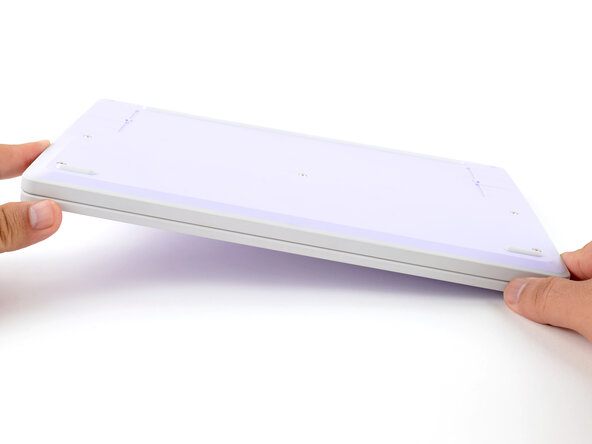
Framework Laptop 12 Input Cover Replacement

What you need

  1. Framework Laptop 12 Input Cover Replacement, Power down your laptop: step 1, image 1 of 3 Framework Laptop 12 Input Cover Replacement, Power down your laptop: step 1, image 2 of 3 Framework Laptop 12 Input Cover Replacement, Power down your laptop: step 1, image 3 of 3
    • Before you begin repairs, unplug your laptop and shut it down from the operating system. This ensures that the laptop isn't in standby/suspend mode.

    • The indicator LEDs along the edges should be unlit. The laptop should be silent.

    • If you accidentally turn on the laptop during repair, hold the power button down for 10 seconds to shut it down.

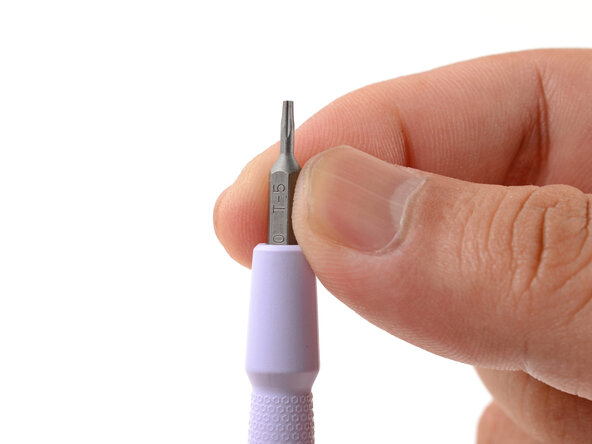
    • Make sure your Framework Screwdriver has the T5 Torx bit (labeled as T-5) facing outwards. If it's not, pull the bit out and flip it.

  2. Framework Laptop 12 Input Cover Replacement, Set your laptop down: step 2, image 1 of 1
    • Set your Framework Laptop face-down on a clean work surface.

  3. Framework Laptop 12 Input Cover Replacement, Loosen the bottom screws: step 3, image 1 of 2 Framework Laptop 12 Input Cover Replacement, Loosen the bottom screws: step 3, image 2 of 2
    • Use your Framework Screwdriver to fully loosen the eight captive T5 Torx screws on the bottom of your laptop.

    • Most screws in your Framework Laptop (including these) are captive—they're designed to stay in place after you loosen them.

  4. Framework Laptop 12 Input Cover Replacement, Flip your laptop over: step 4, image 1 of 1
    • Flip your laptop over so it's face-up on your work surface.

  5. Framework Laptop 12 Input Cover Replacement, Open your laptop: step 5, image 1 of 2 Framework Laptop 12 Input Cover Replacement, Open your laptop: step 5, image 2 of 2
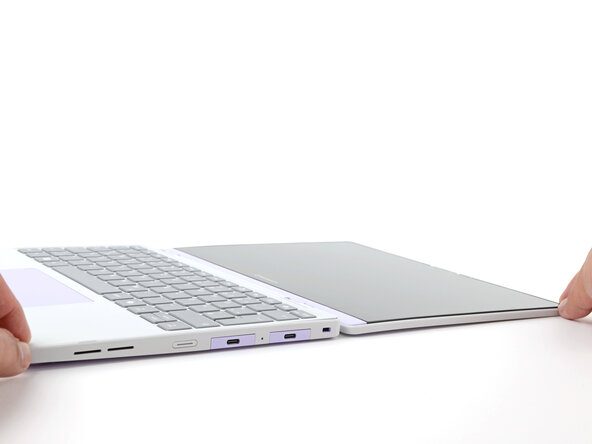
    • Open the laptop lid so that both the screen and the base lie flat on your work surface.

  6. Framework Laptop 12 Input Cover Replacement, Remove the Input Cover: step 6, image 1 of 3 Framework Laptop 12 Input Cover Replacement, Remove the Input Cover: step 6, image 2 of 3 Framework Laptop 12 Input Cover Replacement, Remove the Input Cover: step 6, image 3 of 3
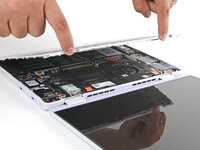
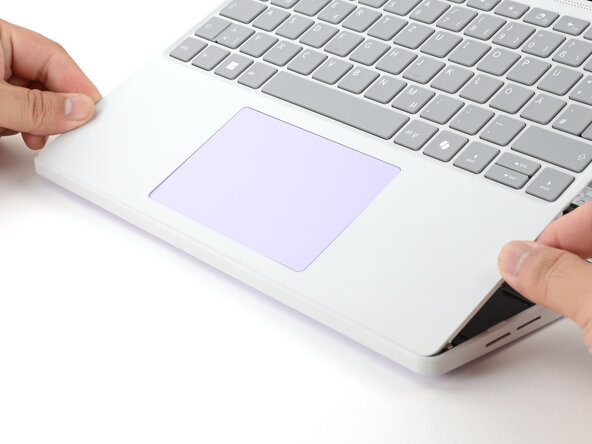
    • Use your fingers to grip the Input Cover in the hinge cutouts.

    • Lift upwards to swing the Input Cover up from the base of the laptop.

    • Magnets hold the Input Cover down, so you'll feel some resistance. If it feels stuck, check that you've fully loosened all the screws on the bottom of your laptop.

    • Remove the Input Cover.

  7. Framework Laptop 12 Input Cover Replacement, Disassembly complete: step 7, image 1 of 1
    • Congratulations on completing disassembly! The remaining steps will show how to reassemble your Framework Laptop.

  8. Framework Laptop 12 Input Cover Replacement, Install the Input Cover: step 8, image 1 of 3 Framework Laptop 12 Input Cover Replacement, Install the Input Cover: step 8, image 2 of 3 Framework Laptop 12 Input Cover Replacement, Install the Input Cover: step 8, image 3 of 3
    • Angle the bottom edge of the Input Cover towards the base of the laptop.

    • Align and insert the bottom edge of the Input Cover into the base of the laptop.

    • Make sure the slots along the bottom edge of the Input Cover slide into the tabs in the base.

    • Lower the Input Cover's top edge onto the laptop until the magnets snap it in place.

    • Make sure the Input Cover sits neatly within the laptop frame and no corners are popping up.

  9. Framework Laptop 12 Input Cover Replacement, Close and flip your laptop: step 9, image 1 of 2 Framework Laptop 12 Input Cover Replacement, Close and flip your laptop: step 9, image 2 of 2
    • Close the laptop lid.

    • Flip your laptop face-down on a clean work surface.

  10. Framework Laptop 12 Input Cover Replacement, Tighten the bottom screws: step 10, image 1 of 2 Framework Laptop 12 Input Cover Replacement, Tighten the bottom screws: step 10, image 2 of 2
    • Use your Framework Screwdriver to tighten the eight captive T5 Torx screws on the bottom of your laptop.

    • Tighten the screws until they're snug. Don't over-tighten them, or you may strip the screws.

Conclusion

You finished fixing your Framework Laptop!

Take your e-waste to an R2 or e-Stewards certified recycler.

If you need help, contact Framework support.

Arthur Shi

Member since: 01/03/18

309,604 Reputation

701 Guides authored

Team

Guide Team Member of Guide Team

Staff

10 Members

15,763 Guides authored

0 Guide Comments

Add Comment

View Statistics:

Past 24 Hours: 2

Past 7 Days: 13

Past 30 Days: 44

All Time: 510