Free Shipping on Domestic Orders $75+

Dell XPS 13 Battery Replacement

Views: 394K

View statistics:

Past 24 Hours:
38
Past 7 Days:
225
Past 30 Days:
1,074
All Time:
394,071
Comments: 123

41 comments on steps, 82 guide comments.

Go to guide comments
Completed: 283

283 people have marked this guide "completed." Will you be next?

Favorites: 22

22 people have favorited (and subscribed to) this guide. Will you be next?

Time Required: 10 - 30 minutes
Difficulty: Moderate
Community-Contributed Guide

An awesome member of our community made this guide. It was not created by iFixit staff.

Dell XPS 13 Battery Replacement

Introduction

Go to step 1 ↓

If your Dell XPS 13 (also known as Dell XPS 13 Infinity Edge Ultrabook or Dell XPS 13 Skylake) has lost its ability to hold a charge, you most likely have a dead battery, which requires replacement.

A functional battery provides power to your laptop. Eventually, laptop batteries will rapidly drain after going through a repeated amount of charge cycles. If you notice that your charged battery is draining more quickly than usual, consider calibrating your battery to determine an accurate charging capacity. If you continue to notice significant drops in battery percentage, you should replace your battery.

A punctured battery can cause a dangerous fire. If your battery is swollen, take appropriate precautions.

Make sure to power down your device before you begin.

What you need

Fix Kit

This kit contains all the parts and tools needed to complete this guide.

Parts

Tools

    1. Dell XPS 13 Battery Replacement, Back Cover: step 1, image 1 of 2 Dell XPS 13 Battery Replacement, Back Cover: step 1, image 2 of 2
      • Remove the eight 4 mm T5 Torx screws from the bottom cover.

      Ask FixBot

      Add Comment

    2. Dell XPS 13 Battery Replacement: step 2, image 1 of 2 Dell XPS 13 Battery Replacement: step 2, image 2 of 2
      • Use a plastic opening tool to pry open the 'XPS' flap in the middle.

      Ask FixBot

      Add Comment

    3. Dell XPS 13 Battery Replacement: step 3, image 1 of 1
      • Remove the single Phillips screw hidden beneath the flap.

      Ask FixBot

      Add Comment

    4. Dell XPS 13 Battery Replacement: step 4, image 1 of 1
      • Use opening picks or a plastic pry tool to pry open the case clips, beginning from the back edge.

      Ask FixBot

      Add Comment

    5. Dell XPS 13 Battery Replacement: step 5, image 1 of 1
      • Remove the bottom cover.

      Ask FixBot

      Add Comment

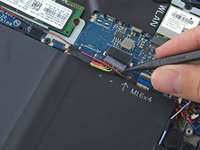
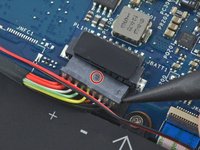
    1. Dell XPS 13 Battery Replacement, Battery Disconnection: step 6, image 1 of 2 Dell XPS 13 Battery Replacement, Battery Disconnection: step 6, image 2 of 2
      • Pull the battery cable connector towards the battery to disconnect it from its socket.

      • If the connector is stubborn, push a little at one side, then the other, to "walk" it out of its socket.

      • If you have trouble walking the connector out of the socket, use the point of a spudger to gently push on the connector indent to slide the connector out.

      • Do not pull up.

      • Open the display and press the power button for five seconds to drain any remaining charge from the system.

      Ask FixBot

      Add Comment

    1. Dell XPS 13 Battery Replacement, Battery: step 7, image 1 of 1
      • Remove three Phillips screws labeled "M2x2"

      • Remove a Phillips screw labeled "M1.6x4"

      Ask FixBot

      Add Comment

    2. Dell XPS 13 Battery Replacement: step 8, image 1 of 1
      • Peel up any tape securing the speaker cables to the battery.

      • You don't need to remove the speakers, only the tape, allowing the battery to be removed out under the speaker cables.

      Ask FixBot

      Add Comment

    3. Dell XPS 13 Battery Replacement: step 9, image 1 of 1
      • Remove the battery.

      Ask FixBot

      Add Comment

Conclusion

Plug in replacement battery, then plug in the power adaptor, too. If notebook neither charges nor does boot, unplug battery and charger, then remove and re-install coin-cell battery (CMOS, RTC; see Dell’s guide).

To reassemble your device, follow these instructions in reverse order.

Cancel: I did not complete this guide.

283 other people completed this guide.

The Raptor

Member since: 11/27/16

6,385 Reputation

6 Guides authored

82 Guide Comments

Put compatible batteries under parts.

Keenan Lewis - Reply Share

Awesome instructions. Worked perfectly. I’m back in business now, and it took me about 10 minutes. Thank you so much. By the way, I was using iFixit tools, which really helped. John Day

John Day - Reply Share

using picks to open the case was a little tricky, but without this guide I would have looking for more screws or other ways to open it!

Mark - Reply Share

I followed the instruction carefully and it was quite helpful. However, now that I am done with the battery replacement, the speaker no longer works, and it seems that there is a hardware issue. Any thoughts on this?

Sara Hadavi - Reply Share

@Sara - Looking on another ifixit procedure, I found that the speaker wires are taped to the battery, so I suspect that the speaker was not properly plugged in after reassemble, or that something happened to the wires during battery removal. Hopefully the wires weren’t cut or stretched.

Here is what the XPS 13 teardown procedure had to say:

“….After that, it still isn't a perfectly clean getaway—the speaker wires are strategically taped to the battery in a half dozen spots, which we'll have to liberate to free the battery. (Admittedly, it could have been a lot worse.)

These same wires are trapped under the battery screws—so speaker replacement means battery removal. It looks like the XPS has some layering issues.”

ref: Dell XPS 13 Teardown

I hope this helps.

Graham Vodden - Reply Share

Add Comment

View Statistics:

Past 24 Hours: 38

Past 7 Days: 225

Past 30 Days: 1,074

All Time: 394,071