Free Shipping on Domestic Orders $75+

OnePlus Nord 2 5G Battery Disconnection

Prerequisite Only
This is a prerequisite-only guide! This guide is part of another procedure and isn’t meant to be used alone.

What you need

  1. OnePlus Nord 2 5G Battery Disconnection, Loosen the rear glass: step 1, image 1 of 1
    • Prepare an iOpener and apply it to the rear glass for at least three minutes to loosen the adhesive underneath.

    • A hair dryer, heat gun, or hot plate may also be used, but be careful not to overheat the phone—the display and internal battery are both susceptible to heat damage.

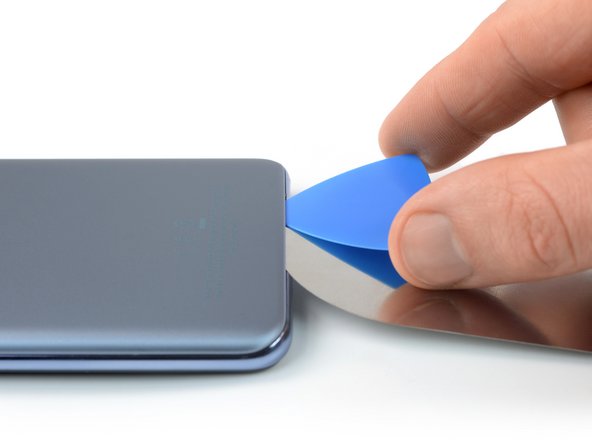
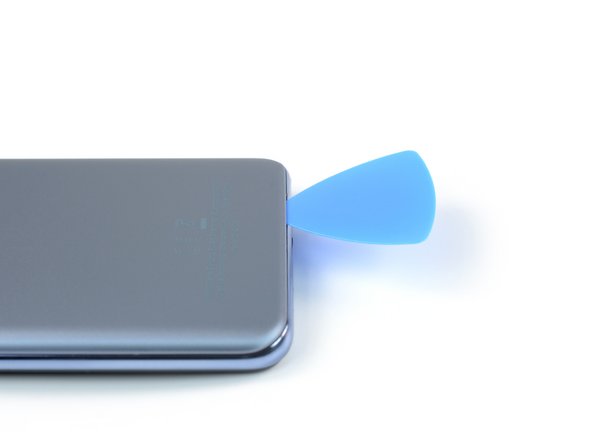
  2. OnePlus Nord 2 5G Battery Disconnection, Insert an iFlex: step 2, image 1 of 3 OnePlus Nord 2 5G Battery Disconnection, Insert an iFlex: step 2, image 2 of 3 OnePlus Nord 2 5G Battery Disconnection, Insert an iFlex: step 2, image 3 of 3
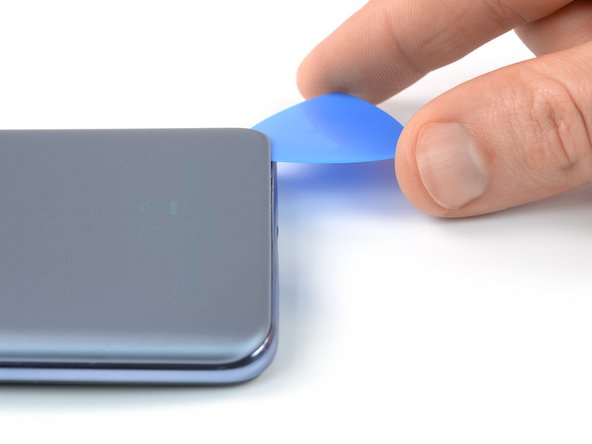
    • Due to its surface, no suction tool will hold onto the phone's rear glass. A thin slicing tool is required to create a gap between the rear glass and the midframe.

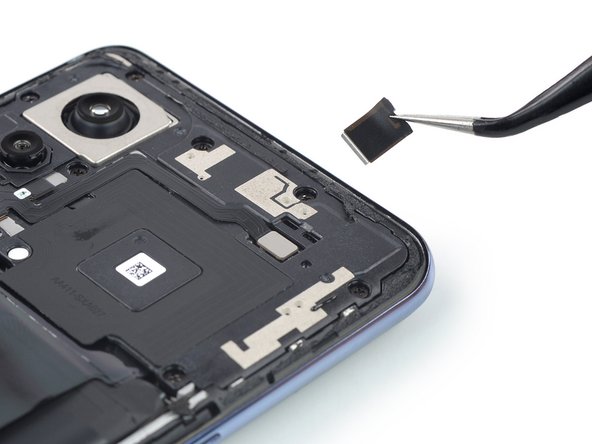
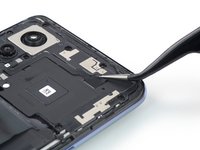
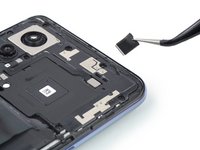
    • Insert an iFlex into the seam between the rear glass and the midframe at the bottom edge of the phone to create a gap. This may require some force.

    • Leave the iFlex in place to prevent the adhesive from resealing.

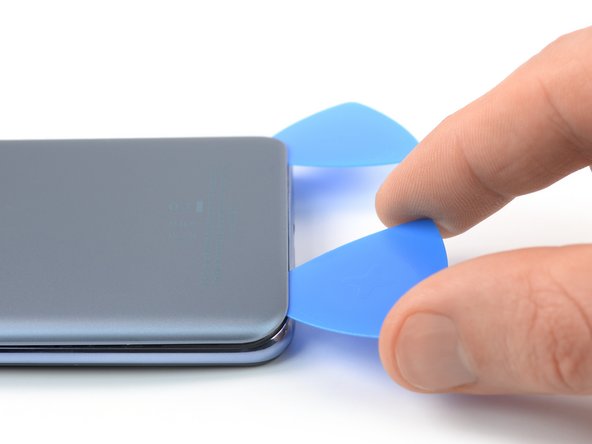
  3. OnePlus Nord 2 5G Battery Disconnection, Insert an opening pick: step 3, image 1 of 3 OnePlus Nord 2 5G Battery Disconnection, Insert an opening pick: step 3, image 2 of 3 OnePlus Nord 2 5G Battery Disconnection, Insert an opening pick: step 3, image 3 of 3
    • Insert an opening pick into the gap you created with the iFlex.

    • Remove the iFlex.

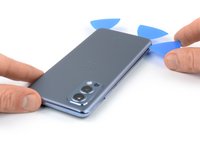
  4. OnePlus Nord 2 5G Battery Disconnection, Slice the bottom edge adhesive: step 4, image 1 of 2 OnePlus Nord 2 5G Battery Disconnection, Slice the bottom edge adhesive: step 4, image 2 of 2
    • Slide the opening pick to the bottom right corner to slice the adhesive.

    • Leave the opening pick in place to prevent the adhesive from resealing.

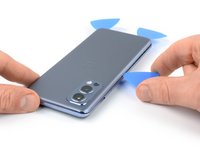
  5. OnePlus Nord 2 5G Battery Disconnection: step 5, image 1 of 2 OnePlus Nord 2 5G Battery Disconnection: step 5, image 2 of 2
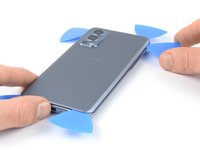
    • Insert a second opening pick at the bottom right corner of your phone.

    • Slide the opening pick to the bottom left corner to slice the adhesive.

    • Leave the opening picks in place to prevent the adhesive from resealing.

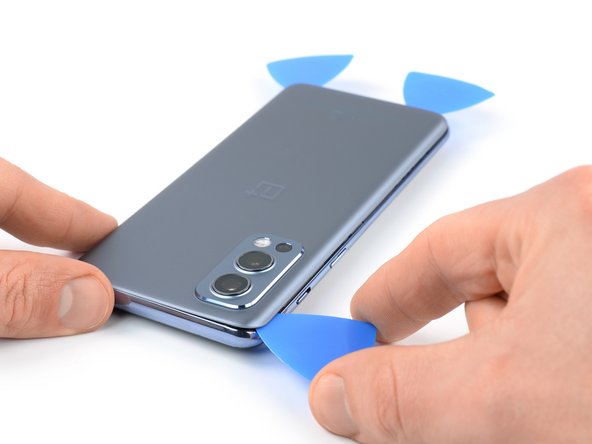
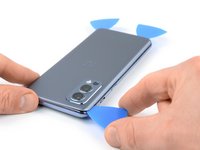
  6. OnePlus Nord 2 5G Battery Disconnection, Slice the left edge adhesive: step 6, image 1 of 3 OnePlus Nord 2 5G Battery Disconnection, Slice the left edge adhesive: step 6, image 2 of 3 OnePlus Nord 2 5G Battery Disconnection, Slice the left edge adhesive: step 6, image 3 of 3
    • If the adhesive becomes hard to cut, it has most likely cooled down. Use your iOpener to reheat it.

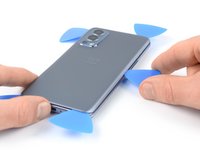
    • Insert a third opening pick at the bottom left corner of your phone.

    • Slide the opening pick along the left edge of your phone to slice the adhesive.

    • Leave the opening pick in the top left corner to prevent the adhesive from resealing.

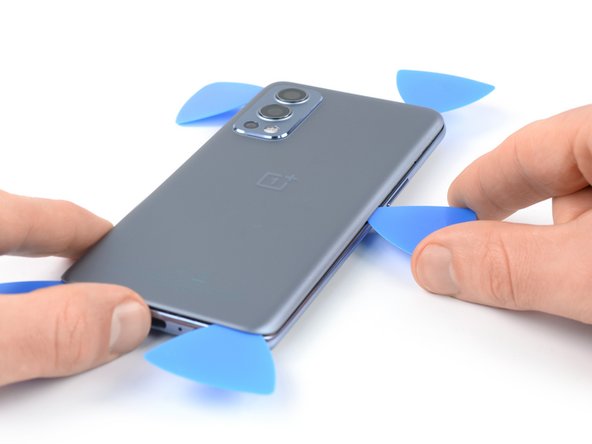
  7. OnePlus Nord 2 5G Battery Disconnection, Slice the top edge adhesive: step 7, image 1 of 2 OnePlus Nord 2 5G Battery Disconnection, Slice the top edge adhesive: step 7, image 2 of 2
    • Insert a fourth opening pick underneath the top left corner of the rear glass.

    • Slide the opening pick along the top edge to slice the adhesive.

    • Leave the opening pick in the top right corner to prevent the adhesive from resealing.

  8. OnePlus Nord 2 5G Battery Disconnection, Slice the right edge adhesive: step 8, image 1 of 3 OnePlus Nord 2 5G Battery Disconnection, Slice the right edge adhesive: step 8, image 2 of 3 OnePlus Nord 2 5G Battery Disconnection, Slice the right edge adhesive: step 8, image 3 of 3
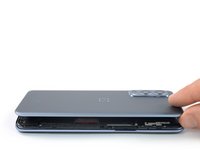
    • Insert a fifth opening pick underneath the top right corner.

    • Slide the opening pick along the right edge of the back cover to slice the remaining adhesive.

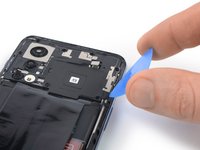
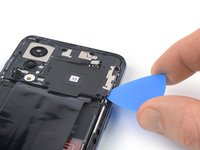
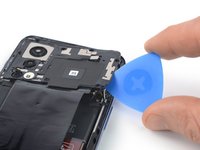
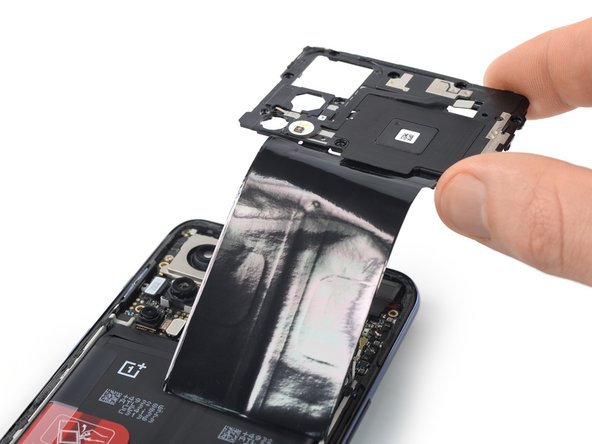
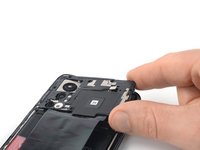
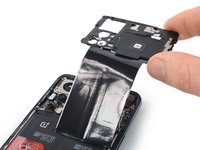
  9. OnePlus Nord 2 5G Battery Disconnection, Remove the back cover: step 9, image 1 of 2 OnePlus Nord 2 5G Battery Disconnection, Remove the back cover: step 9, image 2 of 2
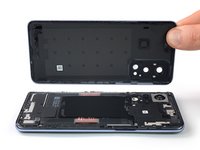
    • Remove the back cover.

    • Secure the new back cover with pre-cut adhesive or double-sided adhesive tape. After installing the back cover, apply strong, steady pressure to your phone for several minutes to help the adhesive form a good bond—a stack of heavy books works well.

  10. OnePlus Nord 2 5G Battery Disconnection, Remove the connector bracket: step 10, image 1 of 2 OnePlus Nord 2 5G Battery Disconnection, Remove the connector bracket: step 10, image 2 of 2
    Tool used on this step:
    Tweezers
    $4.99
    Buy
    • Use a pair of tweezers to remove the metal bracket covering the flash assembly connector.

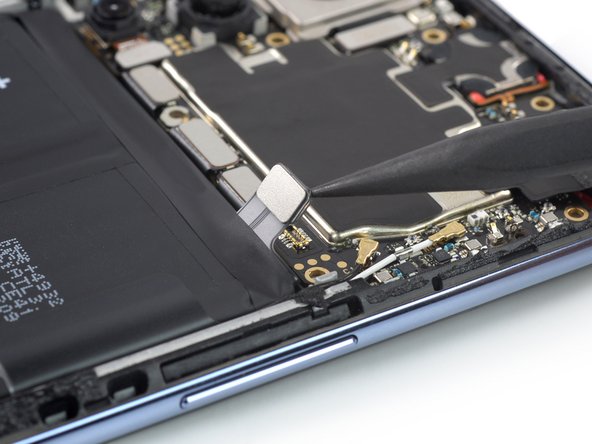
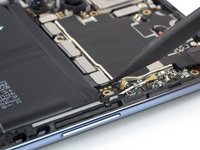
  11. OnePlus Nord 2 5G Battery Disconnection, Disconnect the flash assembly: step 11, image 1 of 2 OnePlus Nord 2 5G Battery Disconnection, Disconnect the flash assembly: step 11, image 2 of 2
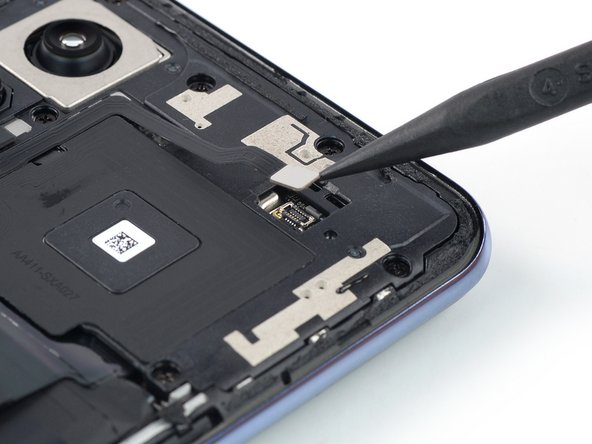
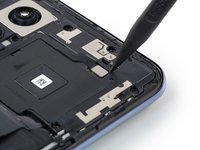
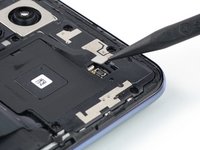
    • Use the point of a spudger to disconnect the flash assembly cable by prying the connector straight up from its socket.

  12. OnePlus Nord 2 5G Battery Disconnection, Unfasten the motherboard cover: step 12, image 1 of 1
    • Use a Phillips screwdriver to remove the nine 3.8 mm-long screws securing the motherboard cover.

  13. OnePlus Nord 2 5G Battery Disconnection, Pry up the motherboard cover: step 13, image 1 of 3 OnePlus Nord 2 5G Battery Disconnection, Pry up the motherboard cover: step 13, image 2 of 3 OnePlus Nord 2 5G Battery Disconnection, Pry up the motherboard cover: step 13, image 3 of 3
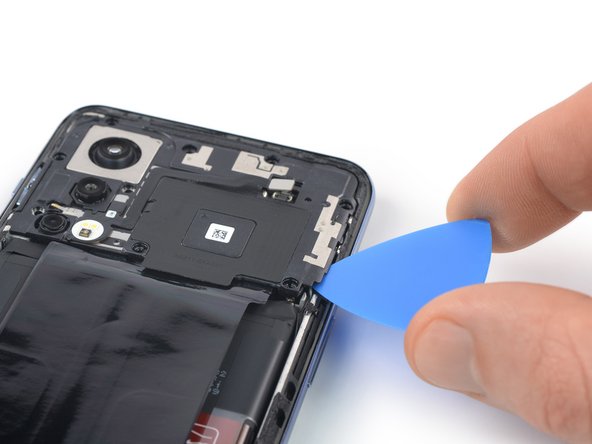
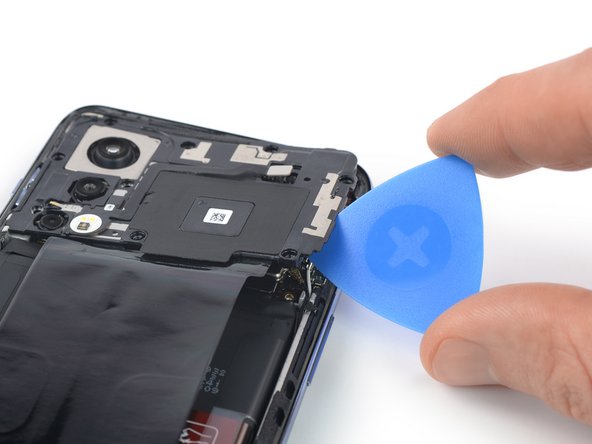
    • The motherboard cover is held in place by plastic clips.

    • Insert an opening pick underneath the bottom right edge of the motherboard cover.

    • Twist the opening pick sideways release the plastic clips and to pry up the motherboard cover.

  14. OnePlus Nord 2 5G Battery Disconnection, Remove the motherboard cover: step 14, image 1 of 2 OnePlus Nord 2 5G Battery Disconnection, Remove the motherboard cover: step 14, image 2 of 2
    • Remove the motherboard cover.

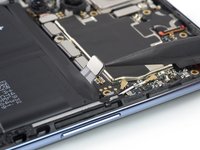
  15. OnePlus Nord 2 5G Battery Disconnection, Disconnect the battery cable: step 15, image 1 of 2 OnePlus Nord 2 5G Battery Disconnection, Disconnect the battery cable: step 15, image 2 of 2
    • Use a spudger to disconnect the battery cable by prying the connector straight up from its socket.

Conclusion

To reassemble your device, follow these instructions in reverse order.

Repair didn’t go as planned? Try some basic troubleshooting, or ask our OnePlus Nord 2 5G answers community for help.

Dominik Schnabelrauch

Member since: 11/23/16

249,310 Reputation

682 Guides authored

Team

iFixit Member of iFixit

Staff

123 Members

23,918 Guides authored

0 Guide Comments

Add Comment

View Statistics:

Past 24 Hours: 0

Past 7 Days: 0

Past 30 Days: 9

All Time: 66