Backbone One Left Mainboard Replacement

What you need

  1. Backbone One Left Mainboard Replacement, Unfasten the screws: step 1, image 1 of 1
    • Use a Phillips screwdriver to remove the four 5.9 mm-long screws.

  2. Backbone One Left Mainboard Replacement, Rotate the upper cover: step 2, image 1 of 3 Backbone One Left Mainboard Replacement, Rotate the upper cover: step 2, image 2 of 3 Backbone One Left Mainboard Replacement, Rotate the upper cover: step 2, image 3 of 3
    • Lift up the upper part of the controller.

    • Swing over the upper cover and place it on the controller case.

    • Take care that the interconnecting cable has no tension.

  3. Backbone One Left Mainboard Replacement, Remove the protective tape: step 3, image 1 of 3 Backbone One Left Mainboard Replacement, Remove the protective tape: step 3, image 2 of 3 Backbone One Left Mainboard Replacement, Remove the protective tape: step 3, image 3 of 3
    Tool used on this step:
    Tweezers
    $4.99
    Buy
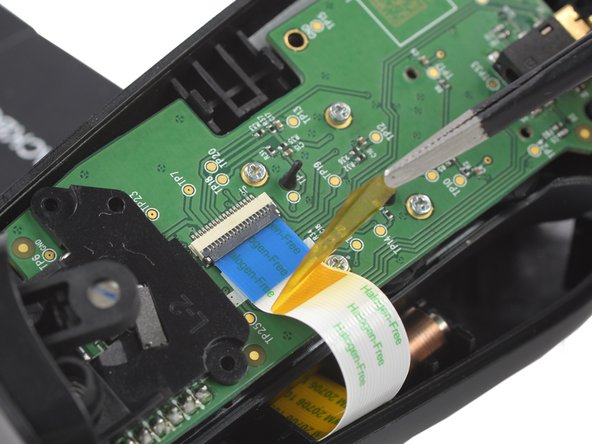
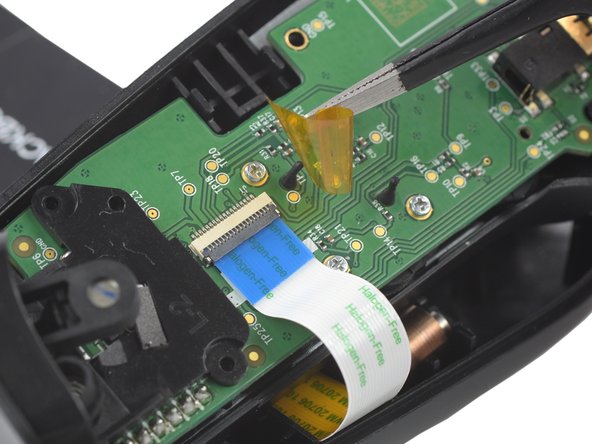
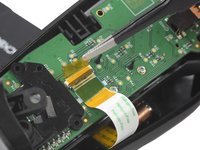
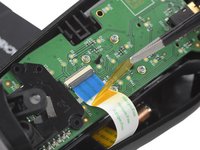
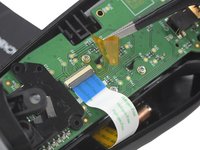
    • Use a pair of tweezers to remove the yellow protective tape which is placed over the interconnect cable connector.

  4. Backbone One Left Mainboard Replacement, Open the ZIF connector: step 4, image 1 of 2 Backbone One Left Mainboard Replacement, Open the ZIF connector: step 4, image 2 of 2
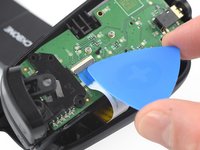
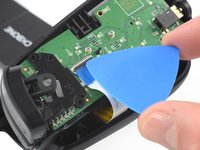
    • Use the tip of an opening pick to open the gray flap of the ZIF connector by pushing it upwards.

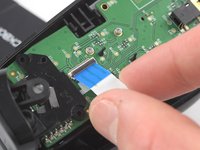
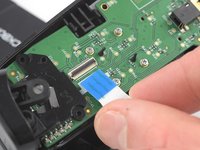
  5. Backbone One Left Mainboard Replacement, Disconnect the interconnect cable: step 5, image 1 of 2 Backbone One Left Mainboard Replacement, Disconnect the interconnect cable: step 5, image 2 of 2
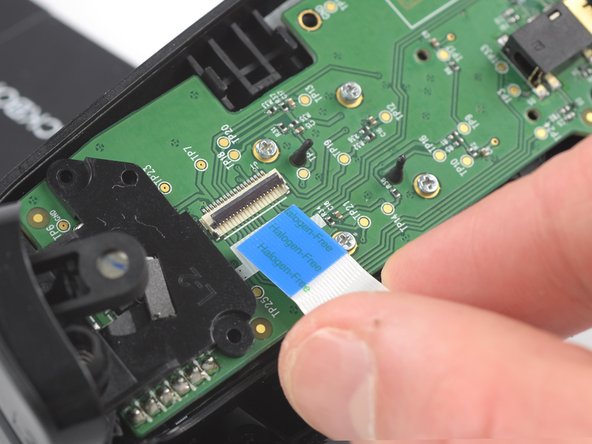
    • Use your fingers to disconnect the interconnect cable from its connector.

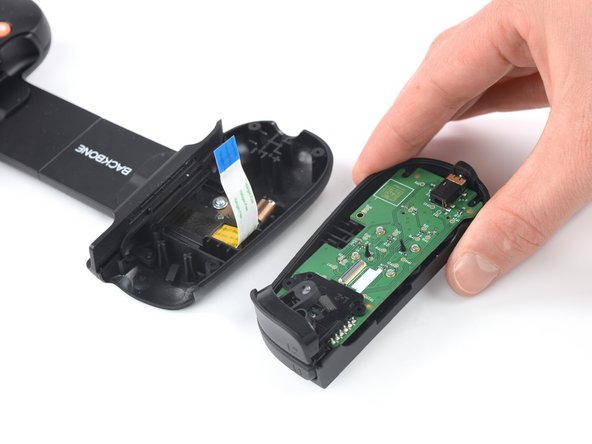
  6. Backbone One Left Mainboard Replacement: step 6, image 1 of 2 Backbone One Left Mainboard Replacement: step 6, image 2 of 2
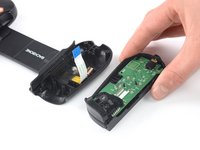
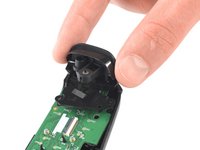
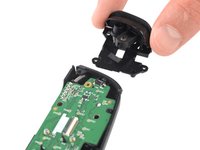
    • Remove the upper half of the left controller assembly.

  7. Backbone One Left Mainboard Replacement, Remove the screw: step 7, image 1 of 2 Backbone One Left Mainboard Replacement, Remove the screw: step 7, image 2 of 2
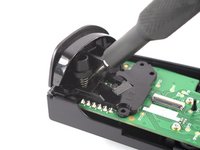
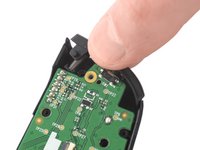
    • Use a Phillips screwdriver to remove the 5.9 mm-long screw which is securing the trigger.

    • The screw is difficult to reach. Insert the screwdriver at an angle of 45 degrees.

  8. Backbone One Left Mainboard Replacement, Remove the trigger: step 8, image 1 of 2 Backbone One Left Mainboard Replacement, Remove the trigger: step 8, image 2 of 2
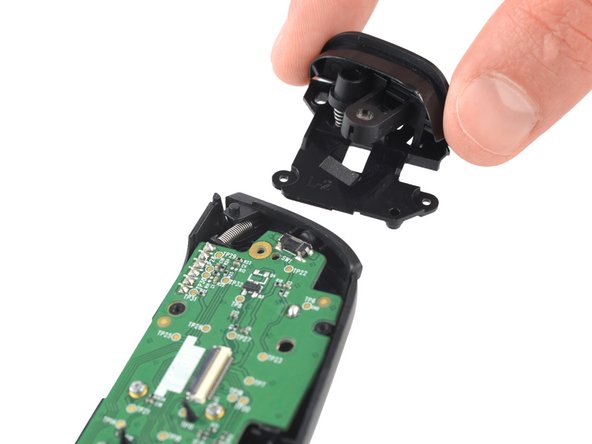
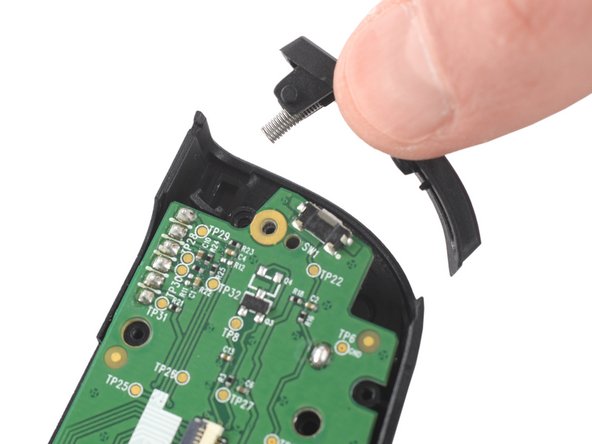
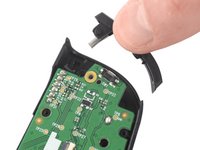
    • Remove the left trigger.

  9. Backbone One Left Mainboard Replacement, Remove the bumper: step 9, image 1 of 2 Backbone One Left Mainboard Replacement, Remove the bumper: step 9, image 2 of 2
    • Use your fingers to remove the left bumper.

  10. Backbone One Left Mainboard Replacement, Remove the screws: step 10, image 1 of 1
    • Use a Phillips screwdriver to remove the four 3.9 mm-long screws.

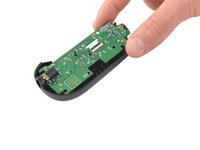
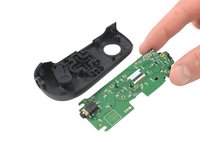
  11. Backbone One Left Mainboard Replacement, Remove the mainboard: step 11, image 1 of 2 Backbone One Left Mainboard Replacement, Remove the mainboard: step 11, image 2 of 2
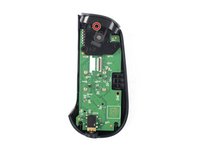
    • Remove the mainboard.

Conclusion

To reassemble your device, follow these instructions in reverse order.

Take your e-waste to an R2 or e-Stewards certified recycler.

Repair didn’t go as planned? Ask our Answers community for help.

2 other people completed this guide.

Adriana Zwink

Member since: 12/18/19

62,058 Reputation

167 Guides authored

Team

iFixit Member of iFixit

Staff

123 Members

23,638 Guides authored

1 Guide Comment

In my unit, there were two more screws at step (10), in the upper part of the controller, near the trigger. They may have changed the number of screws used in manufacturing at some point.

Mario - Reply

Add Comment

View Statistics:

Past 24 Hours: 2

Past 7 Days: 11

Past 30 Days: 80

All Time: 2,901