15% Off Selected iFixit Tools — Limited Time
Free Shipping on Domestic Orders $75+

Apple Watch Adhesive Replacement

What you need

  1. Apple Watch Adhesive Replacement, Adhesive: step 1, image 1 of 2 Apple Watch Adhesive Replacement, Adhesive: step 1, image 2 of 2
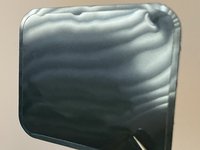
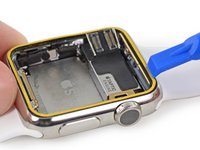
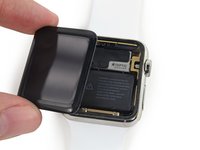
    • Use a plastic opening tool to scrape adhesive off the back of the screen.

    Ask FixBot

    Add Comment

  2. Apple Watch Adhesive Replacement: step 2, image 1 of 2 Apple Watch Adhesive Replacement: step 2, image 2 of 2
    Tool used on this step:
    Tweezers
    $4.99
    Buy
    • You may be able to peel up the adhesive with tweezers.

    • Once you have all of the pieces of adhesive removed, you may want to use an alcohol soaked q-tip to clean any residue off the back of the screen.

    Ask FixBot

    Add Comment

  3. Apple Watch Adhesive Replacement: step 3, image 1 of 2 Apple Watch Adhesive Replacement: step 3, image 2 of 2
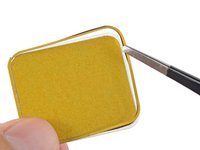
    • Use tweezers to peel the outer ring off of one of the adhesive strip pads.

    • Be sure to get both the double-sided adhesive and the brown backing paper.

    • If you're having trouble navigating the double-sided adhesive, check out this video.

    • Be very careful not to fold, bend, or stretch the adhesive tape, as this will make it too thick to seal the screen without a ridge between the screen and the case.

    Ask FixBot

    Add Comment

  4. Apple Watch Adhesive Replacement: step 4, image 1 of 3 Apple Watch Adhesive Replacement: step 4, image 2 of 3 Apple Watch Adhesive Replacement: step 4, image 3 of 3
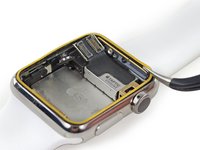
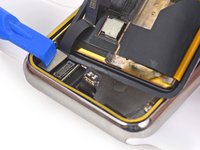
    • Lay the backed adhesive tape down on the Force Touch sensor, around the edge of the case where the screen rests.

    • Start in a corner with the tape as close to the corner wall as possible.

    • Press on the brown backing paper with a plastic opening tool to secure the adhesive around the entire perimeter.

    Ask FixBot

    Add Comment

  5. Apple Watch Adhesive Replacement: step 5, image 1 of 2 Apple Watch Adhesive Replacement: step 5, image 2 of 2
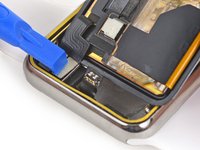
    • Use a plastic opening tool to reconnect the display data and digitizer cable connectors.

    • Be careful not to touch any of the contacts directly, as your finger oils may impede connectivity.

    Ask FixBot

    Add Comment

  6. Apple Watch Adhesive Replacement: step 6, image 1 of 3 Apple Watch Adhesive Replacement: step 6, image 2 of 3 Apple Watch Adhesive Replacement: step 6, image 3 of 3
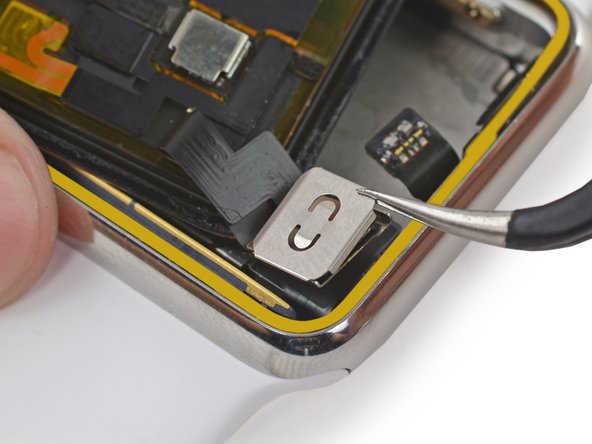
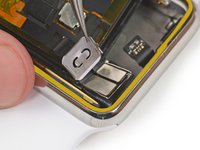
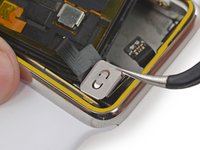
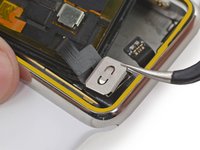
    • To reinstall the metal bracket, line up the single tab with the slot in the top of the lower half, and slide the bracket down.

    • Snap the upper bracket in place.

    Ask FixBot

    Add Comment

  7. Apple Watch Adhesive Replacement: step 7, image 1 of 3 Apple Watch Adhesive Replacement: step 7, image 2 of 3 Apple Watch Adhesive Replacement: step 7, image 3 of 3
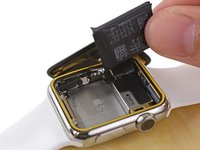
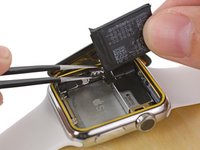
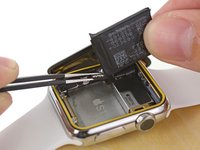
    • Line the battery connector up with its mate on the cable inside the watch body.

    • Use tweezers to press the two connectors together.

    Ask FixBot

    Add Comment

  8. Apple Watch Adhesive Replacement: step 8, image 1 of 3 Apple Watch Adhesive Replacement: step 8, image 2 of 3 Apple Watch Adhesive Replacement: step 8, image 3 of 3
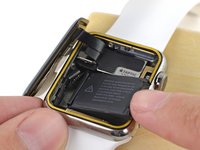
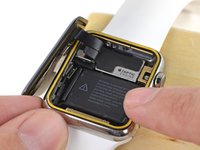
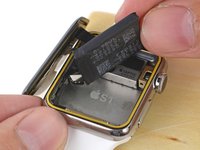
    • If your replacement battery came with pre-installed adhesive, peel off the protective tab now, exposing the adhesive.

    • Rotate the battery down into its slot, and press it into position.

    • Press the battery down against the S1 to re-adhere it in place.

    • Now is the best time to test powering on your watch—if it doesn't turn on, double check all three connectors and try again.

    Ask FixBot

    Add Comment

  9. Apple Watch Adhesive Replacement: step 9, image 1 of 1
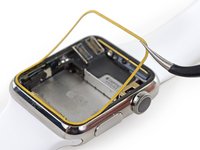
    • Use tweezers to peel off the adhesive backing strip.

    • Peel the backing strip up halfway, then snip it with scissors so you can peel the rest off without it snagging on the display.

    Ask FixBot

    Add Comment

  10. Apple Watch Adhesive Replacement: step 10, image 1 of 3 Apple Watch Adhesive Replacement: step 10, image 2 of 3 Apple Watch Adhesive Replacement: step 10, image 3 of 3
    • Move the screen back to the right, folding the display data and digitizer cables neatly.

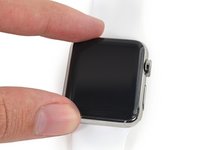
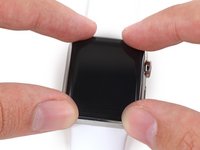
    • Center the screen over the case and press it down firmly onto the adhesive.

    • Alternatively, you can use screen vice clamps around the perimeter of your device to set the new adhesive.

    Ask FixBot

    Add Comment

Finish Line

Cancel: I did not complete this guide.

233 other people completed this guide.

Andrew Optimus Goldheart

Member since: 10/17/09

515,139 Reputation

407 Guides authored

Team

iFixit Member of iFixit

Staff

122 Members

26,050 Guides authored

47 Guide Comments

Where can I find the new screen.

Crissel Largo - Reply Share

THERE WOULD BE A PROBLEM WITH THE I.C. rewriting aiu moment of the change of LCD.?

wallace@freesurf.ch

vallottonge - Reply Share
How long before the adhesive strips will be back in stock? I've been waiting months now and still no update :)

Annie Booth - Reply Share

me too when can we expect it?

Luis Deluna - Reply Share

me too!!!!!!

Anthony Zamora - Reply Share

Add Comment

View Statistics:

Past 24 Hours: 42

Past 7 Days: 242

Past 30 Days: 1,119

All Time: 374,394