Free Shipping on Domestic Orders $75+

Samsung Galaxy S24 Rear Cameras Replacement

What you need

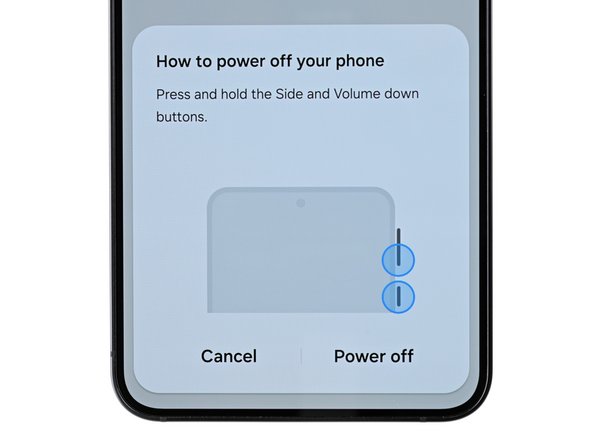
  1. Samsung Galaxy S24 Rear Cameras Replacement, Prepare your phone for disassembly: step 1, image 1 of 2 Samsung Galaxy S24 Rear Cameras Replacement, Prepare your phone for disassembly: step 1, image 2 of 2
    • Let your phone's battery drain below 25% before starting this repair. A charged lithium-ion battery may catch fire if damaged.

    • Completely power off your phone and unplug all cables.

    Ask FixBot

    Add Comment

  2. Samsung Galaxy S24 Rear Cameras Replacement, Heat the right edge: step 2, image 1 of 1
    • Heat an iOpener and apply it to the right edge of the back cover for two minutes.

    • You can use also use a hair dryer or heat gun to heat the right edge of the back glass until it's hot to the touch.

    • Be careful not to heat the phone hotter than this—the battery is susceptible to heat damage.

    Ask FixBot

    Add Comment

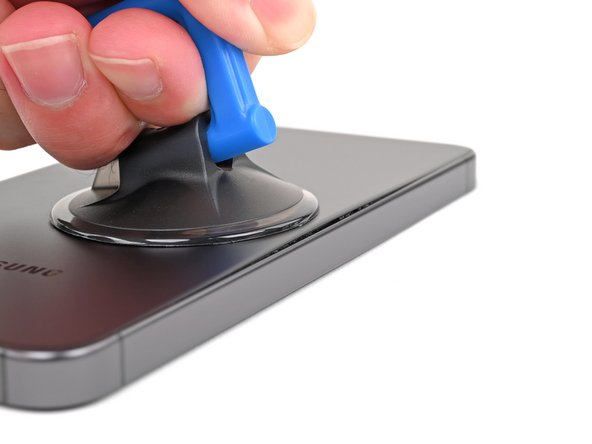
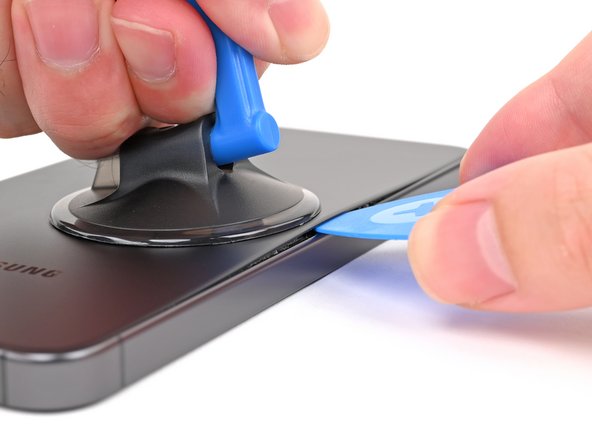
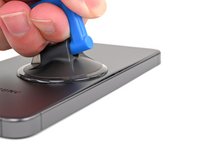
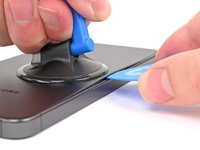
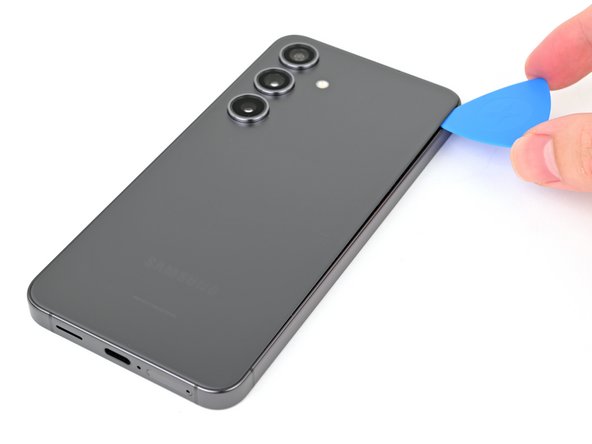
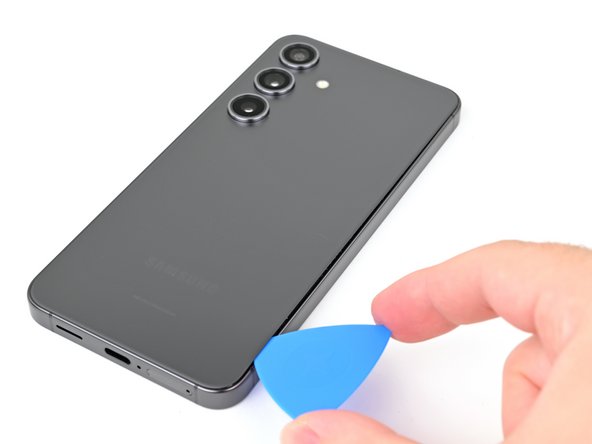
  3. Samsung Galaxy S24 Rear Cameras Replacement, Insert an opening pick: step 3, image 1 of 3 Samsung Galaxy S24 Rear Cameras Replacement, Insert an opening pick: step 3, image 2 of 3 Samsung Galaxy S24 Rear Cameras Replacement, Insert an opening pick: step 3, image 3 of 3
    • Apply a suction handle to the back cover, as close to the center of the right edge as possible.

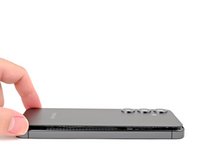
    • Pull up on the suction handle with strong, steady force to create a gap between the cover and the frame.

    • If you have trouble, apply more heat to further soften the adhesive.

    • Insert an opening pick into the gap.

    Ask FixBot

    Add Comment

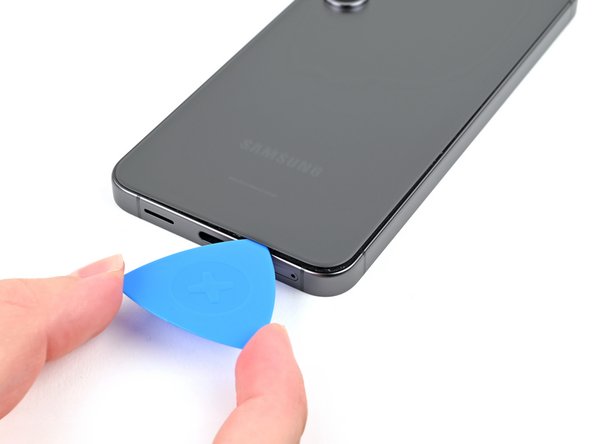
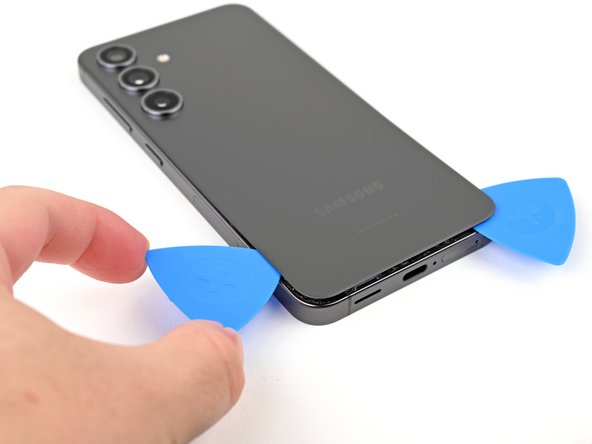
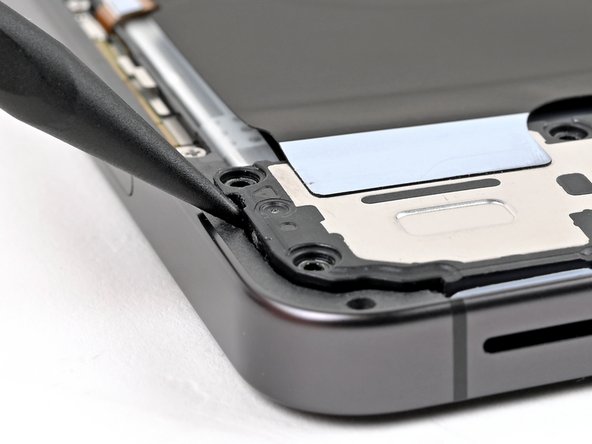
  4. Samsung Galaxy S24 Rear Cameras Replacement, Separate the right adhesive: step 4, image 1 of 3 Samsung Galaxy S24 Rear Cameras Replacement, Separate the right adhesive: step 4, image 2 of 3 Samsung Galaxy S24 Rear Cameras Replacement, Separate the right adhesive: step 4, image 3 of 3
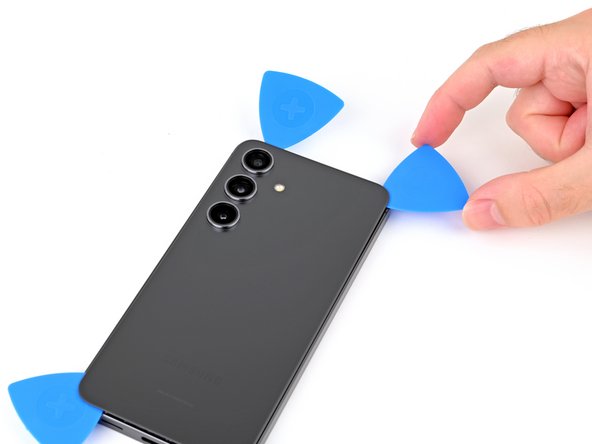
    • Slide your opening pick along the right edge between the back cover and the frame to slice through the adhesive.

    • Leave your opening pick in the bottom right corner to keep the adhesive from resealing.

    Ask FixBot

    Add Comment

  5. Samsung Galaxy S24 Rear Cameras Replacement, Heat the bottom edge: step 5, image 1 of 1
    • Reheat your iOpener and apply it to the bottom of the back cover for two minutes.

    Ask FixBot

    Add Comment

  6. Samsung Galaxy S24 Rear Cameras Replacement, Separate the corner adhesive: step 6, image 1 of 2 Samsung Galaxy S24 Rear Cameras Replacement, Separate the corner adhesive: step 6, image 2 of 2
    • Rotate the opening pick around the bottom right corner to separate the adhesive.

    Ask FixBot

    Add Comment

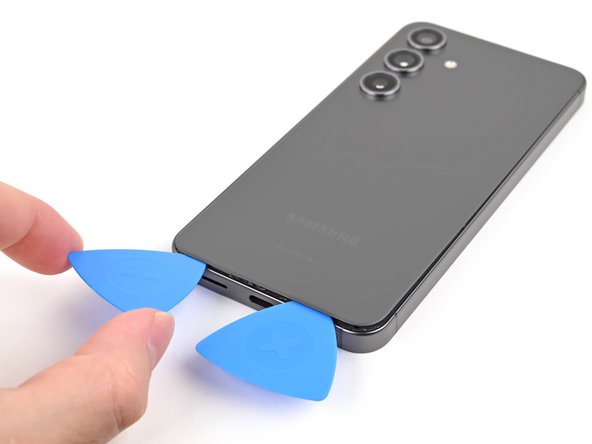
  7. Samsung Galaxy S24 Rear Cameras Replacement, Separate the bottom adhesive: step 7, image 1 of 2 Samsung Galaxy S24 Rear Cameras Replacement, Separate the bottom adhesive: step 7, image 2 of 2
    • Insert a second opening pick to the left of the first one and slide it along the bottom edge to slice through the adhesive.

    • Leave your opening pick in the bottom left edge to prevent the adhesive from resealing.

    Ask FixBot

    Add Comment

  8. Samsung Galaxy S24 Rear Cameras Replacement, Heat the left edge: step 8, image 1 of 1
    • Reheat your iOpener and apply it to the left side of the back cover for two minutes.

    Ask FixBot

    Add Comment

  9. Samsung Galaxy S24 Rear Cameras Replacement, Separate the corner adhesive: step 9, image 1 of 2 Samsung Galaxy S24 Rear Cameras Replacement, Separate the corner adhesive: step 9, image 2 of 2
    • Rotate the opening pick around the bottom left corner to separate the adhesive.

    Ask FixBot

    Add Comment

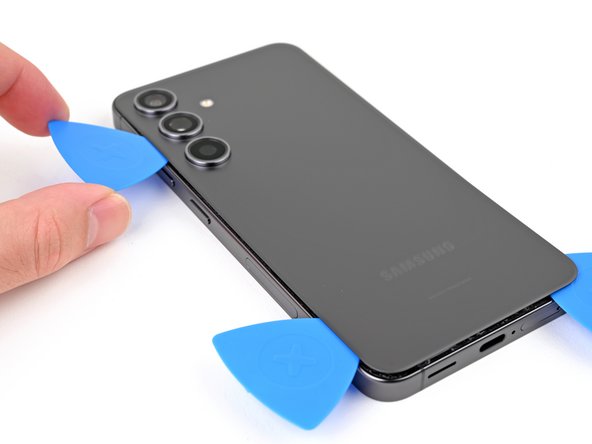
  10. Samsung Galaxy S24 Rear Cameras Replacement, Separate the left adhesive: step 10, image 1 of 2 Samsung Galaxy S24 Rear Cameras Replacement, Separate the left adhesive: step 10, image 2 of 2
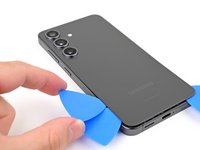
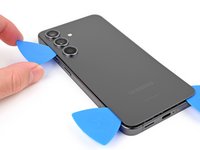
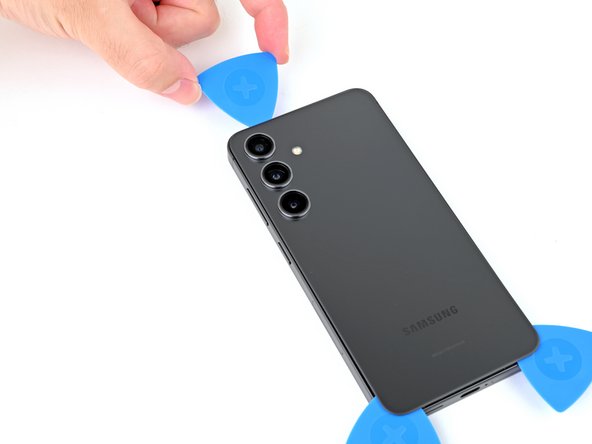
    • Insert a third opening pick above the last one and slide it along the left edge to slice through the adhesive.

    • Only insert your pick up to 4 mm deep to avoid damaging the rear cameras or flash.

    • Leave your opening pick in the top left corner to prevent the adhesive from resealing.

    Ask FixBot

    Add Comment

  11. Samsung Galaxy S24 Rear Cameras Replacement, Heat the top edge: step 11, image 1 of 1
    • Reheat your iOpener and apply it to the top of the back cover for two minutes.

    Ask FixBot

    Add Comment

  12. Samsung Galaxy S24 Rear Cameras Replacement, Separate the corner adhesive: step 12, image 1 of 2 Samsung Galaxy S24 Rear Cameras Replacement, Separate the corner adhesive: step 12, image 2 of 2
    • Rotate the opening pick around the top left corner to separate the adhesive.

    Ask FixBot

    Add Comment

  13. Samsung Galaxy S24 Rear Cameras Replacement, Separate the top adhesive: step 13, image 1 of 3 Samsung Galaxy S24 Rear Cameras Replacement, Separate the top adhesive: step 13, image 2 of 3 Samsung Galaxy S24 Rear Cameras Replacement, Separate the top adhesive: step 13, image 3 of 3
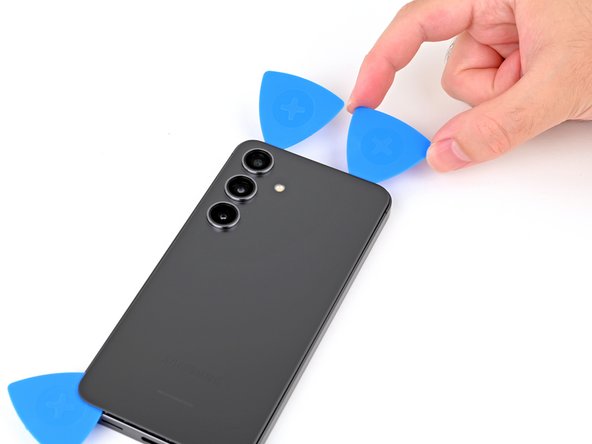
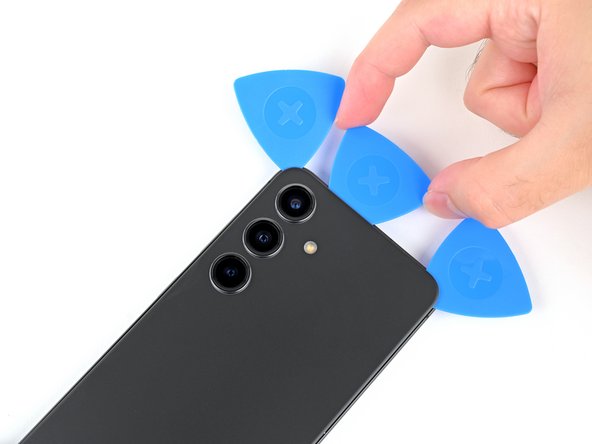
    • Insert a fourth opening pick in the top left corner at the same depth and slide it along the top edge and around the top right corner to slice through the adhesive.

    Ask FixBot

    Add Comment

  14. Samsung Galaxy S24 Rear Cameras Replacement, Separate the flash adhesive: step 14, image 1 of 2 Samsung Galaxy S24 Rear Cameras Replacement, Separate the flash adhesive: step 14, image 2 of 2
    • Insert a fifth opening pick directly above the camera flash cutout.

    • Insert the opening pick under the top of the back cover until you feel it start to snag on the flash adhesive.

    • Insert the pick deeper into the phone until you feel the adhesive completely separate from the back cover.

    • Don't insert the pick any deeper than its center point to avoid damaging the rear cameras.

    Ask FixBot

    Add Comment

  15. Samsung Galaxy S24 Rear Cameras Replacement, Remove the back cover: step 15, image 1 of 2 Samsung Galaxy S24 Rear Cameras Replacement, Remove the back cover: step 15, image 2 of 2
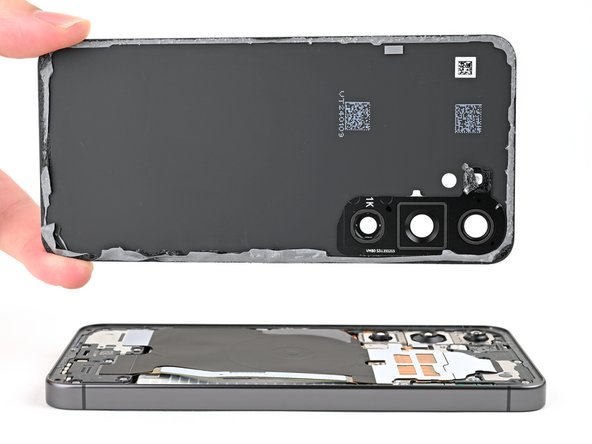
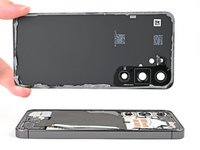
    • Pick up the back cover by its edges and remove it from the phone.

    • If your cover is still sticking to the frame, slide the tip of an opening pick around the perimeter until the cover completely separates.

    • During reassembly:

    • This is a good point to power on your phone and test all functions before sealing it up. Be sure to power your phone back down completely before you continue working.

    • Remove any adhesive chunks with a pair of tweezers or your fingers. Apply heat and isopropyl alcohol (90% or greater) if you're having trouble removing the adhesive.

    • If you're using custom-cut adhesives, follow this guide.

    • If you're using double-sided tape, follow this guide.

    Ask FixBot

    Add Comment

  16. Samsung Galaxy S24 Rear Cameras Replacement, Disconnect the wireless charging coil: step 16, image 1 of 2 Samsung Galaxy S24 Rear Cameras Replacement, Disconnect the wireless charging coil: step 16, image 2 of 2
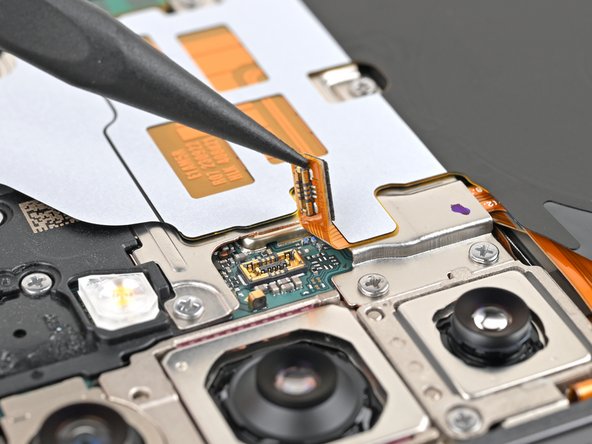
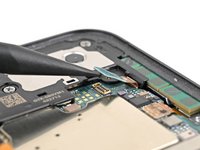
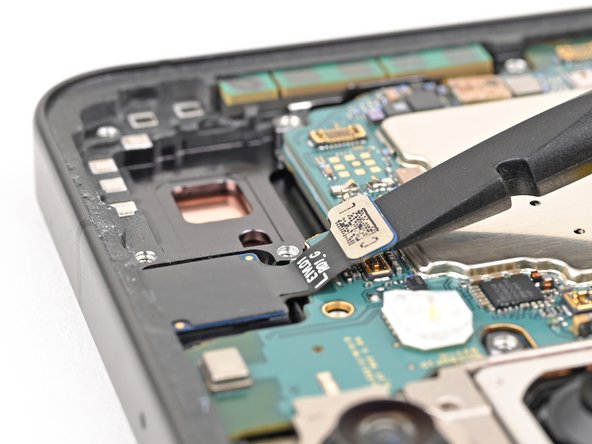
    • Use the point of your spudger to pry up and disconnect the wireless charging coil press connector from the motherboard.

    • To re-attach press connectors, align the connector carefully over its socket and press down with your fingertip—first on one side, then the other—until it clicks into place. Don't try to force the connector into place. If you're having trouble, reposition it and try again.

    Ask FixBot

    Add Comment

  17. Samsung Galaxy S24 Rear Cameras Replacement, Remove the wireless charging coil and loudspeaker screws: step 17, image 1 of 3 Samsung Galaxy S24 Rear Cameras Replacement, Remove the wireless charging coil and loudspeaker screws: step 17, image 2 of 3 Samsung Galaxy S24 Rear Cameras Replacement, Remove the wireless charging coil and loudspeaker screws: step 17, image 3 of 3
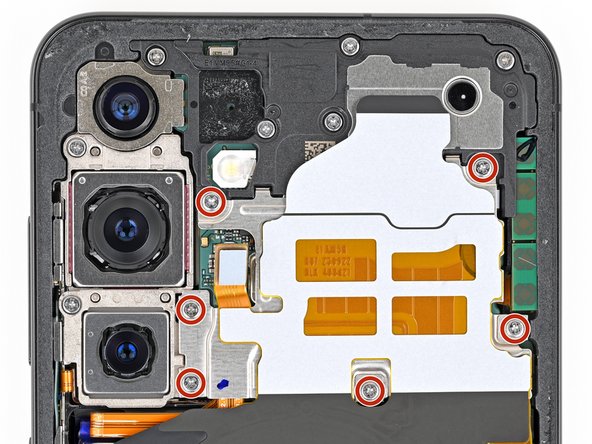
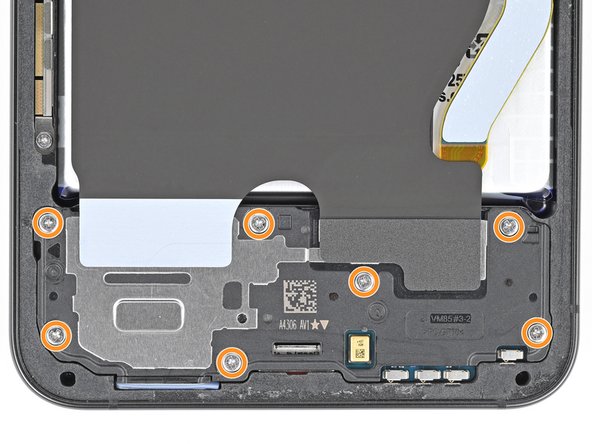
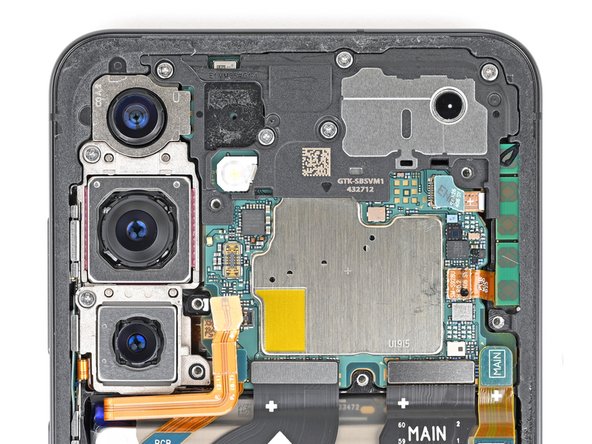
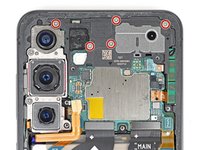
    • Use a Phillips screwdriver to remove the thirteen 3.5 mm‑long screws securing the wireless charging coil and the loudspeaker:

    • Six screws securing the wireless charging coil

    • Seven screws securing the loudspeaker

    Ask FixBot

    Add Comment

  18. Samsung Galaxy S24 Rear Cameras Replacement, Remove the wireless charging coil and loudspeaker: step 18, image 1 of 2 Samsung Galaxy S24 Rear Cameras Replacement, Remove the wireless charging coil and loudspeaker: step 18, image 2 of 2
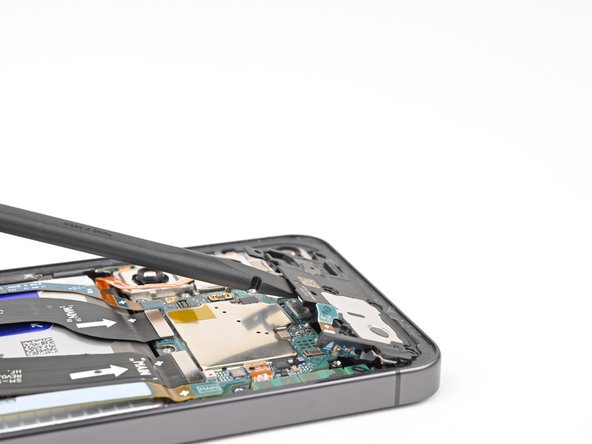
    • Insert the point of a spudger in the notch located on the left edge of the loudspeaker assembly.

    • Pry up the loudspeaker to release its clips.

    Ask FixBot

    Add Comment

  19. Samsung Galaxy S24 Rear Cameras Replacement: step 19, image 1 of 3 Samsung Galaxy S24 Rear Cameras Replacement: step 19, image 2 of 3 Samsung Galaxy S24 Rear Cameras Replacement: step 19, image 3 of 3
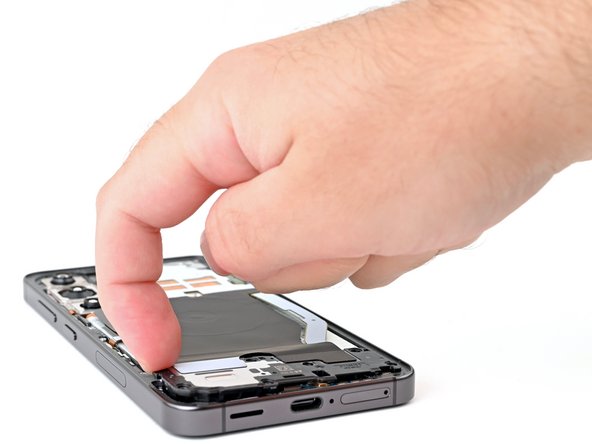
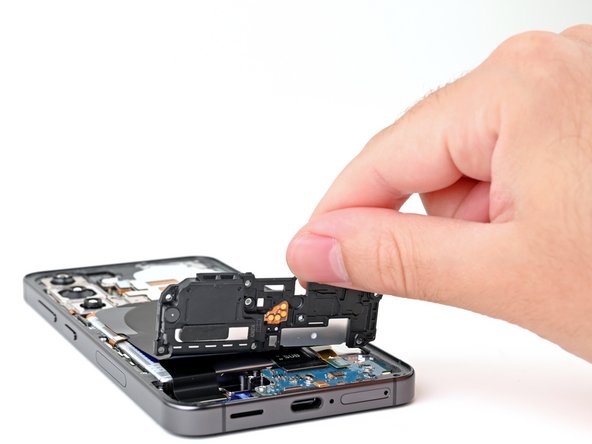
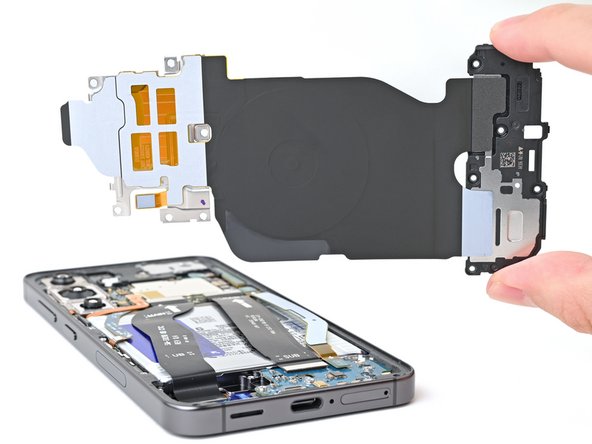
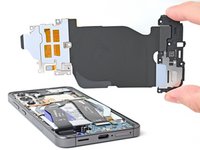
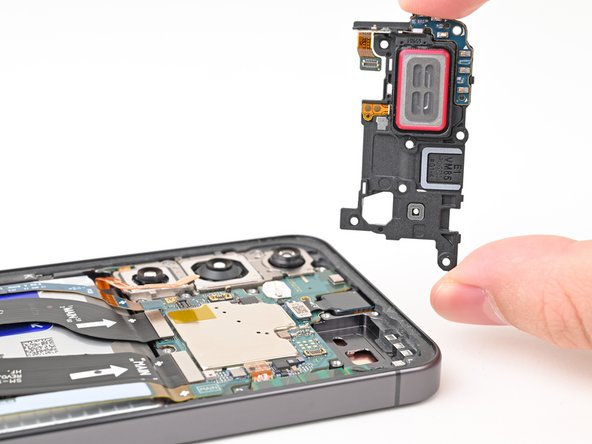
    • Use your fingernail or the flat end of a spudger to pry up the wireless charging coil and loudspeaker assembly away from the frame.

    • Remove the wireless charging coil and loudspeaker from your phone.

    • During reassembly, press around the edges of the loudspeaker to clip it to the frame before reinserting the screws.

    Ask FixBot

    Add Comment

  20. Samsung Galaxy S24 Rear Cameras Replacement, Disconnect the battery: step 20, image 1 of 2 Samsung Galaxy S24 Rear Cameras Replacement, Disconnect the battery: step 20, image 2 of 2
    • Insert the flat end of a spudger under the battery cable press connector (located on the motherboard) and pry up to disconnect it.

    Ask FixBot

    Add Comment

  21. Samsung Galaxy S24 Rear Cameras Replacement, Disconnect the earpiece speaker: step 21, image 1 of 2 Samsung Galaxy S24 Rear Cameras Replacement, Disconnect the earpiece speaker: step 21, image 2 of 2
    • Insert the tip of a spudger underneath the left side of the earpiece speaker connector and pry up to disconnect it.

    Ask FixBot

    Add Comment

  22. Samsung Galaxy S24 Rear Cameras Replacement, Remove the earpiece speaker screws: step 22, image 1 of 2 Samsung Galaxy S24 Rear Cameras Replacement, Remove the earpiece speaker screws: step 22, image 2 of 2
    • Use a Phillips screwdriver to remove the five 3.5 mm‑long screws securing the earpiece speaker.

    Ask FixBot

    Add Comment

  23. Samsung Galaxy S24 Rear Cameras Replacement, Remove the earpiece speaker: step 23, image 1 of 3 Samsung Galaxy S24 Rear Cameras Replacement, Remove the earpiece speaker: step 23, image 2 of 3 Samsung Galaxy S24 Rear Cameras Replacement, Remove the earpiece speaker: step 23, image 3 of 3
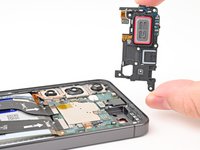
    • Insert the flat end of a spudger underneath the bottom of the earpiece speaker assembly and pry up to free it from the chassis.

    • Remove the earpiece speaker.

    Ask FixBot

    Add Comment

  24. Samsung Galaxy S24 Rear Cameras Replacement, Disconnect the interconnect cables: step 24, image 1 of 3 Samsung Galaxy S24 Rear Cameras Replacement, Disconnect the interconnect cables: step 24, image 2 of 3 Samsung Galaxy S24 Rear Cameras Replacement, Disconnect the interconnect cables: step 24, image 3 of 3
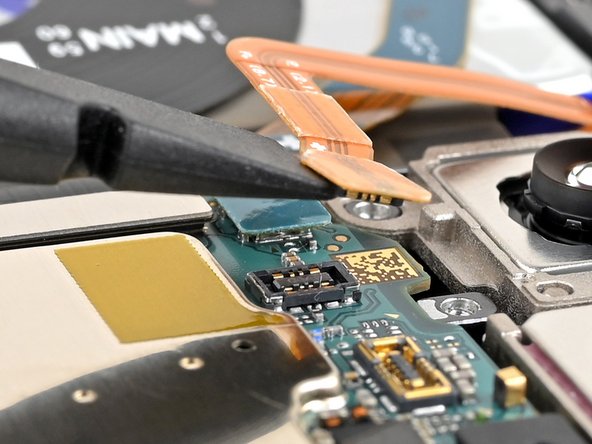
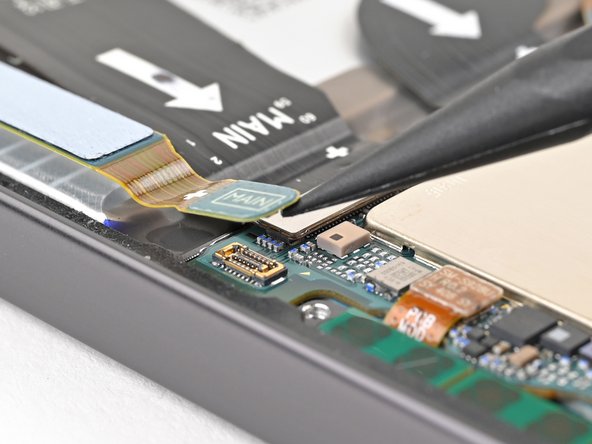
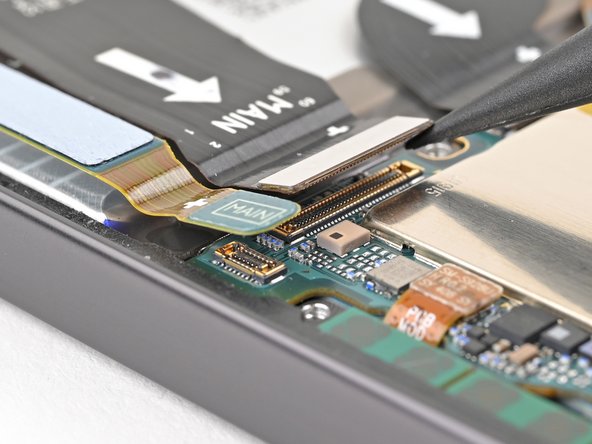
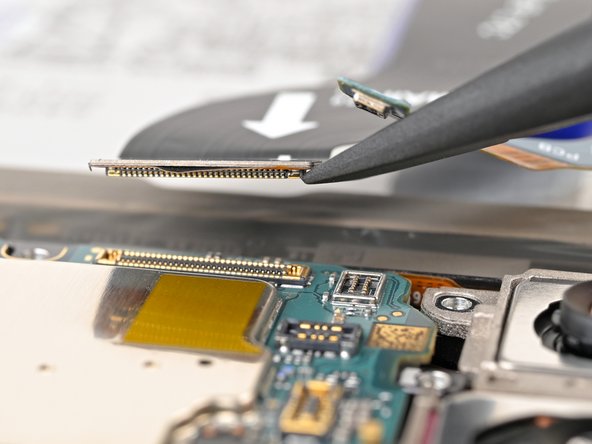
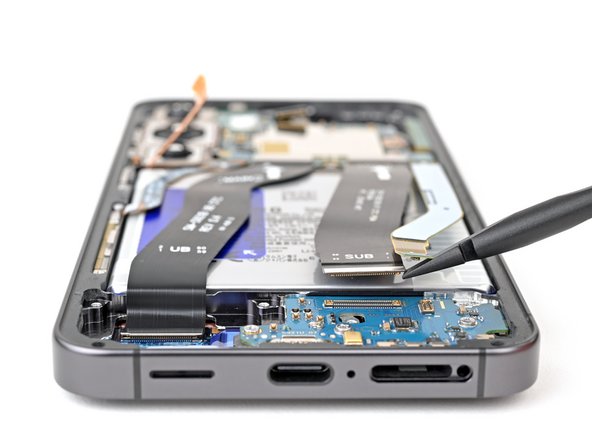
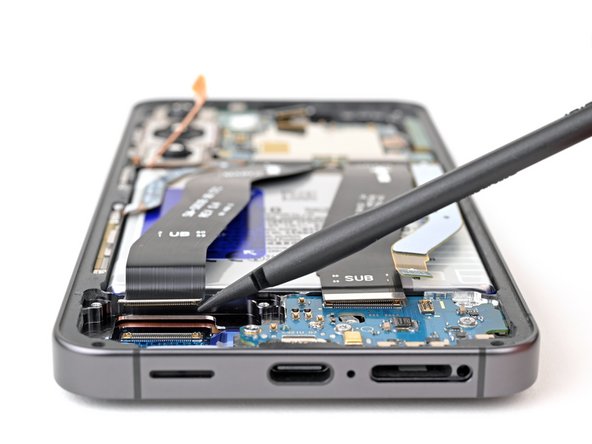
    • Insert the point of a spudger under the secondary interconnect cable press connector labeled "MAIN" (located on the bottom right corner of the motherboard) and pry up to disconnect it.

    • Repeat this process for the primary interconnect cable connector.

    Ask FixBot

    Add Comment

  25. Samsung Galaxy S24 Rear Cameras Replacement: step 25, image 1 of 2 Samsung Galaxy S24 Rear Cameras Replacement: step 25, image 2 of 2
    • Repeat this process to disconnect the display and 5G mmWave cable press connectors located on the bottom left edge of the motherboard.

    Ask FixBot

    Add Comment

  26. Samsung Galaxy S24 Rear Cameras Replacement: step 26, image 1 of 3 Samsung Galaxy S24 Rear Cameras Replacement: step 26, image 2 of 3 Samsung Galaxy S24 Rear Cameras Replacement: step 26, image 3 of 3
    • Repeat this process to disconnect the two interconnect cable press connectors located on the daughterboard, and the display cable connector to the left of the daughterboard.

    Ask FixBot

    Add Comment

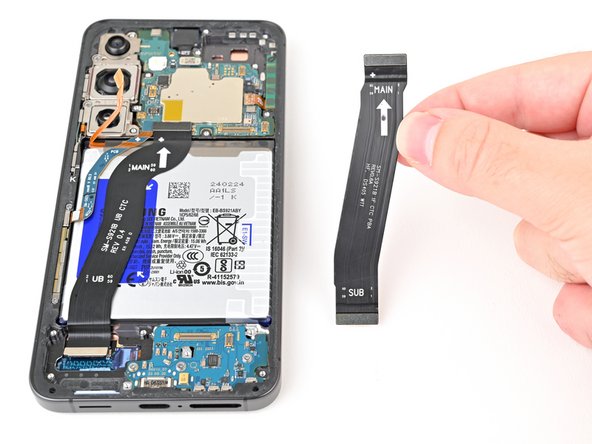
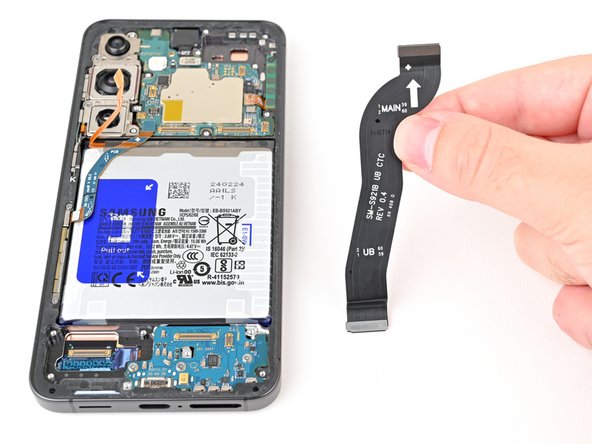
  27. Samsung Galaxy S24 Rear Cameras Replacement, Remove the interconnect cables: step 27, image 1 of 3 Samsung Galaxy S24 Rear Cameras Replacement, Remove the interconnect cables: step 27, image 2 of 3 Samsung Galaxy S24 Rear Cameras Replacement, Remove the interconnect cables: step 27, image 3 of 3
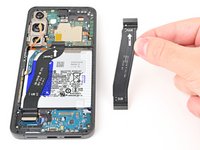
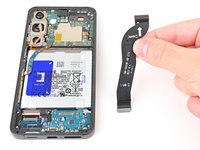
    • Remove the two interconnect cables and the display cable from your phone.

    Ask FixBot

    Add Comment

  28. Samsung Galaxy S24 Rear Cameras Replacement, Disconnect the 5G mmWave antenna: step 28, image 1 of 2 Samsung Galaxy S24 Rear Cameras Replacement, Disconnect the 5G mmWave antenna: step 28, image 2 of 2
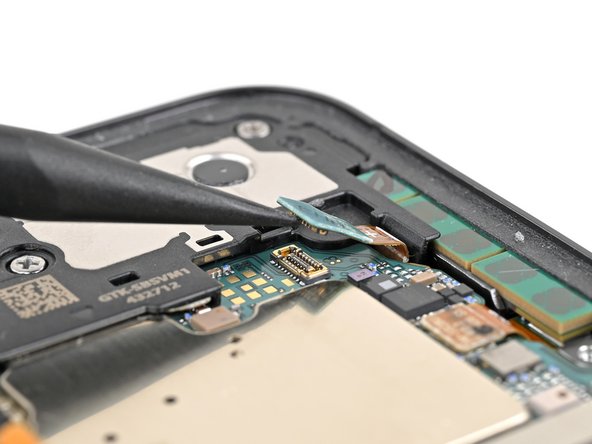
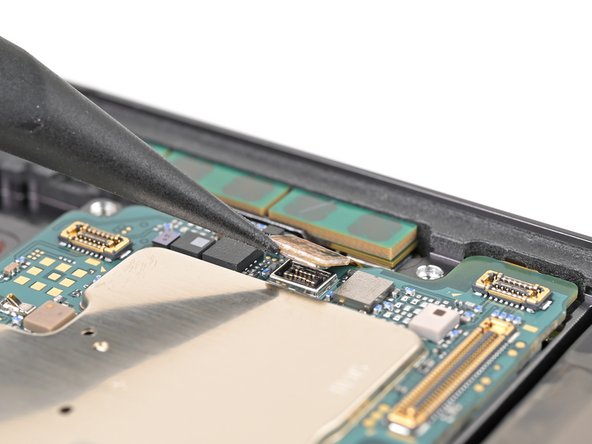
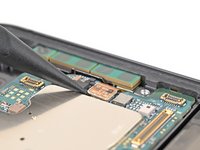
    • Insert the point of a spudger under the bottom left corner of the 5G mmWave antenna press connector located on the right edge of the motherboard.

    • Only pry where there aren't any surface-mounted components to avoid damaging them.

    • Pry up to disconnect it.

    Ask FixBot

    Add Comment

  29. Samsung Galaxy S24 Rear Cameras Replacement, Disconnect the front camera: step 29, image 1 of 2 Samsung Galaxy S24 Rear Cameras Replacement, Disconnect the front camera: step 29, image 2 of 2
    • Insert the flat end of a spudger under the front camera press connector and pry up to disconnect it.

    Ask FixBot

    Add Comment

  30. Samsung Galaxy S24 Rear Cameras Replacement, Remove the rear cameras screws: step 30, image 1 of 2 Samsung Galaxy S24 Rear Cameras Replacement, Remove the rear cameras screws: step 30, image 2 of 2
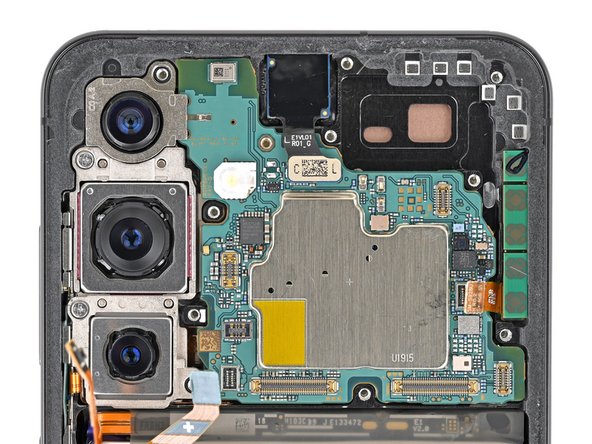
    • Use a Phillips screwdriver to remove the two 3.5 mm‑long screws securing the rear cameras and motherboard.

    Ask FixBot

    Add Comment

  31. Samsung Galaxy S24 Rear Cameras Replacement, Remove the motherboard: step 31, image 1 of 2 Samsung Galaxy S24 Rear Cameras Replacement, Remove the motherboard: step 31, image 2 of 2
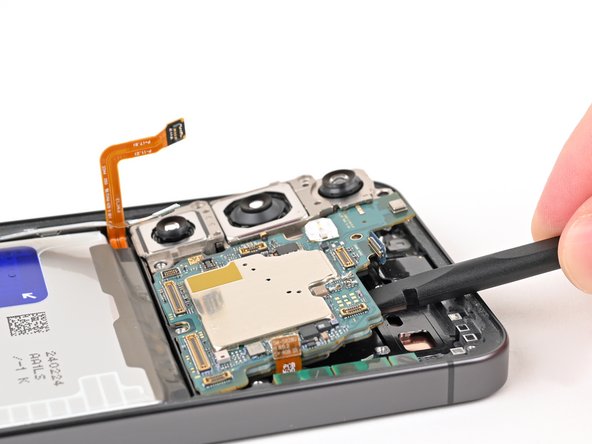
    • Insert the flat end of a spudger under the top edge of the motherboard and pry up until it is touching the front camera and mmWave antenna cables.

    Ask FixBot

    Add Comment

  32. Samsung Galaxy S24 Rear Cameras Replacement: step 32, image 1 of 3 Samsung Galaxy S24 Rear Cameras Replacement: step 32, image 2 of 3 Samsung Galaxy S24 Rear Cameras Replacement: step 32, image 3 of 3
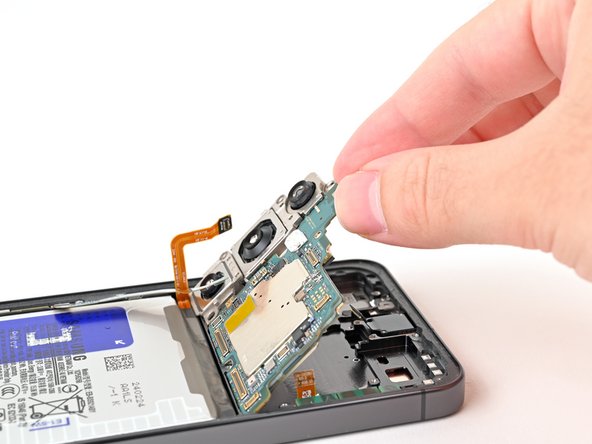
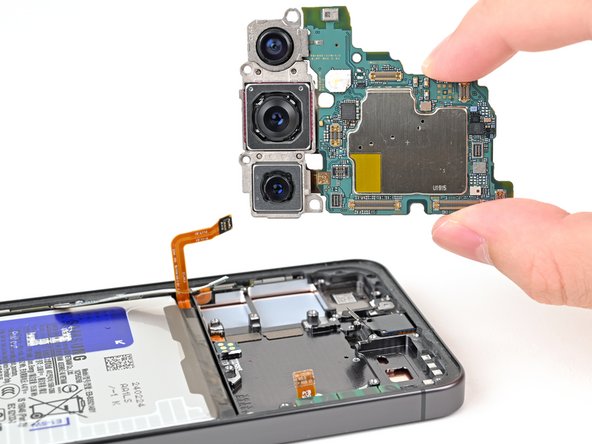
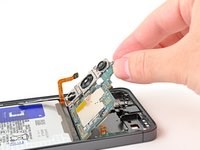
    • Move the front camera and mmWave antenna cables out of the way of the motherboard.

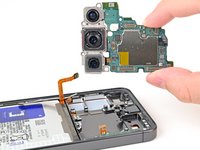
    • Completely lift the motherboard until it's free and remove it from your phone.

    Ask FixBot

    Add Comment

  33. Samsung Galaxy S24 Rear Cameras Replacement, Disconnect the ultrawide camera: step 33, image 1 of 2 Samsung Galaxy S24 Rear Cameras Replacement, Disconnect the ultrawide camera: step 33, image 2 of 2
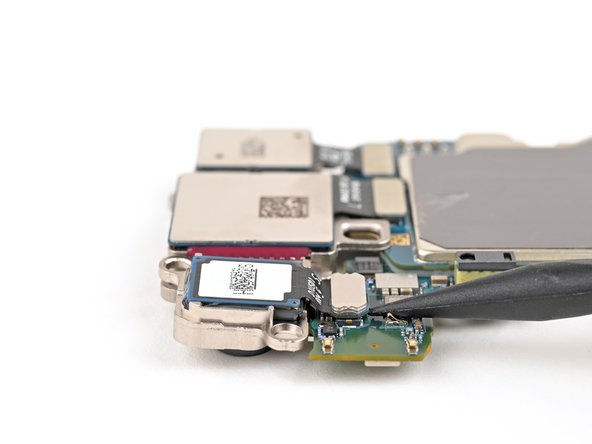
    • Insert the point of a spudger underneath the ultrawide camera press connector and pry up to disconnect it.

    Ask FixBot

    Add Comment

  34. Samsung Galaxy S24 Rear Cameras Replacement, Remove the ultrawide camera: step 34, image 1 of 3 Samsung Galaxy S24 Rear Cameras Replacement, Remove the ultrawide camera: step 34, image 2 of 3 Samsung Galaxy S24 Rear Cameras Replacement, Remove the ultrawide camera: step 34, image 3 of 3
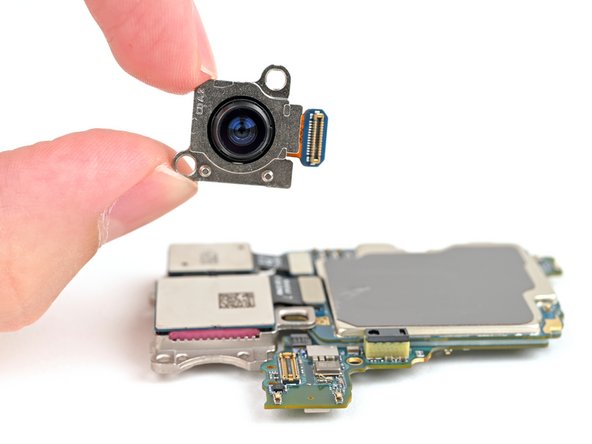
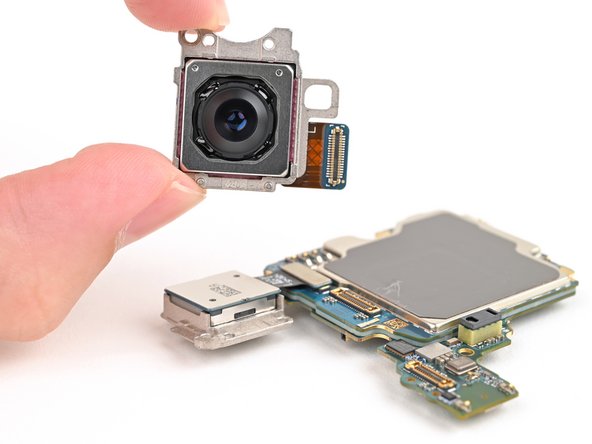
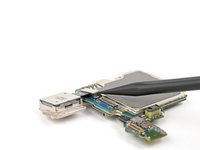
    • The ultrawide camera is hooked into the motherboard and the main camera by two metal pegs.

    • Rotate the ultrawide camera module 45 degrees upwards towards the motherboard to free its metal pegs.

    • Pull it directly away from the motherboard at this angle to remove it.

    Ask FixBot

    Add Comment

  35. Samsung Galaxy S24 Rear Cameras Replacement, Remove the main camera: step 35, image 1 of 3 Samsung Galaxy S24 Rear Cameras Replacement, Remove the main camera: step 35, image 2 of 3 Samsung Galaxy S24 Rear Cameras Replacement, Remove the main camera: step 35, image 3 of 3
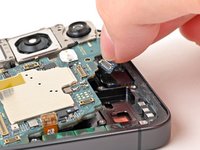
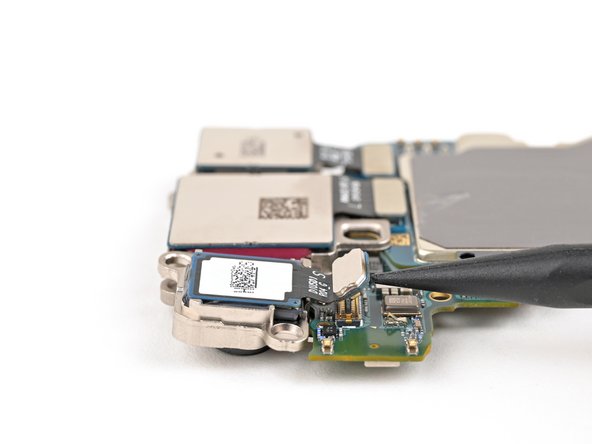
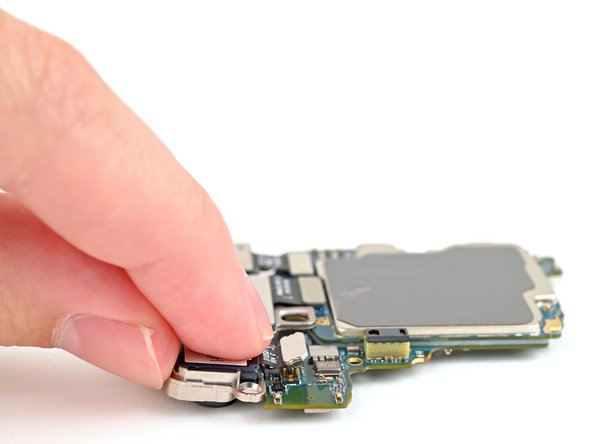
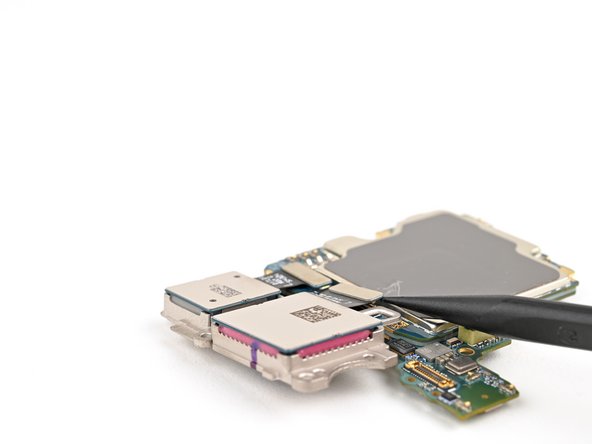
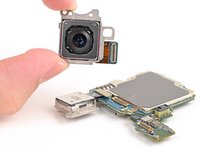
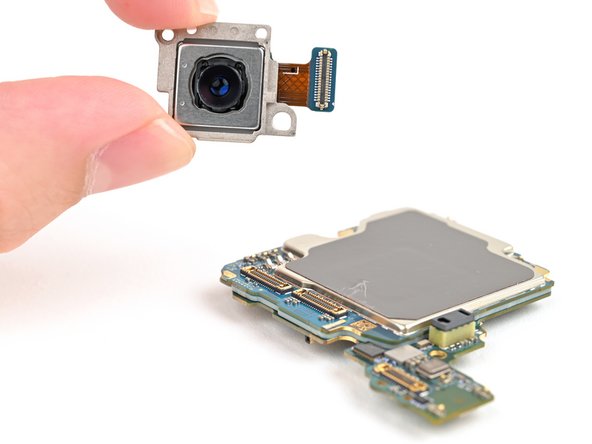
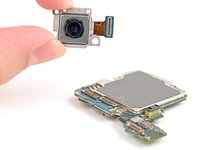
    • Use the point of a spudger to pry up and disconnect the main camera press connector.

    • Lift the main camera off the motherboard and remove it.

    Ask FixBot

    Add Comment

  36. Samsung Galaxy S24 Rear Cameras Replacement, Remove the telephoto camera: step 36, image 1 of 3 Samsung Galaxy S24 Rear Cameras Replacement, Remove the telephoto camera: step 36, image 2 of 3 Samsung Galaxy S24 Rear Cameras Replacement, Remove the telephoto camera: step 36, image 3 of 3
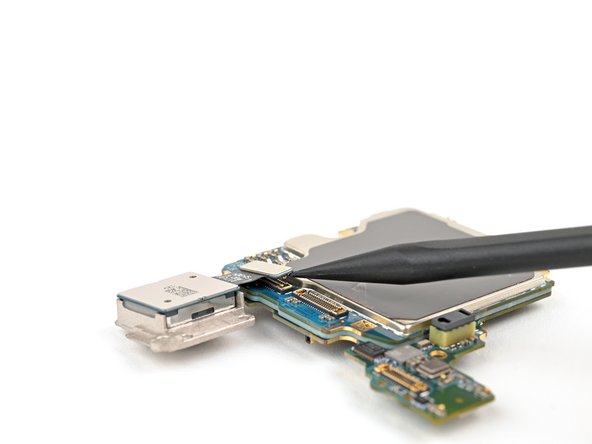
    • Use the point of a spudger to pry up and disconnect the telephoto camera press connector.

    • Lift the telephoto camera off the motherboard and remove it.

    • During reassembly, reinstall the rear cameras in the opposite order of removal so they slot into each other properly.

    Ask FixBot

    Add Comment

Conclusion

Compare your new replacement part to the original part—be sure to transfer remaining components and remove adhesive backings from the new part before installing.

To reassemble your device, follow these instructions in reverse order.

Take your e-waste to an R2 or e-Stewards certified recycler.

Repair didn’t go as planned? Try some basic troubleshooting, or ask our Samsung Galaxy S24 Answers Community for troubleshooting help.

Cancel: I did not complete this guide.

2 other people completed this guide.

Nick Schultz

Member since: 03/24/24

56,893 Reputation

321 Guides authored

Team

iFixit Member of iFixit

Staff

122 Members

25,936 Guides authored

0 Guide Comments

Add Comment

View Statistics:

Past 24 Hours: 5

Past 7 Days: 46

Past 30 Days: 198

All Time: 2,277