Introduction
We disassembled this laptop on February 1, 2008.
What you need
-
-
We were relieved to discover the MacBook Air ships in more than just a manila envelope.
-
-
-
The more traditional ports are hidden in a bay that drops down to reveal:
-
One USB port.
-
One headphone jack.
-
And one micro-DVI port.
-
The placement of the ports means that the Air doesn't play nicely with bulky connectors. To get your Air to sit flat on the desktop, you'll need either a dongle or slim connectors.
-
-
-
-
The hard drive sits beneath the USB, micro-DVI, and audio ribbon cables.
-
Borrowing from the iPod design, the hard drive sports both foam padding and rubber bumpers. For those of us too stingy to spring for the shock-resistant SSD, hopefully this will give the hard drive a little extra protection.
-
-
-
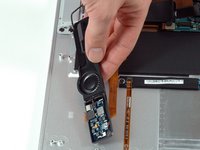
The speaker board is located beneath the arrow keys on the keyboard.
-
It outputs to both the 20mm speaker and the 3.5mm audio jack hidden in the drop down bay.
-
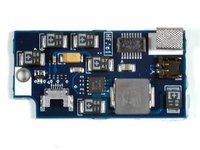
We found a Realtek ALC885 audio codec chip on the back of the board along with a TI TPS 62110.
-
We've posted high resolution photos of the front [308 KB] and back [316 KB] for your viewing pleasure.
-
-
-
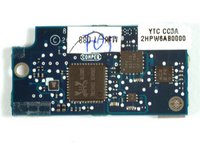
The RF module, in all its blue glory. We spliced together two photos, so this image shows the front and back of the PCB.
-
The Broadcom 802.11 chip had the markings BCM4321KFBG.
-
We removed the EMI shield covering the RF chips. We uncovered a Skyworks SKY652225-11 R8, a Broadcom BCM2G55KF86, a Broadcom BCM2046, and an SST 39VF200A. We also found eight of Anaren's 1mm square baluns interfaced between the Broadcom and Skyworks chips, presumably running at 2.4GHz and 5GHz.
-
And the backside had another chip marked with BCM94321COEX2.
-
-
-
The heat sink is made of very thin aluminum and looks totally different from anything we've seen in a Mac before.
-
The L-shaped aluminum bracket on the heat sink rests tightly against the lower case, providing thermal conductivity without making an electrical connection to the chassis. The inside of the lower case has a patch of non-conducting material to aid this thermal dissipation.
-
-
-
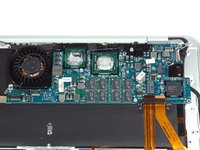
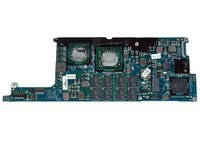
We found Intel's new Core 2 Duo chip right beneath the heat sink (no surprises there). A temperature sensor sits on an external board glued between the CPU and graphics chips. A high-resolution image is available here.
-
There are 16 RAM chips (eight one-gigabit chips on each side of the logic board) for a total of 2 GB 667MHz DDR2 SDRAM.
-
The large microchip in the center of the picture is a low power Intel North Bridge GS965 integrated graphics chip with the markings LE82GS965.
-
Three chips adjacent to the North Bridge/graphics controller have a semi-transparent blue epoxy covering them, as part of the HDCP hardware requirement for digital video signals.
-
-
-
The reverse side of the logic board. Many of these chips are for power management. A high-resolution image is available here.
-
You can see the second half of the Micron RAM chips.
-
We identified the Silicon Image SIL1392CNU HDMI video chip and Texas Instruments TPS51120 dual current mode synchronous step-down controller (power management).
-
-
-
We found a Broadcom BCM5974 touch screen controller chip on the interconnect board.
-
This board also contains an SST 25VF020 Serial Flash chip, likely containing machine code for a nearby chip. There are a few CYPRUS chips nearby, one of which we identified as the CY7C638 low-speed USB peripheral controller.
-
-
-
The display assembly is attached to the case with 19 small screws:
-
Four (relatively) large Torx which screw into the hinges.
-
Thirteen #00 Phillips which hold down the clutch cover.
-
And two #00 Phillips which screw into cable ground loops.
-
Apple made no compromises on the Air's display. Amazingly, the entire display assembly weighs only 465 g (slightly more than a pound), 34 percent less than the functionally-equivalent display assembly on the MacBook.
-
-
-
Unfortunately, getting into the display assembly isn't as easy as cracking open the lower case. There are no screws holding the front bezel to the display, only (very, very sticky) double-sided tape.
-
We bent the bezel a bit getting it off. Things aren't as bad as they were with the Titanium, but it's no cakewalk.
-
-
-
We're left with 88 screws and lots of parts. It's hard to believe everything here weighs in at only three pounds. A high-resolution image is available here.
-
If you have any additional information about components in the MacBook Air, or interesting information about its construction, please drop us a note. We're happy to post additional information.
-








9 Guide Comments
I have torn down my MacBook Air 13" all the way down to the hinges. I am set to replace the LVDS cable and hinges, but I have just one part of the hinge. Both left and right hinges seem to be connected in some fashion to the broken parts and I'm stuck without knowing a trick or tip on how to pull off the broken ones and add the new ones.
Any help?
jmac0621@icloud.com
Beware different HDD using between Early 2008(A1237) and Late 2008 + Mid 2009(both A1304). 1st gen A1237 uses 40pin ZIF connector and internal PATA(=E-IDE) protocol. 2nd gen A1304 uses 24pin LIF connector and internal SATA protocol. They don't compatible each other both cable and disk.
Besides, LIF 24 is specific design for some Apple devices, so you barely can find compatible disks. But it uses SATA protocol so you can directly jump the SATA data (and power) pin from the original LIF 24 ribbon cable to any SATA HDD or SSD, that fits MacBook Air disk slot.
