Click Image To Zoom


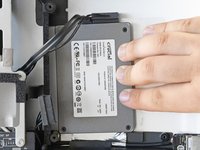
iMac Intel 27" Mid 2011 Dual Hard Drive Kit

$69.95

Product code: IF174-002-1

Product Overview

Dual drive power in your 27" iMac.

  • Includes all the tools and hardware you need to install a second drive. Just add an iMac and new hard drive or SSD of your choice.
  • Compatible with all processor speeds, regardless of whether or not Apple offers the additional SSD option for your machine.
  • Does not require permanently removing your optical drive.
  • We recommend installing an SSD and using it as your boot drive or a 1 TB hard drive for more storage space.

Kit Contents:

Note: this kit will only work in Mid 2011 27" iMacs. We also offer an equivalent dual hard drive kit for the Mid 2011 21.5" iMac.

Compatibility

Identify your Mac

  • All Mid 2011 27" iMacs

Product Details

  $69.95


Condition:

New

Warranty:

6 month warranty

Add to Cart »

50+ Available

Quantity:


Compatibility

iMac Intel 27"
2.7 GHz (Core i5)
3.1 GHz (Core i5)
3.4 GHz (Core i7)
 

Stories

My Problem

My iMac's hard drive has been lagging for a while: the system has a fast processor, 16GB of fast memory, but the hard drive was keeping this beautiful computer from realizing its full potential. Buying one of the 2012 iMacs was out of the question, but adding a 512 GB SSD (Samsung 840 Pro) has turned this iMac into a speed demon! I like being able to keep the original 1TB drive for extra storage, too.

My Fix

The repair kit and step-by-step instructions from iFixit were exactly what I needed to attempt (and complete!) this tricky upgrade. I took my time (there's lots of tiny wires and connectors), and completed the upgrade in just about an hour.

My Advice

I used a piece of paper to keep all of the screws and other bits organized: just draw lines to divide the paper up into boxes with labels (Step 1, Step 2, etc). It even helps sometimes to draw little diagrams on the paper to show where the different-sized screws go. For more complicated teardowns, I've used a fishing tackle tray with removable dividers, but the paper works just fine for smaller projects like this.

My Problem

I wanted to add an SSD to my 27" iMac

My Fix

It went very smooth; I actually used the iFixit guide as well as the OWC Youtube video guide. They were both useful but probably the OWC was a bit more helpful in terms of actually seeing how to remove everything.

My Advice

While the kit definitely worked, I feel like it was a very expensive kit- the only thing I wasn't sure if I could get elsewhere for much cheaper was the perfectly sized SATA cable.

My Problem

Speed up teh IMac with a SSD

My Fix

Worked mostly as decribed in the guide, but you have to disconnect the antenna cables from the AirPort Card. Fortunately there is a guide for installing the AIrport Card which describes te reconnection of the wires.

My Advice

You have te enable TRIM support on non-Apple SSD's. I Used "Trim Enabler" from Oskar Groth.

My Problem

I purchased a used iMac 27" Mid 2011 and decided to upgrade with a SDD to give it a speed boost.

My Fix

The guide offered at ifixit together with the video give a very detailed walk through on how to install the extra disk. In total it took me about 3 hours to perform the installation, but then I was taking it slow and making sure that I did not miss any steps.

My Advice

One step which was not mentioned in the guide was to disconnect the Wifi connectors before attempting to lift up the motherboard. They come with fairly long cables, but I still manage to break one of the connectors while lifting the motherboard. Make sure to disconnect all three of them before proceeding to the final steps. In the end it all went fine as I could reconnect the broken cable with the connector without any soldering. Afterwards the Wifi was working perfectly.

My Problem

too slow internal hdd 1 tb sata 2

My Fix

using iFixit guides - "Hard Disk" + "Dual Hard Drive"

My Advice

be careful with LCD! and after hdd replacement (not ssd) hdd fan will very loud - in mac os x use for example smcfancontrol or hdd fan control.

My Problem

I wanted my iMac to be much faster.

My Fix

Scary but not so difficult as I thought!

My Advice

Keep all screws in different bowls so that you remember where everything is. Don´t forget to take photos.

My Problem

Bought iMac from a reputable store online that does not charge shipping; problem is that they only offered the i5 3.1ghz and I needed both turbo boost as well as hyper threading for music and video applications. Decided to buy 3.4 i7 and install myself along with an OCZ Vertex 4 to have the fastest iMac possible.

My Fix

With this kit and the repair manual (as well as an extensive history of tearing down and fixing things...mostly out of curiosity) I was able to install the SSD and CPU in approx. 45min without a hitch.

My Advice

Make sure that you have confidence and patience when repairing anything. Do not get frustrated and practice on old, broken items before going forward with any good, working items.

My Problem

Wanted to add an SSD drive for performance, discovered the dual drive product from iFixIt and thought, "perfect!"

My Fix

Familiarize yourself with the instructions and diagrams by reading through them a few times before you dive in. Be sure to heed their advice about how gently you need to lift things etc. There are a number of connectors & wires that don't have much slack, so you really have to be careful when lifting the screen & logic board out.

My Advice

Make sure that you are working on a surface where you can rotate the iMac 180 degrees: some of the tutorial has it oriented facing up, and some has it facing down. Also, note that the teardown took about 45 minutes, but the rebuild took about 15. It goes much faster once you've undone everything. Be sure to keep all your wires clear when you reinstall the optical drive and logic board! You don't want to get halfway into the rebuild only to find that the fan sensor wire is stuck under the logic board!

My Problem

No problem just wanted more speed from my computer :)

My Fix

It went well just took a while to get it done.

My Advice

Put up a better disassembly guide.just pictures.

Not a movie. Easier to see what to do with pictures.

canadiandude1965's Story Photo #180379

My Problem

My iMac was in need of a speed boost and I gave it one via a new 512Gb Crucial M4 SSD.

My Fix

Ok, I may be exaggerating just a tiny bit when describing the installation of the SSD into my 2011 27" iMac. It started off in what I thought would be a disaster but ended up being an absolutely wonderful experience. When I removed the glass from the screen exposing the LCD, I neglected to thoroughly clean my iMac first and ensure there was no dust trapped anywhere. Well there a huge amount of dust lodged in the air intake vents under the screen and all of that dust flew directly onto the exposed LCD. I had read many reports on doing this installation and knew that dust on the LCD was a potentially big problem.

I continued with the installation and decided I would simply deal with the LCD during the reassembly. Everything else went like clockwork and it really helps to have the iFixit Installation Video running on a nearly laptop for reference.

When the time came to deal with the LCD, I simply cleaned the LCD until I was sure I could not see any residual dust on the panel. I then replaced the glass and powered up. Upon inspection, I had managed to get all of the dust off of the LCD. My iMac now has both a 512Gb SSD and the original 1TB HDD. I couldn't be happier!

My Advice

To everyone doing this installation, my advice is obvious! Make sure you completely clean your iMac of dust etc... before attempting this! Wash your hands well and if you do manage to get dust or fingerprints on the LCD, don't panic. Continue on and deal with the LCD at the end. Play the iFixit video on a laptop if you have one available. Work with a partner!!! It's so much easier to do things with an extra set of hands, eyes, brains. Good luck!