
iPhone 18 Pro Battery Replacement

Last updated on Oct 8, 2026
Views: 1.1K
View statistics:
- Past 24 Hours:
- 76
- Past 7 Days:
- 413
- Past 30 Days:
- 1,055
- All Time:
- 1,055
Comments: 0
No one has left comments on this guide. Will you be first?
Go to guide commentsCompleted: 1 2
1 person has marked this guide "completed." Will you be next?
2 people have marked this guide "completed." Including you — great job!
Favorites: 0 1
No one has favorited (and subscribed to) this guide. Will you be the first?
1 person has favorited (and subscribed to) this guide — and that's you!
Featured Guide
This guide has been found to be exceptionally cool by the iFixit staff.
Introduction
Go to step 1 ↓Follow this guide to replace a dead or worn‑out battery in an iPhone 18 Pro.
iPhone batteries are rated to hold 80% of their capacity for up to 1000 charge cycles. If your iPhone needs to be charged more often or runs slower, it might be time to replace the battery.
Battery health should work with both genuine and aftermarket replacement batteries.
Note: You'll need replacement screen adhesive to complete this repair.
What you need
Tools
-
-
-
-
-
-
-
-
Spudger4.9
-
-
-
-


-
-
-
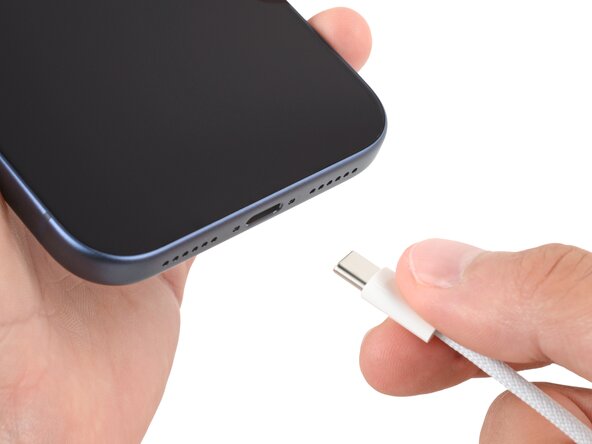
Unplug all cables from your phone.
-
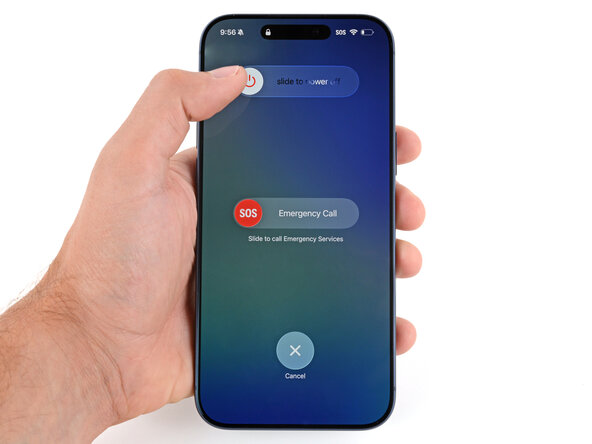
Hold the power and either volume button and slide to power off your phone.
 Ask FixBot
-
-
Tool used on this step:iFixit Safety Glasses$7.95
-
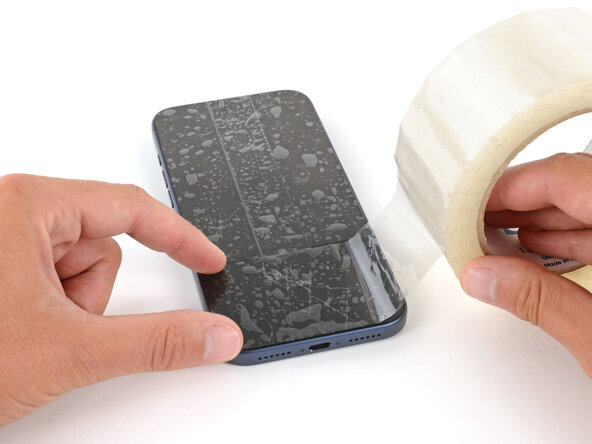
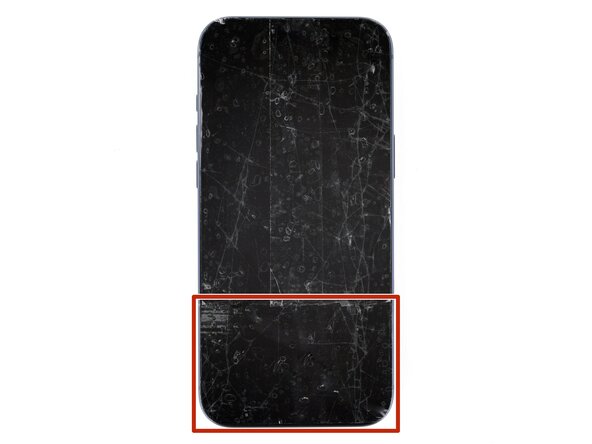
Apply strips of packing tape to the cracked glass until it's completely covered—this will help keep the glass contained and allow the suction cup to stick.
-
Make sure there's a single strip of tape (not overlapping) across the bottom edge, big enough for a suction cup to fit on.
-
-
-
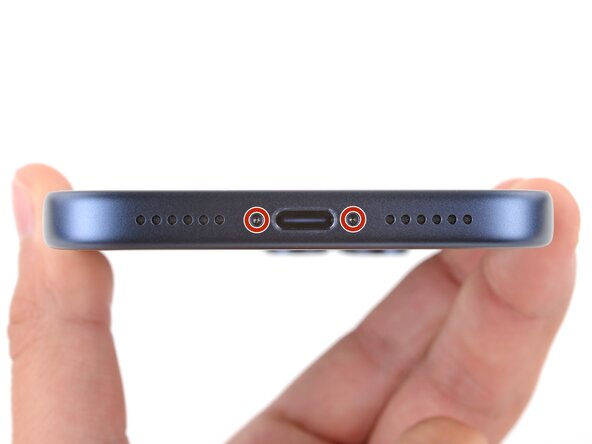
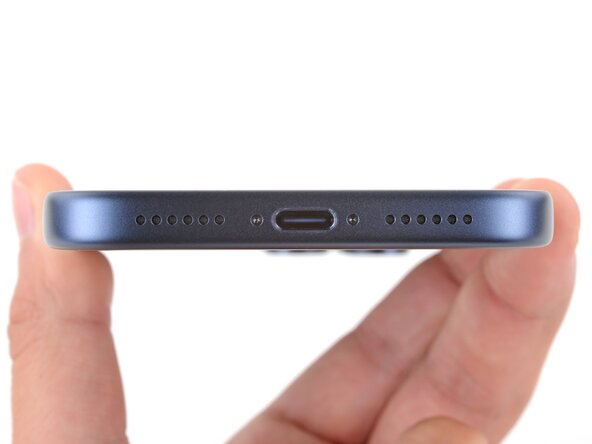
Use a P2 pentalobe screwdriver to remove the two 7.5 mm‑long screws on either side of the charging port.
-
-
-
-
-
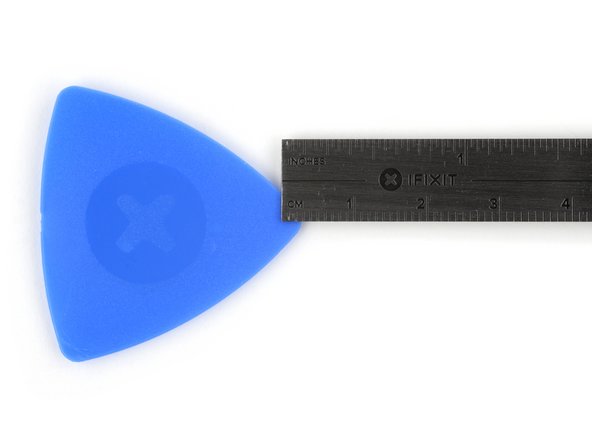
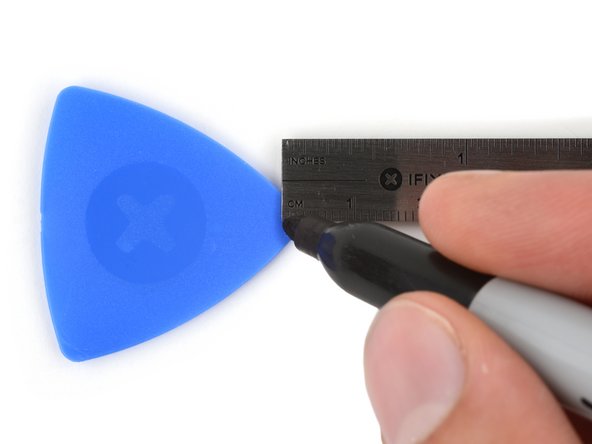
Measure 3 mm from the tip and mark the opening pick with a permanent marker.
-
-
-
Use a hair dryer or heat gun to heat the bottom edge of the screen until it's slightly too hot to touch.
-
-
-
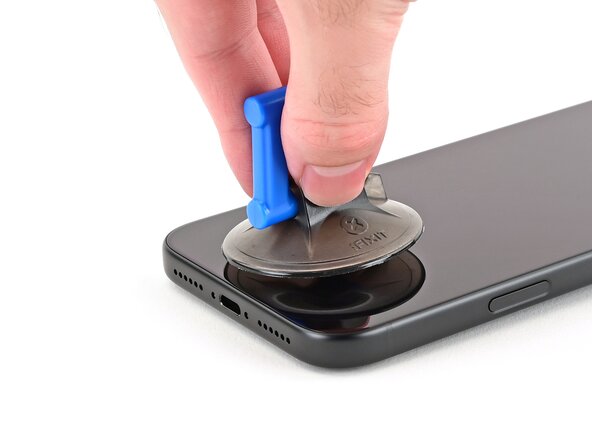
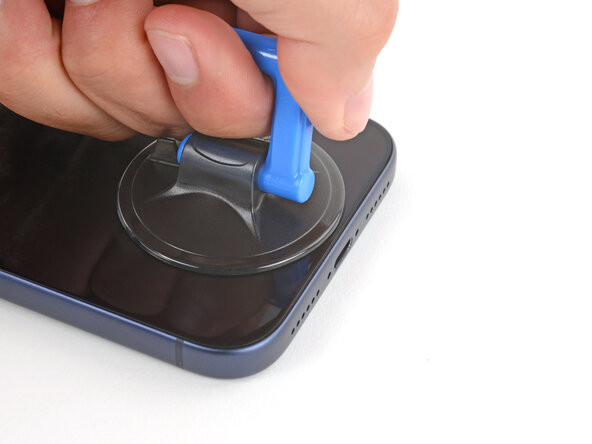
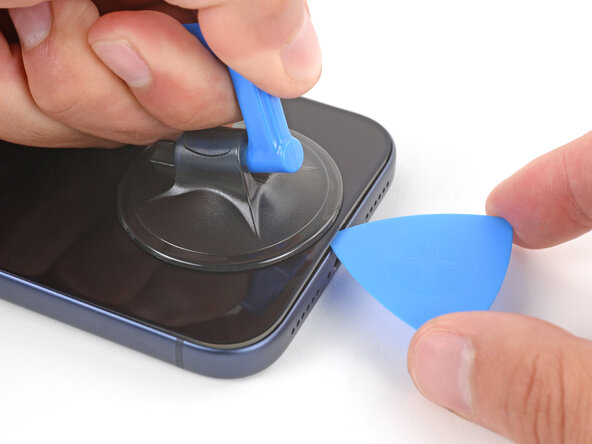
Apply a suction handle to the bottom edge of the screen, as close to the edge as possible.
-
-
-
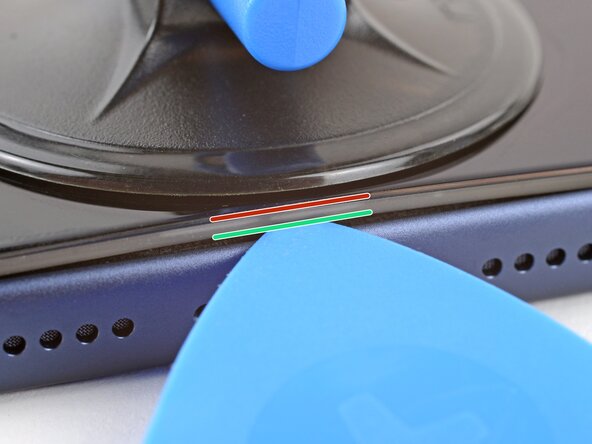
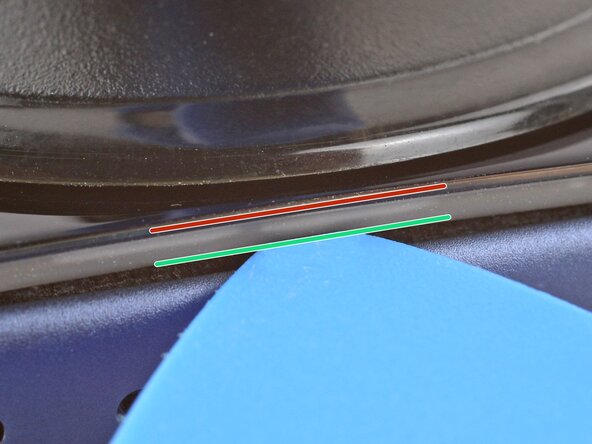
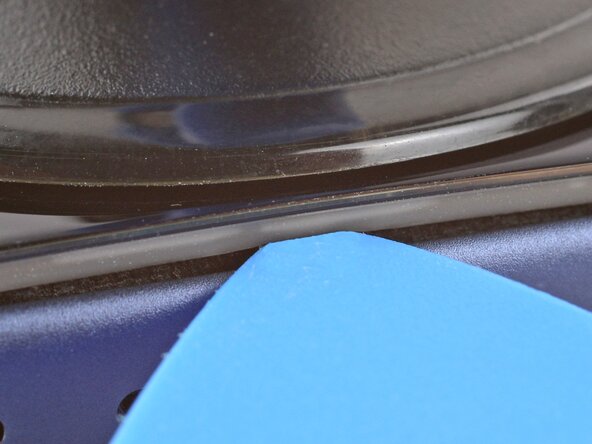
To avoid damaging your screen in the next step, note the following:
-
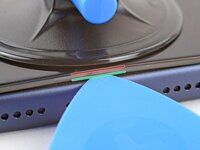
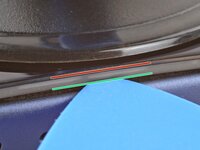
There's a plastic bezel on the underside of the screen. Your opening pick will go underneath this bezel.
-
There's a seam between the plastic bezel and the display panel. Don't insert your pick here or you'll damage the screen.
-
-
-
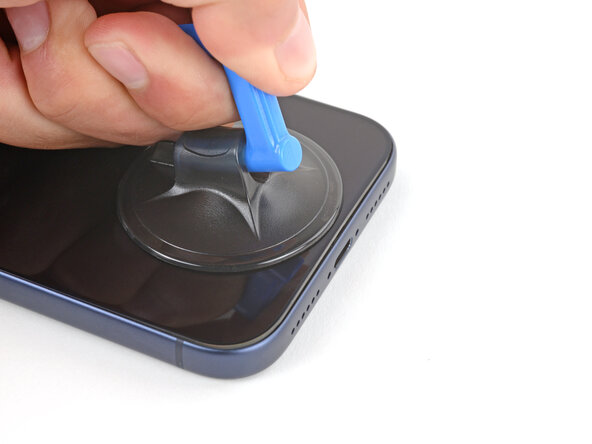
Pull up on the suction handle with strong, steady force until a gap forms between the screen and frame.
-
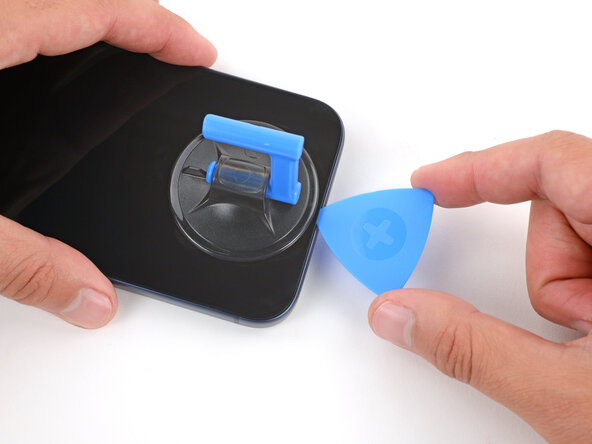
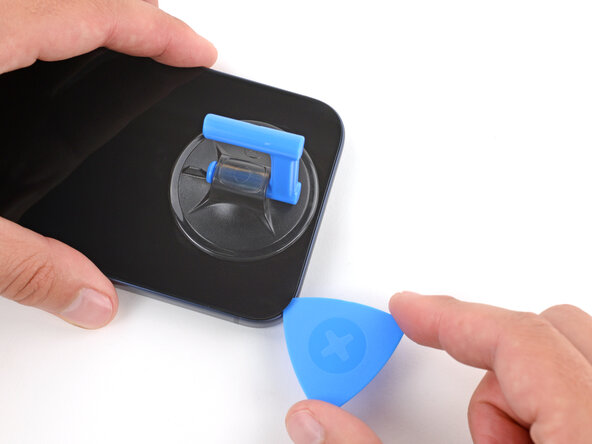
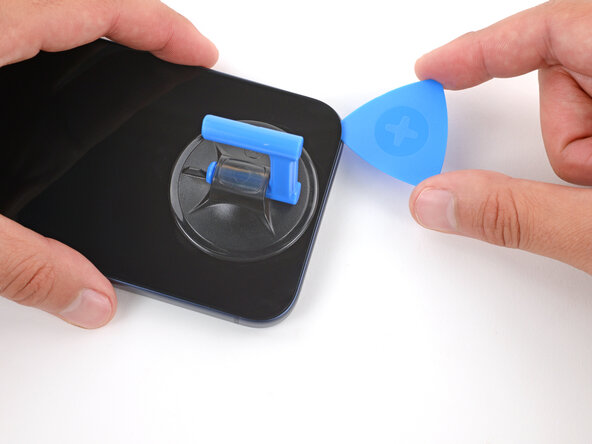
Insert the tip of an opening pick in the gap you just created.
-
-
-
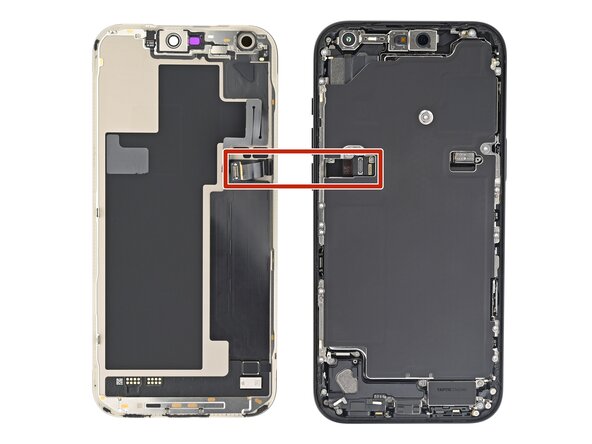
The screen and ambient light sensor cables, located near the volume buttons.
-
Delicate spring contacts around the perimeter of the phone.
-
The underside of the screen has thin, metal clips that go into corresponding slots on the frame.
-
-
-
Slide the opening pick along the bottom edge to separate the adhesive.
-
Leave the pick inserted under the bottom right corner to prevent the adhesive from re‑sealing.
-
-
-
Use a hair dryer or heat gun to heat the right edge of the screen until it's slightly too hot to touch.
-
-
-
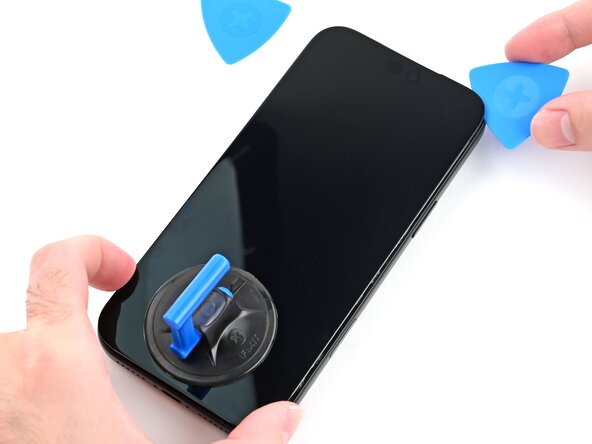
Insert a second opening pick under the bottom right corner of the screen.
-
Slide the pick up the right edge, stopping just before the antenna line, to separate the adhesive and release the two clips.
-
Leave the pick inserted under the top right corner to prevent the adhesive from re‑sealing.
-
-
-
Use a hair dryer or heat gun to heat the left edge of the screen until it's slightly too hot to touch.
-
-
-
Insert a third opening pick near the bottom left corner of the screen.
-
Slide the pick up around the bottom left corner, then up the left edge to separate the adhesive and release the clip, stopping just before the antenna line.
-
-
-
Use a hair dryer or heat gun to heat the top edge of the screen until it's slightly too hot to touch.
-
-
-
Gently pull the screen downwards, and slide the pick on the right edge around the top right corner of the screen.
-
Slide the broad side of the opening pick along the top to slice the adhesive while gently pulling the screen down.
-
-
-
-
Lift the screen straight up and swing it over the left edge of the phone, propping it up against a sturdy box or stack of books so the cables aren't strained.
-
-
Tool used on this step:FixMat$36.95
-
Use a JIS 00 screwdriver to remove the two 1.2 mm‑long screws securing the battery and screen cable covers (one for each cover).
-
-
-
Use the point of a spudger to pry up and disconnect the battery press connector.
-
-
-
Use the point of a spudger or tip of an opening pick to pry up and disconnect the screen and front sensors press connectors.
-
-
-
-
-
Use a Torx Plus 4IP screwdriver to remove thirteen screws securing the battery tray:
-
One 5.7 mm‑long screw
-
Two 3.5 mm‑long screws
-
Ten 3.7 mm‑long screws
-
-
-
Use your finger to lift the top right corner of the battery tray and remove it.
-
-















Run Apple's Repair Assistant if you've installed an Apple branded battery. Navigate to Settings → General → About → Parts & Service History, tap Restart & Finish Repair, and follow the onscreen prompts.
Calibrate your newly installed battery after completing this guide.
Take your e-waste to an R2 or e-Stewards certified recycler.
Repair didn’t go as planned? Try some basic troubleshooting, or ask our Answers Community for help.
Cancel: I did not complete this guide.
One other person completed this guide.

