15% Off Selected iFixit Tools — Limited Time
Free Shipping on Domestic Orders $75+

iPhone 16 Pro Front Camera Assembly Removal

Prerequisite Only
This is a prerequisite-only guide! This guide is part of another procedure and isn’t meant to be used alone.

What you need

  1. iPhone 16 Pro Front Camera Assembly Removal, Prepare the phone for disassembly: step 1, image 1 of 2 iPhone 16 Pro Front Camera Assembly Removal, Prepare the phone for disassembly: step 1, image 2 of 2
    • Allow the phone's battery to drain below 25%, as a charged lithium-ion battery is a potential safety hazard.

    • Unplug any cables from the phone.

    • Hold the power and either volume buttons and slide to power off the phone.

    Ask FixBot

    Add Comment

  2. iPhone 16 Pro Front Camera Assembly Removal, Tape over any cracks: step 2, image 1 of 2 iPhone 16 Pro Front Camera Assembly Removal, Tape over any cracks: step 2, image 2 of 2
    • If the screen or back glass is badly cracked, lay overlapping strips of packing tape over the glass to protect yourself and make disassembly easier.

    • Make sure there's a smooth area near the bottom edge that's big enough for a suction cup to stick to.

    Ask FixBot

    Add Comment

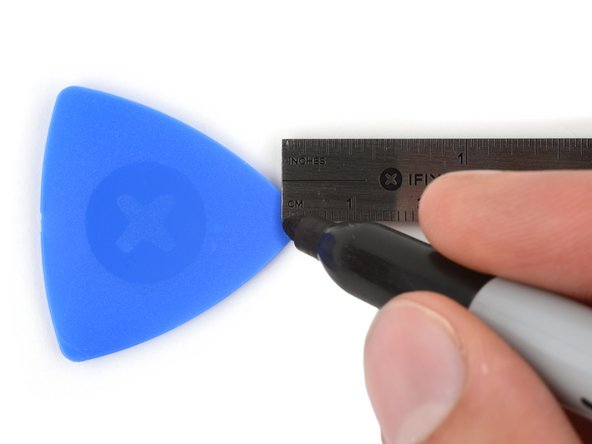
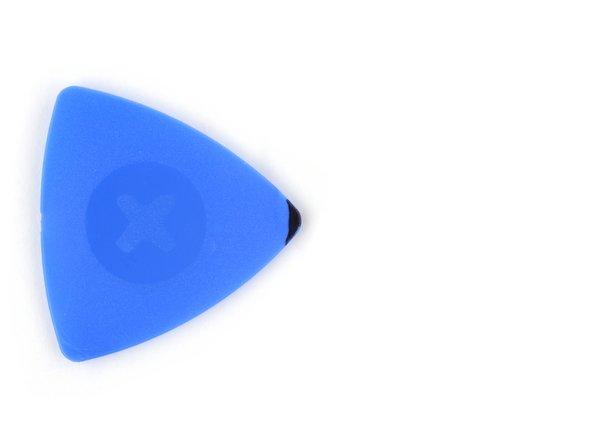
  3. iPhone 16 Pro Front Camera Assembly Removal, Mark your opening picks: step 3, image 1 of 3 iPhone 16 Pro Front Camera Assembly Removal, Mark your opening picks: step 3, image 2 of 3 iPhone 16 Pro Front Camera Assembly Removal, Mark your opening picks: step 3, image 3 of 3
    • If inserted too far, an opening pick can damage your device. Follow this step to mark your pick and prevent damage.

    • Measure 3 mm from the tip and mark the opening pick with a permanent marker.

    • You can also mark the other corners of the pick with different measurements.

    • Alternatively, tape a coin to a pick 3 mm from the tip.

    Ask FixBot

    Add Comment

  4. iPhone 16 Pro Front Camera Assembly Removal, Remove the pentalobe screws: step 4, image 1 of 2 iPhone 16 Pro Front Camera Assembly Removal, Remove the pentalobe screws: step 4, image 2 of 2
    • Use a P2 pentalobe screwdriver to remove the two 7.4 mm‑long screws on either side of the USB-C port.

    Ask FixBot

    Add Comment

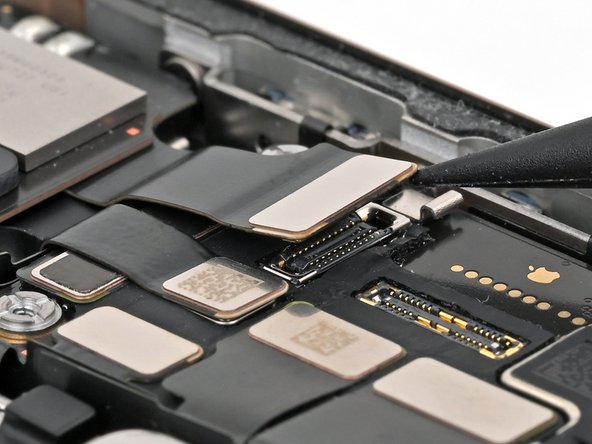
  5. iPhone 16 Pro Front Camera Assembly Removal, Disconnect the earpiece speaker: step 5, image 1 of 3 iPhone 16 Pro Front Camera Assembly Removal, Disconnect the earpiece speaker: step 5, image 2 of 3 iPhone 16 Pro Front Camera Assembly Removal, Disconnect the earpiece speaker: step 5, image 3 of 3
    • The 5G mmWave antenna is only in United States and Puerto Rico iPhone 16 Pros (model A3083). For all other models, skip the next four steps.

    • Use the point of a spudger to pry up and disconnect the earpiece speaker and 5G mmWave antenna press connectors, located on the top right corner of the logic board.

    Ask FixBot

    Add Comment

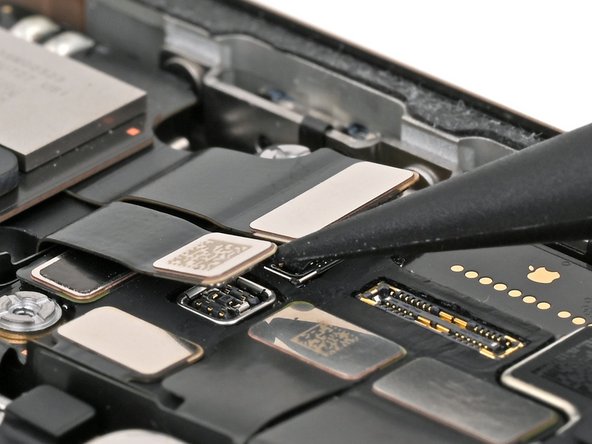
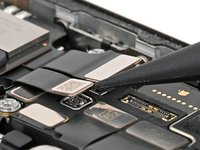
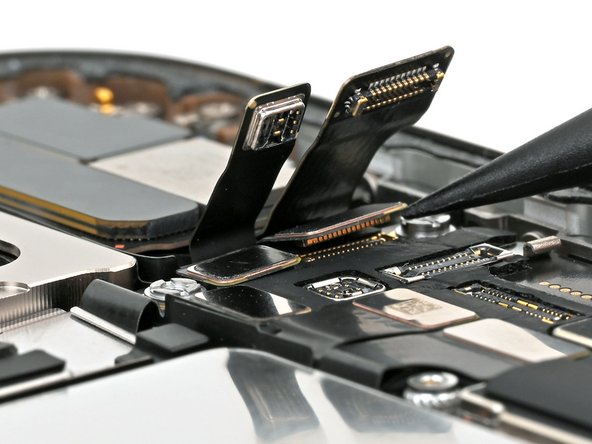
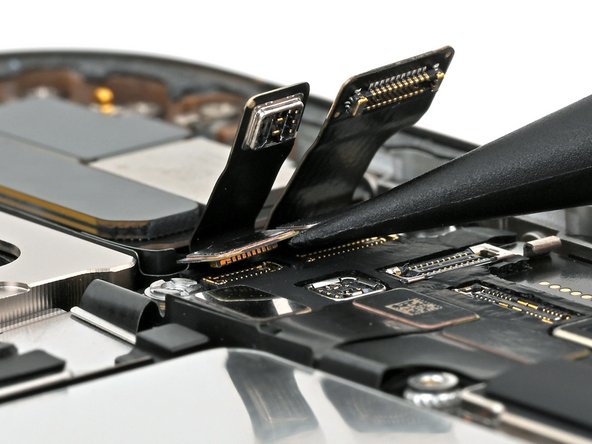
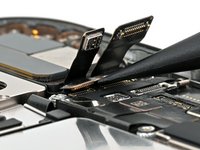
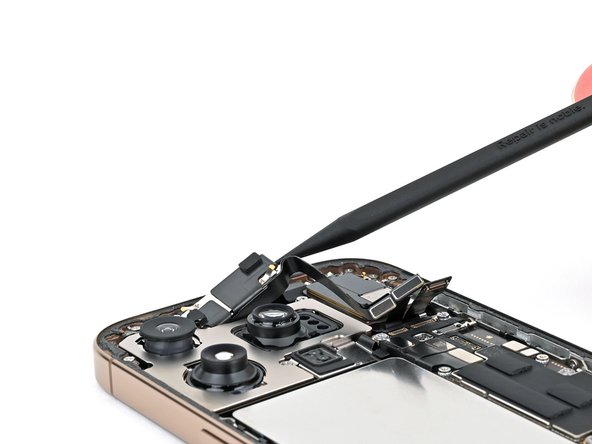
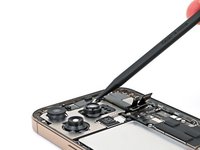
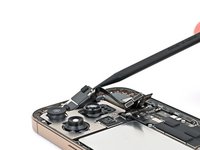
  6. iPhone 16 Pro Front Camera Assembly Removal, Disconnect the front camera assembly: step 6, image 1 of 3 iPhone 16 Pro Front Camera Assembly Removal, Disconnect the front camera assembly: step 6, image 2 of 3 iPhone 16 Pro Front Camera Assembly Removal, Disconnect the front camera assembly: step 6, image 3 of 3
    • Use the point of a spudger to pry up and disconnect the two front camera assembly press connectors underneath the previous two.

    Ask FixBot

    Add Comment

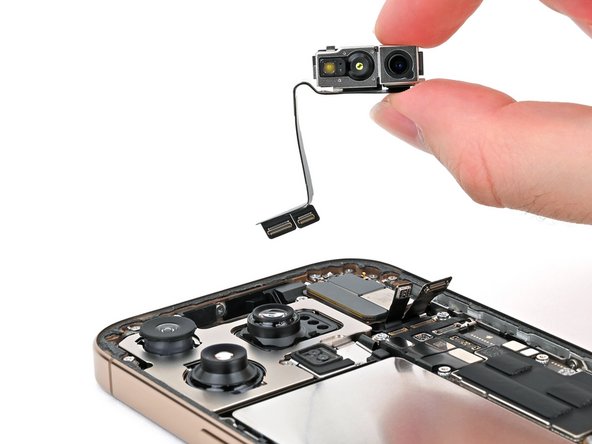
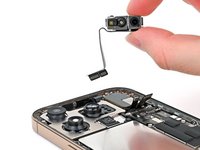
  7. iPhone 16 Pro Front Camera Assembly Removal, Remove the front camera assembly: step 7, image 1 of 3 iPhone 16 Pro Front Camera Assembly Removal, Remove the front camera assembly: step 7, image 2 of 3 iPhone 16 Pro Front Camera Assembly Removal, Remove the front camera assembly: step 7, image 3 of 3
    • Use a spudger or your fingers to pick up the front camera assembly and remove it from the phone.

    Ask FixBot

    Add Comment

Conclusion

To reassemble your iPhone, follow this guide in reverse order.

After your repair, calibrate a genuine replacement front camera assembly using Apple's Repair Assistant. Navigate to Settings General About Parts & Service History, tap Restart & Finish Repair, and follow the onscreen prompts.

Take your e-waste to an R2 or e-Stewards certified recycler.

Repair didn’t go as planned? Try some basic troubleshooting, or ask our iPhone 16 Pro Answers Community for help.


Cancel: I did not complete this guide.

Nick Schultz

Member since: 03/24/24

57,438 Reputation

316 Guides authored

Team

iFixit Member of iFixit

Staff

122 Members

26,460 Guides authored

0 Guide Comments

Add Comment

View Statistics:

Past 24 Hours: 0

Past 7 Days: 4

Past 30 Days: 21

All Time: 135